Honeywell 35 Series NVR Configuration
Overview
This guide covers the complete configuration of Honeywell 35 Series NVR integration with GCXONE, including both device-side and platform-side setup.
What you'll accomplish:
- Configure Honeywell 35 Series NVR for communication with GCXONE
- Set up network connectivity and credentials
- Add and register the device in GCXONE platform
- Verify successful integration
- Test key features
Estimated time: 15-20 minutes
Prerequisites
Ensure you have completed the prerequisites listed in the Overview:
- Honeywell 35 Series NVR with firmware 3.0 or higher
- Network connectivity (internet access via direct connection or VPN)
- Administrative credentials for NVR web interface
- GCXONE account with device configuration permissions
Configuration Workflow
The configuration process consists of 3 main parts:
- Network Setup - Configure NVR network settings and ensure connectivity
- GCXONE Platform Setup - Add and configure device in GCXONE
- Verification - Test live streaming and confirm integration status
Part 1: Network Setup
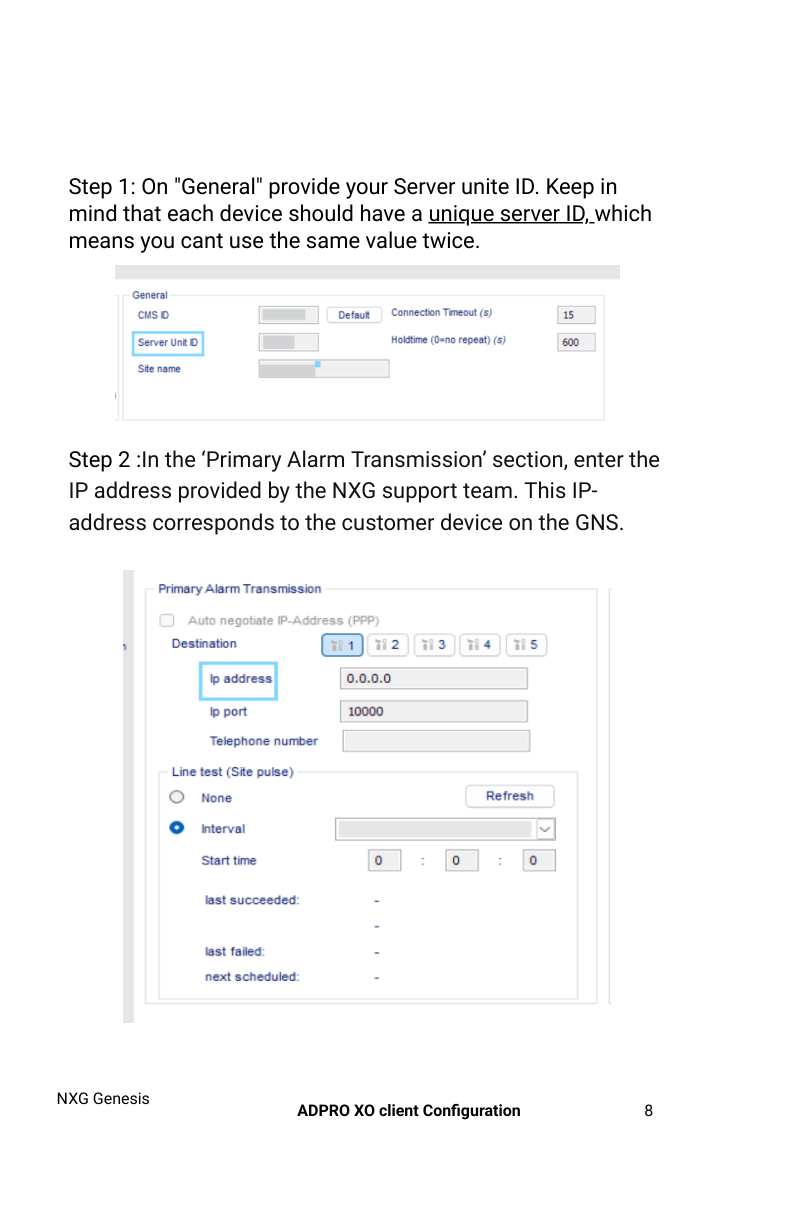
Step 1: Access NVR Web Interface
UI Path: Web Browser → http://[NVR-IP-Address]
Objective: Access the Honeywell NVR web interface to configure network settings.
Configuration Steps:
- Open a web browser (Chrome, Firefox, or Edge recommended)
- Enter the NVR IP address in the address bar
- Log in with administrative credentials:
- Username: admin (default) or custom admin account
- Password: Your administrator password
- Accept any security warnings (if using HTTP instead of HTTPS)
Expected Result: Successfully logged into NVR web interface with main dashboard visible.
Step 2: Verify Network Configuration
UI Path: NVR Interface → Settings → Network
Objective: Confirm NVR has proper network configuration for internet connectivity.
Configuration Steps:
- Navigate to Settings → Network from the main menu
- Verify the following settings:
- IP Address: Confirm static IP or DHCP assignment
- Subnet Mask: Typically 255.255.255.0
- Gateway: Confirm correct gateway IP for internet access
- DNS Server: Use 8.8.8.8 (Google) or your network DNS
- Test internet connectivity if available in NVR interface
- Note down the IP address for GCXONE configuration
Expected Result: NVR has valid network configuration with internet connectivity confirmed.
Part 2: GCXONE Platform Setup
Step 3: Add Honeywell NVR in GCXONE
UI Path: GCXONE → Devices → Add Device
Objective: Register the Honeywell 35 Series NVR in GCXONE platform for cloud monitoring.
Configuration Steps:
- Log in to GCXONE platform (https://gcxone.com or your tenant URL)
- Navigate to Devices → Add Device from the main menu
- Select device type from dropdown:
- Type: Honeywell NVR or Generic NVR (depending on platform version)
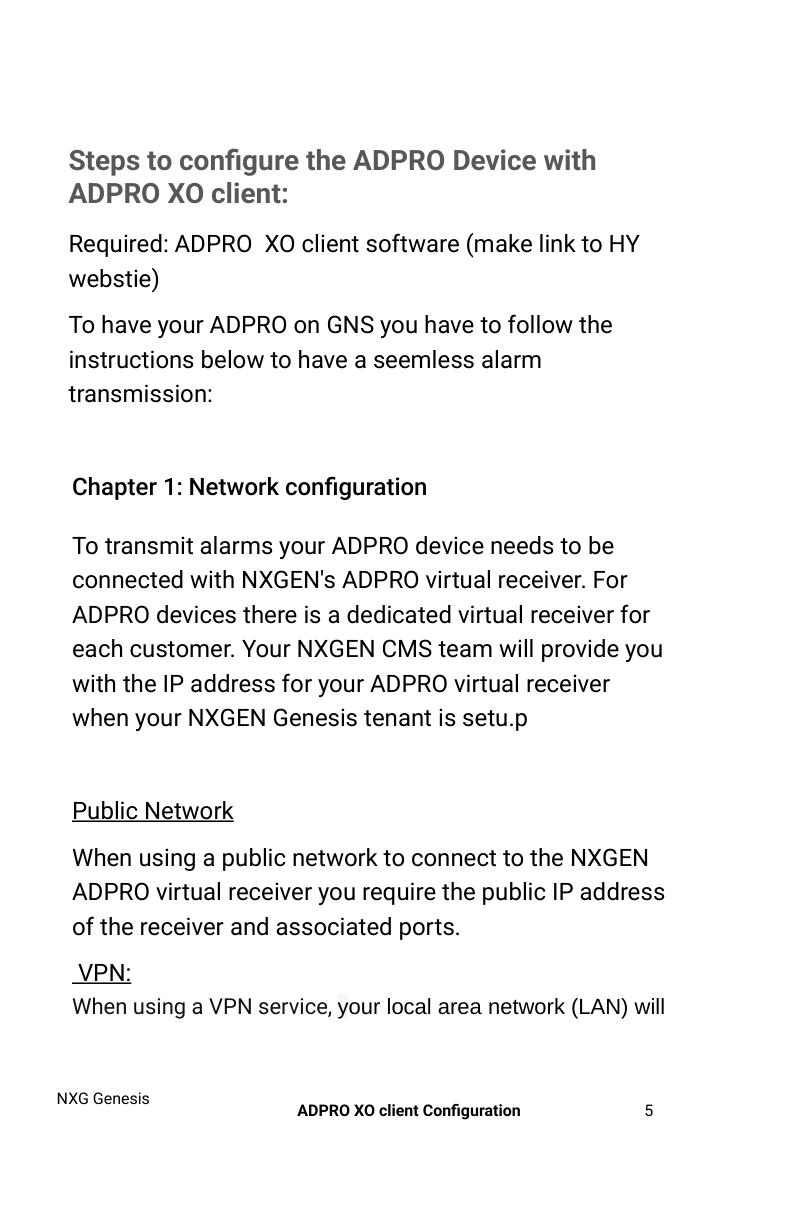
- Enter device information:
- Device Name:
Honeywell-Site-Location(descriptive name for easy identification) - Host/IP Address:
[NVR IP Address from Step 2] - Port:
80(HTTP) or443(HTTPS) - Username:
adminor your NVR admin username - Password: Your NVR admin password
- Time Zone: Select the appropriate time zone for device location
- Device Name:
- Click Test Connection to verify credentials (if available)
- Click Save or Add Device
Expected Result: Device added successfully and appears in GCXONE device list with "Connecting" or "Online" status.
Step 4: Configure Integration Settings
UI Path: GCXONE → Devices → [Device Name] → Settings
Objective: Configure cloud streaming and integration profile settings.
Configuration Steps:
- Locate your newly added Honeywell NVR in the device list
- Click Settings or Configure icon
- Configure integration settings:
- Integration Profile: Select Basic, Basic+, or Advanced (based on subscription)
- Cloud Streaming: Enable if required for remote access
- Genesis Audio: Enable SIP audio if two-way communication is needed
- Polling Interval: Set to 60 seconds (default) or as needed
- Configure camera channels:
- Review discovered cameras from the NVR
- Enable/disable specific channels as needed
- Set stream quality (Standard/High)
- Click Save Changes
Expected Result: Integration settings configured and device begins polling NVR for status updates.
Step 3: [Configure Secondary Feature/Service]
UI Path: [Exact navigation path]
Objective: [What this step accomplishes]
Configuration Steps:
- [Detailed configuration steps]
- [Include specific values, dropdown selections, checkboxes]
- [Screenshots for complex screens]
- [Verification steps]
Expected Result: [Expected outcome]
Step 4: [Configure Credentials/Authentication]
UI Path: [Path to user/authentication settings]
Objective: Create or configure user account for GCXONE integration.
Configuration Steps:
- Navigate to [User Management / Security]
- Create new user or modify existing:
- Username:
[Recommended username for GCXONE] - Password:
[Strong password - note requirements] - Permissions/Role: [Administrator / Operator / Custom]
- Username:
- Enable [Required permissions for integration]:
- [Permission 1]
- [Permission 2]
- [Permission 3]
- Click Save
Expected Result: User account created with appropriate permissions for GCXONE integration.
Step 5: [Additional Device-Specific Configuration]
UI Path: [Path]
Objective: [What this accomplishes]
Configuration Steps:
[Add additional steps as needed for device-specific configuration]
Expected Result: [Expected outcome]
Part 3: GCXONE Platform Setup
Step 6: Add Device in GCXONE
UI Path: GCXONE → Devices → Add Device
Objective: Register the Honeywell 35 Series NVR in GCXONE platform.
Configuration Steps:
- Log in to GCXONE platform
- Navigate to Devices → Add Device
- Select device type:
- Type: NVR
- Enter device information:
- Name:
[Descriptive name for this device] - Host/IP Address:
[Device IP or hostname] - Port:
[Default port or custom] - Username:
[Username created in Step 4] - Password:
[Password created in Step 4] - Time Zone:
[Select appropriate time zone]
- Name:
- [Any additional device-specific fields]
- Click Discover (if auto-discovery is supported)
- The platform will connect to the device and discover available channels/sensors
- Review discovered devices/channels
- Click Save

Expected Result: Device appears in GCXONE device list with status indicator showing online/connected.
Step 7: Configure Device Settings in GCXONE (Optional)
UI Path: GCXONE → Devices → Honeywell 35 Series NVR → Settings
Objective: Configure GCXONE-specific settings for the device.
Configuration Steps:
- Locate your newly added device in the device list
- Click View or Settings
- Configure optional settings:
- [Setting 1]: [Description and value]
- [Setting 2]: [Description and value]
- Event Filters: [Configure if needed]
- Recording Schedule: [Configure if applicable]
- Click Save
Expected Result: Device settings configured according to deployment requirements.
Verification
Verification Checklist
After completing the configuration, verify the following:
- Device Status: Shows as online/connected in GCXONE
- [Feature 1]: [How to test - expected result]
- [Feature 2]: [How to test - expected result]
- Event Reception: Trigger a test event, verify it appears in GCXONE
- [Feature 4]: [How to test - expected result]
Test Procedures
Test 1: [Primary Feature Test]
- [How to trigger/test the feature]
- [What to observe]
- Expected Result: [What should happen]
Test 2: [Secondary Feature Test]
- [How to test]
- [What to observe]
- Expected Result: [What should happen]
Test 3: Event/Alarm Test
- Trigger a test event on the device
- Check GCXONE for event reception
- Expected Result: Event appears in GCXONE within [X] seconds with correct details
Advanced Configuration (Optional)
[Optional Feature 1]
When to use: [Scenario where this is needed]
Configuration:
- [Steps to configure]
[Optional Feature 2]
When to use: [Scenario]
Configuration:
- [Steps]
Troubleshooting
If you encounter issues during configuration, see the Troubleshooting Guide for common problems and solutions.
Quick troubleshooting:
- Device not discovered: Verify network connectivity, credentials, and firewall settings
- Connection fails: Check IP address, port, and authentication credentials
- No events received: Verify event configuration on device and in GCXONE
Related Articles
- Honeywell 35 Series NVR Overview
- Honeywell 35 Series NVR Troubleshooting
Change Log
- 2025-12-20 v1.0.0 - Initial GCXONE configuration guide