🤖 Camect AI Integration
Camect uses local AI to detect specific objects (people, cars, bikes) and filter out false alarms. This guide explains how to forward these "Smart Alerts" from your Camect Hub to the GCXONE Video Activity buffer.
📋 Prerequisites
- Camect Hub: Powered on and connected to your local network.
- Admin Access: You must have the admin password for the Camect Hub web interface.
- NXGEN TCP Bridge:
3.122.169.231:10520(Our dedicated monitoring gateway).
🚦 Integration Workflow
🛠️ Configuration Steps
- 1
1. Dedicated Service User
- 2
Log in to your Camect Hub and navigate to Users.
- 3
- Create a user named "NXGEN".
- Grant Permissions: Live View, Query Cameras, View Alerts, and View Footage.
- This account is used by GCXONE to pull the video stream during an alarm.
- 4
2. Configure Monitoring Gateway
- 5
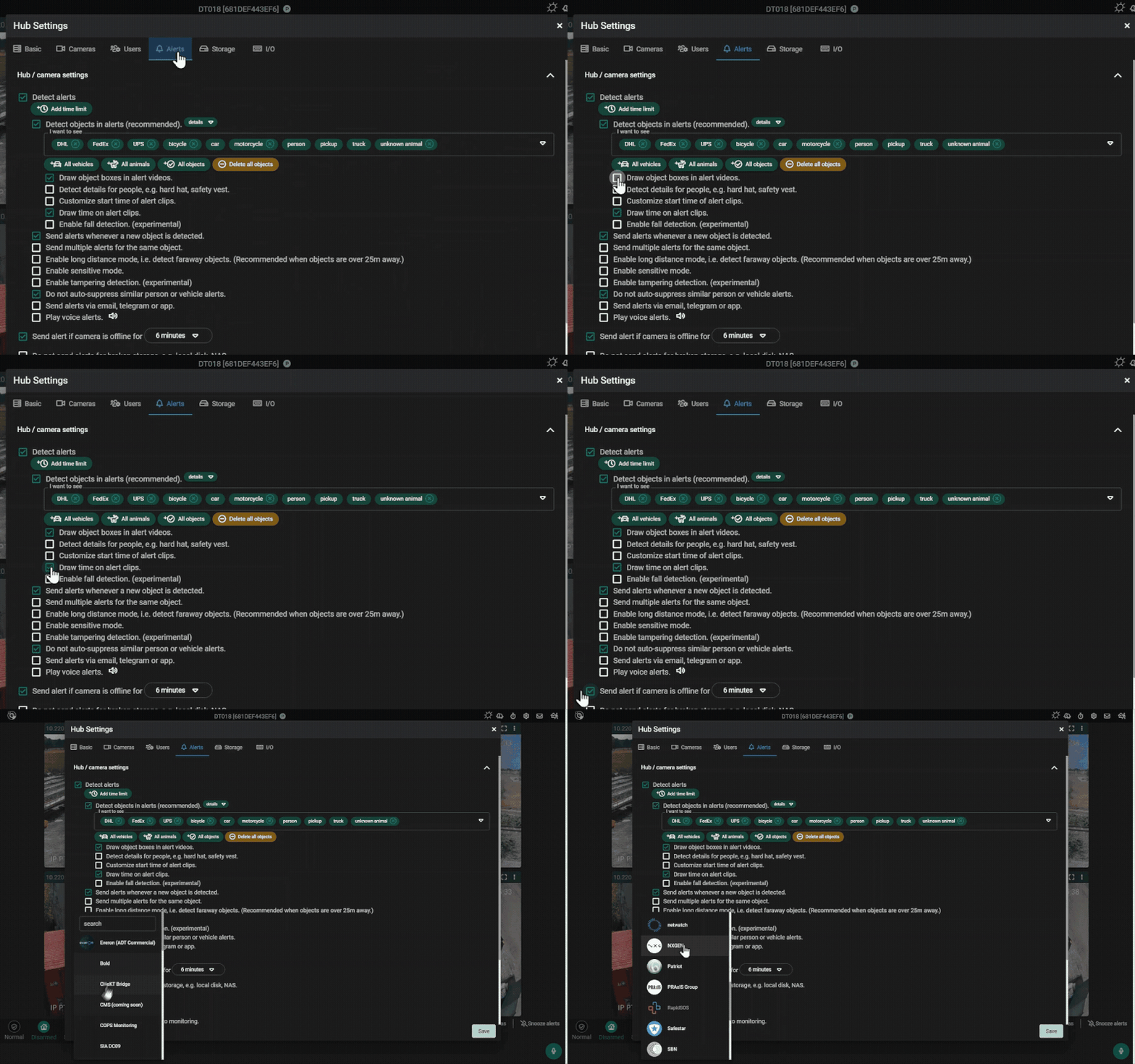
Navigate to Hub Settings → Alert.
- 6
- Click Add Monitoring and select NXGEN.
- Site ID: Set to the ID provided in your GCXONE Site profile.
- TCP Address:
3.122.169.231:10520. - Camera Selection: Add each camera you want to forward to GCXONE.
- 7
- 8
3. Object Detection Selection
- 9
Ensure Detect Alerts is toggled ON.
- 10
- Select the objects you want to trigger an alarm (e.g., Person, Vehicle, Bear).
-
Only select objects relevant to your security protocol to maintain a quiet, efficient alarm queue.
- 11
4. Enable Substreams (Recommended)
- 12
High-resolution 4K streams can stutter over cloud connections.
- 13
- Navigate to Camera Settings → Information.
- Set Substream to
1. - This ensures smooth live playback for operators even on limited bandwidth.
- 14
5. Final Discovery in GCXONE
- 15
- Log in to GCXONE → Sites → Devices.
- Click Add Device and select Camect.
- Enter the Hub Serial and the NXGEN user credentials.
- Click Discover. GCXONE will sync all active cameras from the Hub.
💡 Troubleshooting
- Buffer is Empty: Verify that Detect Alerts is enabled and that you have clicked "Add Camera" in the Monitoring/NXGEN section.
- Discovery Fails: Ensure your local firewall allows outbound traffic on TCP Port 10520 to the NXGEN gateway.
- No PTZ Control: Ensure the NXGEN user in Camect has "Pan/Tilt Cameras" permission enabled.