NetVue IP Camera Configuration
Overview
This guide covers the complete configuration of NetVue IP Camera integration with GCXONE, including camera setup, GCXONE platform integration, and audio configuration.
What you'll accomplish:
- Configure NetVue IP Camera in NetVue mobile app
- Gather camera credentials and connection information
- Add and register camera in GCXONE platform
- Configure dual audio capabilities (Genesis Audio SIP + Local SDK Audio)
- Set up event detection and notifications
- Verify successful integration and test all features
Estimated time: 20-30 minutes
Prerequisites
Ensure you have completed the prerequisites listed in the Overview:
- NetVue IP camera with active cloud subscription
- NetVue mobile app installed on smartphone
- Camera connected to network with internet access
- GCXONE account with device configuration permissions
- Camera credentials (username/password)
- Network connectivity between camera and GCXONE platform
Configuration Workflow
The configuration process consists of 3 main parts:
- NetVue Camera Setup - Configure camera in NetVue mobile app and gather credentials
- GCXONE Platform Setup - Add camera in GCXONE and configure integration
- Verification - Test live streaming, playback, timeline, audio, and events
Part 1: NetVue Camera Setup
Step 1: Install NetVue Mobile App and Add Camera
UI Path: Mobile Device → App Store/Play Store → NetVue App
Objective: Pre-configure the NetVue camera in the manufacturer's mobile app and verify cloud connectivity.
Configuration Steps:
- Download and install NetVue mobile app from App Store (iOS) or Google Play (Android)
- Launch the NetVue app and create an account (if new user)
- Log in to your NetVue account
- Tap Add Device or + icon
- Follow on-screen instructions to add your camera:
- Scan QR code on camera (or enter serial number manually)
- Connect camera to Wi-Fi network
- Wait for camera to come online in the app
- Verify camera appears in device list and shows live video
- Test basic functionality:
- Live streaming works
- Audio works (listen and speak)
- Motion detection enabled
- Note the camera Serial Number and Device Name
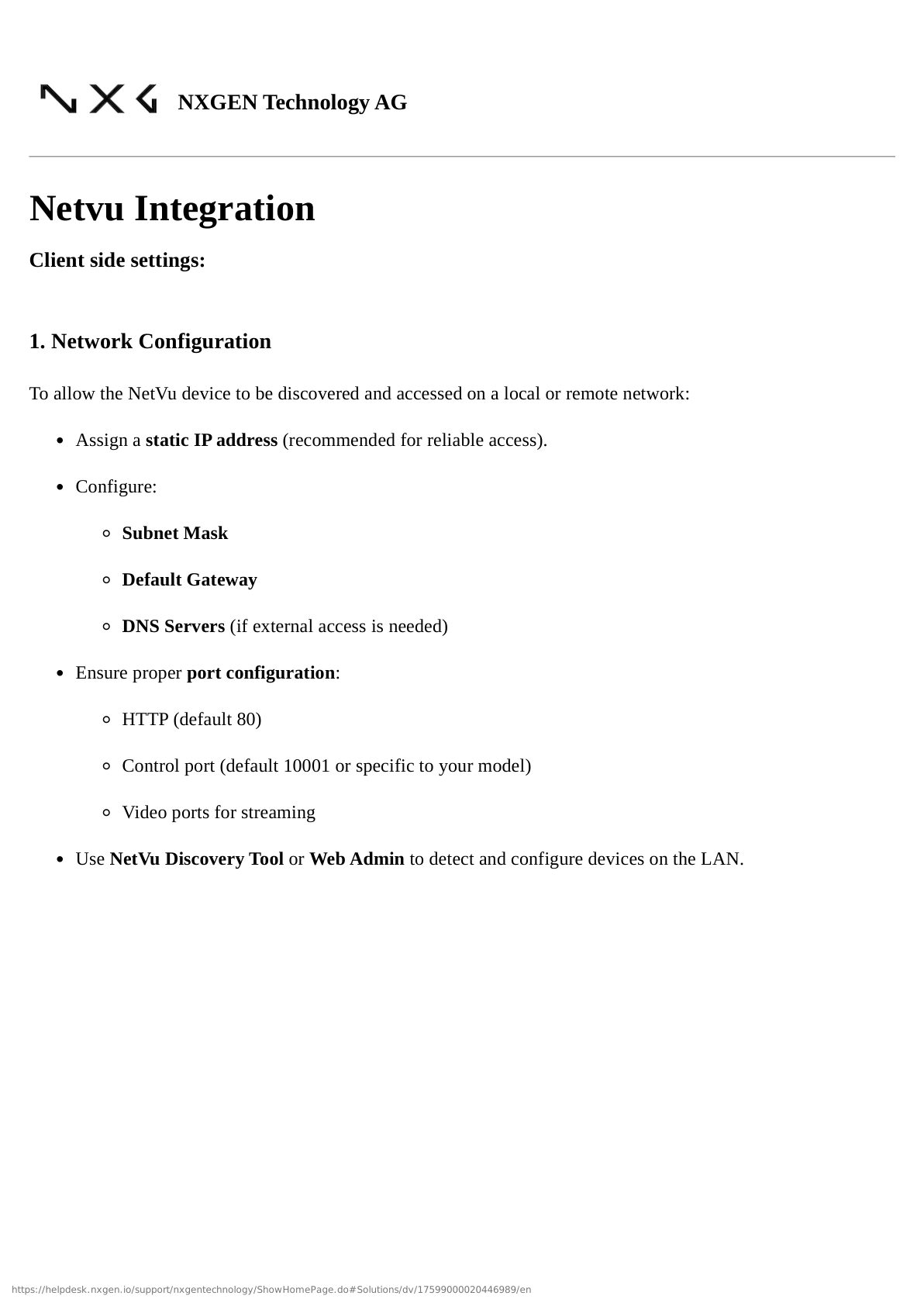
Expected Result: Camera successfully added to NetVue mobile app, showing live video and online status.
Step 2: Configure Camera Network Settings
UI Path: NetVue App → Camera → Settings → Network
Objective: Verify camera network configuration and ensure stable internet connectivity.
Configuration Steps:
- In NetVue mobile app, tap on your camera
- Tap Settings icon (gear icon)
- Navigate to Network settings
- Verify network configuration:
- Connection Type: Wi-Fi or Ethernet
- IP Address: Note the camera's local IP address
- Signal Strength: Should be Good or Excellent for Wi-Fi
- Internet Status: Connected
- Configure Network Settings if needed:
- For Wi-Fi: Ensure camera is on stable 2.4GHz or 5GHz network
- For Ethernet: Verify wired connection is active
- Test internet connectivity by viewing live stream
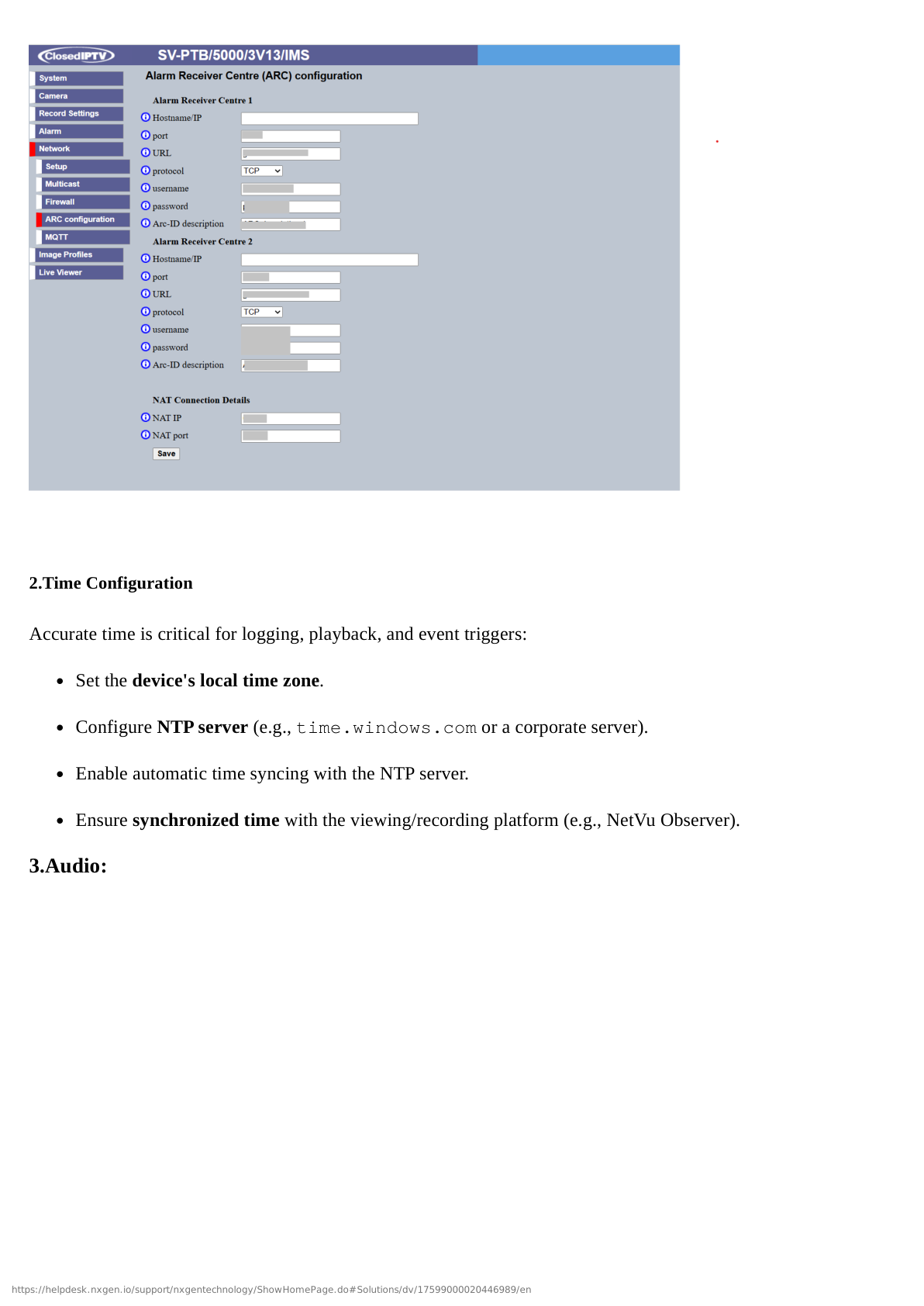
Expected Result: Camera has stable network connectivity with good signal strength and active internet connection.
Step 3: Gather Camera Credentials and Information
UI Path: NetVue App → Camera → Settings → Device Information
Objective: Collect all necessary credentials and information for GCXONE integration.
Configuration Steps:
- In NetVue app, access camera Settings → Device Information
- Record the following information (you'll need this for GCXONE):
- Device Name: Camera identifier
- Serial Number: Unique device ID (usually starts with "NV")
- Model: Camera model number
- Firmware Version: Current firmware version
- Note camera credentials:
- Username: Default is usually
admin(check camera documentation) - Password: Device password (set during initial setup)
- Verification Code: May be required for cloud access (found on camera label)
- Username: Default is usually
- Verify camera is using latest firmware (update if needed)
- Take a screenshot or write down all information for reference
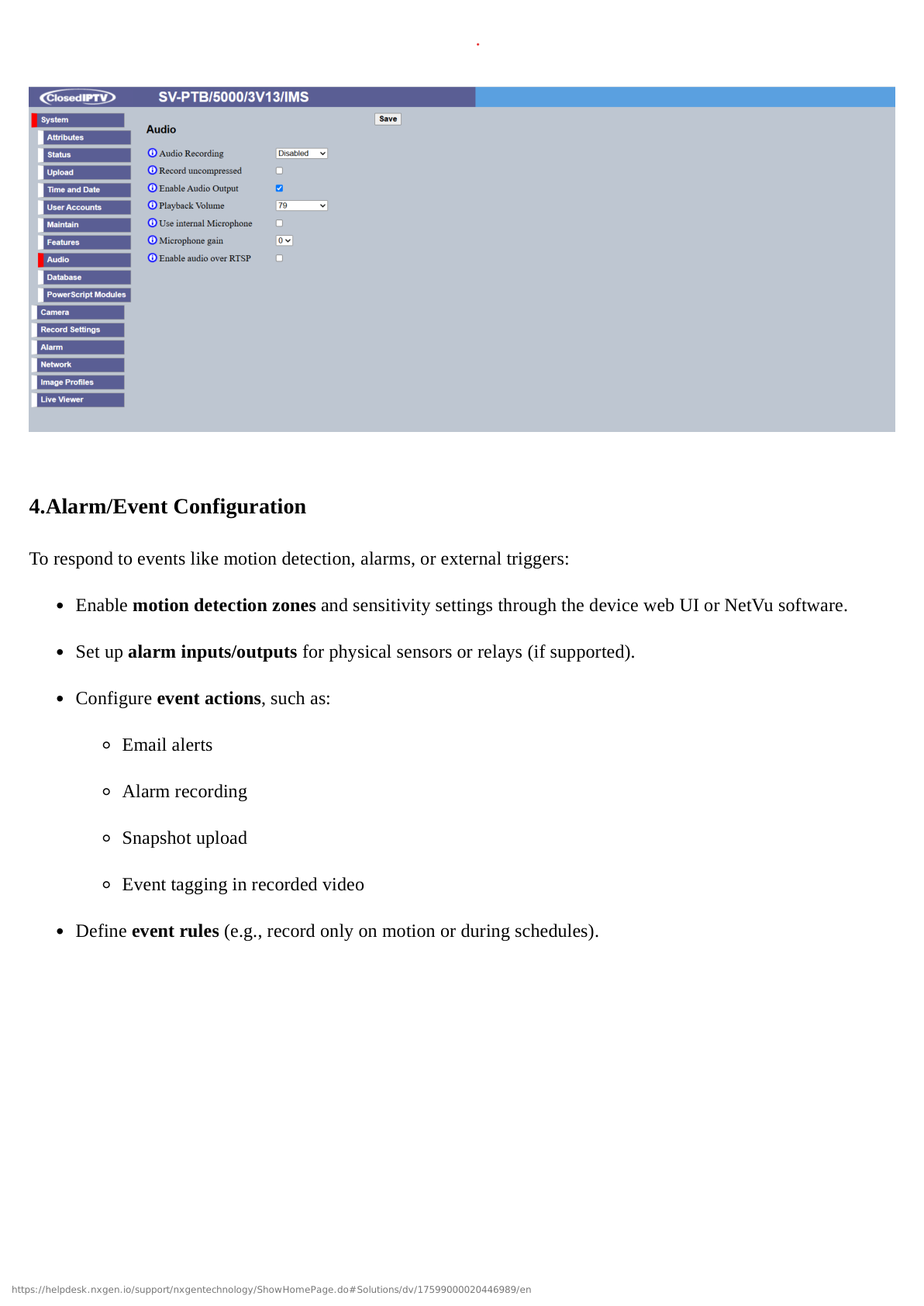
Expected Result: All camera credentials and information documented for GCXONE integration.
Part 2: GCXONE Platform Setup
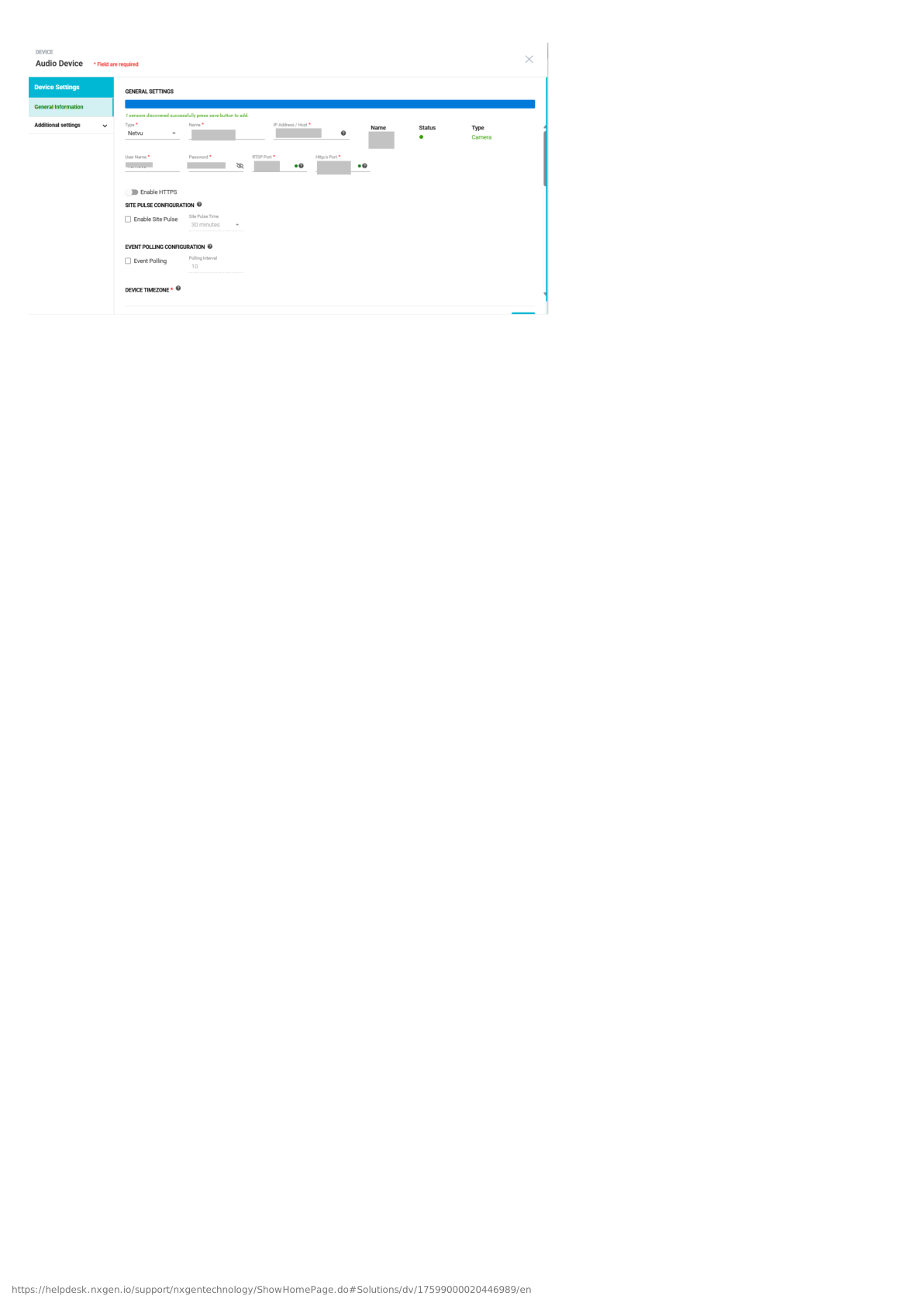
Step 4: Add NetVue Camera in GCXONE
UI Path: GCXONE Web Portal → Devices → Add Device
Objective: Register the NetVue IP Camera in the GCXONE platform.
Configuration Steps:
- Log into the GCXONE web portal with admin credentials
- Navigate to Devices → Add Device
- Select device type:
- Type: IP Camera
- Manufacturer: NetVue
- Enter camera information:
- Device Name: Descriptive name (e.g., "Front Entrance - NetVue")
- Serial Number: Camera serial number from Step 3
- IP Address/Hostname: Camera IP address (from Step 2) or cloud hostname
- Port: 443 (HTTPS) or default NetVue cloud port
- Username: Camera username (usually
admin) - Password: Camera password from Step 3
- Verification Code: If required, enter code from camera label
- Time Zone: Select appropriate time zone for camera location
- Configure Connection Settings:
- Connection Method: Cloud Integration (recommended)
- Protocol: HTTPS
- Enable Cloud Streaming: ✓ Checked
- Click Test Connection to verify connectivity
- If successful, click Save or Add Device
- GCXONE will register the camera and establish cloud connection

Expected Result: NetVue camera successfully added to GCXONE and shows "Online" status.
Step 5: Configure Audio Settings (Genesis Audio SIP + Local SDK Audio)
UI Path: GCXONE → Devices → NetVue Camera → Audio Configuration
Objective: Configure dual audio capabilities for two-way communication.
Configuration Steps:
- In GCXONE, navigate to your newly added NetVue camera
- Click Audio Settings or Advanced Configuration
- Configure Genesis Audio (SIP):
- Enable Genesis Audio: ✓ Checked
- SIP Protocol: Enabled
- Audio Codec: G.711 (default) or preferred codec
- SIP Port: 5060 (default)
- Audio Quality: High (recommended for clear communication)
- Configure Local SDK Audio:
- Enable Local SDK Audio: ✓ Checked
- Audio Direction: Two-way (bidirectional)
- Microphone Sensitivity: Medium (adjust as needed)
- Speaker Volume: 80% (adjust as needed)
- Test audio configuration:
- Click Test Audio button
- Speak into microphone and verify audio transmission
- Play test sound and verify speaker output
- Click Save Audio Configuration
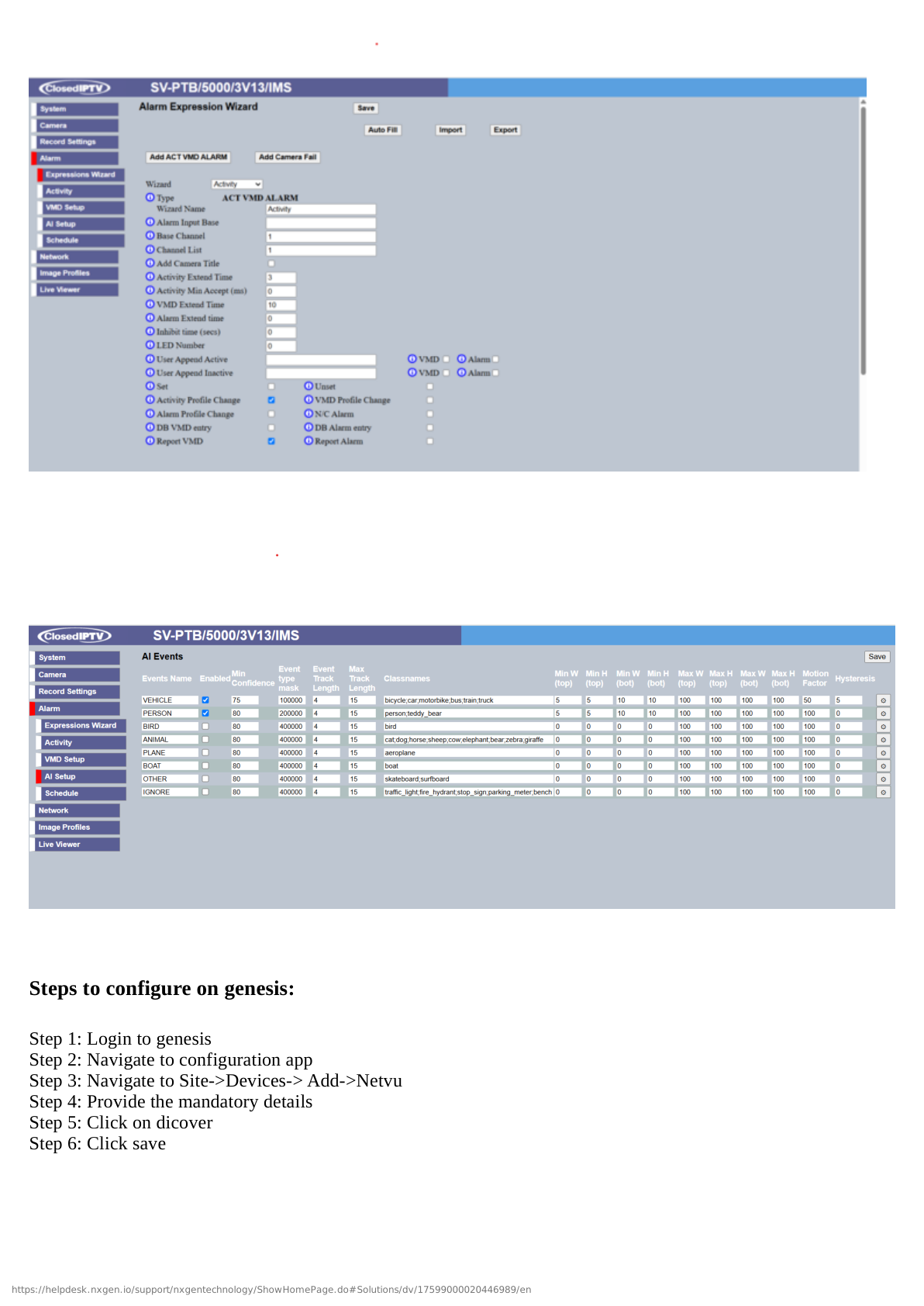
Expected Result: Both Genesis Audio (SIP) and Local SDK Audio configured and tested successfully.
Step 6: Configure Events, Notifications, and Timeline
UI Path: GCXONE → Devices → NetVue Camera → Event Configuration
Objective: Set up event detection, notifications, and timeline features.
Configuration Steps:
- Navigate to camera Event Configuration in GCXONE
- Configure Motion Detection Events:
- Enable Motion Detection: ✓ Checked
- Sensitivity: Medium (adjust based on camera location)
- Detection Zones: Configure specific areas (if supported)
- Event Recording: ✓ Enable recording on motion
- Pre-Record: 5 seconds
- Post-Record: 30 seconds
- Configure Additional Events:
- Audio Detection: ✓ Enable if camera supports audio analytics
- PIR Sensor: ✓ Enable if camera has PIR sensor
- Tampering Alert: ✓ Enable for security
- Configure Event Notifications:
- Push Notifications: ✓ Enable for mobile app alerts
- Email Notifications: ✓ Enable (enter email addresses)
- SMS Notifications: ✓ Enable if required (enter phone numbers)
- Notification Schedule: 24/7 or custom schedule
- Configure Timeline Features:
- Enable Cloud Timeline: ✓ Checked
- Enable Local Timeline: ✓ Checked (with limitations)
- Timeline Density: Medium (events per hour)
- Event Markers: Motion, Audio, PIR
- Configure Timelapse (optional):
- Enable Timelapse: ✓ Checked
- Timelapse Interval: 1 frame per minute (adjust as needed)
- Storage Location: Cloud or Local
- Click Save Event Configuration
Expected Result: Events configured, notifications enabled, and timeline features activated.
Part 3: Verification and Testing
Verification Checklist
After completing the configuration, verify the following:
Live Streaming:
- Cloud live streaming works from GCXONE web portal
- Cloud live streaming works from GCXONE mobile app
- Video quality is acceptable with minimal latency (less than 2s)
- Stream is stable without frequent disconnections
Playback:
- Cloud playback works with timeline navigation
- Can select specific time ranges for playback
- Video export works (download recorded clips)
- Playback speed controls work (1x, 2x, 4x)
Audio:
- Genesis Audio (SIP) works for two-way communication
- Local SDK Audio works as alternative audio method
- Audio quality is clear in both directions
- Can switch between Genesis Audio and Local SDK Audio
Events:
- Motion detection events trigger correctly
- Event notifications are received (push, email, SMS)
- Event video clips are recorded with pre/post record
- Timeline shows event markers accurately
Timeline & Timelapse:
- Cloud timeline displays events correctly
- Local timeline works (with noted limitations)
- Can navigate timeline by dragging or clicking events
- Timelapse creation works (if enabled)
General:
- Camera status shows "Online" in GCXONE
- Mobile app access works seamlessly
- No error messages in device logs
- Camera responds to configuration changes promptly
Test Procedures
Test 1: Live Streaming Test
- Open GCXONE web portal or mobile app
- Navigate to NetVue camera
- Click Live View to start streaming
- Observe video stream and check latency
- Expected Result: Live video appears within 2 seconds with good quality
Test 2: Two-Way Audio Test
- While viewing live stream, click Audio icon
- Select Genesis Audio (SIP) or Local SDK Audio
- Speak into microphone and listen through camera speaker
- Click Listen to hear audio from camera microphone
- Expected Result: Clear two-way audio communication established
Test 3: Motion Detection and Event Test
- Trigger motion in front of camera (wave hand or walk by)
- Check GCXONE for event notification
- Verify event appears in timeline with video clip
- Check that notification was sent (push/email/SMS)
- Expected Result: Event captured within 5 seconds with recording and notification
Test 4: Playback and Timeline Test
- Navigate to camera timeline in GCXONE
- Select a time range with recorded events
- Click on event marker to jump to that moment
- Test playback controls (play, pause, speed)
- Export a video clip
- Expected Result: Timeline displays events, playback works smoothly, export successful
Advanced Configuration (Optional)
Multi-Camera Management
When to use: Managing multiple NetVue cameras at the same site
Configuration:
- Add each NetVue camera using Steps 4-6
- Organize cameras by location using GCXONE site hierarchy
- Create camera groups for batch configuration
- Set up coordinated event rules (e.g., motion on Camera 1 triggers recording on Camera 2)
- Configure unified notifications for all cameras
Custom Event Rules
When to use: Creating advanced automation based on camera events
Configuration:
- Navigate to GCXONE → Automation → Rules
- Click Create New Rule
- Configure trigger:
- Trigger: NetVue motion detection event
- Condition: Optional conditions (time of day, weekday/weekend)
- Configure actions:
- Action 1: Start recording on all cameras
- Action 2: Send notification to security team
- Action 3: Activate siren or output device
- Save and enable rule
Timelapse Optimization
When to use: Creating time-lapse videos for long-term monitoring
Configuration:
- Navigate to camera Timelapse Settings
- Configure optimal settings:
- Interval: 1 frame per 30 seconds (for 24-hour into 2-minute video)
- Resolution: 1080p (balance quality vs storage)
- Storage: Cloud (for accessibility) or Local (for capacity)
- Schedule: 24/7 or business hours only
- Set retention policy (7-30 days)
- Enable automatic timelapse generation
Troubleshooting
If you encounter issues during configuration, see the Troubleshooting Guide for common problems and solutions.
Quick troubleshooting:
- Camera not discovered: Verify camera is online in NetVue app, check serial number and credentials
- Connection fails: Check internet connectivity, verify cloud subscription is active
- No video: Verify camera is online in NetVue app, check bandwidth and network quality
- Audio not working: Verify audio is enabled in NetVue app, test both Genesis Audio (SIP) and Local SDK Audio
- No events: Check motion detection is enabled in NetVue app and GCXONE, adjust sensitivity
- Timeline not showing events: Verify event recording is enabled, check storage availability
Related Articles
- NetVue IP Camera Overview
- NetVue IP Camera Troubleshooting
Need Help?
If you need assistance with NetVue IP Camera configuration, contact support.