Event Processing
What Event Processing Does
Understanding how GCXONE processes events is essential for operators and administrators. Every alarm on the dashboard has passed through a structured processing pipeline — from the moment a camera detects movement to the point an operator takes action.
GCXONE classifies, filters, and routes every incoming event automatically, ensuring that only genuine security threats reach the operator queue.
Why It Matters
Without structured event processing, operators would be flooded with raw unfiltered events — making it impossible to prioritize real threats. The processing pipeline ensures every event is classified, filtered, and routed to the right destination before any human sees it.
How It Works
Step 1 — Detection A camera or sensor detects an activity and sends a signal to the GCXONE platform via the Proxy Layer.
Step 2 — Ingestion The platform receives the raw event and logs it with a timestamp, device ID, site, and customer reference.
Step 3 — AI Analysis The event is passed through the NOVA99x AI engine, which classifies it as a Real Alarm, False Alarm, or Technical Event.
Step 4 — Routing:
- Real Alarms are pushed to the operator queue in Talos for action.
- False Alarms are filtered out and stored for reporting and analytics.
- Technical Events trigger automated notifications and can initiate workflows such as calling a technician or sending an SMS or email.
Step 5 — Resolution The operator reviews, processes, and closes the event. All actions are logged in the Audit Trail.
Key Capabilities
Event Types GCXONE classifies every incoming event into one of three categories:
- Real Alarm — A genuine security event requiring operator attention, such as motion detection, line crossing, or intrusion.
- False Alarm — An event triggered by non-threatening activity such as animals, weather, or lighting changes. Filtered out by NOVA99x to reduce operator workload.
- Technical Event — A system-generated event triggered by HealthCheck, such as a camera going offline, black screen, obstruction detection, or low light conditions.
Event States Every event moves through the following states during its lifecycle:
- New — Event received and pending review.
- Filtered — Classified as a false alarm by NOVA99x and removed from the operator queue.
- Assigned — Allocated to a specific operator for action.
- In Progress — Operator is actively reviewing the event.
- Processed — Event has been reviewed and closed.
AI Filtering — NOVA99x Before any event reaches an operator, it passes through NOVA99x — GCXONE's AI filtering engine. NOVA99x analyzes each event using behavioral analysis and image recognition to determine whether it represents a real threat, filtering out false alarms before they reach the operator queue.
For full details on NOVA99x, refer to the NOVA99x page.
Real-World Use Cases
- A camera detects a shadow moving across the frame — NOVA99x classifies it as a False Alarm and filters it out before it reaches any operator.
- A camera goes offline at 03:00 — GCXONE classifies it as a Technical Event and automatically sends an SMS to the on-call technician.
- An intrusion alarm triggers — it passes through NOVA99x, is classified as a Real Alarm, and is pushed to the Talos operator queue with full video context within seconds.
Best Practices
- Monitor the ratio of Real vs. False Alarms regularly — a high Real Alarm rate above 30% may indicate NOVA99x needs reconfiguration.
- Never ignore Technical Events — a camera going offline means a blind spot in your coverage.
- Always ensure every event is closed with a documented outcome to maintain a clean Audit Trail.
Additional Details
Troubleshooting Diagnosing Alarm Count Mismatch
If the number of alarms reported in GCXONE does not match the device's internal logs, follow these steps to identify the source of the discrepancy:
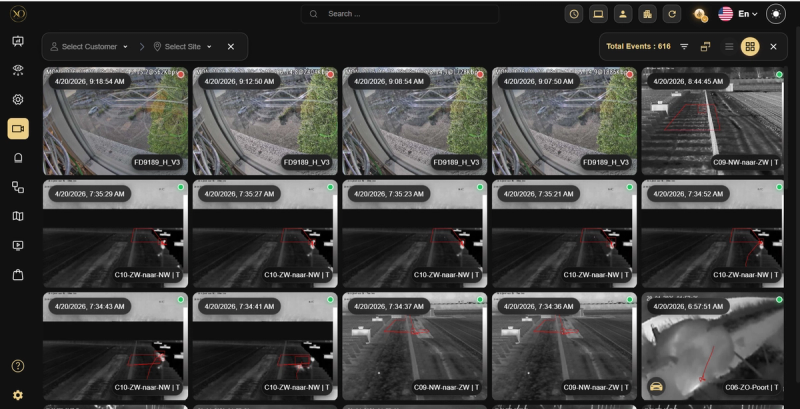
Step 1: Compare the exact time window and alarm count between the device logs and GCXONE dashboards (Video Activities Search or Alarm Receiver Log).
Step 2: Install the vendor-provided test client and configure it using the device's connection parameters (IP address and port).
Step 3: Run the test client and monitor the alarm flow directly from the device.
Step 4: Compare the test client results against the device log:
- If counts match — The issue is in the GCXONE implementation. Escalate to the development team.
- If counts don't match — The issue is with the device or vendor. Contact vendor support.