Site & Device Management
What Site & Device Management Does
GCXONE organizes all managed objects in a five-level hierarchy. Every configuration, access control, and alarm routing decision operates within this structure.
- Service Provider (Tenant) — Root logic: global fleet operations, macro SLA reporting, multi-site roles.
- Customer (Organization) — Discrete client groups with segmented dashboards and billing.
- Site (Physical Location) — Tangible geo-fences with incident mapping and local operators.
- Device (NVR / Bridge / AI Box) — Connectivity boundary with streaming config and device health.
- Sensor (Camera / Detector) — Finest data granularity — individual rule application vector.
TIP — Cascading Subscriptions: Subscribe the parent Customer to HealthCheck, and every subsequently onboarded Site/Device automatically subscribes downward — no admin intervention needed for new hardware.
Why It Matters
Site & Device Management is the foundation of everything in GCXONE. Without correctly structured sites and devices, alarm routing, access control, and health monitoring cannot function.
How It Works
Service Provider Settings
Navigate to Settings → General → Service Provider.
- Organization Name & Logo — Appears in reports and customer-facing views.
- Regional Locale & Timezone — Default for all Customers unless overridden.
- SOC Contact Variables — Email/phone injected into automated alert templates.
- Alarm Receiver Configuration — Primary DC09 or Talos connection (applies tenant-wide).
Managing Customers
Navigate to Configuration → Customers.
Creating a Customer:
- Click + Add Customer.
- Enter the customer's name, region, and contact details.
- Assign a default timezone.
- Enable HealthCheck at this level to cascade to all sites automatically.
- Save.
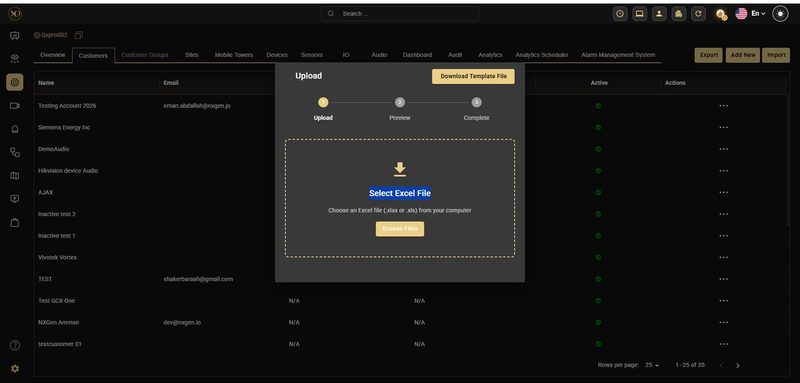
BulkImport Customers
For 100+ entities, use the BulkImport CSV framework.
Navigation: Configuration → Customers → Import → Download Template Required columns: customer_name, region, timezone.
Managing Sites
Site List — Address & Company Details
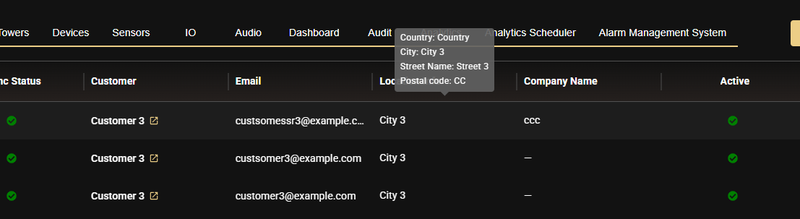
The Site List displays additional context for each site at a glance:
- Address column — hover over it to reveal Country, City, Street Name, and Postal Code in a compact tooltip.
- Company Name — displayed as a dedicated column, making it easier to scan and identify sites by the owning company.
Creating a Site:
- Click + Add Site.
- Assign to the correct Customer.
- Enter the site Name and Address — the address is geocoded for map display.
- Set the DC09 Account ID if using DC-09 alarm routing.
- Optionally assign the site to a map overlay (floor plan or satellite).
- Save.
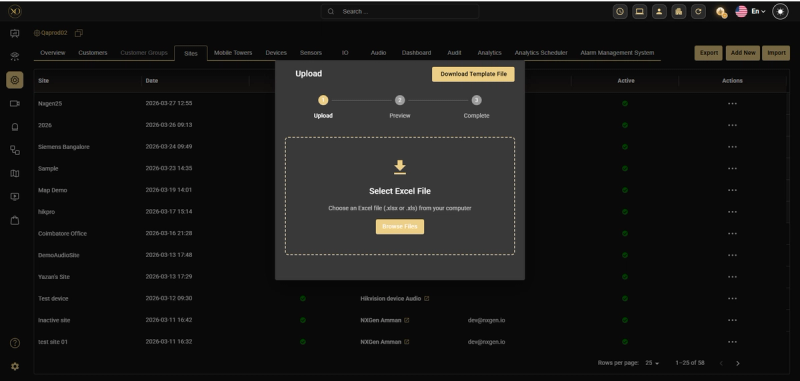
BulkImport Sites
Map Overlays
- Satellite View — Uses the site's geocoordinates. Camera pins are placed on the satellite map. Operators can click a pin to open the camera stream directly.
- Floor Plan Overlay — Upload a custom floor plan image. Drag and drop sensor pins onto the floor plan. Useful for large indoor sites.
Navigation: Configuration → [Site] → Map Tab
Managing Devices
Navigate to Configuration → Devices.
Registering a Device:
- Click + Add Device.
- Select Device Type (Hikvision NVR, Dahua NVR, Cloud VMS, AI Box, etc.).
- Enter connection credentials: for on-premise NVRs enter IP address, RTSP port, admin username/password; for cloud VMS follow the OAuth or API token flow.
- Assign to the correct Site.
- Save — GCXONE initiates connection. Status updates to Online within 60 seconds if connectivity is successful.
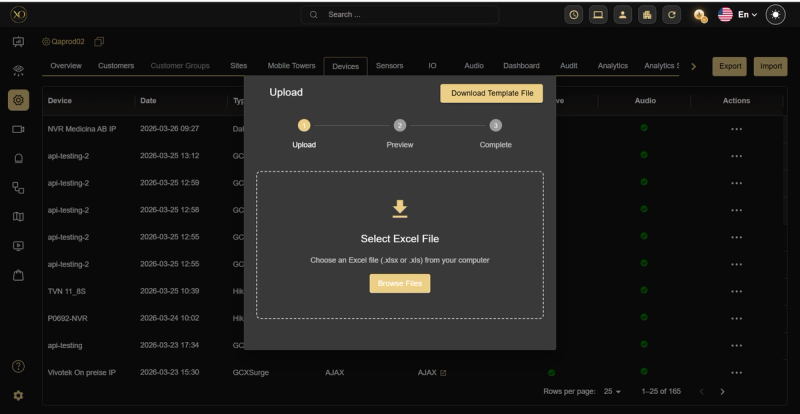
BulkImport Devices
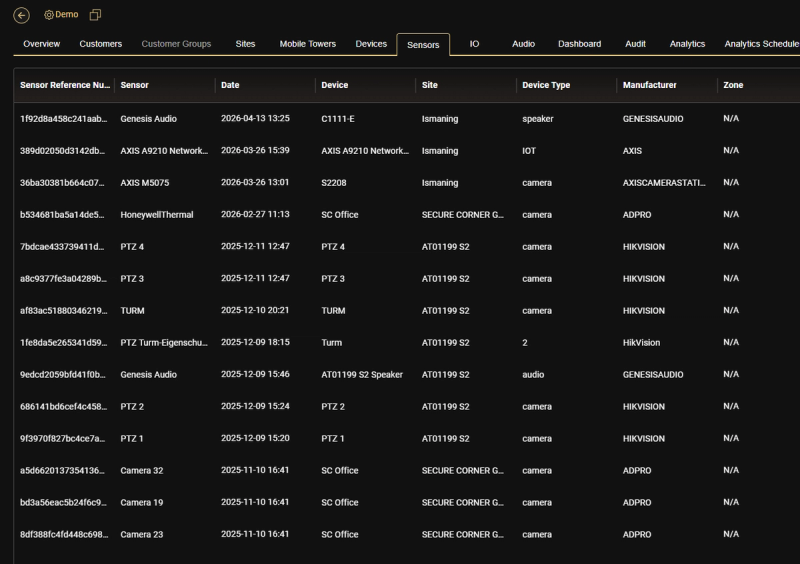
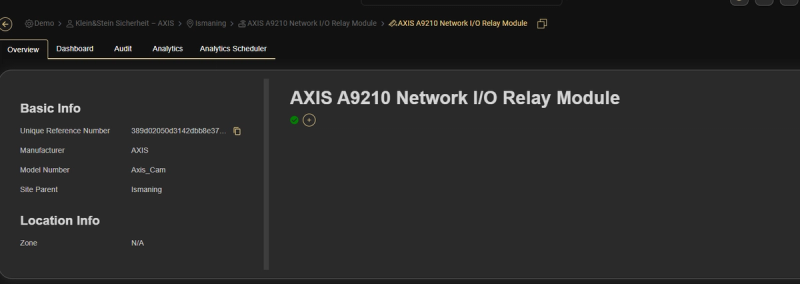
Sensor Unique Reference Number (URN)
The sensor URN is now accessible directly in the UI and export.
- URN visible as a read-only field in the sensor detail view, with a one-click copy icon.
- URN available as an optional column in the sensor list (hidden by default, toggle via column settings).
- URN included in all CSV and Excel exports as a "Unique Reference Number" column.
Device Status Reference
| Status | Meaning |
|---|---|
| Online | Device is connected and streaming. No action required. |
| Offline | GCXONE cannot reach the device. Check network path; verify credentials. |
| Degraded | Device connected but stream quality is poor. Check bandwidth; review NVR resource usage. |
| Maintenance | Admin has set device to maintenance mode. Restore Active state when work is complete. |
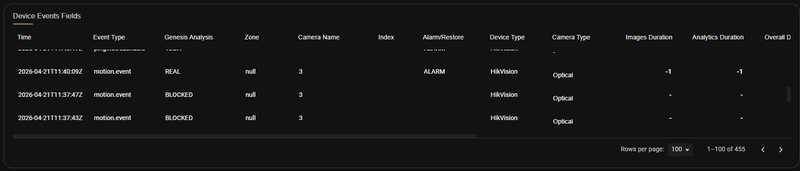
Events Log — Device Dashboard
An Events Log panel is available on the device dashboard, giving admins direct visibility into alarm activity on a per-device level.
The panel displays:
- Total alarms for the selected time range.
- False alarm count and rate.
- Alarm classification breakdown (e.g. motion.record, motion.focus.fault).
- GC feedback status (Talos / Nova / external analytics).
- Images per event.
- Duration metrics (images, analytics, overall).
- Per-event rows: Event ID, camera, type, alarm/restore, device type, analytics flags, feedback.
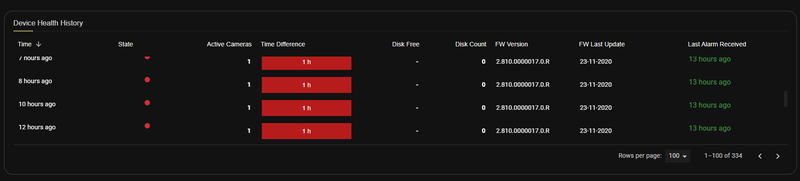
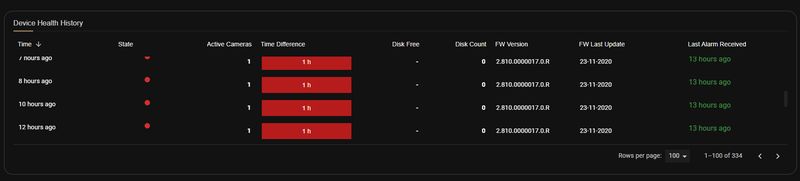
Device Health History
A Device Health History panel is available on the device dashboard, showing time-series health metrics for each device. The panel displays:
- Time — timestamp for each recorded health check.
- State — the health state at that point in time.
- Active Cameras — number of active cameras at the time.
- Time Difference — time since last health check.
- Disk Free — available disk space on the device.
- Disk Count — total disk count.
- FW Version — firmware version running on the device.
- FW Last Update — date of last firmware update.
- Last Alarm Received — timestamp of the most recent alarm received.
Active vs. Report Events Controls
Each device has two toggles controlling its operational behavior:
- Active — When disabled, the device is excluded from all alarm processing. Events from an inactive device are not forwarded to the CMS. Use during planned maintenance to prevent false alarm flooding.
- Report Events — When disabled, the device stays connected and visible in dashboards but its events are not processed. More granular than Active — useful when you want health monitoring to continue but alarm generation to pause.
TIP — Maintenance Windows: Before performing physical camera work or firmware updates, set Report Events = Off on the affected device. This prevents alarm flooding without fully disconnecting the device from the platform.
Key Capabilities
Supported Device Integrations
NVR (On-Premise):
- Hikvision
- Dahua
- Hanwha Vision
- SenStar
Cloud VMS:
- Hik-ProConnect
- Eagle Eye Networks
- Milestone XProtect
- Axis Camera Station
- Dahua Cloud ARC
AI Box:
- Camect AI Box
IoT & Perimeter:
- AJAX Security
- SenStar Perimeter
BulkImport Engine
Managing 500+ site conversions manually guarantees human error. BulkImport operates as a deterministic ingestion pipeline.
- Payload Structuring — Export the .xlsx template. Map internal databases to the rigid column expectations.
- Pre-Flight Parsing — Upload to initiate the data verification script. It isolates unmapped relational data instantly (e.g. Device referencing a non-existent Site).
- Instantiation — Commit the payload. The database recursively generates Sites, associates Devices, and spins up connection threads simultaneously.
Real-World Use Cases
- A service provider onboards a new customer with 50 sites using BulkImport — completing in minutes instead of days.
- An operator notices a device status has changed to Degraded and immediately contacts the site technician to check bandwidth.
- An admin sets Report Events = Off on a device before a scheduled firmware update, preventing false alarm flooding during the maintenance window.
- A guard role is assigned site-level access only — cascading inheritance ensures they cannot view devices outside their assigned site.
Best Practices
- Always enable HealthCheck at the Customer level so new sites inherit it automatically.
- Use BulkImport for any onboarding involving more than 10 entities to avoid human error.
- Before any physical maintenance on a device, set Report Events = Off rather than fully deactivating it — this keeps health monitoring running.
- Always assign the correct timezone at the Customer level before creating sites beneath it.
- Use Floor Plan Overlays for large indoor sites to make camera positioning immediately clear to operators.