Alarm Clip Download
What Alarm Clip Download Does
Alarm Clip Download automatically retrieves and stores short video clips associated with alarm events. This allows operators to instantly access relevant footage directly within the Quad View, without depending on live or archived playback from the device.
Why It Matters
In scenarios where device connectivity is intermittent or unavailable, operators lose access to critical alarm footage. Alarm Clip Download ensures that footage is always available by storing clips securely within the system at the moment of the alarm — eliminating dependency on device playback and improving incident review workflows.
How It Works
When Alarm Clip Download is enabled for a camera, the system automatically downloads a short video clip for each alarm event. The clip typically includes:
- 5–10 seconds before the alarm trigger
- 5–10 seconds after the alarm trigger
The downloaded clip is stored securely within the system and displayed in the Preview quadrant of the Quad View.
How to Enable Alarm Clip Download
- Log in to GCXONE
- Navigate to the Configuration App
- Select the hierarchy level at which Alarm Clip Download needs to be enabled (Service Provider, Customer, Site, or Device)
- Switch to the Analytics tab
- Locate Alarm Clip Download in the analytics list
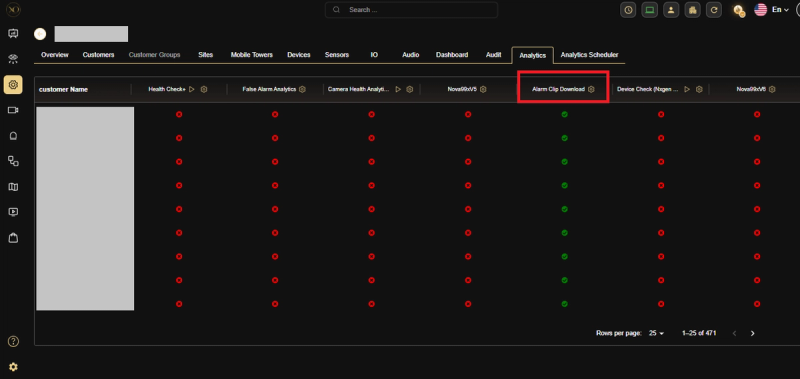
Figure 1: Analytics tab showing Alarm Clip Download column
-
Click the Settings icon
-
Select Subscribe and click Confirm
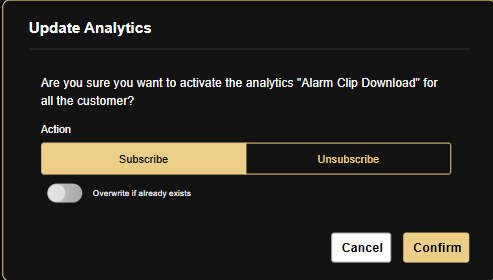
Figure 2: Update Analytics dialog showing Subscribe/Unsubscribe options
New alarm events will now have a video clip button associated in the Quad View (both VAS and Salvo).
Using Alarm Clip Download
VAS Quad
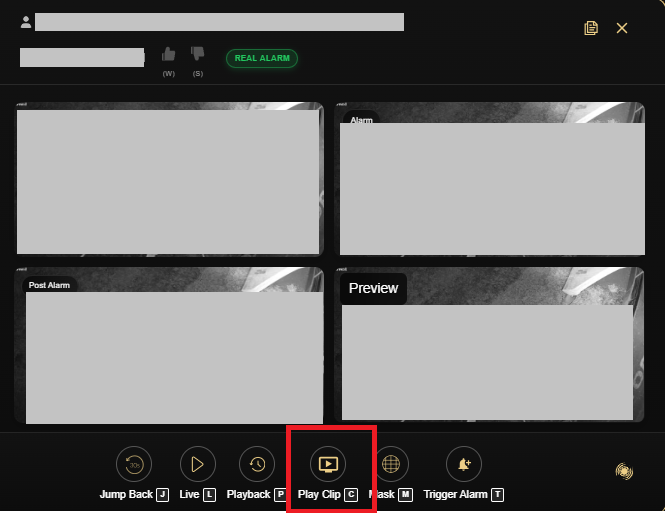
Figure 3: VAS Quad showing Play Clip button in toolbar
- Click the Play Clip button in the toolbar
- The clip will play in the Preview quadrant
- After the clip starts playing, the Download Clip and Copy Link buttons become visible
Salvo Quad
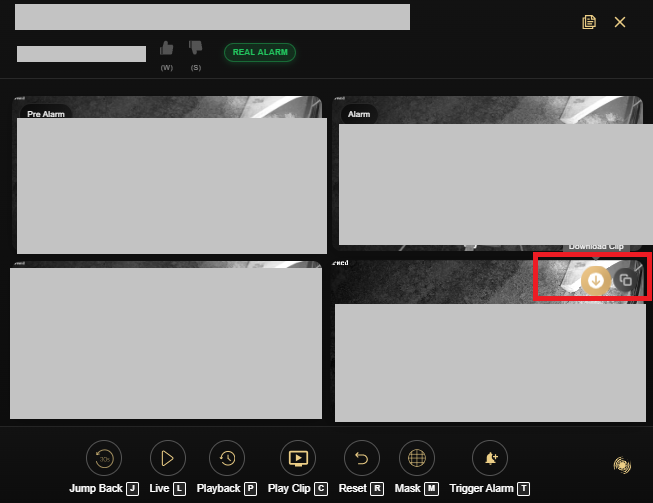
Figure 4: Salvo Quad showing Download Clip button in Preview quadrant
- The clip automatically plays in the Preview quadrant
- Use the controls inside the quadrant to Pause, Restart, or Download the clip
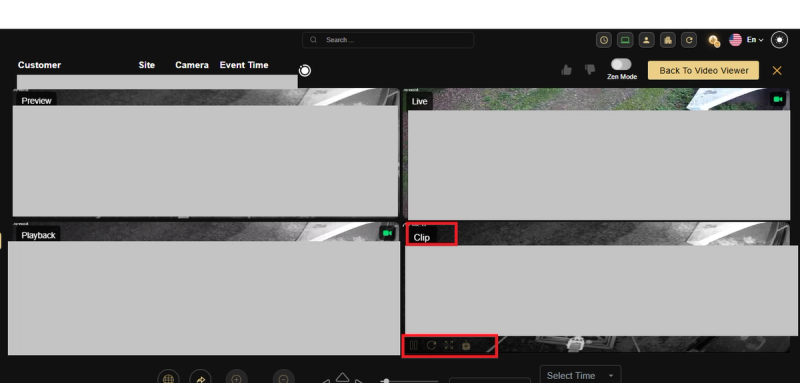
Figure 5: Salvo Quad showing clip playback controls
Key Capabilities
- Play Clip — Instantly view the alarm clip within the Quad View
- Download Clip — Save the video locally
- Copy Link — Share or download the clip via link
A Play Clip button appears in both VAS Quad and Salvo Quad views when:
- Alarm Clip Download is enabled for the device via the Analytics tab
- The device supports alarm clip download functionality
Real-World Use Cases
- A device goes offline after an alarm triggers — the operator still reviews the full event clip stored in the system without needing device connectivity.
- An operator in VAS Quad clicks Play Clip, reviews the footage, and immediately downloads it as evidence for an incident report.
- A supervisor shares a clip link with a colleague for remote review without granting direct system access.
Best Practices
- Enable Alarm Clip Download at the Customer or Site level to automatically cover all devices beneath it.
- Always verify that the device supports alarm clip download before relying on it for incident documentation.
- Use Copy Link for fast sharing during active incidents instead of downloading and sending files manually.
Additional Details
- Reliable Access — Alarm footage is available even if the device goes offline
- Faster Investigation — Eliminates dependency on device playback
- Improved Stability — Works seamlessly in low or unstable network conditions
- Unified Experience — Consistent functionality across both VAS and Salvo environments