ZenMode
What ZenMode Does
ZenMode is an intelligent operator-assist mode built into GCXONE that helps security teams cut through alert noise and focus on what actually matters. Instead of letting operators drown in hundreds of alarms per shift, ZenMode filters, prioritizes, and presents alerts in a way that keeps people sharp — without overwhelming them.
The table below highlights the real-world impact of ZenMode on operator performance and efficiency.
| Outcome | What It Means |
|---|---|
| Reduces cognitive load | Suppresses noise and surfaces only high-confidence alarms — no more chasing false positives |
| Speeds up decisions | Alarm identification becomes up to 3x faster through smarter grouping and prioritization |
| Expands operator capacity | One operator can comfortably manage 200+ cameras without fatigue |
| Boosts team efficiency | Overall capacity increases by roughly 10% — without hiring anyone new |
Why It Matters
Every operator knows this feeling. After about an hour into a shift, the alerts keep coming non-stop. Over time, it becomes hard to stay focused, and when something important happens, your attention isn’t as sharp as it should be. This isn’t a people problem, it’s a system problem. That’s exactly what ZenMode is designed to fix.
ZenMode doesn’t replace human judgment, it supports it. By filtering out up to 60% of low-priority alarms, it helps operators focus only on what really matters. This leads to faster response times, with each alarm handled in 2–3 minutes. It also allows one operator to manage a large site, even more than 200 cameras per shift, without feeling overwhelmed or losing focus.
How It Works
Prerequisites:
Before you switch ZenMode on, make sure these are in place:
- Administrator access to your GCXONE tenant
- Permissions to activate Marketplace features
- Historical alarm data and recorded footage within the configured retention period — the more history available, the more useful ZenMode becomes
Activating ZenMode:
ZenMode is activated through the GCXONE Marketplace. Follow these steps:
- Log in to GCXONE as an administrator.
- Open Marketplace from the main menu.
- Select Apps.
- Find ZenMode and click Explore. Review the feature details.
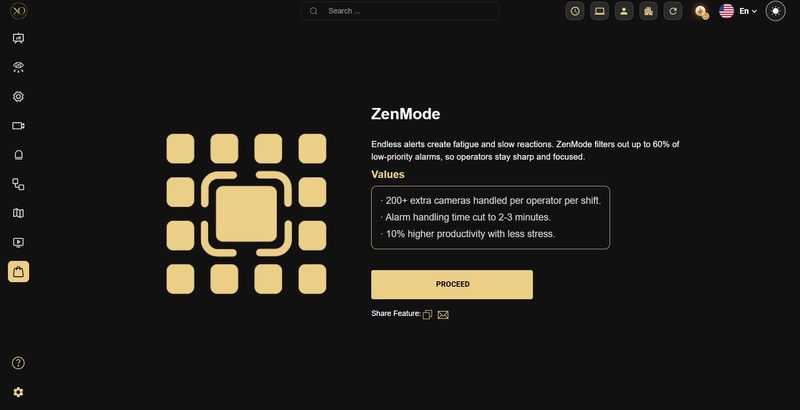
Figure 1: ZenMode in Marketplace - Explore page with feature details and activation option.
-
Click Proceed.
-
When prompted to save the subscription, click Yes.
After subscribing, ZenMode will appear under My Subscriptions and is immediately available for operators to use.
Using ZenMode via Video Search:
- Navigate to Video Search in GCXONE.
- Use the filters at the top to choose a customer or site.
- Click the ZenMode icon in the top-right toolbar.
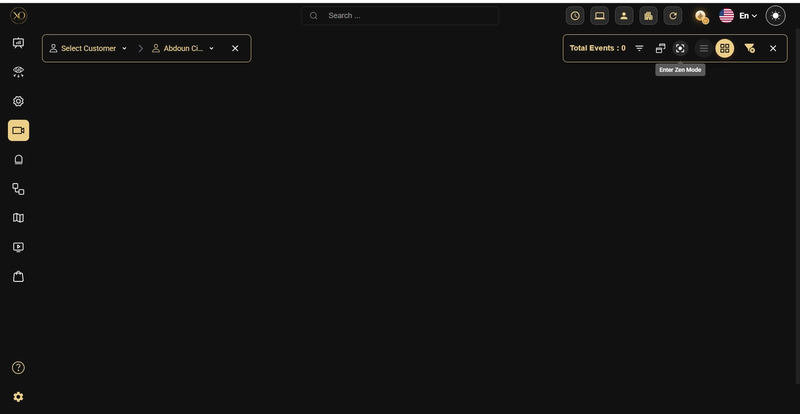
Figure 2: The ZenMode icon in Video Search toolbar.
- Select the alarm type or priority you want to focus on.
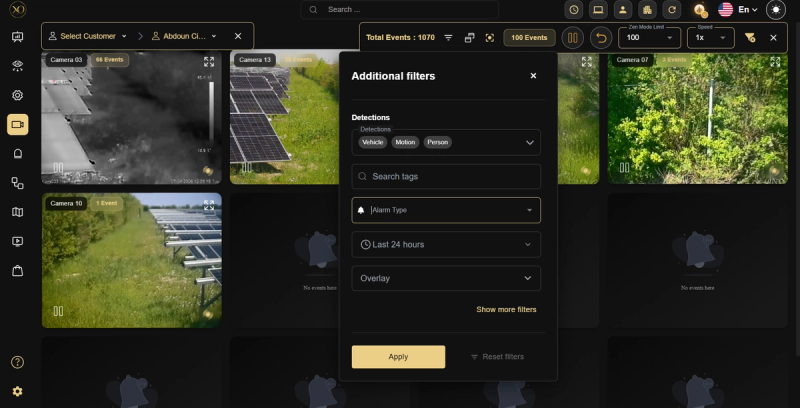
Figure 3: ZenMode Additional filters
- ZenMode compiles the relevant events into a reviewable video.
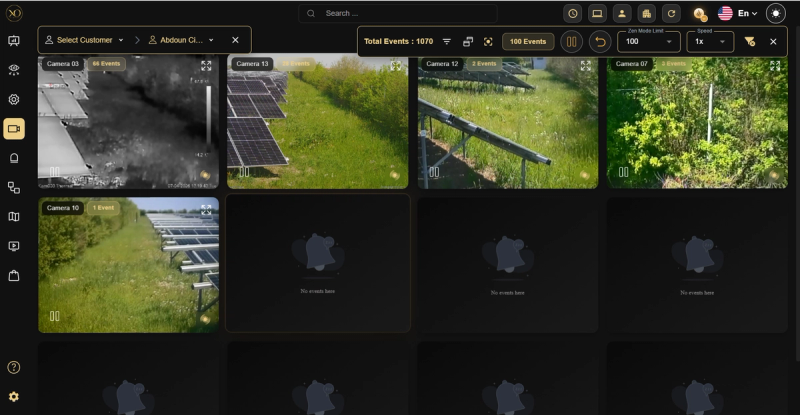
Figure 4: ZenMode event compilation view.
- Use the playback controls to move through the footage.
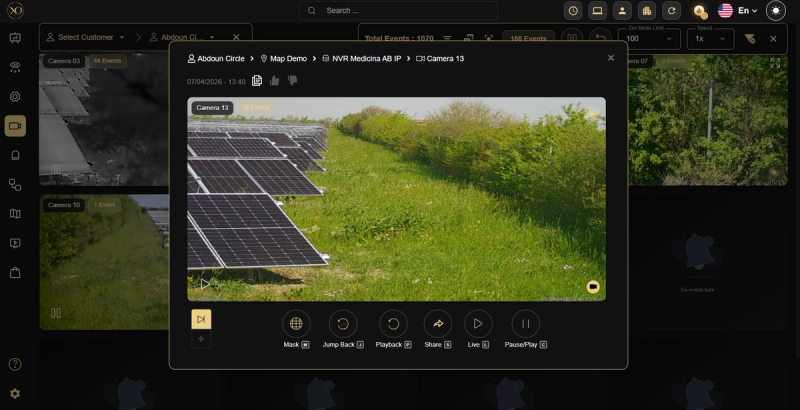
Figure 5: ZenMode playback controls interface.
Using ZenMode via Video Viewer:
- Open Two Tabs
- Open the first tab and navigate to the Video Viewer
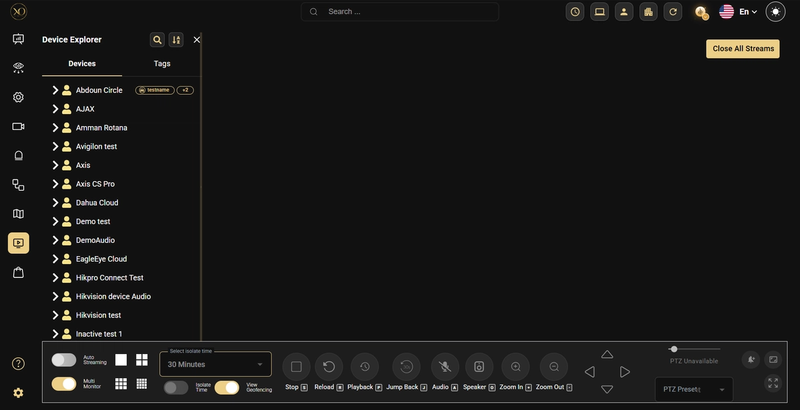
Figure 6: Video Viewer Tab.
- Open a second tab and navigate to Video Search
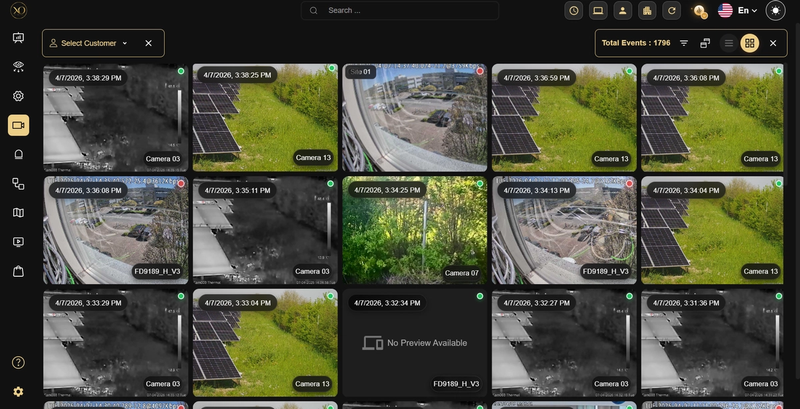
Figure 7: Video Search tab
- Enable Multi Monitor
- Go to the Video Viewer tab (Tab 1)
- At the bottom left, make sure the Multi Monitor toggle is turned ON
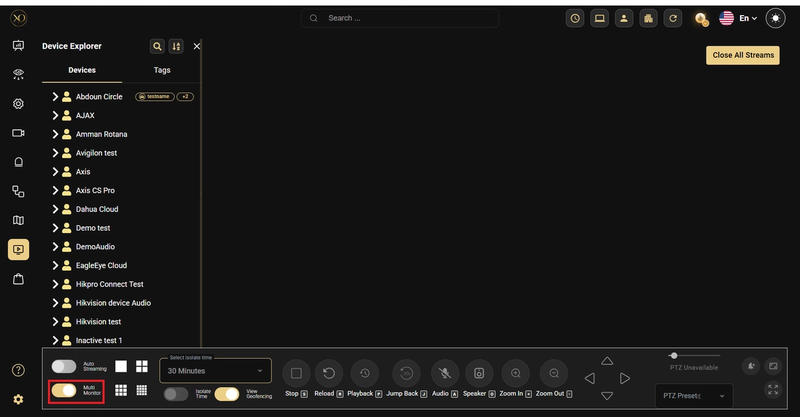
Figure 8: Multi Monitor enabled in Video Viewer
- Go to the Video Search tab (Tab 2)
- At the top right, make sure the Multi Monitor is enabled
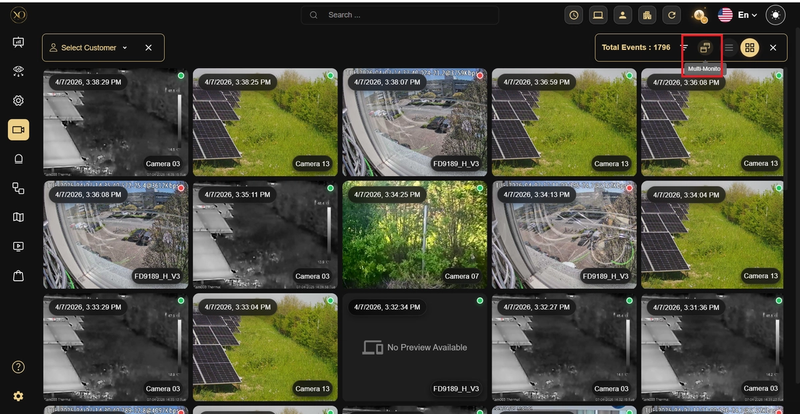
Figure 9: Multi Monitor enabled in Video Search
- Select a Camera from Video Search
- In the Video Search tab (Tab 2), browse or search for the customer or site
- Click on the desired camera to select it
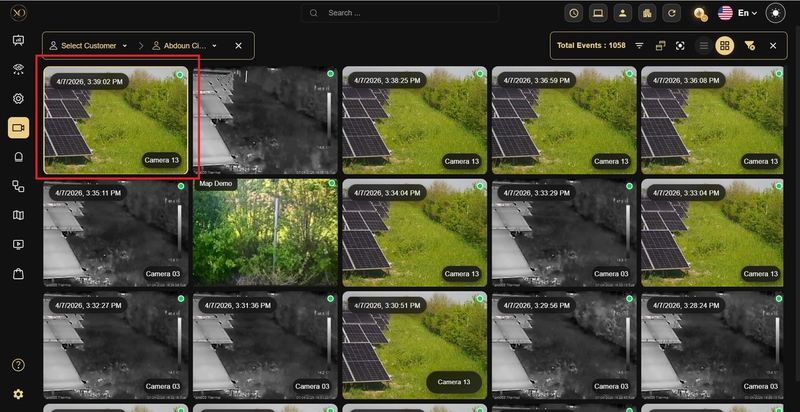
Figure 10: Camera selection in Video Search
- View the Camera in Video Viewer
- The selected camera stream will now appear in the Video Viewer tab (Tab 1)
- This quad-view allows operators to assess what happened before, during, and after an alarm without switching between separate views.
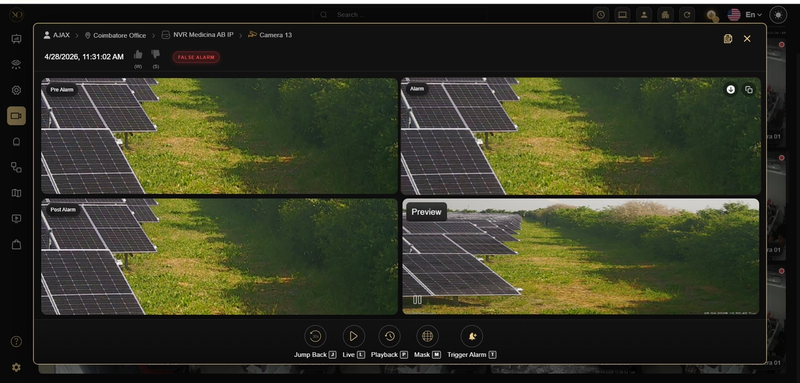
Figure 11: Quad-view layout
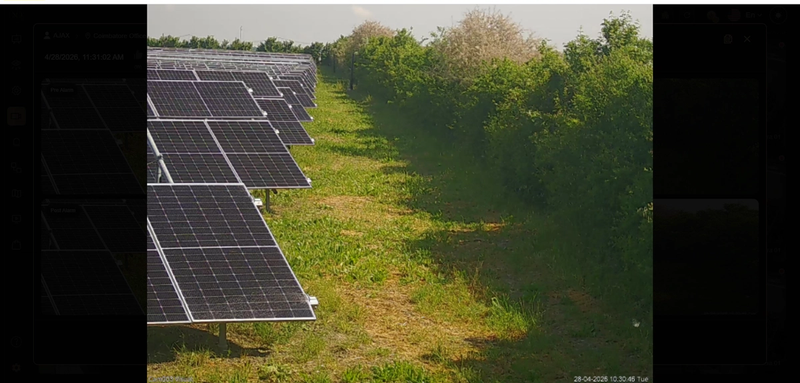
Figure 12: Full screen View
Fullscreen View — Double-click any Quad View tile — including pre-alarm, alarm, post-alarm, and preview — to expand it to fullscreen for clearer inspection. This allows operators to clearly verify events without struggling with small image sizes. Preview is now fully interactive and supports the same expansion behavior as other tiles.
- Activate ZenMode
- In the Video Viewer tab, look at the top right area
- Click the ZenMode button to activate it
- The view will switch to a focused, distraction-free ZenMode display
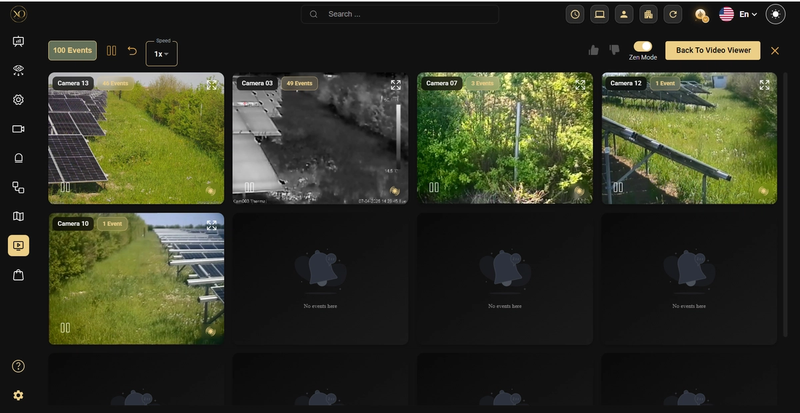
Figure 13: ZenMode activated view
- Select a Camera to Inspect
- In ZenMode, click on any camera tile to open a detailed popup view
- The popup shows the camera name, date, and timestamp of the event
- Use the playback controls at the bottom to navigate the footage:
- Mask [M] – Apply privacy masks to the video
- Jump Back [J] – Go back to a previous moment in the recording
- Playback [P] – Play the recorded footage
- Share [S] – Share the video clip with others
- Live [L] – Switch back to the live camera feed
- Pause/Play [C] – Pause or resume playback
- Close the popup to return to the full ZenMode grid view
Key Capabilities
- Noise reduction – Operators focus on real events, not junk alarms
- Faster response – Each alarm handled in 2–3 minutes
- Live + historical – Review past footage without interrupting live monitoring
- Playback controls – Pause, rewind, adjust speed, and jump to specific timestamps
- Isolate view – Focus the full screen on one camera, hiding all other feeds
- Download clips – Export footage for reports, documentation, or legal use
- Audit trail – Clear record of what happened, when, and what action was taken
- Threshold configuration – Set filters to match your operational priorities
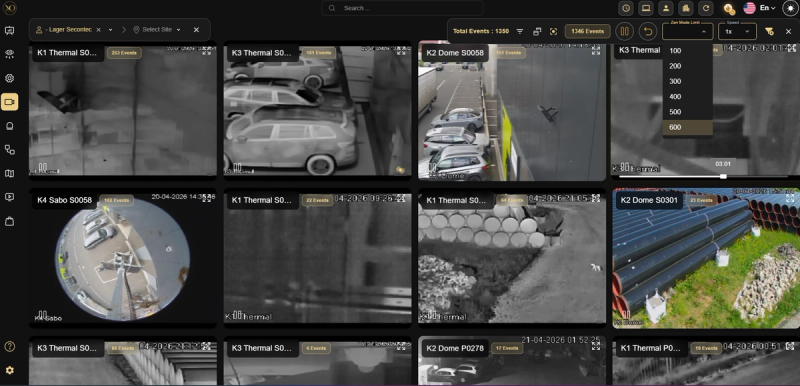
- Configurable event limit — Use the Zen Mode Limit selector to control how many events load per camera (100 / 200 / 300 / 400 / 500 / 600), up to a maximum of 600 events.
Real-World Use Cases
- False Alarm Reduction An operator notices the same camera keeps triggering. ZenMode surfaces the pattern — it's wind moving a tree branch. The camera is masked and false alarms drop immediately.
- Incident Reconstruction After a break-in, the team loads all cameras from the affected site. ZenMode compiles the footage chronologically, making it easy to trace entry points, movement paths, and exit routes.
- Shift Handover A supervisor reviews overnight alarm patterns before the morning briefing. Instead of hours of footage, ZenMode highlights the key events. The incoming team catches up in minutes.
- Compliance & Audits A regulated client requests evidence for a specific time window. ZenMode retrieves the relevant alarms and footage without touching original data — audit-ready in minutes, not hours.
- Operator Training A supervisor pulls real historical events — both genuine incidents and common false positives — and uses them to train new operators on pattern recognition and threat escalation.
- Proactive Maintenance A camera suddenly spikes in alarm frequency. ZenMode flags it. The team investigates and finds a misaligned lens. Maintenance is scheduled before the customer notices anything.
Additional Details
What ZenMode Does NOT Do
- Does not automatically change any camera or analytics settings
- Does not take any autonomous actions — everything requires a human decision
- Does not modify, delete, or overwrite footage or alarm data
- Does not predict or prevent incidents before they happen
Data & Access
- ZenMode only shows data within your configured retention period
- Users can only access sites and cameras they are already authorized to view
- All existing GCXONE role-based access controls are fully respected