Edit Properties
What Edit Properties Does
The Properties tab is available within the Edit dialog across all levels of the GCXONE Configuration app — Service Provider, Customer, Site, Device, and Sensor. It provides additional configuration options that extend the standard settings for each entity.
Why It Matters
Different deployments have different requirements. The Properties tab gives administrators fine-grained control over platform behavior, streaming settings, alarm handling, retention policies, and more — without affecting the core configuration of the entity.
How It Works
To access the Properties tab:
- Navigate to Configuration in GCXONE
- Select the entity you want to configure (Service Provider, Customer, Site, Device, or Sensor)
- Click the Edit button
- Select the Properties tab
Each property has three columns: Display Name, Parameter Type, and Parameter Value.
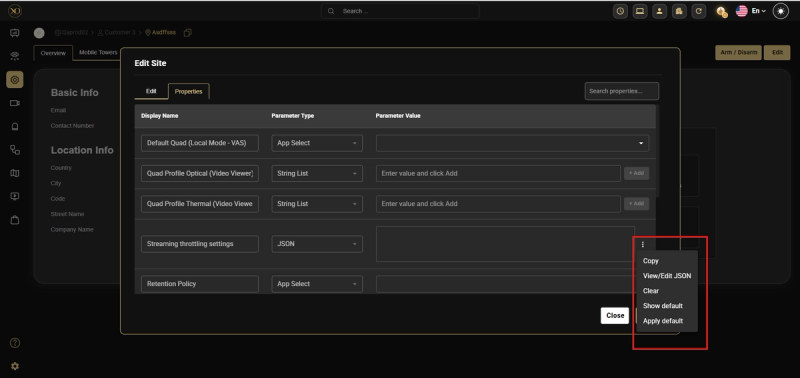
For JSON-type properties, a three-dot menu (⋮) is available with the following options:
- Copy — Copies the current value in the Parameter Value field
- View/Edit JSON — Opens the JSON value in a dedicated editor for easier viewing and editing
- Clear — Clears the current input value from the field
- Show Default — Displays the root-level default value for reference only
- Apply Default — Applies the root-level default value into the field
Default Value Behavior
Root-level default values are not displayed automatically in the Properties tab. This prevents default values from being accidentally saved as user inputs when no change was intended.
When no user input is saved for a property, one of two things happens:
- The property falls back to its root-level default value
- The property falls back to a legacy value — a hardcoded value set before the additional properties feature was introduced
Not all properties have been updated to use root-level defaults. If a property does not show a default value using Show Default, it likely uses a legacy fallback value instead.
Key Capabilities
Platform Version
The Platform Version property is located under Service Provider → Properties. It controls which platform behavior the tenant uses.
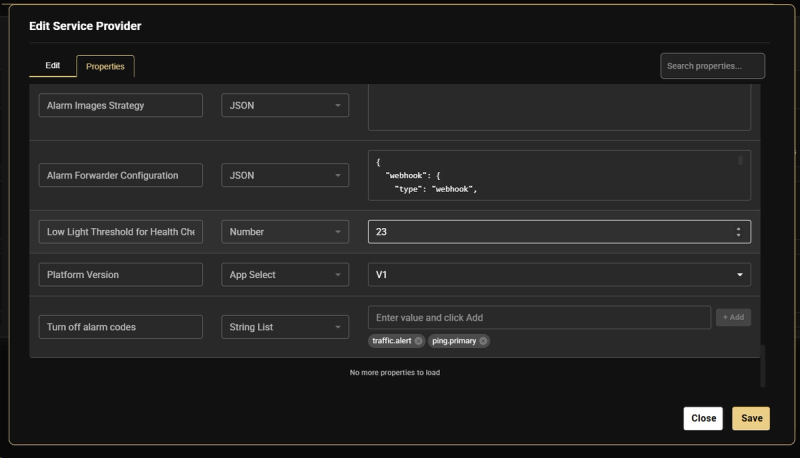
Set the value to V2 for any tenant that:
- Uses GCX only
- Uses GCX with the mobile app
- Uses alarm forwarding through DC09 to external systems such as AmWin, Lisa, or other monitoring software
If left on V1, alarm forwarding will use the old Genesis domain format (<subDomain>.nxgen.cloud) instead of the correct GCX endpoint (gcx.nxgen.cloud), which may cause forwarding failures. The mobile app also requires V2 — it will not function correctly on V1.
Best Practices
- Use Show Default before making changes to understand the expected value for JSON properties
- Use Apply Default to reset a JSON property to its root-level default when needed
- Changes at the Service Provider level apply globally unless overridden at a lower level
- Not all properties support root-level defaults — some fall back to legacy values
- Always click Save after making changes — closing without saving will discard all unsaved changes
Additional Details
- Properties are inherited from higher levels unless explicitly overridden at a lower level
- Root-level default values are not displayed automatically — use Show Default to view them for JSON-type properties
- Some properties use legacy fallback values if no user input is saved