BulkImport
What BulkImport Does
BulkImport lets you onboard customers, sites, and devices at scale. Upload a filled Excel template and GCXONE creates everything automatically. No manual entry, no delays.
Why It Matters
- Onboard sites up to 5x faster with one-click import instead of manual entry.
- Eliminate repetitive data entry and reduce the risk of setup errors.
- Ensure consistent configurations across every location from day one.
- Stay focused on monitoring, not manual setup.
New sites go live immediately after upload. Admins stop adding entities one by one. Large deployments complete in minutes, not days.
How It Works
BulkImport uses a structured Excel template. Download it, fill in the required data, and upload it back into GCXONE. The process follows three steps:
- Upload - Download the template file, fill it in, and select your Excel file (.xlsx or .xls)
- Preview - Review the data before confirming the import
- Complete - GCXONE imports the data and creates all entities instantly.
Key Capabilities
BulkImport supports the following entity types:
- Customers - Add multiple customers at once via Configuration →** ** Customers > Import
- Sites - Add multiple sites at once via Configuration → Sites > Import
- Devices - Add multiple devices at once via Configuration→ Devices > Import
Use Cases
- Large-Scale Onboarding - Configure hundreds of sites and devices in minutes and deploy GCXONE across multiple customers simultaneously.
- Multi-Site Deployments - Onboard complete customer environments, all sites and devices, in a single upload.
- Standardized Configuration - Prepare one Excel template and import it across all environments to guarantee consistent configurations.
Additional Details
Importing Customers
- Go to Configuration, then select Customers
- Click Import
- Click Download Template File
- Fill in the required customer information in the Excel template
- Click Browse Files and select your completed file
- Review the preview and confirm the import
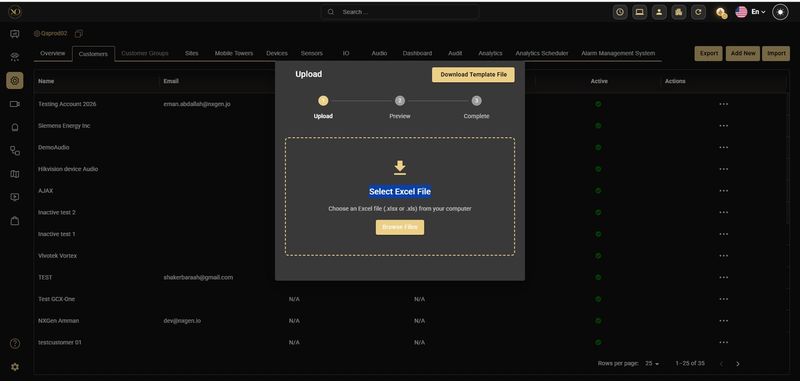
Figure 1: Customer Import
- Go to Configuration, then select Sites
- Click Import
- Click Download Template File
- Fill in the required site information in the Excel template
- Click Browse Files and select your completed file
- Review the preview and confirm the import
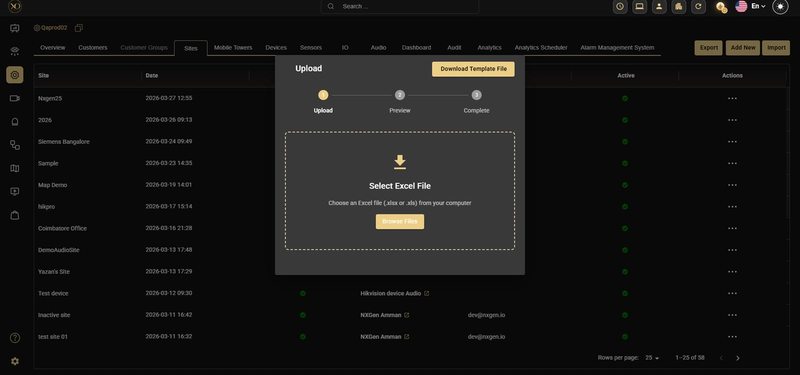
Figure 2: Site Import
Importing Devices
- Go to Configuration, then select Devices
- Click Import
- Click Download Template File
- Fill in the required device information in the Excel template
- Click Browse Files and select your completed file
- Review the preview and confirm the import
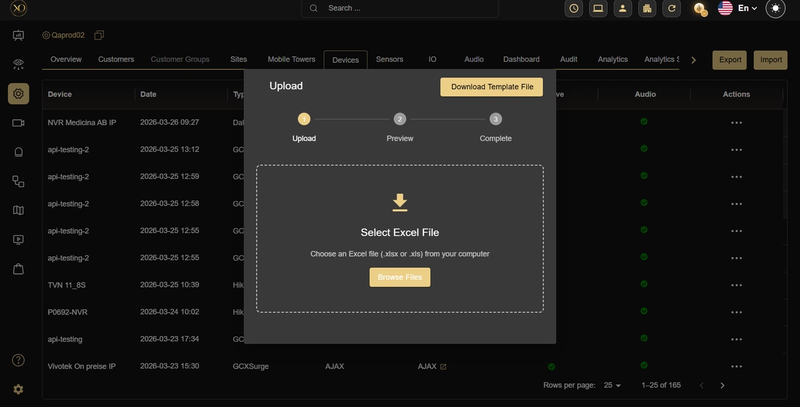
Figure 3: Device Import