Axis Camera Station
Introduction
This guide describes the steps required to configure AXIS Camera Station for integration with the GCX-ONE platform. It covers user setup, permission configuration, and device onboarding.
Prerequisites
Before you begin the configuration process, ensure the following prerequisites are met:.
- Setup a user: An admin user with the necessary permissions is configured.
- Control Port: The control port is open (443) on your firewall.
Setting up a User Name and password for NXGEN team
Step 1: Access User Permissions in AXIS Camera Station
-
Launch the AXIS Camera Station client application on your computer.
-
Enter your credentials to log in to the server using your current user account.
-
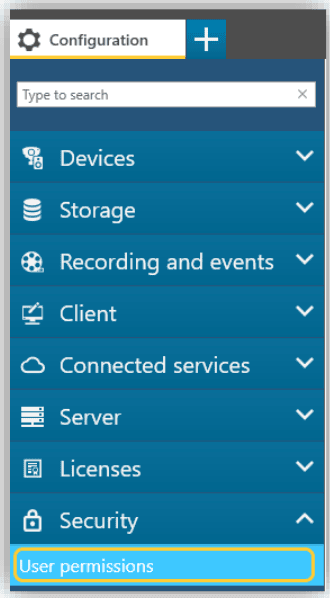
Go to the Configuration tab in the main menu.
-
Select Security from the dropdown options.
-
Click on User Permissions to access and manage user access settings.
Step 2: Add a New User Account or Group.
- In the User Permissions window, locate and click the Add button at the bottom right corner.
- Choose the Account Scope you want to add, Server: Select this option to retrieve and add local users and groups from the server. Domain: Choose this option to fetch and add users and groups from your domain directory.
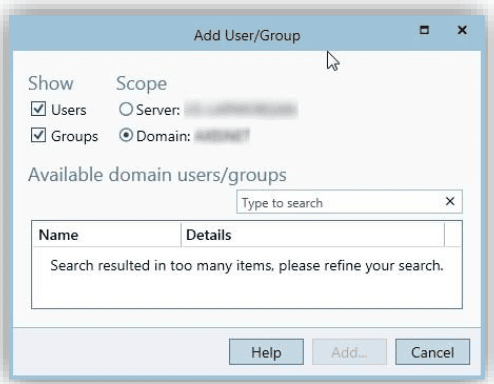
Step 3: Add NXGEN User Credentials. Go to "Add User": Within the User Permissions window, navigate to the Add User section.
- Enter NXGEN Credentials: input the necessary credentials for the NXGEN user account.
- Assign Permissions: Set the permissions for the NXGEN account to Administrator or Operator (Recommended) to ensure they have the required access level for managing or operating the software.
Referring to the AXIS document, the difference between each role is as mentioned below:
- Administrator: The Administrator role grants full access to the entire system, including automatic access to all cameras, I/O ports and views. Therefore, you do not need to specify any camera, I/O or view privileges for a user with this role. This role is required to configure the system.
- Operator: An Operator has access to live and recorded video of selected cameras and access to selected I/O ports and views. An operator has full access to all functionality of AXIS Camera Station except system configuration.
- Viewer: A viewer has access to live video of selected cameras and access to selected I/O ports and views. A viewer does not have access to recorded video or system configuration.
These steps will help you have the Axis Camera Station integrated into the GCX-ONE system, allowing you to manage events, configure alerts, and ensure the camera is properly monitored within your security infrastructure. By following these instructions, you will ensure seamless operation and enhanced security through effective event management.
Axis Camera Station Config Guide with GCX-ONE
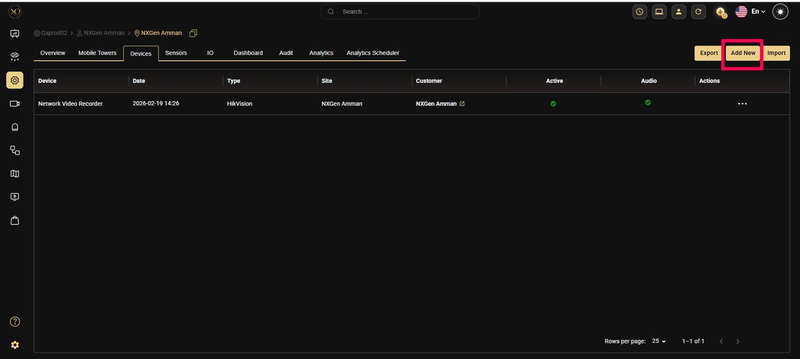
Step 1: Navigate to the Devices tab to view and manage the devices associated with the selected site.
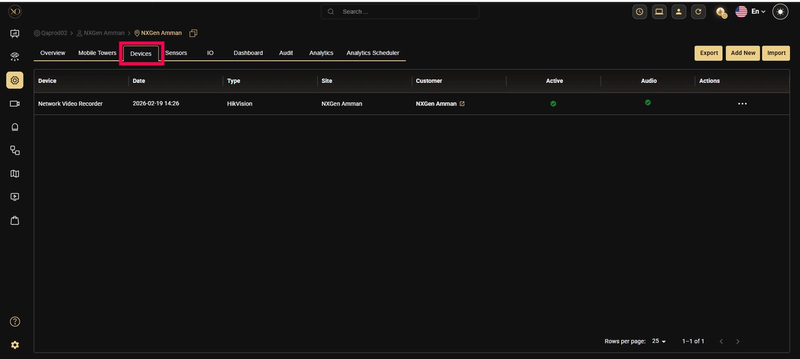
Step 2: Click the Add button.
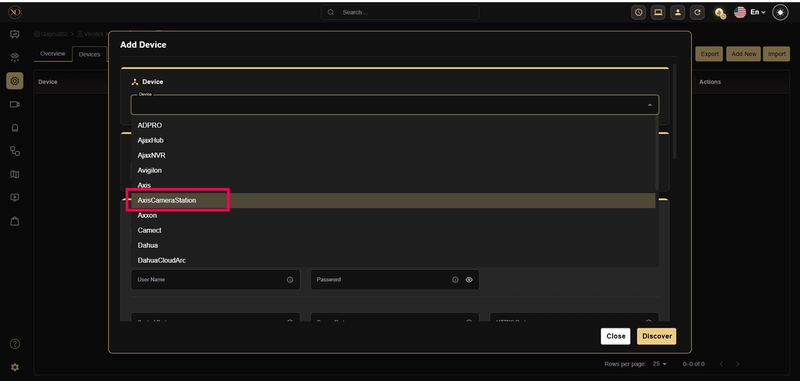
Step 3: In the dialog, open the Device dropdown and select Axis
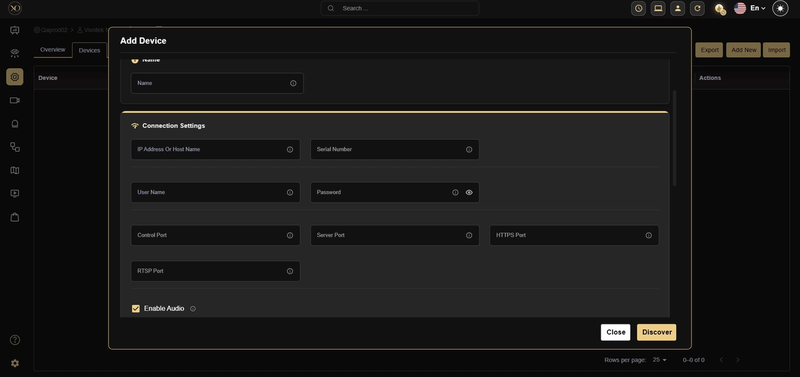
Step 4: Enter all required fields: Name, IP Address or Host, Username, Password, Control port, Server port, Https Port, RTSP Port.
Step 5: Click Discover.
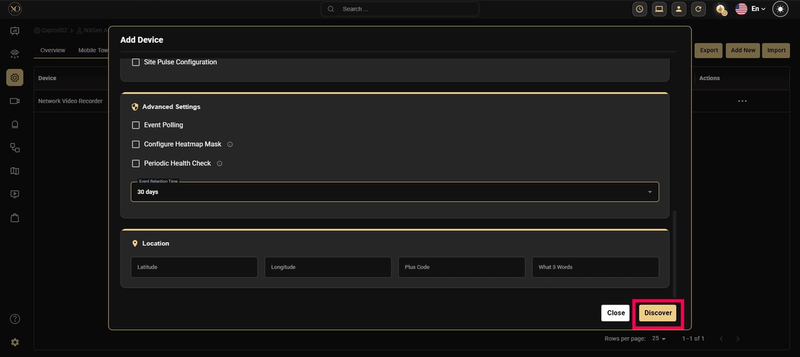
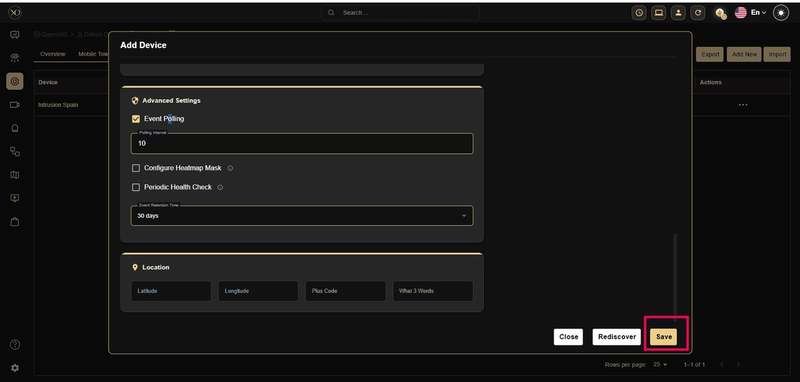
Step 6: Once the device is successfully discovered, click Save.