Speaker
What Speaker Does
Speaker enables operators to initiate audio announcements and two-way audio calls to SIP-enabled speakers configured under a site in GCXONE. Using the Genesis Audio device type, operators can communicate directly with on-site personnel from the Video Viewer.
Why It Matters
Security operations often require immediate verbal communication with on-site personnel. Speaker eliminates the need for separate communication tools by integrating SIP speaker control directly into the GCXONE interface, allowing operators to respond faster during incidents.
How It Works
Genesis Audio devices use SIP-based communication protocols to register SIP speakers under a site. When an operator initiates an audio call from the Video Viewer, the call is routed through the Genesis Audio device to the configured speaker.
| Device Type | Supported Protocol | Purpose |
|---|---|---|
| Genesis Audio | SIP-enabled Speaker | Audio Announcements |
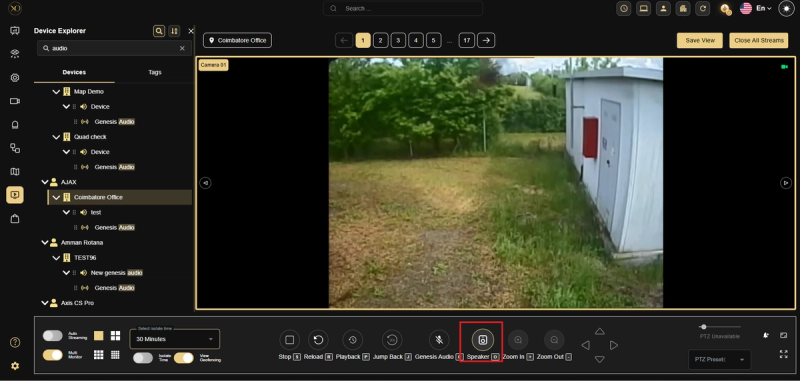
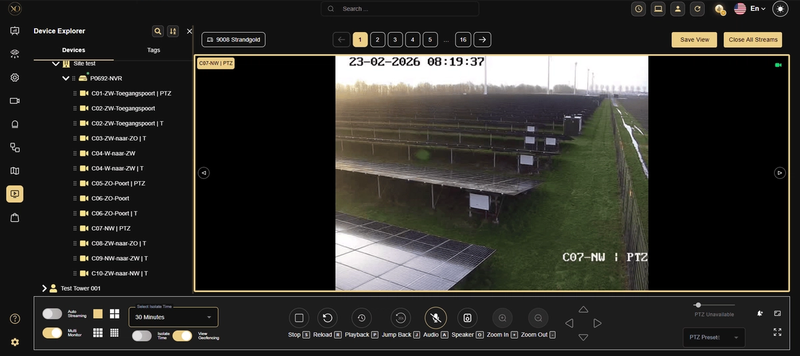
Figure 1: Genesis Audio devices listed under each site in the Device Explorer, with the Speaker button visible in the Video Viewer toolbar.
Key Capabilities
Prerequisites
- User must have Genesis Audio permission enabled in their role
- Local Mode is not required — audio calls can be initiated via Genesis Audio even if Local Mode is disabled
Step 1 — Get SIP Credentials from Genesis Audio
- Navigate to the Configuration App in GCXONE
- Select the site and go to the Devices tab
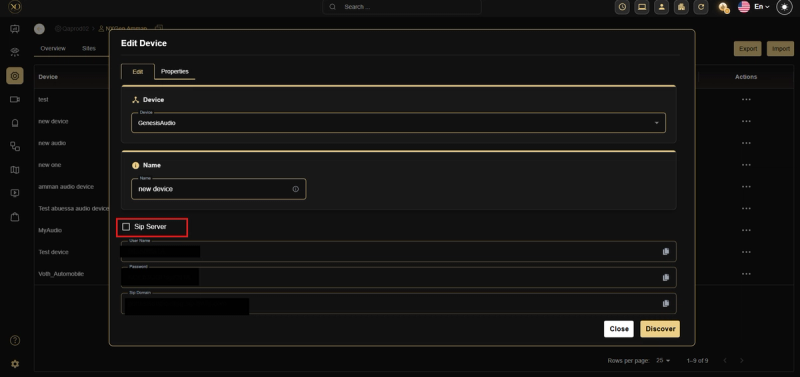
- Click Edit on the Genesis Audio device
- Click the SIP URL link
- Note the Username, Password, and SIP Domain — required for speaker configuration
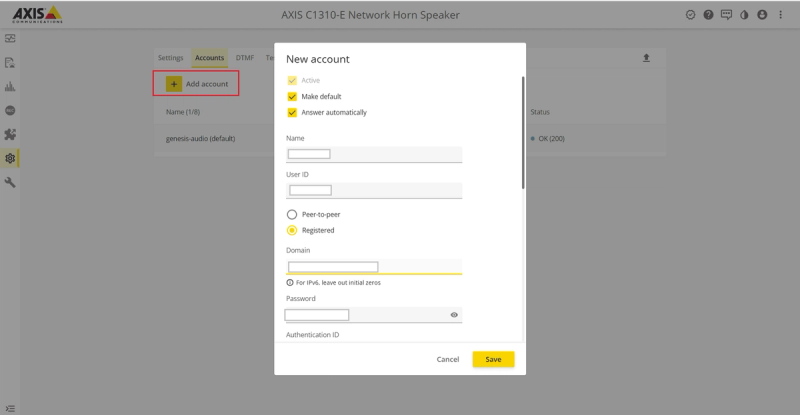
Step 2 — Configure the SIP Speaker
Using the speaker's web client (example: Axis Horn Speaker):
-
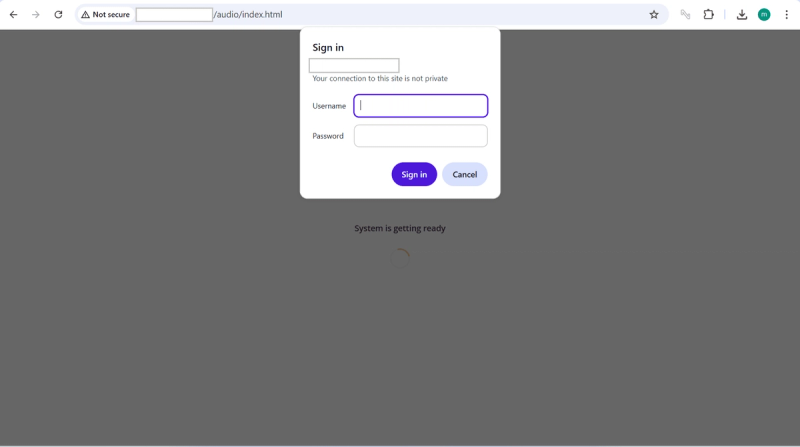
Log in to the speaker's web client
-
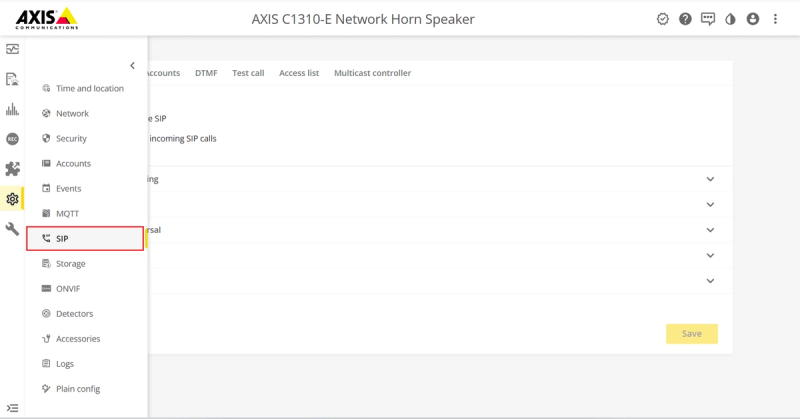
Navigate to System → SIP
-
Click Add to create a new SIP account
-
Enable Make Default
-
Enter an Account Name
-
Enter the Username from the Audio credentials
-
Set Default Status to Registered
-
Enter the SIP Domain from the Audio credentials
-
Enter the Password from the Audio credentials
-
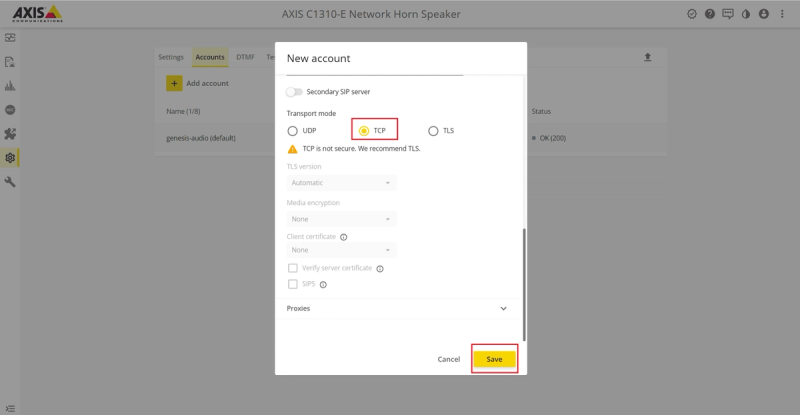
Set Transport Mode to TCP
-
Click Save
Microphone Setup
Before initiating an audio call, ensure the microphone is properly configured:
- Enable the Audio/Unmute option in the Video Viewer if supported by the device
- Enable the Microphone permission in the browser when prompted
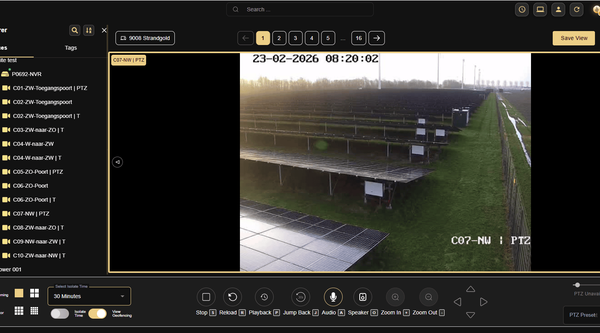
- The microphone icon will change to indicate the microphone is active and the call is connected
For steps on how to initiate an audio call, refer to Audio Routing & Conference Mode
Real-World Use Cases
- An intrusion alarm triggers — the operator immediately initiates a two-way audio call through the site's SIP speaker to issue a verbal warning without switching to a separate communication tool.
- A delivery arrives at a monitored entrance — the operator uses Speaker to communicate directly with the on-site personnel from the Video Viewer.
Best Practices
- Always verify the Genesis Audio device is active before initiating a call.
- Ensure the browser microphone permission is enabled before starting a shift — waiting for the browser prompt during an active incident causes delays.
- Use Local Mode for device default audio — Genesis Audio calls work via cloud, but device default audio requires Local Mode to be enabled.
Additional Details
- Genesis Audio is configurable only if the user has the corresponding permission
- Local Mode is not required for Genesis Audio calls — they are initiated directly via the cloud
- Local Mode must be enabled to use device default audio