Multi Monitor
What Multi Monitor Does
Multi Monitoring allows operators to synchronize activity across multiple modules (Video Search, Video Viewer, and Maps) using separate browser tabs. When enabled, selecting a camera or alarm in one module automatically reflects in the others.
Why It Matters
Operators often need to review alarms, monitor live video, and check location context at the same time. Without Multi Monitoring, this requires constant switching between views. Multi Monitoring keeps all views aligned, improving efficiency, situational awareness, and response time.
How It Works
Multi Monitoring works by linking multiple tabs opened in parallel:
- Tab 1 — Video Viewer: Displays live camera streams
- Tab 2 — Video Search: Used to browse and select alarms or cameras
- Tab 3 — Maps (optional): Displays the geographic location of the selected device
When Multi Monitoring is enabled across these modules:
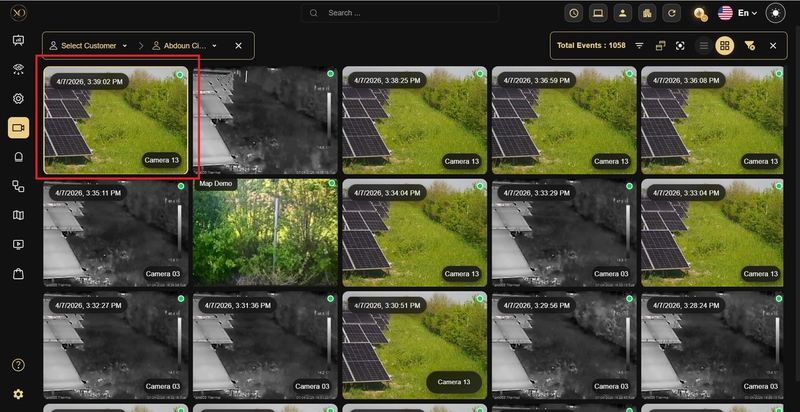
- Selecting an alarm or camera in Video Search (highlighted in yellow).
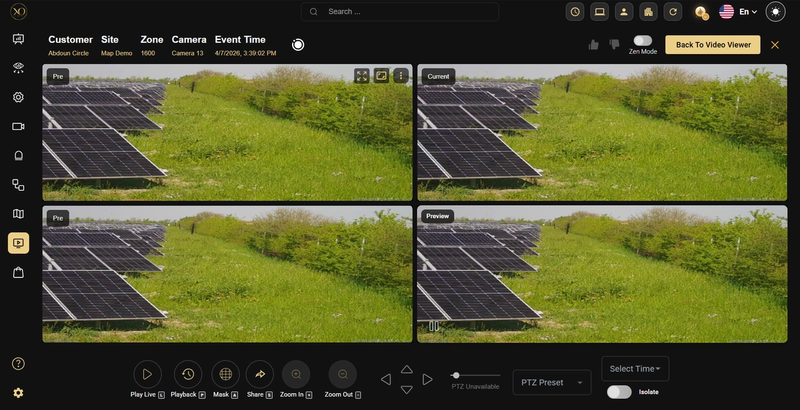
- Automatically opens the corresponding stream in Video Viewer And highlights/displays the same device in Maps (if available).
This synchronization happens instantly without interrupting the operator’s workflow.
How to Enable
Step 1 — Open multiple tabs
-
Tab 1: Navigate to Video Viewer
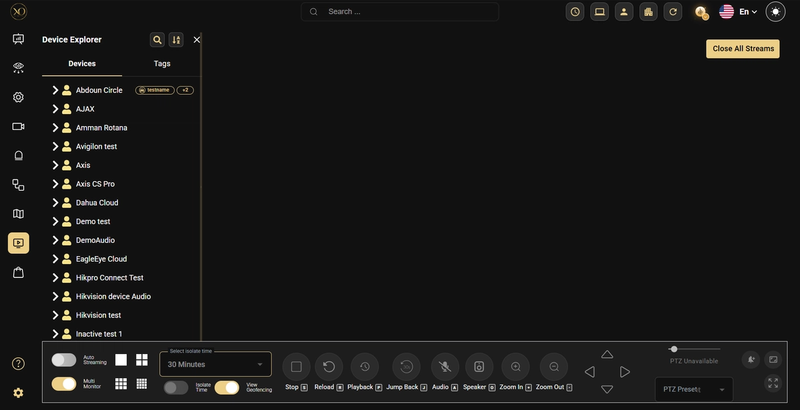
-
Tab 2: Navigate to Video Search
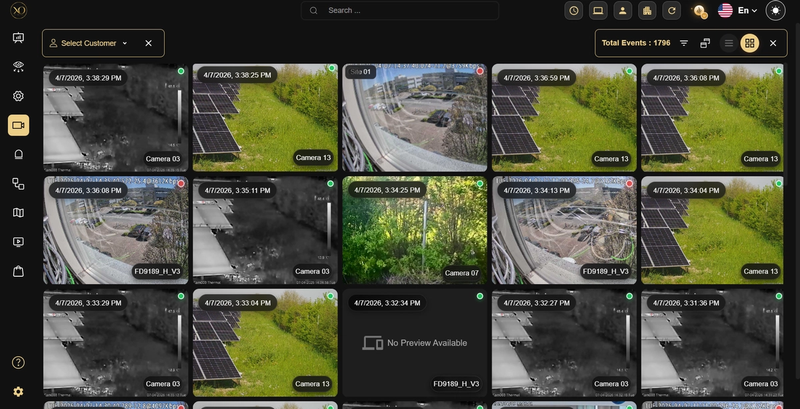
-
Tab 3: Maps (Optional)
Step 2 — Enable Multi Monitor in Video Viewer
- In Tab 1, go to the bottom left of the Video Viewer
- Turn the Multi Monitor toggle ON
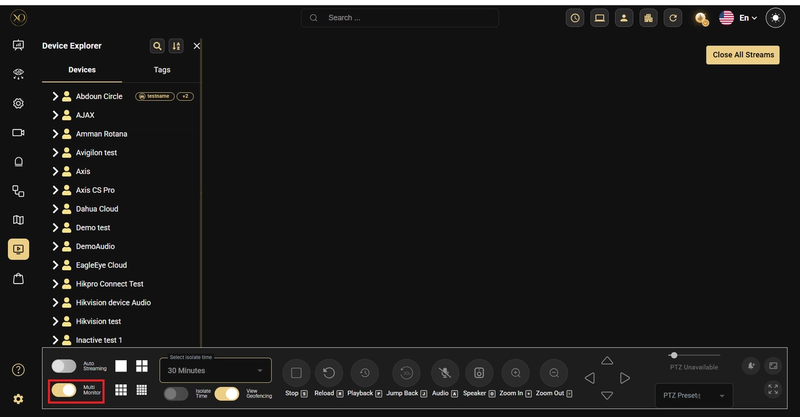
Step 3 — Enable Multi Monitor in Video Search
- In Tab 2, go to the top right of Video Search
- Make sure Multi Monitor is enabled
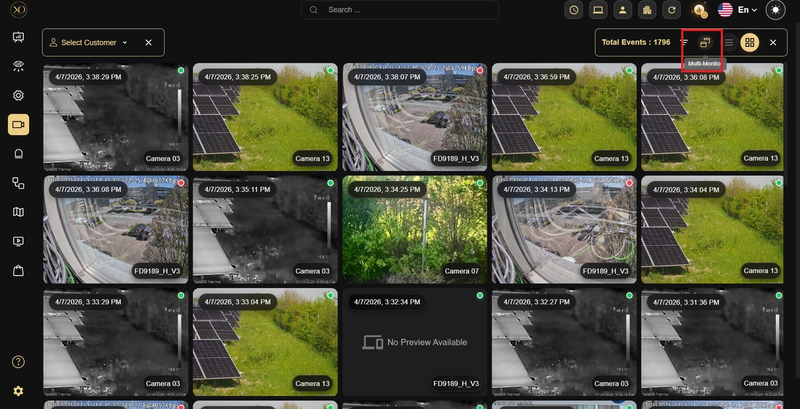
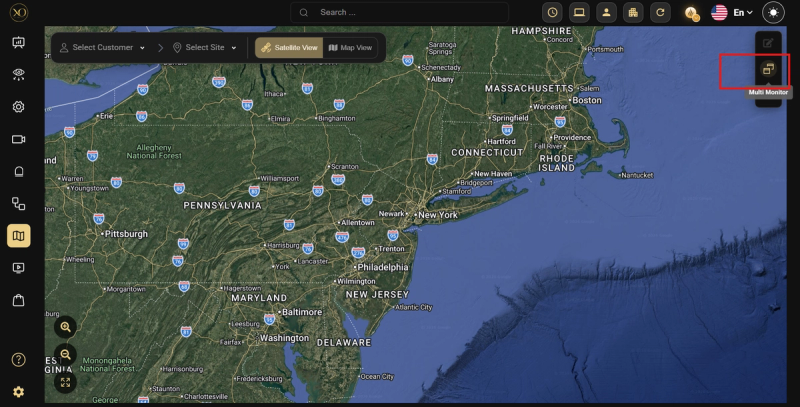
Step 4 — Enable Multi Monitor in Map
Step 5 — Select an alarm or camera in Video Search
Step 6 — View in Video Viewer
The same camera will automatically:
- Open in Video Viewer
- Appear in Maps (if mapped)
Real-World Use Cases
- An operator reviews alarms in Video Search while simultaneously viewing live streams in Video Viewer
- A user selects cameras from Video Search and instantly monitors them live without manual navigation
- A supervisor tracks camera location on Maps while reviewing activity and live footage
Best Practices
- Keep each module open in a separate tab or screen for better visibility
- Ensure Multi Monitoring is enabled in all tabs for proper synchronization
- Use alongside Maps for enhanced situational awareness