Audio Routing & Conference Mode
What Audio Routing & Conference Mode Does
Audio Routing enables operators to initiate audio calls to Genesis Audio devices configured under a site. When multiple active Genesis Audio devices exist under the same site, the system automatically activates Conference Mode, connecting all active audio endpoints and the operator in a single call.
Why It Matters
In multi-device deployments, operators need to communicate across all active audio endpoints at a site simultaneously. Conference Mode ensures that no active audio device is left out of the call, enabling collaborative communication across the entire site without manual configuration.
How It Works
When an audio call is initiated from the Video Viewer:
- If multiple active Genesis Audio devices are configured under the site, the system initiates a Conference Mode call connecting all active devices and the operator simultaneously
- If no Genesis Audio devices are active, or none are configured, the call falls back to the device's default audio if supported by that device type
Steps to initiate an Genesis Audio call request from the video viewer
-
Log in to GCXONE
-
Navigate to the Configuration App and select the site
-
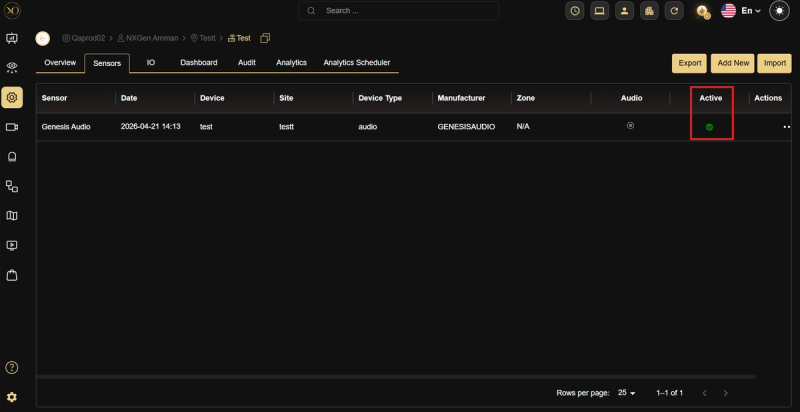
Select the Genesis Audio device under the site.
-
Verify if Audio device audio devices is active
-
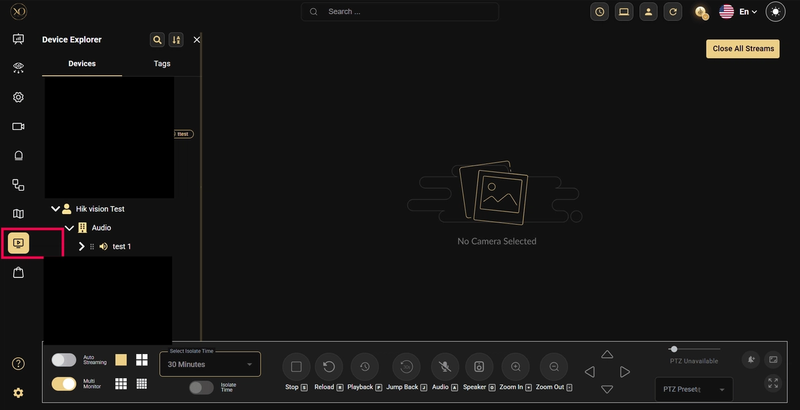
Navigate to the Video Viewer
-
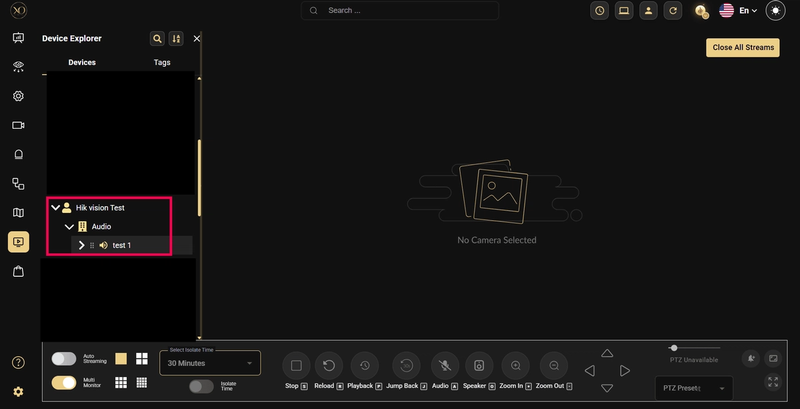
Select the site in the tree view and expand it.
-
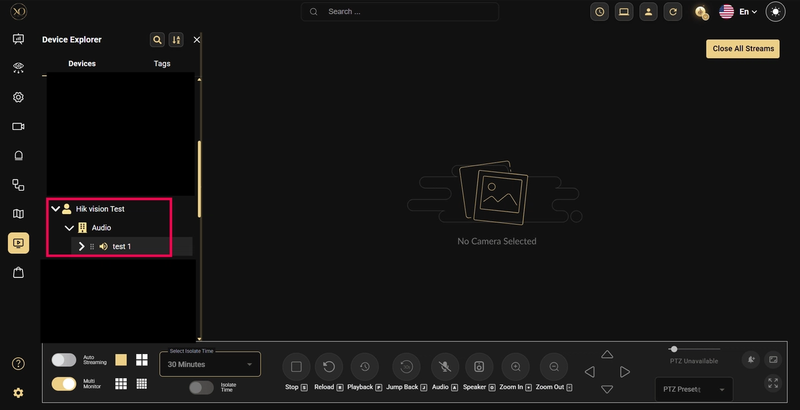
Verify that the GENESIS Audio device is listed under the selected site.
-
Drag and drop a sensor from the site into Video Viewer .
-
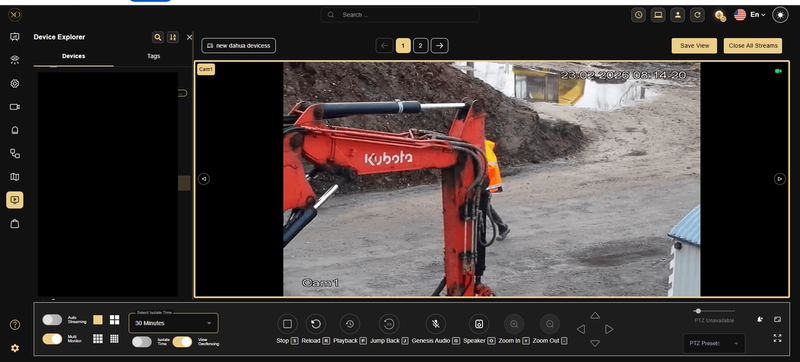
Verify that the microphone icon is enabled.
-
Click the microphone icon. An audio call will be initiated.
-
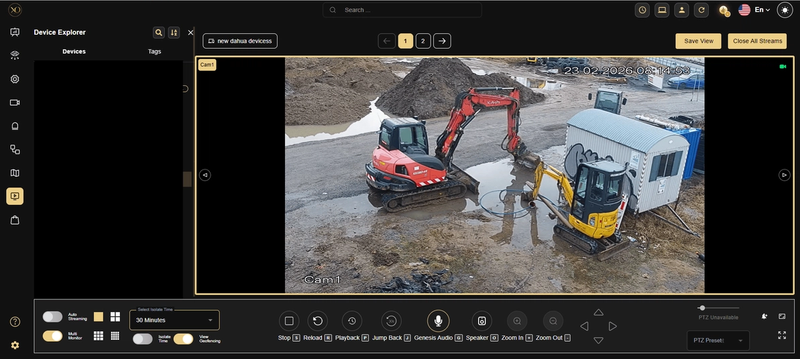
Once the call is connected, the microphone icon will change to indicate that the call is connected.
-
Click the microphone icon again to disconnect the call.
-
The microphone icon will change to indicate that the call has been disconnected.
Note: The call will disconnect automatically if the user navigates to another application in GCX-ONE or clicks the refresh button.
Key Capabilities
How to Add a Genesis Audio Device
-
Log in to GCXONE
-
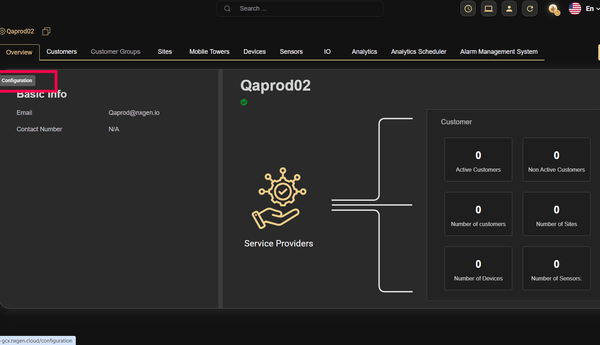
Navigate to the Configuration App
-
Select the site where the Genesis Audio device will be added
-
Go to the Devices tab
-
Click Add
-
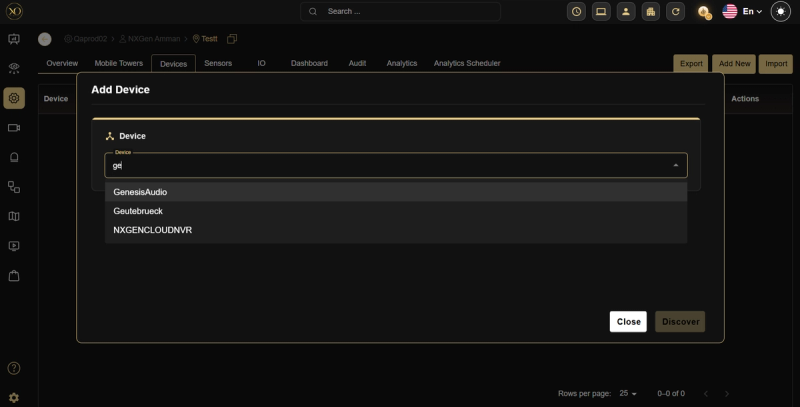
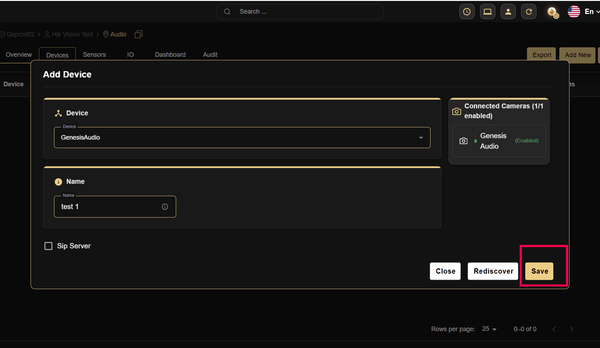
Under General Settings, click Type and select Genesis Audio
-
Enter a name and click Discover
-
Once discovered, click Save
Prerequisites
- User must have Genesis Audio permission enabled in their role
- Local Mode is not required — audio calls can be initiated via Genesis Audio even if Local Mode is disabled
Real-World Use Cases
- An operator initiates a call to a site with three active Genesis Audio devices — Conference Mode automatically connects all three endpoints and the operator in a single call without manual setup.
- A security incident occurs at a large facility — the operator communicates with all active audio points across the site simultaneously using Conference Mode.
Best Practices
- Verify Genesis Audio devices are active before initiating a call — inactive devices will cause the call to fall back to default device audio.
- Ensure the user has Genesis Audio permission enabled in their role before attempting to initiate calls.
- Always disconnect the call explicitly using the microphone icon — avoid navigating away which causes an automatic disconnect.
Additional Details
- Genesis Audio is configurable only if the user has the corresponding permission
- Local Mode settings are not required for Genesis Audio calls — they are initiated directly via the cloud
- If no Genesis Audio devices are active or configured, the call falls back to the device's default audio if supported