Add a Device to GCXONE
Introduction
This guide explains how to add a device to the GCXONE platform. Before adding a device, you must create a Customer and a Site where the device will be assigned.
Device Configuration Guide for GCXONE
Step 1 — Log in to GCXONE
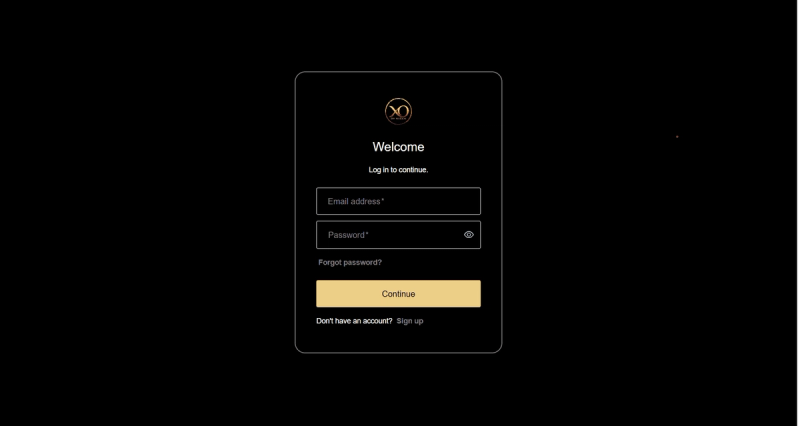
- Log in to the GCXONE platform using your account credentials.
Step 2 — Create a Customer
-
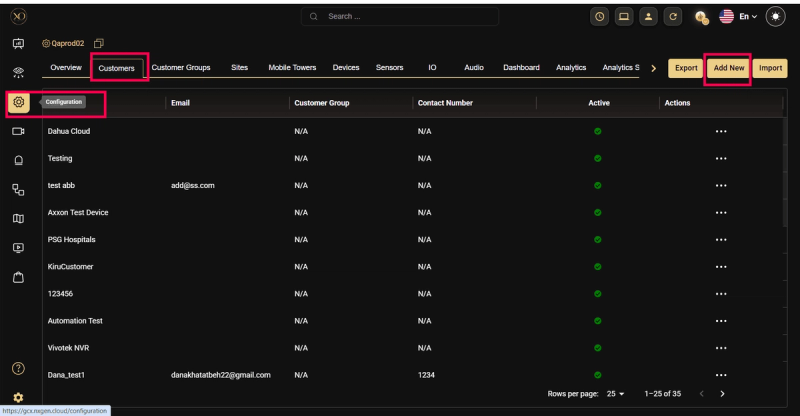
Navigate to Configuration.
-
At the Service Provider level, select Customers.
-
Click Add.
-
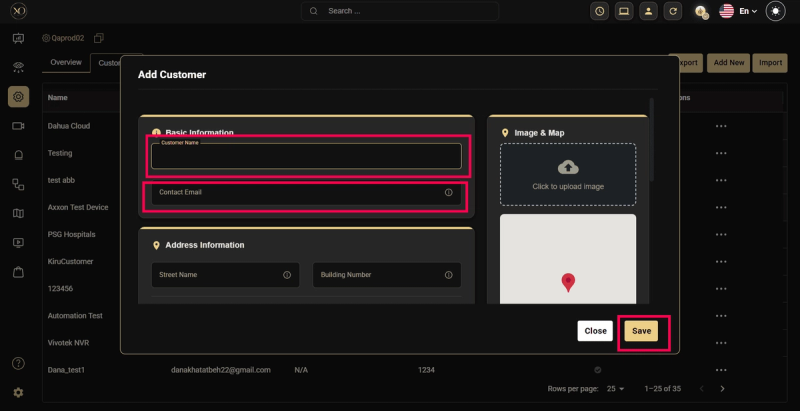
Enter the required customer information.
-
Click Save.
Step 3 — Create a Site
-
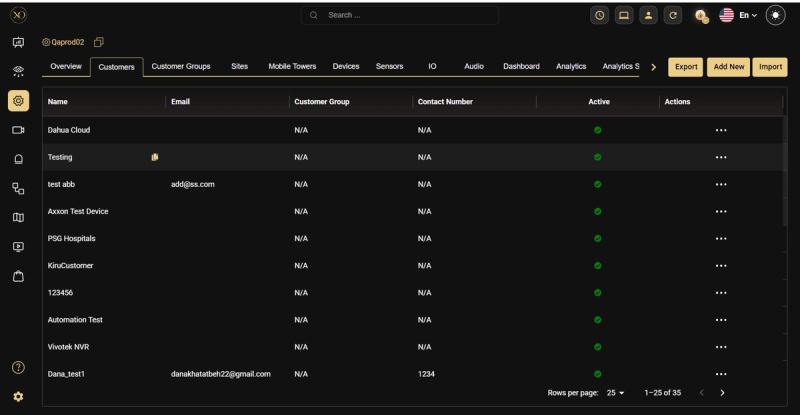
Select the newly created Customer.
-
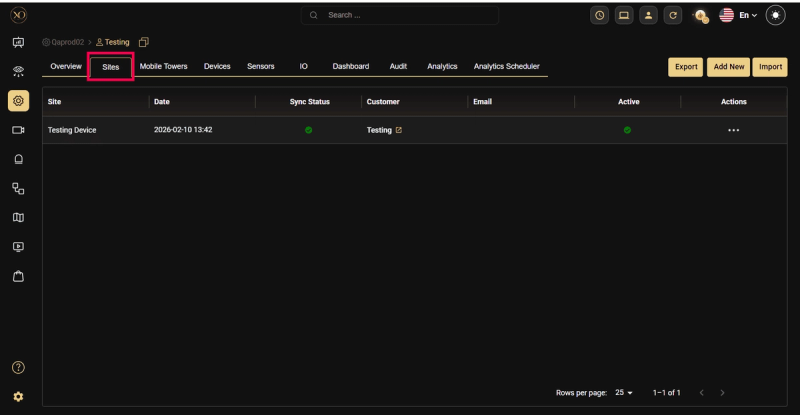
Open the Sites tab.
-
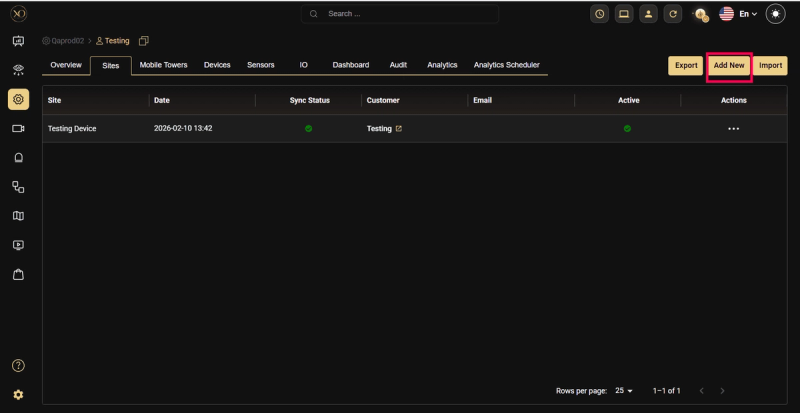
Click Add.
-
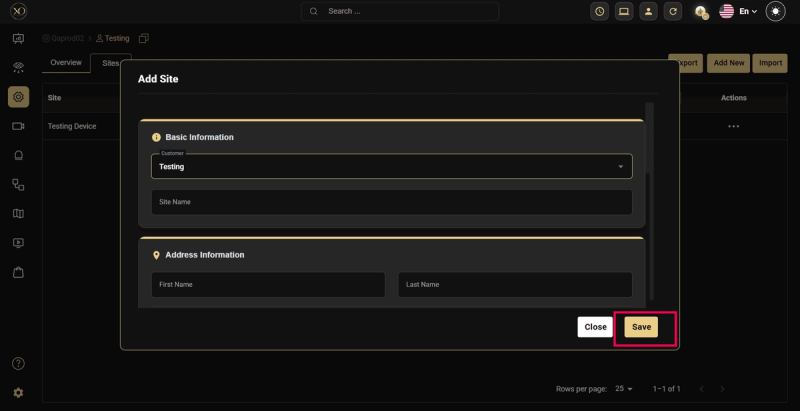
Enter the required site information.
-
Click Save.
Step 4 — Add a Device
-
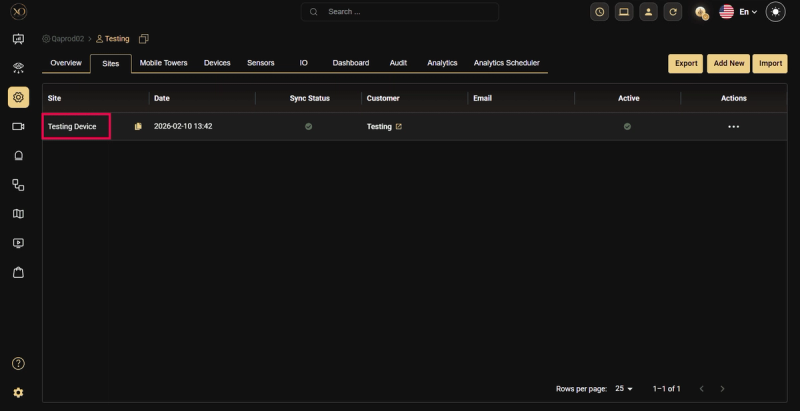
Select the newly created Site.
-
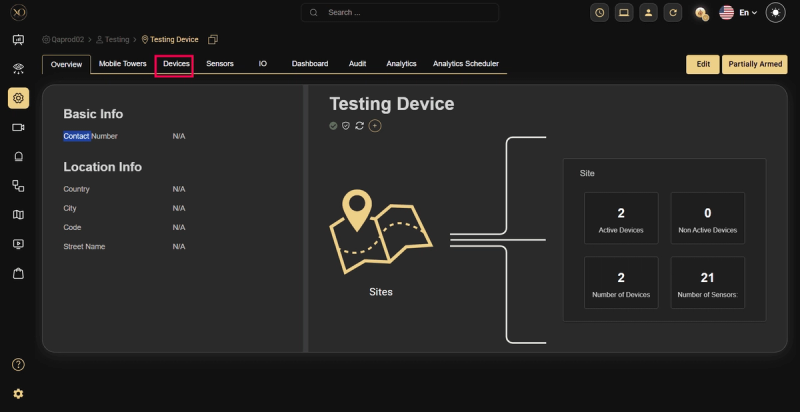
Navigate to the Devices tab.
-
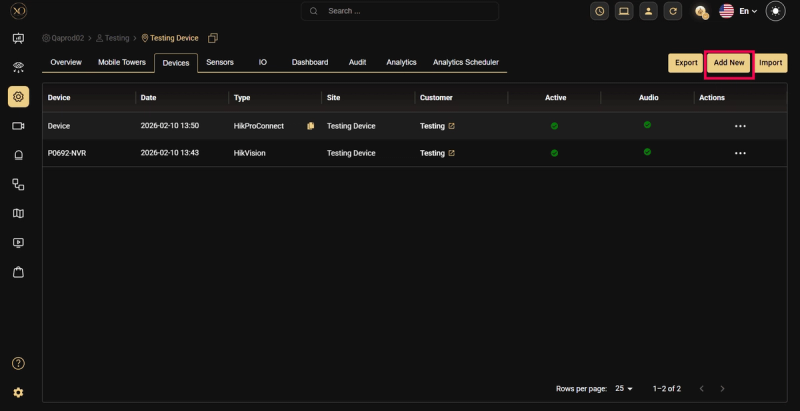
Click Add.
-
The Add Device dialog will appear.
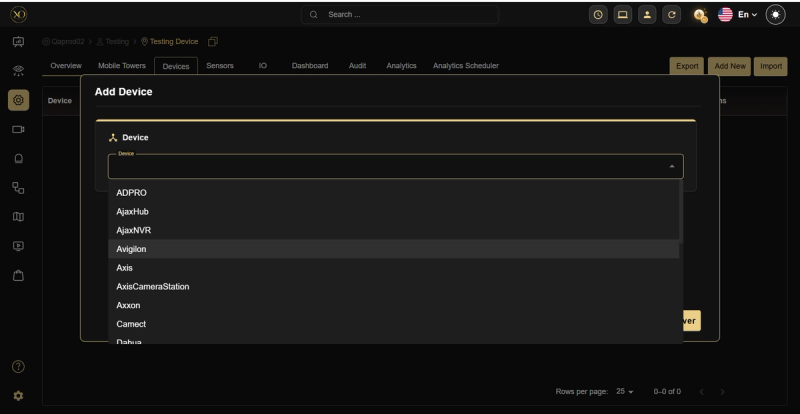
In the Add Device dialog:
- Select the device type or integration
- Enter the required device configuration details
- Provide network or authentication information if required
- Click Save to register the device.
Result
After saving, the device will appear in the Devices list for the selected site. The platform will begin monitoring the device and processing events generated by it.