Operator Quick Start
What Operator Quick Start Covers
This guide helps you get up and running with GCXONE as an operator. By the end, you will be able to log in, orient yourself on the main dashboard, and begin monitoring your assigned sites.
Why It Matters
A correctly configured starting point ensures operators begin every session with the right role, the right timezone, and full access to their assigned sites — avoiding missed alarms or wasted time troubleshooting access issues.
How It Works
Before You Begin
- You have received your GCXONE login credentials from your administrator.
- You are accessing GCXONE from a supported browser (Chrome recommended).
- Your administrator has assigned you the Operator role.
Step 1: Log In and Verify Your Account
- Open GCXONE in your browser.
- Enter your credentials and log in.
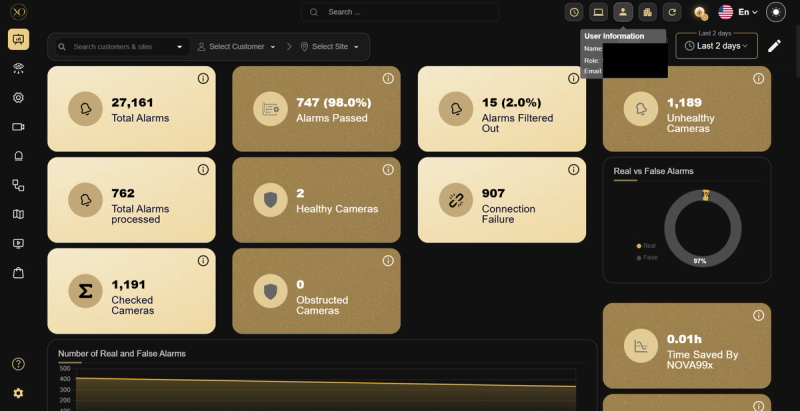
- Locate the user information icon in the top-right corner of the dashboard.
- Confirm that your role and email are correct. If not, contact your administrator before proceeding.
Step 2: Check System Status
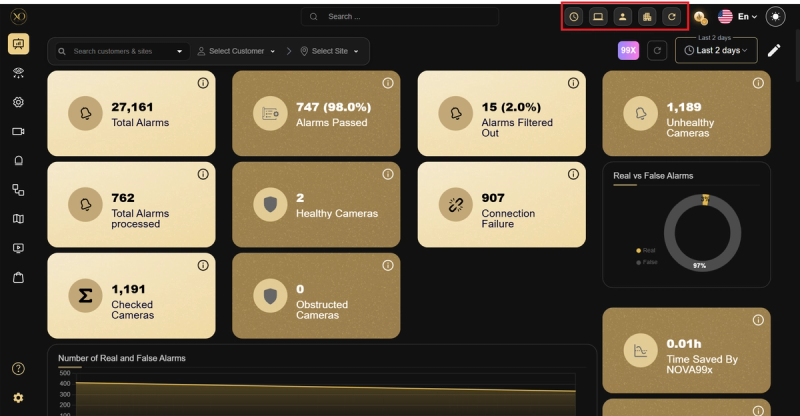
On the top bar, verify the following indicators before you begin:
- Time Zone — Confirm it matches your operational Timezone.
- Local Mode Status.
- Local Client Restart.
Step 3: Know Your Dashboard
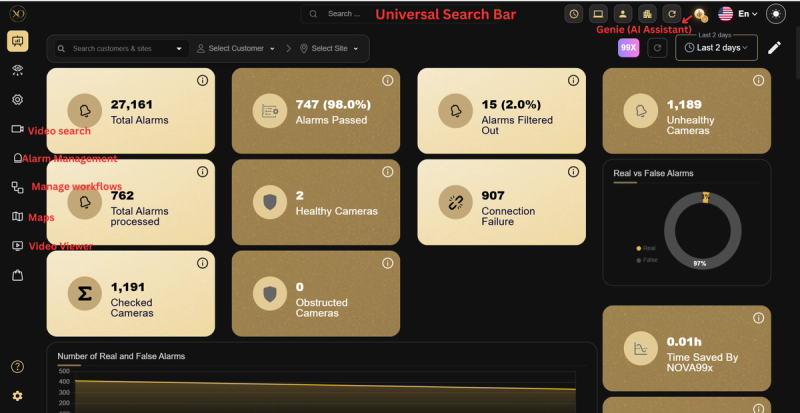
The main dashboard contains these key areas:
- Universal Search Bar — Search for any customer, site, device, or sensor instantly
- Video Search — Your primary workspace for reviewing alarms and events
- Video Viewer — Live monitoring of multiple cameras simultaneously
- Maps — Visual overview of site and sensor locations
- Talos / Workflows — Alarm management and escalation workflows
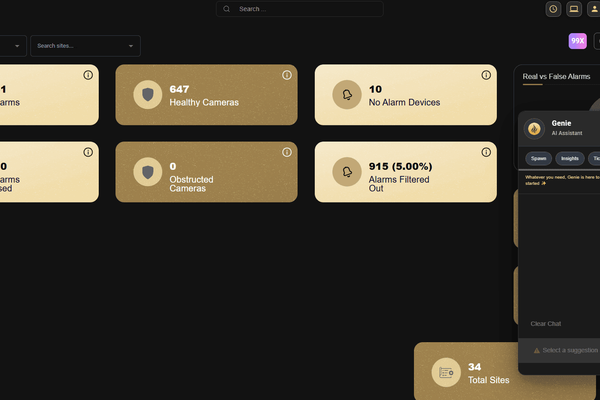
- Genie (AI Assistant) — Get instant answers without navigating the dashboard
Step 4: Use the Universal Search Bar
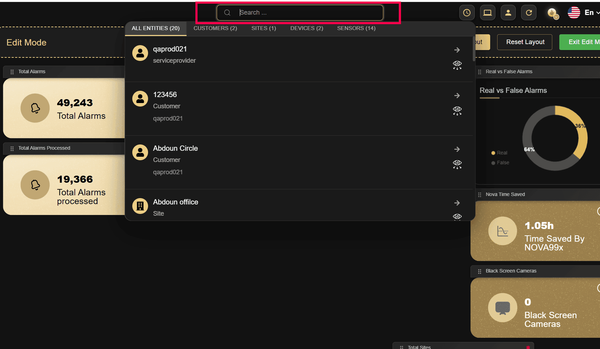
- Click the Universal Search Bar at the top of the dashboard.
- Type a customer name, site, device, or sensor name.
- Select from the results to jump to a live stream or view active alarms for that sensor.
Step 5: Meet Genie – Your AI Assistant
Genie is the built-in AI assistant. Ask questions like "How many alarms did we receive yesterday?", request help with VPN requests, device setup guidance, or troubleshooting.
Key Capabilities
| Area | Purpose |
|---|---|
| Universal Search Bar | Find any entity instantly without navigating menus |
| Video Search | Review, classify, and act on alarms |
| Video Viewer | Monitor multiple cameras live simultaneously |
| Maps | Visual overview of all site and sensor locations |
| Talos / Workflows | Manage alarm workflows and escalations |
| Genie (AI Assistant) | Get instant answers and take actions by typing |
Real-World Use Cases
- A new operator logs in for the first time, verifies their role and email, and confirms the timezone before touching any alarm.
- An operator uses the Universal Search Bar to jump directly to a specific site's camera instead of navigating through menus.
- An operator asks Genie "How many alarms did we receive yesterday?" instead of pulling a manual report.
Best Practices
- Always verify your role and email at the start of every session.
- Use the Universal Search Bar instead of navigating menus to save time.
- Ask Genie before submitting a support ticket — it resolves most common questions