Privileges
What Privilege Management Does
Privilege Management in GCXONE allows administrators to create and configure roles that control what users can see and do within the platform. Each role defines a specific set of permissions across all platform modules — from configuration and camera controls to reporting and system settings.
Why It Matters
Different users have different responsibilities. An operator needs access to live video and alarm handling but should not be able to modify system settings. An administrator needs full access. Privilege Management ensures that each user only has access to what they need — improving security and reducing the risk of unauthorized changes.
How It Works
Roles are created and managed from Settings → Roles in GCXONE. The Role Management page displays all configured roles along with their descriptions and the number of users assigned to each role.
To manage roles, click the three-dot menu (...) next to any role to access the following actions:
- Edit Role Permissions — Opens the role configuration dialog where you can define all permissions across platform modules (Configuration, Camera Actions, Dashboard, Maps, Settings, and more)
- Edit Role Entities — Control which entities (customers, sites, devices, etc.) the role has access to
- Delete — Permanently remove the role from the system
To create a new role, click + Configure New Role at the top of the page. To manage entity access across roles, click Edit Entity Access.
Once a role is created, users are assigned to it. The role determines what pages they can view and what actions they can perform.
Key Capabilities
Role Management Sections
The following sections are accessible from Edit Role Permissions within the role configuration dialog:
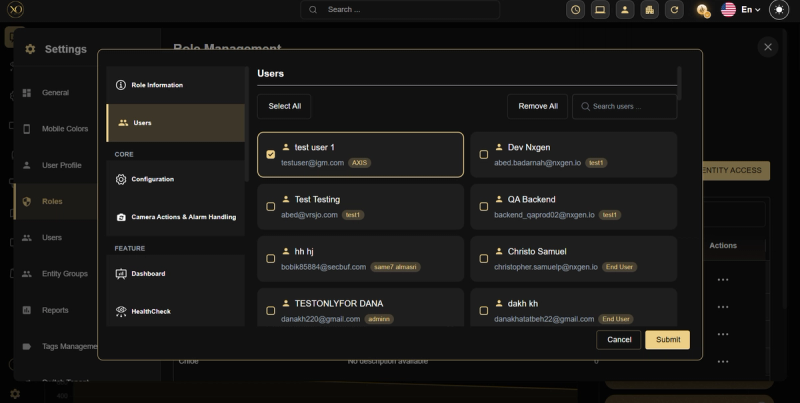
Users
Assign users to the role directly from the role management dialog using Select All, Remove All, or individual selection.
CORE
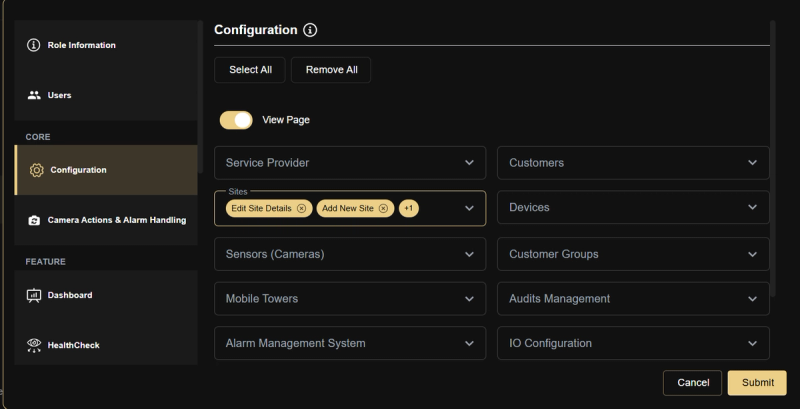
Configuration
Controls access to the Configuration App. Includes a View Page toggle to enable or disable access to the Configuration page entirely.
Service Provider
- View Service Provider Page — Access the service provider's main page and overview
- Edit Service Provider Details — Modify the service provider name and settings
- View Service Provider Statistics & Account Info — Monitor usage data, account status, and subscription information
Customers
- View Customer List & Details — View the full list of customers and their details
- Add New Customer — Create a new customer
- Edit Customer Details — Modify existing customer information
- Delete Customer — Remove a customer from the system
- Activate/Deactivate Customer — Enable or disable a customer
- Bulk Import Customers — Import multiple customers at once
- Export Customer List as CSV — Export the customer list to a CSV file
- View Dashboard Tab on Customer Page — View the Dashboard tab when viewing a customer
- View Audit Tab on Customer Page — View the Audit log tab when viewing a customer
- View Analytics Tab on Customer Page — View the Analytics tab when viewing a customer
- View Mobile Towers Tab on Customer Page — View the Mobile Towers tab when viewing a customer
- View Sites Tab on Customer Page — View the Sites tab when viewing a customer
- View Devices Tab on Customer Page — View the Devices tab when viewing a customer
- View Sensors Tab on Customer Page — View the Sensors tab when viewing a customer
- View IOs Tab on Customer Page — View the IOs tab when viewing a customer
- Customer Level Arm Update — Update the arm status at the customer level
- Customer Level Arm View — View the arm status at the customer level
Sites
- View Site List & Details — View the list of sites and their details
- Add New Site — Create a new site
- Edit Site Details — Modify existing site information and settings
- Delete Site — Remove a site from the system
- Activate/Deactivate Site — Enable or disable a site
- Arm/Disarm Site — Arm or disarm a site
- Push/Pull Site to Talos — Sync site data with the Evalink Talos integration
- Bulk Import Sites — Import multiple sites at once
- Export Site List as CSV — Export the site list to a CSV file
- View Devices Tab on Site Page — View the Devices tab when viewing a site
- View Sensors Tab on Site Page — View the Sensors tab when viewing a site
- View IO Tab on Site Page — View the IO Configuration tab when viewing a site
- View Dashboard Tab on Site Page — View the Dashboard tab when viewing a site
- View Audit Tab on Site Page — View the Audit log tab when viewing a site
- View Mobile Towers Tab on Site Page — View the Mobile Towers tab when viewing a site
- View Analytics Tabs on Site Page — View the Analytics tab when viewing a site
- Site Level Arm Update — Update the arm status at the site level
- Site Level Arm View — View the arm status at the site level
- Isolate Site For App — Isolate a site for focused mobile app access
Devices
- View Device List & Details — View the list of devices and their details
- Add New Device — Add a new device to the system
- Edit Device Configuration — Modify device settings and configuration
- Delete Device — Remove a device from the system
- Activate/Deactivate Device — Enable or disable a device
- Turn Device Events On/Off — Enable or disable event detection for a device
- Sync Device — Synchronize device data and settings
- Bulk Import Devices — Import multiple devices at once
- Export Device List as CSV — Export the device list to a CSV file
- View Sensors Tab on Device Page — View the Sensors tab when viewing a device
- View IO Tab on Device Page — View the IO Configuration tab when viewing a device
- View Dashboard Tab on Device Page — View the Dashboard tab when viewing a device
- View Audit Tab on Device Page — View the Audit log tab when viewing a device
- View Analytics Tabs on Device Page — View the Analytics tab when viewing a device
- Arm/Disarm Device — Arm or disarm a device
- Move Device — Move a device to a different location or site
- Device Arm Update — Update the arm status of a device
- Device Arm View — View the arm status of a device
Sensors (Cameras)
- View Sensor List & Details — View the list of sensors and cameras and their details
- Add New Sensor — Add a new sensor or camera
- Edit Sensor Configuration — Modify sensor settings and configuration
- Delete Sensor — Remove a sensor or camera from the system
- Activate/Deactivate Sensor — Enable or disable a sensor
- Turn Sensor Events On/Off — Enable or disable event detection for a sensor
- Bulk Import Sensors — Import multiple sensors at once
- Export Sensor List as CSV — Export the sensor list to a CSV file
- View Dashboard Tab on Sensor Page — View the Dashboard tab when viewing a sensor
- View Audit Tab on Sensor Page — View the Audit log tab when viewing a sensor
- View Analytics Tab on Sensor Page — View the Analytics tab when viewing a sensor
Customer Groups
- View Customer Groups — View groups of customers
Mobile Towers
- View Mobile Tower List — View the list of mobile towers
- Add New Mobile Tower — Add a new mobile tower to the system
- Delete Mobile Tower — Remove a mobile tower from the system
- View Mobile Tower Details Page — View the details page of a specific mobile tower
- View Devices Tab on Mobile Towers Page — View the Devices tab when viewing a mobile tower
- View Sensors Tab on Mobile Towers Page — View the Sensors tab when viewing a mobile tower
- View Analytics Tab on Mobile Towers Page — View the Analytics tab when viewing a mobile tower
- Edit Mobile Tower — Modify mobile tower settings and configuration
- Export Mobile Towers List as CSV — Export the mobile towers list to a CSV file
- Mobile Tower Level Arm View — View the arm status at the mobile tower level
- Mobile Tower Level Arm Update — Update the arm status at the mobile tower level
Audits Management
- View Audits — Access the Audit log and review all platform activity
Alarm Management System
- View Alarm Management System Page — Access the Alarm Management System page
- Edit DC09 Service Provider Credentials — Modify DC09 credentials at the service provider level
- Edit DC09 Sites Credentials — Modify DC09 credentials at the site level
IO Configuration
- View IO Configuration — View IO settings and configuration
- Add IO Configuration — Add new IO configuration entries
- Update IO Configuration — Modify existing IO configuration settings
- Delete IO Configuration — Remove an IO configuration entry
- Export IO List as CSV — Export the IO configuration list to a CSV file
Audio Management
- Manage Audio Languages — Configure and manage audio language settings
- Upload Audio Files — Upload audio files to the system
- Edit Audio Files — Edit existing audio files
- Download Audio Files — Download audio files from the system
- Delete Audio Files — Remove audio files from the system
- View Audio — View audio settings and configurations
Analytics
- Access Analytics API & Features — Access analytics data, reports, and API features
- Configure Analytics Scheduler — Configure and schedule analytics tasks
- Run Analytics On-Demand — Manually trigger analytics runs on demand
- Subscribe to Analytics — Subscribe to analytics features and updates
Configuration Dashboards
- View Entity-Level Dashboards (SP/Customer/Site/Device/Sensor) — View dashboards at all entity levels including Service Provider, Customer, Site, Device, and Sensor
Camera Actions & Alarm Handling
Controls what camera and alarm actions users can perform.
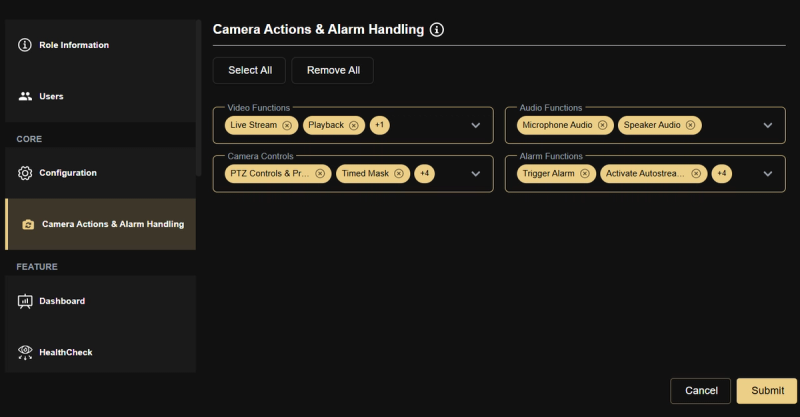
Video Functions
- Live Stream — Access real-time live video streams from cameras
- Playback — Review recorded footage from cameras
- Jumpback — Quickly navigate to recent video segments
Audio Functions
- Microphone Audio — Access and use the microphone for audio communication
- Speaker Audio — Access and use the speaker for audio output
Camera Controls
- PTZ Controls & Presets — Control pan, tilt, zoom movements and manage camera presets
- Timed Mask — Apply a time-based mask to a camera's field of view
- Permanent Mask — Apply a permanent mask to a camera's field of view to block specific areas
- Isolate Camera — Isolate a specific camera for focused monitoring
- Update Reference Image — Update the reference image used for comparison in analytics
- View Geofencing — View geofencing zones configured for cameras
Alarm Functions
- Trigger Alarm — Manually trigger an alarm
- Activate Autostream Mode — Activate automatic video streaming when an alarm is triggered
- Activate Multi-Monitor Mode — Activate multi-monitor view for alarm handling
- Share Alarm — Share an alarm with other operators
- Thumbs Up/Down on Alarms — Rate or provide feedback on alarms
- Download Alarm Clip — Download video clips associated with an alarm
FEATURE
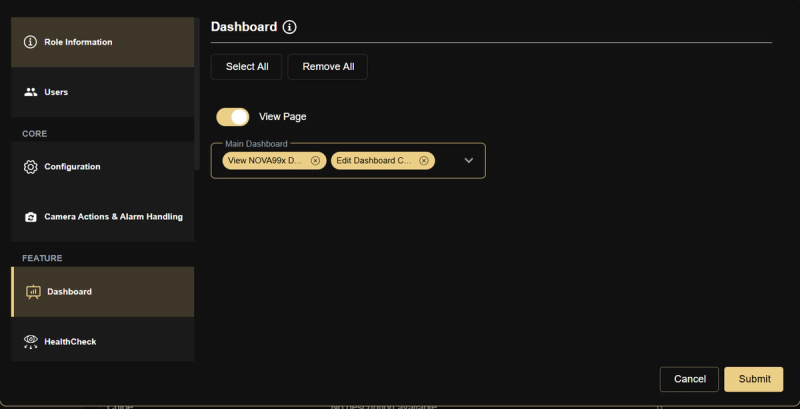
Dashboard
- View Page — Toggle to enable or disable access to the Dashboard page
Main Dashboard:
- View NOVA99x Dashboard — Access and view the NOVA99x dashboard
- Edit Dashboard Capabilities — Modify and configure dashboard capabilities and settings
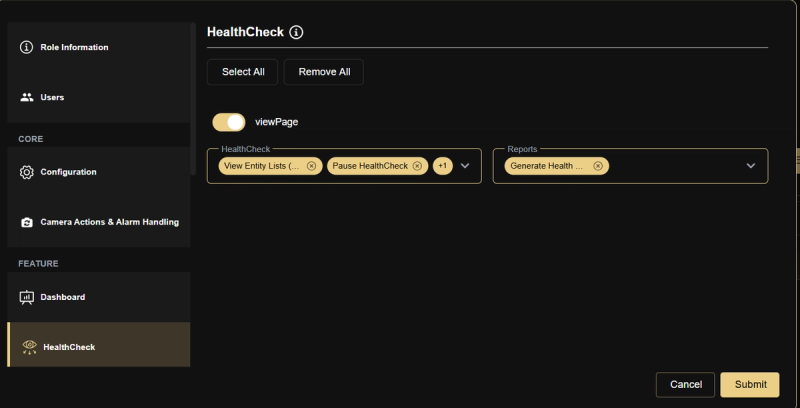
HealthCheck
- View Page — Toggle to enable or disable access to the HealthCheck page
HealthCheck:
- View Entity Lists (Customers/Sites/Devices/Cameras) — View the health status of all entities including customers, sites, devices, and cameras
- Pause HealthCheck — Temporarily pause health check monitoring
- Run HealthCheck Once — Trigger a manual one-time health check run
Reports:
- Generate Health Check Reports — Generate and access health check reports
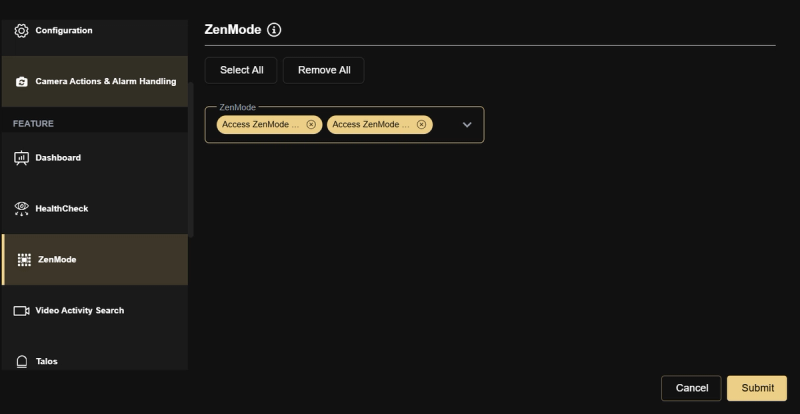
ZenMode
- Access ZenMode from Video Activity Search — Launch ZenMode directly from the Video Activity Search module
- Access ZenMode from Video Viewer — Launch ZenMode directly from the Video Viewer
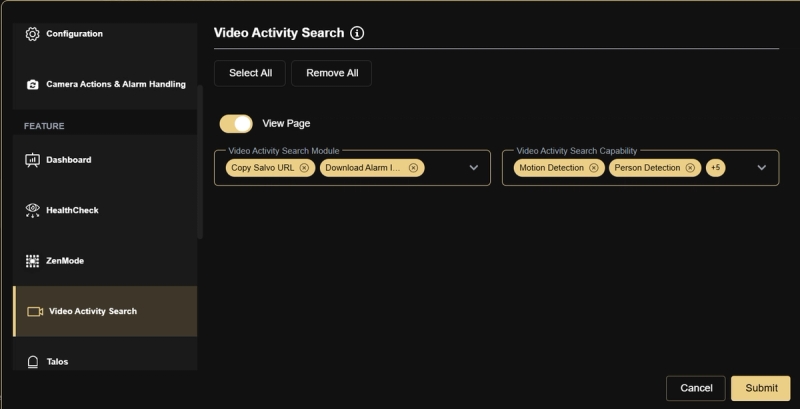
Video Activity Search
- View Page — Toggle to enable or disable access to the Video Activity Search page
Video Activity Search Module:
- Copy Salvo URL — Copy the Salvo URL for sharing or external use
- Download Alarm Images (Pre/Current/Post) — Download alarm images including pre, current, and post alarm frames
Video Activity Search Capability:
- Motion Detection — Filter and search results by motion detection events
- Person Detection — Filter and search results by person detection events
- Vehicle Detection — Filter and search results by vehicle detection events
- Overlay — View overlay information on search results
- Date Filter — Filter search results by date range
- Alarm Filter — Filter search results by alarm type
- Tag Search Filter — Filter search results by tags
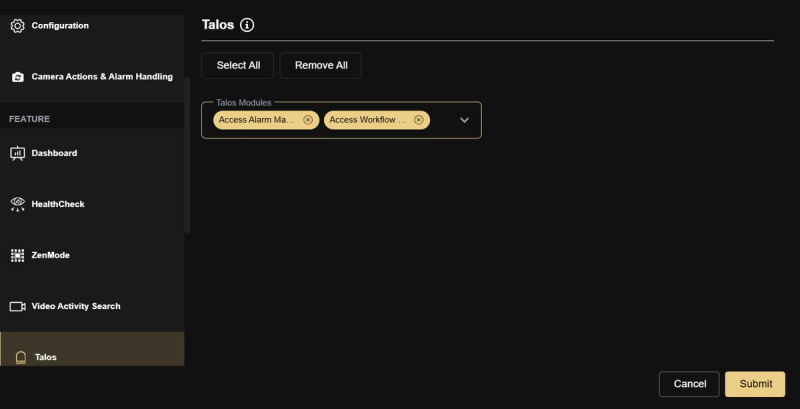
Talos
Talos Modules:
- Access Alarm Management — Access and manage alarms through the Evalink Talos integration
- Access Workflow Management — Access and manage workflows through the Evalink Talos integration
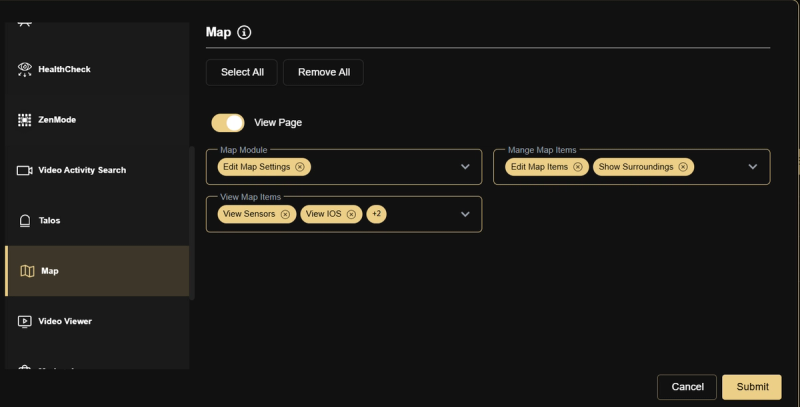
Map
- View Page — Toggle to enable or disable access to the Maps page
Map Module:
- Edit Map Settings — Configure and modify map settings
Manage Map Items:
- Edit Map Items — Add, edit, or remove items displayed on the map
- Show Surroundings — Display surrounding area and context on the map
View Map Items:
- View Sensors — View sensors on the map
- View IOS — View IO devices on the map
- View Shapes — View shapes and zones drawn on the map
- View Camera Live View — View camera live streams directly from the map
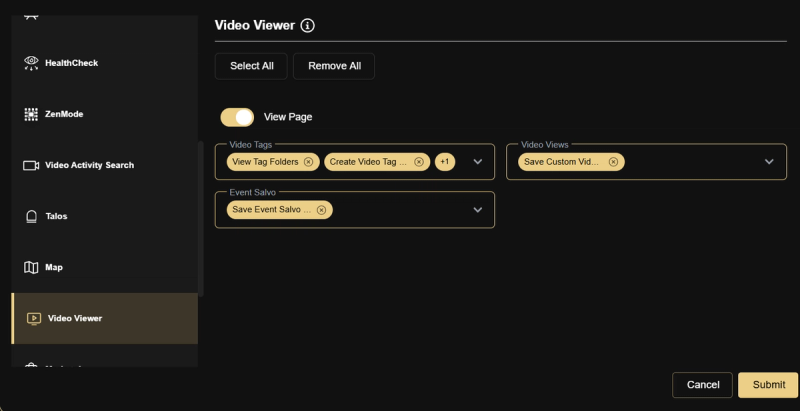
Video Viewer
- View Page — Toggle to enable or disable access to the Video Viewer page
Video Tags:
- View Tag Folders — View existing video tag folders
- Create Video Tag Folders — Create new tag folders for organizing video clips
- Delete Video Tags — Remove video tags from the system
Video Views:
- Save Custom Video View Layouts — Save and manage custom video view layouts
Event Salvo:
- Save Event Salvo View & Apply to All Hierarchy Levels — Save event salvo views and apply them across all hierarchy levels
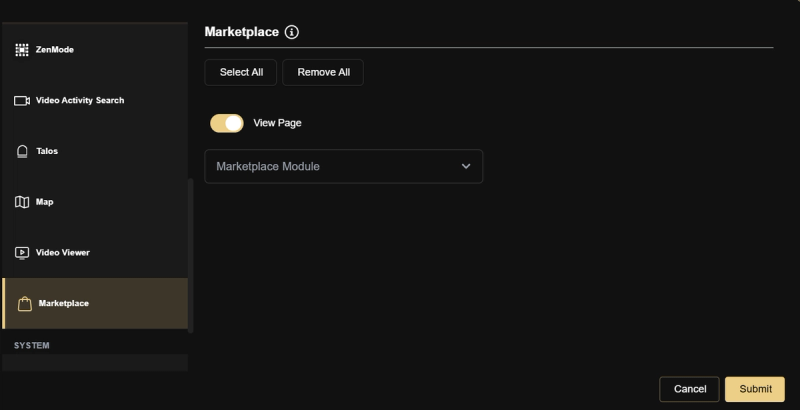
Marketplace
- View Page — Toggle to enable or disable access to the Marketplace page
Marketplace Module:
- View Marketplace Pricing — View pricing information for marketplace features
- Subscribe to Features & View Subscriptions — Subscribe to marketplace features and view active subscriptions
- Activate/Deactivate Marketplace Features — Activate or deactivate subscribed marketplace features
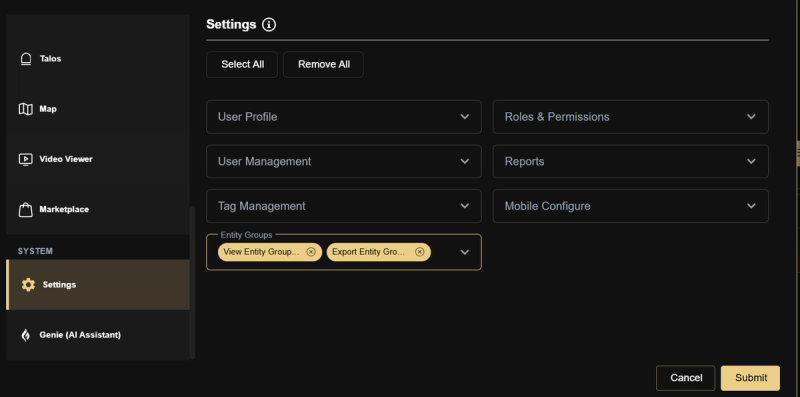
System
Settings
User Profile:
- Edit User Profile — Modify personal user profile settings and information
Roles & Permissions:
- View Roles List — View the list of all roles in the system
- Export Roles List — Export the roles list as a file
- Configure New Role — Create and configure a new role
- Edit Role Privileges & Entity Access — Modify role permissions and entity access settings
- Delete Role — Remove a role from the system
User Management:
- View Users List — View the list of all users in the system
- Invite New User — Send invitations to new users
- Edit User Details — Modify existing user information
- Delete User — Remove a user from the system
- Export Users List — Export the users list as a file
Reports:
- View Report Schedulers & Stats — View scheduled reports and their statistics
- Create New Report Scheduler — Set up a new scheduled report
- Edit Report Scheduler — Modify an existing scheduled report
- Delete Report Scheduler — Remove a scheduled report
- Trigger Report Scheduler — Manually trigger a scheduled report to run
Tag Management:
- View Tags — View all tags in the system
- Assign Entity to Tag (All Levels) — Assign entities to tags across all hierarchy levels
- Create Tag — Create a new tag
- Delete Tag — Remove a tag from the system
Mobile Configure:
- Edit Mobile Colors — Customize and configure mobile application color settings
Entity Groups:
- View Entity Groups List — View the list of all entity groups
- Export Entity Groups List — Export the entity groups list as a file
- Configure New Entity Group — Create and configure a new entity group
- Edit Entity Group — Modify an existing entity group
- Delete Entity Group — Remove an entity group from the system
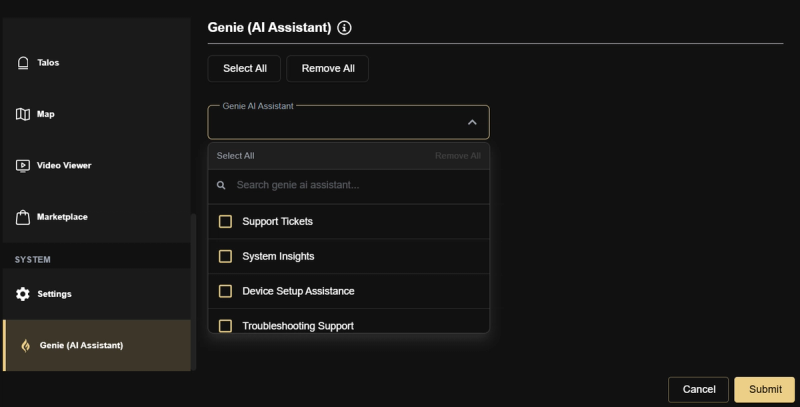
Genie (AI Assistant)
- Support Tickets — Create and manage support tickets through Genie
- System Insights — Access system insights and analytics provided by Genie
- Device Setup Assistance — Get AI-guided assistance for setting up devices
- Troubleshooting Support — Access AI-powered troubleshooting guidance
- VPN Requests — Submit and manage VPN access requests through Genie
Real-World Use Cases
- A new Operator role is created with access to live video, alarm handling, and ZenMode — but no access to Configuration or Settings, preventing unauthorized changes.
- A senior admin grants an installer role access to Device configuration only for their assigned sites, using Edit Role Entities to scope their visibility.
- A service provider creates a Customer Viewer role with Dashboard and HealthCheck access only — giving clients visibility into their camera health without exposing operational controls.
Best Practices
- Always design your full role structure before inviting any users — changing roles after users are active can cause immediate access disruption.
- Use Edit Role Entities to scope what each role can see — permissions and entity access work together, both must be configured.
- Never grant Configuration or Settings access to operator-level roles — restrict these to Admin and Super Admin only.
- Review role assignments during quarterly user audits to ensure no user has accumulated permissions beyond their current responsibilities.