Audit
What Audit Does
The Audit tab provides a complete, immutable log of every action performed within GCXONE. Administrators can track what happened, who did it, when it occurred, and on which entity — across all hierarchy levels including Service Provider, Customer, Site, Device, and Sensor.
Why It Matters
In security operations, accountability is critical. The Audit log gives administrators full visibility into platform activity, making it easy to investigate incidents, verify configuration changes, and support compliance requirements. Every action is recorded automatically — nothing is missed.
How It Works
The Audit tab is accessible from the Configuration App at every hierarchy level. It displays a chronological list of all actions performed at that level and below. Each record includes the following columns:
- Email — The user or system account that performed the action
- Date — The exact timestamp of the action
- Category — The area of the platform where the action occurred (e.g. Accounts, Salvo, Status, Talos, Video Activity Search)
- Sub Category — The specific entity type affected (e.g. Device, Sensor, Camera controls, Search)
- Action — What was done
- Action Status — The outcome of the action (e.g. Success, UI Operation)
- Source Entity — The specific entity that was affected
- Log — A brief description of what happened
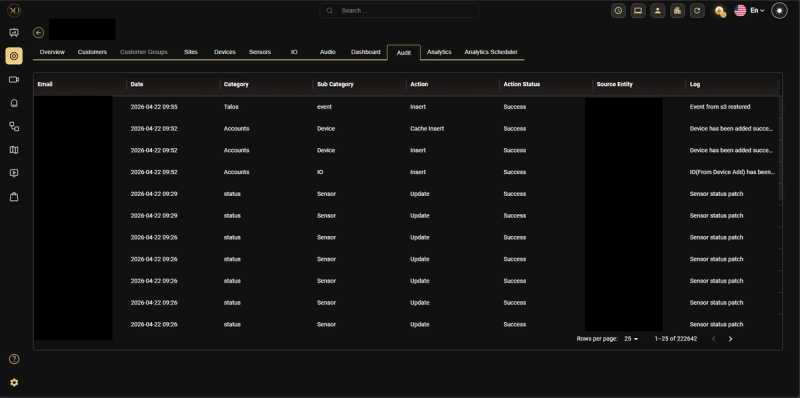
Figure 1: Audit tab showing the full log at Service Provider level
Audit Levels
The Audit tab is available at every level of the GCXONE hierarchy:
- Service Provider — View all actions across all customers and sites in the tenant
- Customer — View all actions performed under a specific customer
- Site — View all actions performed at a specific site
- Device — View all actions performed on a specific device
- Sensor — View all actions performed on a specific sensor
- Mobile Tower — View all actions performed on a specific mobile tower
What Gets Logged
The Audit log captures every action performed in GCXONE, including:
Configuration Changes
- Device, Sensor, or Site added, edited, or deleted
Account & Access
- User login and logout
- Arm and Disarm actions on devices or sites
Operator Actions (Video Viewer)
- Microphone turned on or off
- Camera isolated
- Auto Stream triggered
Search & Investigation
- Event search performed in Video Activity Search

Figure 2: Audit log showing Account actions (Event search, Delete)
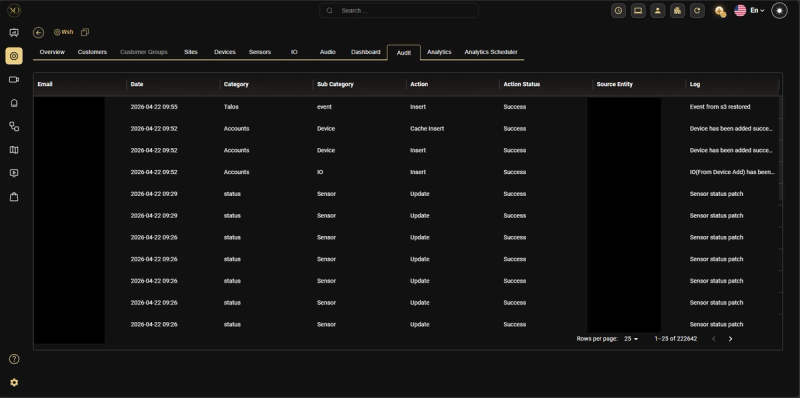
Figure 3: Audit log showing Account actions (Device added, update)
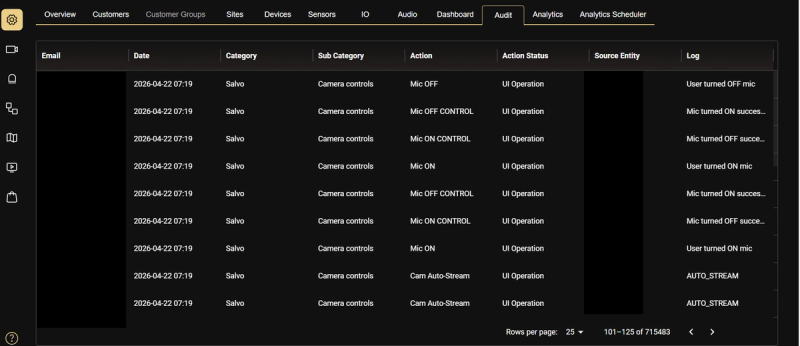
Figure 4: Audit log showing Salvo camera control actions (Mic ON/OFF, Auto Stream)
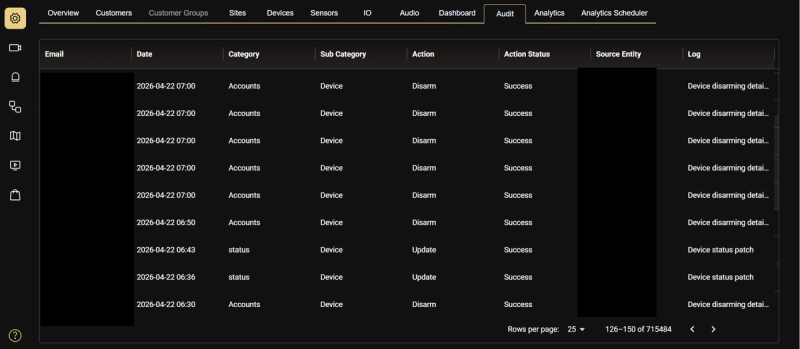
Figure 5: Audit log showing Salvo camera control actions (Update, Disarm)
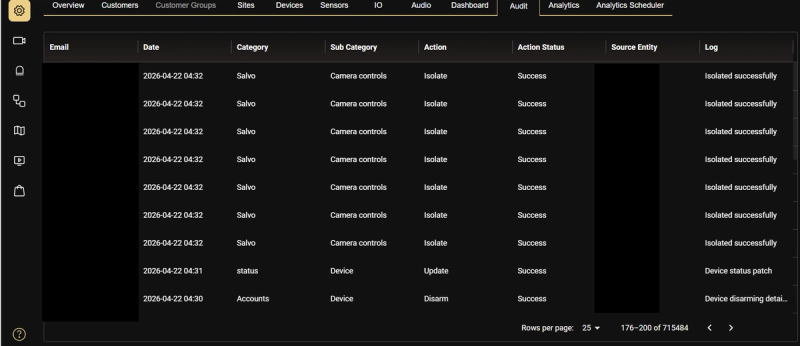
Figure 6: Audit log showing Isolate actions across multiple cameras
Best Practices
- Review the Audit log regularly to detect unauthorized or unexpected changes
- Use the Audit tab at the Service Provider level for a full tenant-wide overview
- Use the Email column to investigate actions performed by a specific user
- Use the Log column for quick context on what changed
Related Resources
- For roles and permissions, refer to Roles & Permissions