Talos User Management
What Talos User Management Does
While GCXONE manages account identity and platform access, Talos handles the behavioral settings that define how each operator interacts with alarms. Together, the two platforms provide a complete and centralized user management experience.
For detailed information on Evalink Talos user management, refer to the official Evalink Talos documentation.
Why It Matters
Without proper user configuration in Talos, operators may see alarms they shouldn't, miss alarms from their assigned sites, or have access to reassign and escalate beyond their role. Talos User Management ensures every operator works within the right scope — the right alarms, the right workspace, the right shift.
How It Works
Separating Alarms into Groups
To restrict operators to specific alarm groups based on site type (e.g., production vs. trial sites):
Prerequisites — GCXONE Setup
Before configuring in Talos, ensure operators in GCXONE are restricted to the appropriate sites using Roles & Permissions. Navigate to Settings → Roles → Edit Entity Access and assign each operator access only to the relevant customers or sites. For more details, refer to Roles & Permissions.
Step 1 — Create Organizational Units in Talos
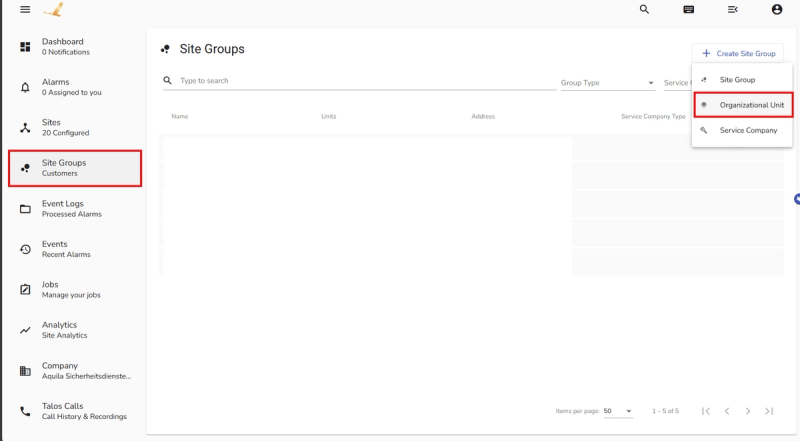
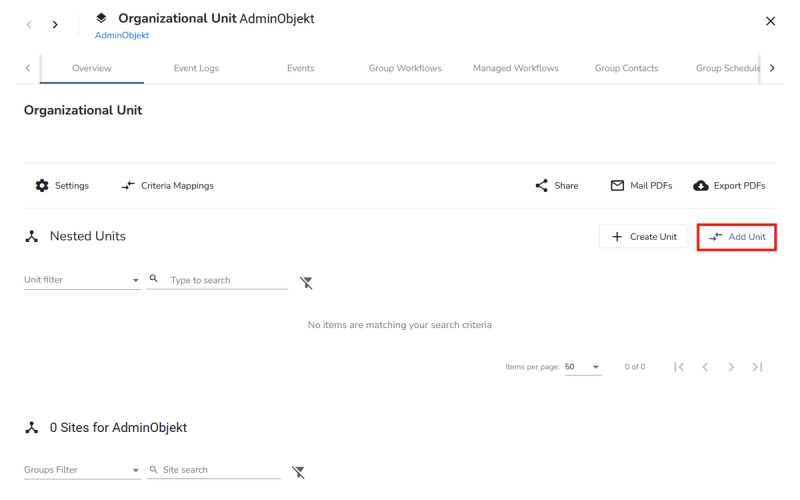
Log into the Talos Workflow application and navigate to Site Groups. Click Create Site Group and select Organizational Unit. Create units corresponding to your desired groups (e.g., Prod Sites and Test Sites), then include the corresponding sites or site groups into each unit.
Step 2 — Configure Alarm Channels and Routing
Navigate to Company Settings → Alarm Settings. In the Alarm Channels section, create channels corresponding to each group (e.g., Prod Channel). Then in the Default Channel, set up a routing rule:
- Click Add Route (e.g., “to prod channel”).
- Set the Target Channel (e.g., Prod Channel).
- Define the condition: route alarms originating from the Prod Sites Organizational Unit to the Prod Channel.
Alternatively, create a channel and organizational unit only for test sites, and set a rule that anything not from the test group is routed to production.
Step 3 — Create Workspaces
In Alarm Settings, create a workspace (e.g., Prod Workspace) and link the relevant alarm channels to it. Users assigned to this workspace will only see alarms from those channels.
Step 4 — Configure User Types
Navigate to User Settings → User Types and create a restricted user type (e.g., PROD Operator). Configure the following:
- Set the Whitelisted Workspace to the restricted workspace (e.g., Prod Workspace).
- Set the Default Workspace to the restricted workspace.
- Set the Accessible Site Groups to the production Organizational Unit.
Step 5 — Assign User Roles to Operators
Navigate to Company → Users, select each operator, and change their role to the restricted user type (e.g., PROD Operator).
Maintenance Note: When moving a site from the test group to the production group, the site must be manually unlinked from the test Organizational Unit in Talos.
Configuring Time-Based Alarm Assignment
To route alarms to different operator groups based on the time of day (e.g., day shift vs. night shift):
Step 1 — Create Alarm Channels
Navigate to Company → Settings → Alarms and create two alarm channels (e.g., Day Group and Night Group).
Step 2 — Add Routing Rules
In the Default Channel, click Add Route and configure:
- Route to Day — Condition: Time of Day is: 09:00 – 20:59
- Route to Night — Condition: Time of Day is: 21:00 – 08:59
Step 3 — Create Workspaces
In Alarm Settings → Workspaces, create Day Group and Night Group workspaces and assign the relevant alarm channel to each.
Step 4 — Create User Types
Navigate to Company → Settings → Users and create Day Operator and Night Operator User Types. For each configure:
- Default Workspace — Select the relevant workspace.
- Whitelisted Workspaces — Select the relevant workspace and optionally Default as fallback.
Step 5 — Assign User Types to Operators
Navigate to Company → Users and assign the appropriate User Type to each operator based on their shift.
Restricting Operators from Reassigning Alarms
To prevent operators from reassigning alarms to other operators:
- In GCXONE, navigate to Talos Workflow.
- Go to Company → Settings → Users → User Roles.
- Select the custom role you want to edit.
- Search for Workflow:Re-assign and deselect the permission.
- Click Submit to save.
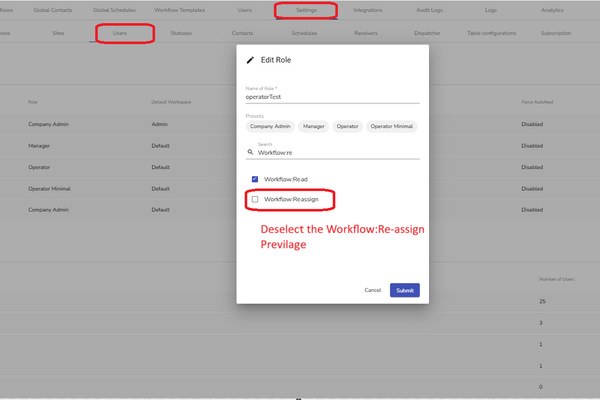
Default roles cannot be edited. Only custom roles can be modified.
Key Capabilities
User Roles
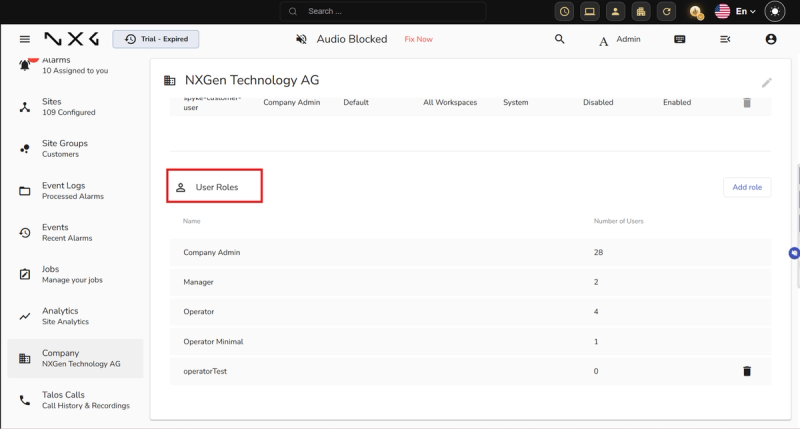
Each user in Talos has a role that defines their level of permissions. There are four preset User Roles that cannot be changed or deleted. Administrators can also create custom User Roles based on the preset roles.
| Role | Description |
|---|---|
| Company Admin | Full set of permissions. Multiple Admins can exist under one company. |
| Manager | Can create and manage major Talos objects such as workflows, sites, and schedules. Cannot invite users or edit global alarm settings. |
| Operator | Intended for alarm processing. Has access to all Talos interface pages but cannot create or manage objects. |
| Operator Minimal | Also intended for alarm processing. Has access to a limited number of interface pages compared to Operator. |
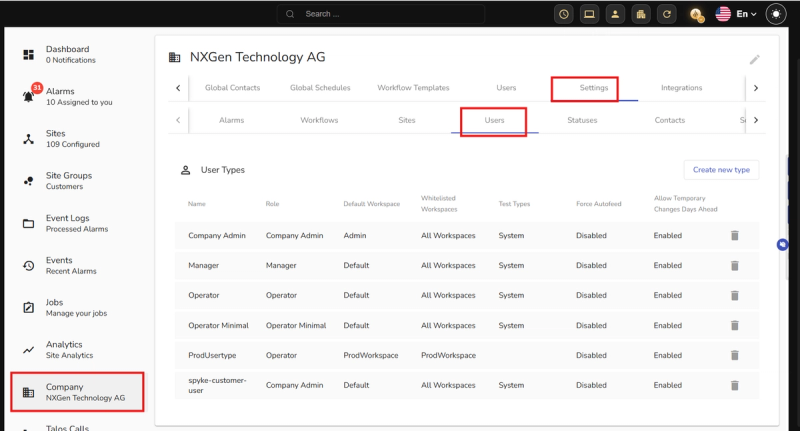
You can view all User Roles under Company → Settings → Users → User Roles.
User Types
User Types allow fine-tuning of user experience by combining User Roles with pre-configured work environments such as Workspaces, and access permissions such as selected access to Site Groups. There are four preset User Types that cannot be deleted, but Administrators can change their settings and add custom User Types.
| User Type | Default Role | Default Workspace |
|---|---|---|
| Company Admin | Company Admin | Admin |
| Manager | Manager | Default |
| Operator | Operator | Default |
| Operator Minimal | Operator Minimal | Default |
User Role defines available permissions. User Type is the main user-defining quality — it combines a User Role with available working environments. When inviting new users, Administrators select a User Type.
Organizing Your Workspace
As your organization grows, use Talos grouping features to keep data structured:
- Organizational Units — The highest level of grouping, such as a regional division.
- Site Groups — Regional or functional clusters, such as a group of retail locations in a specific area.
- Service Companies — Link external technicians or guard services to specific sites for automated task routing.
How GCXONE and Talos Sync Users
| Area | GCXONE | Talos |
|---|---|---|
| Identity | Manages email and MFA | Leverages the GCXONE session |
| Platform Access | Manages permissions to Configuration | Not applicable |
| Workflow | Not applicable | Manages permissions to view, process, or close alarms |
| Behavior | Not applicable | Manages automatic redirection and auto-assign rules |
Real-World Use Cases
- A service provider runs both production and trial sites — operators are restricted to their assigned group using Organizational Units and Workspaces, with no cross-visibility.
- A monitoring center operates day and night shifts — time-based routing automatically sends alarms to the right operator group based on the time of day.
- An admin prevents junior operators from reassigning alarms by removing the Workflow: Re-assign permission from their User Role.
Best Practices
- Always configure GCXONE Roles & Permissions before setting up Talos alarm groups — both must align for restrictions to work correctly.
- Use Workspaces to scope what each operator sees — never rely on role permissions alone for alarm isolation.
- When moving a site between groups, always manually unlink it from the old Organizational Unit in Talos to prevent alarm routing errors.
- Use time-based routing for shift-based operations instead of manually reassigning alarms between shifts.
Additional Details
Troubleshooting
Login Loops — Permission Denied in Talos
If an operator can access GCXONE but receives a Permission Denied error in Talos, ensure they have been assigned a Talos Role under Company → Users settings.
Missing Alarms
Verify the operator is part of the correct Alarm Group and Workspace for the site in question.