Alarm Configuration
What Alarm Configuration Does
Alarm Configuration in GCXONE controls how alarms are processed, filtered, transmitted to the CMS, and presented to operators. It governs the full journey of every alarm — from detection to resolution.
Why It Matters
Without proper alarm configuration, verified alarms may never reach the CMS, operators may receive alarms without video context, or false alarms may flood the monitoring station. Correct configuration ensures only verified, actionable alarms reach operators — with full video evidence attached.
How It Works
The Alarm Lifecycle
Every alarm in GCXONE follows a strictly structured, traceable 5-step lifecycle:
- Devices & Cameras — Sensor detects an event and sends a signal to GCXONE.
- NOVA99x AI Filter — AI pipeline evaluates the event. False alarms are discarded.
- Verified → CMS — Confirmed alarms are forwarded via DC-09 or Talos.
- Operator Review — CMS operator receives alarm with pre-event footage and live feed.
- Resolved + Audit — Outcome is logged; immutable audit trail created.
Two CMS Integration Paths
- SIA DC-09 — Industry-standard protocol for IP alarm transmission. GCXONE extends each signal by injecting a secure web link embedding pre-event footage, live feeds, and AI bounding boxes into the CMS browser view.
- Evalink Talos — Cloud-native platform with REST architecture. Achieves bidirectional state synchronization, dynamic operator cueing, and eliminates legacy IP mapping constraints entirely.
Configuring DC-09 CMS Integration
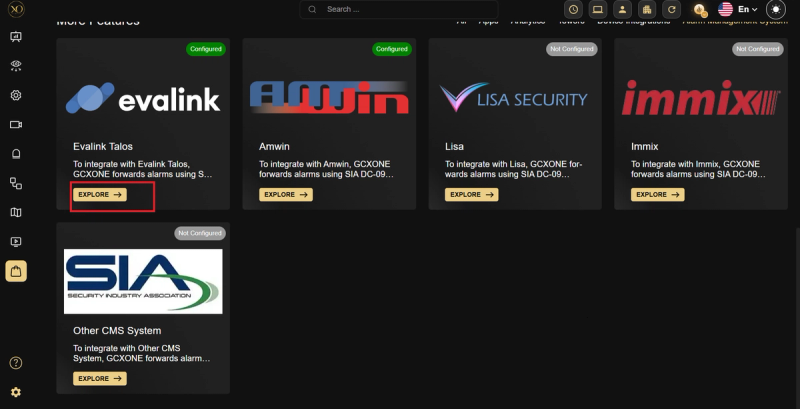
Navigate to Marketplace → Alarm Management System.
- Navigate to AMS in Marketplace — Go to Marketplace → Alarm Management System tab to filter available transmission integrations.
- Select Your CMS Vendor — Click Explore on your CMS (Amwin, Lisa, Immix, Manitou). For unlisted vendors, select "Other CMS System" for a raw DC-09 channel.
- Specify Connection Vectors — Enter the DC09 Receiver IP Address (WAN public IP) and DC09 Receiver Port (TCP port on the receiver firewall).
- Initialize TCP Socket — GCXONE pings the receiver. A successful handshake updates the card to Configured. Alarms only flow for mapped sites.
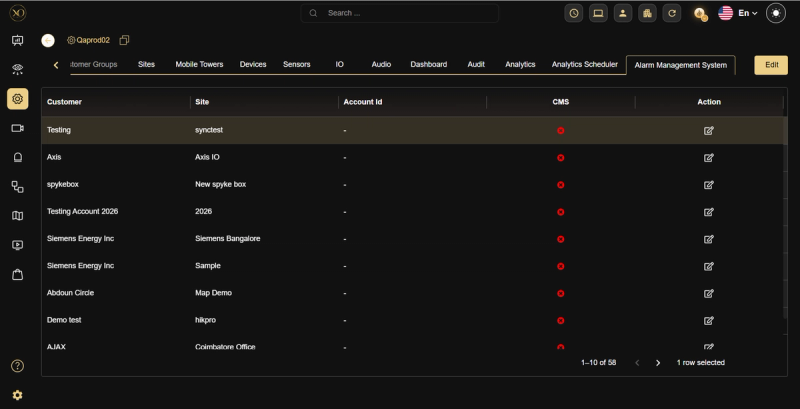
- Execute Site-to-Account Mapping — Click edit on each site. Set DC09 Account ID (must EXACTLY match the CMS string — case-sensitive) and optional encryption key.
- Transmission Verification — Run a testing sequence via the diagnostics tab. Green lights confirm packets are acknowledged by the CMS.
IMPORTANT — Most Common Failure: Account ID Mismatch: Over 85% of failed DC-09 transmissions result from a mismatched Account ID. If the CMS expects "Site-A200" but GCXONE sends "Site_a200", the receiver silently discards the packet. Copy-paste from the CMS configuration rather than retyping.
Configuring Evalink Talos Integration
Navigation: Marketplace → Alarm Management System → Evalink Talos → Configure
- Harvest Talos Credentials — In your Talos dashboard, navigate to API Management. Extract your API Key and Company ID.
- Inject Credentials in Marketplace — Open the Evalink Talos card in GCXONE Marketplace. Paste both tokens and submit.
- Bidirectional Sync Confirmed — A green banner confirms connection. Synchronization immediately bridges GCXONE topologies into Talos — no manual mapping required.
Alarm Code Mapping
Navigate to Marketplace → AMS → Alarm Code Configuration. Each alarm code is configured with a delivery mode:
- With Clip Download — Alarm sent to CMS + pre-event video clip automatically downloaded and attached. Use when forensic evidence is required at the CMS.
- Stream Only — Alarm sent to CMS + CMS operator receives a live stream link. Use for real-time response where download latency is unacceptable.
- Disabled — Alarm type suppressed, not forwarded to CMS. Use for known false-positive sources pending AI tuning.
AutoStream Configuration
AutoStream automatically opens a live camera stream in the operator view when a verified alarm arrives.
Navigation: Configuration → [Site] → [Device] → AutoStream Settings
- Enable AutoStream for the device.
- Set the Pre-Event Buffer (seconds before trigger). Recommended starting point: 10 seconds.
- Set the Post-Event Buffer (seconds after trigger). Recommended starting point: 20 seconds.
- Select which alarm types trigger AutoStream for this device.
Key Capabilities
Alarm Flow Troubleshooting
| Symptom | Cause | Fix |
|---|---|---|
| Alarm shows Sent in GCXONE but CMS never receives it | Account ID mismatch | Copy-paste Account ID from CMS; verify exact case and characters |
| AMS card shows red / disconnected | Firewall blocking DC09 IP or port | Verify WAN IP and TCP port are open |
| Alarm received at CMS but no video link | AutoStream not enabled for device | Enable AutoStream in device configuration |
| All alarms suppressed after code mapping change | Code mapped to Disabled mode | Review alarm code configuration in AMS |
| Talos not receiving topology updates | Company ID or API key invalid | Re-paste credentials from Talos API Management |
Real-World Use Cases
- A service provider connects GCXONE to an Immix CMS via DC-09 — operators receive alarms with pre-event footage embedded directly in the browser view.
- An admin switches from DC-09 to Evalink Talos to eliminate manual site-to-account mapping and achieve bidirectional sync.
- An operator notices all alarms from a specific device are suppressed — admin reviews alarm code configuration and finds the code was set to Disabled pending AI tuning.
- A new site goes live but alarms never arrive at the CMS — admin discovers an Account ID mismatch and corrects it by copy-pasting from the CMS.
Best Practices
- Always copy-paste the DC09 Account ID directly from the CMS — never retype it manually.
- Use Evalink Talos over DC-09 where possible to eliminate manual mapping and gain bidirectional sync.
- Set AutoStream Pre-Event Buffer to at least 10 seconds to give operators sufficient context before the trigger.
- Use Disabled mode in alarm code mapping only as a temporary measure while AI tuning is in progress — not as a permanent suppression.
- Run the diagnostics transmission test after every configuration change before going live.