Auto Stream
What Auto Stream Does
Auto Stream is a GCXONE feature that automatically opens live camera feeds when an intrusion alarm is triggered at a site. It is built for environments where alarm systems (such as motion detectors, door contacts, or other sensors) are connected to Talos but don’t provide video on their own.
When an alarm is triggered, Auto Stream instantly starts streaming the cameras linked to the affected zone. This gives operators immediate visual context without needing to search for cameras or take any manual action. The correct cameras appear automatically in the Video Viewer.
Why It Matters
In many real-world setups, alarms and video operate separately. An operator gets an alert—but still has to find the right cameras manually. That takes time, especially during high-pressure situations.
Auto Stream removes that friction.
By automatically linking alarms to video feeds, operators can immediately see what’s happening on-site. This improves response speed, reduces manual effort, and helps teams make faster, more confident decisions.
How It Works
When an alarm triggers, Talos sends a message through the Genesis-Talos Bridge to GCXONE. GCXONE identifies the cameras mapped to that zone and streams them immediately.
Depending on the scenario:
- Matching zone found → Only cameras mapped to that zone are streamed
- No matching zone or no zone in alarm → The entire site is streamed
- Multiple alarms → Cameras from all relevant zones are combined (no duplicates)
- Motion alarm present → Motion alarms take priority and switch to quad view
- New alarms during workflow → The stream updates automatically in real time
Prerequisites:
Before enabling Auto Stream, confirm the following are in place:
- Genesis-Talos Bridge extension is installed and active
- NXGEN Genesis integration is enabled in Talos
- Auto Stream alarm codes are configured in Talos (typically BA or BA 130)
Configuration Steps
To configure Auto Stream, follow these steps:
Step 1 — Enable the NXGEN Genesis Integration
In Talos, go to Company → Integrations and confirm that the NXGEN Genesis integration is enabled.
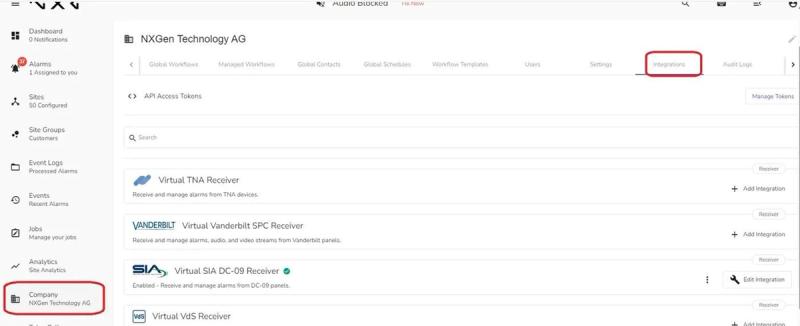
Figure 1: Talos Integrations Tab - Confirm the NXGEN Genesis integration is enabled before configuring Auto Stream.
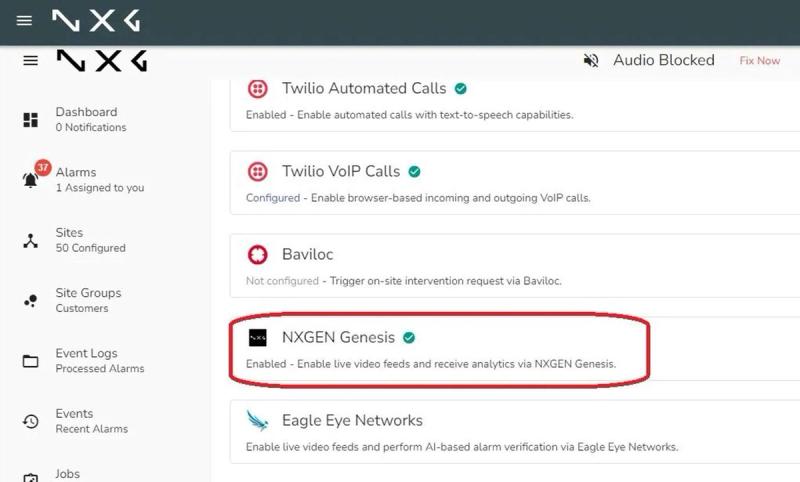
Figure 2: NXGEN Genesis Integration - The integration must show as Enabled for Auto Stream triggers to reach GCXONE.
Step 2 — Configure Alarm Codes
Within the NXGEN Genesis integration settings, define which alarm codes should trigger Auto Stream. Use BA or BA 130, which are the standard codes for intrusion panel alarms.
Step 3 — Create Zones in Talos
For each site:
- Navigate to the site in Talos
- Open the Zones and Users tab
- Add zones with a Zone ID and Zone Name
Always create zones in Talos before configuring them in GCXONE.
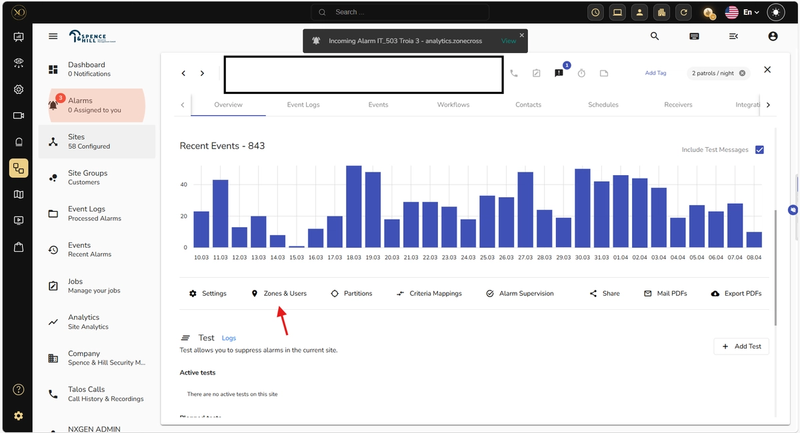
Figure 3: Talos Site Overview - The Zones and Users tab is accessible from the top navigation within the site.
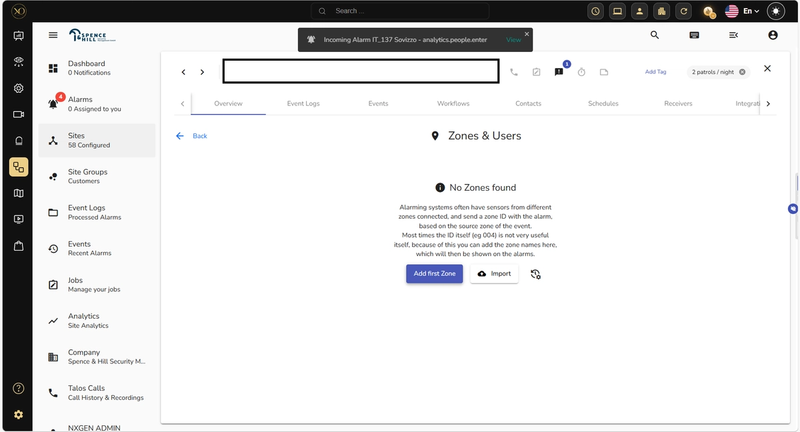
Figure 4: Add a new zone in the Zones and Users tab.
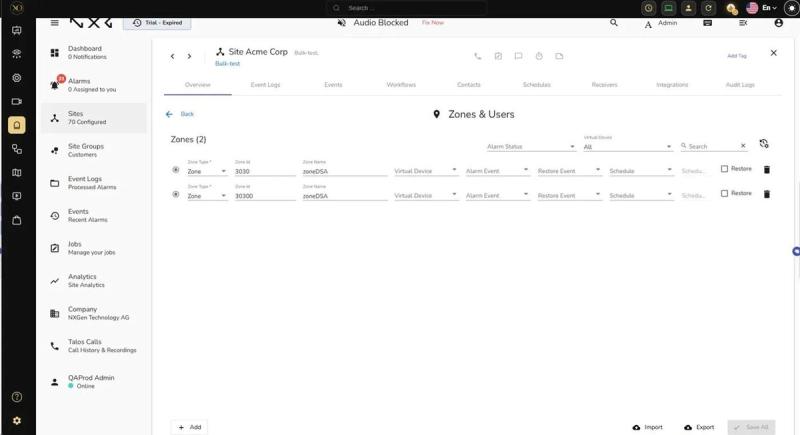
Figure 5: Zones and Users Configuration - Zone IDs must be created here before assigning sensors in GCXONE.
Step 4 — Assign Zones to Cameras in GCXONE
In GCXONE:
- Open the Edit Sensor dialog for each camera
- Go to the Properties tab
- Enter the corresponding Zone ID in the Zone field
Multiple cameras can share the same Zone ID if they cover the same area.
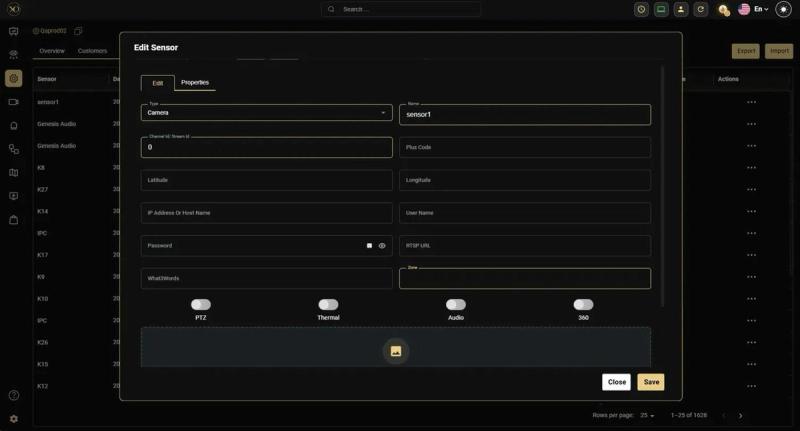
Figure 6: Edit Sensor Dialog - Enter the Zone ID in the Properties tab to link the camera to a Talos zone.
Cameras on different devices within the same site can share the same zone ID. All matching cameras stream together when the alarm arrives.
Key Capabilities
- Automatically starts camera streams when alarms are triggered
- Uses zone mapping to show only relevant cameras
- Combines multiple alarm zones into a single stream
- Handles motion alarm priority intelligently
- Updates streams dynamically as new alarms arrive
Real-World Use Cases
- A burglary alarm triggers at Zone 3 of a warehouse. Auto Stream opens only the cameras in that zone for an immediate view.
- An alarm arrives with no zone data. Auto Stream streams all cameras at the site so no area goes unchecked.
- Two alarms trigger at different zones. Auto Stream combines both zone camera lists with no duplicates.
- A motion alarm and a burglary alarm arrive together. Quad view takes priority; Auto Stream continues on a secondary screen.
Best Practices
- Always create zones in Talos before configuring them in GCXONE
- Make sure all cameras are correctly mapped to their respective zones
- Confirm that the correct alarm codes are configured to trigger Auto Stream
- Periodically review zone mappings to avoid outdated or incorrect setups
Additional Details
Streaming Behavior:
The table below shows how Auto Stream responds to each alarm scenario:
| Scenario | Zone in alarm? | Result |
|---|---|---|
| Zone configured; alarm matches zone | Yes | Stream cameras mapped to that zone only |
| Zone configured; alarm zone does not match | Yes | Stream entire site |
| No zone configured for any camera | Yes or No | Stream entire site |
| No zone in alarm message | No | Stream entire site |
| Multiple alarms, multiple zones | Yes | Aggregate all zone cameras; stream combined list with no duplicates |
| Motion alarm and burglary alarm together | Yes or No | Motion alarm takes priority; quad view shown; Auto Stream on secondary screen if available |
Troubleshooting:
- Entire site streams even though zones are configured: This usually means the zone configuration is not properly synced between Talos and GCXONE. Make sure zones were created in Talos before assigning them in GCXONE.
- More cameras stream than expected: Check for outdated or leftover zone mappings in Talos that may still be linked to removed cameras.
- Auto Stream does not trigger: Ensure the Genesis–Talos Bridge is installed and running, and that the NXGEN Genesis integration is enabled with the correct alarm codes.
- Stream shows only site name (no cameras): This indicates that no cameras are correctly mapped to the zone. Verify zone assignments and confirm synchronization completed successfully.
For technical support, contact NXGEN Technology AG through the GCXONE support portal.