Alarm Management System
What Alarm Management System Does
When an alarm triggers in GCXONE, you don't want to wait. The Alarm Management System connects GCXONE directly to your Central Monitoring Station, supporting both DC-09 and Evalink Talos integrations, so alarms reach your team the moment they happen, automatically.
Why It Matters
Monitoring centres live and die by speed. When alarms have to be forwarded manually, delays creep in, and delays mean missed incidents. The Alarm Management System takes that risk off the table entirely. The moment an alarm triggers in GCXONE, it's on its way to your CMS. No manual steps, no gaps.
How It Works
The system supports two integration paths. Choose the one that fits your monitoring center.
-
Evalink Talos Integration
Evalink Talos is a cloud-native alarm management platform built for modern monitoring centres. Unlike DC-09, it uses a REST API for alarm delivery, which means the setup is a bit different, and arguably simpler.
Step 1. In the Marketplace, click Explore on the Evalink Talos card. Review the connection scope and required credentials.
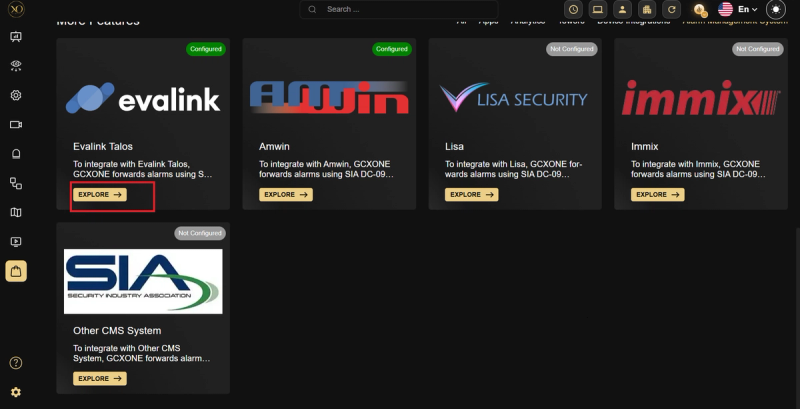
Figure 1: Evalink Talos Card - A green badge confirms the integration is active and forwarding alarms.
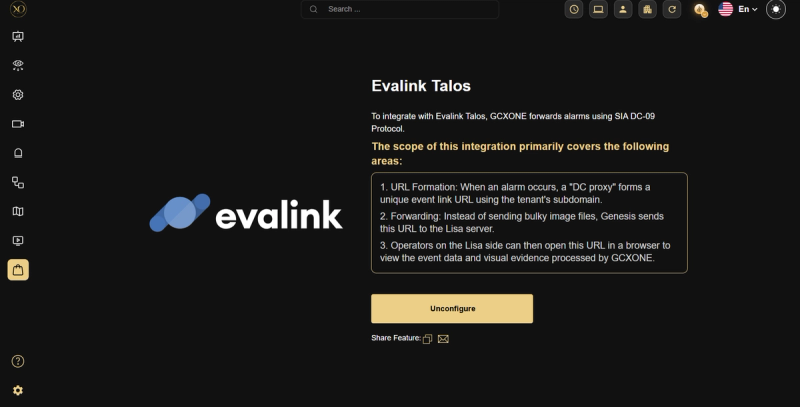
Figure 2: Integration Detail
Step 2. Enter two values, both found in your Talos account:
- API Key — a Talos-generated key with full access permissions, used to authenticate GCXONE with your Talos instance
- Company ID — your organization's unique identifier within Talos, making sure alarms route to the right account
You'll find both under API Access in your Talos account. Paste them into the form and click Configure.
2. DC09 CMS Integration
SIA DC-09 is the industry-standard protocol for transmitting alarm signals over IP networks, and virtually every major CMS platform speaks it. GCXONE goes a step further. It extends each DC-09 signal with a secure event link, so when an operator opens it, they see pre-event footage, the live feed, and the full alarm context right away.
To configure the DC-09 integration:
Step 1. Go to Marketplace from the left navigation, then click the Alarm Management System tab to filter the available integrations.
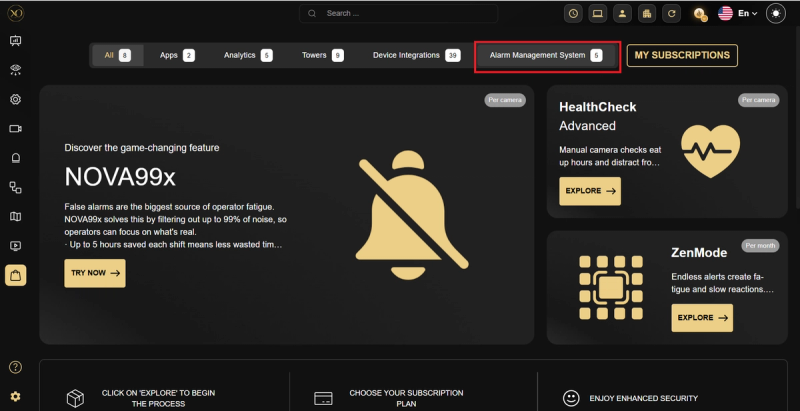
Figure 3: Marketplace Navigation - Filter to Alarm Management System to see all supported CMS receivers.
Step 2. Click Explore on the CMS you want to connect. Take a moment to review the connection scope and required fields before clicking Configure.
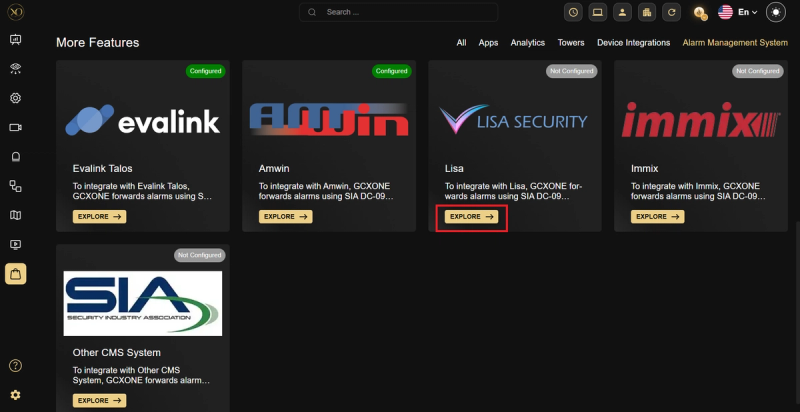
Figure 4: Integration Status
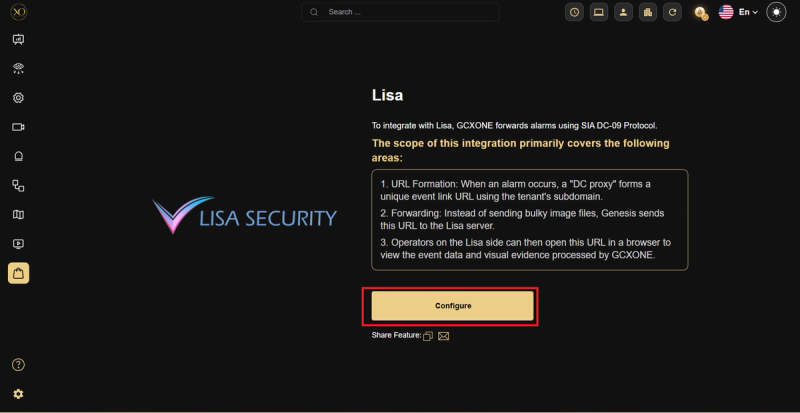
Figure 5: Integration Detail
Step 3. Enter two values to establish the DC-09 connection:
- DC09 Receiver IP Address — the IP address of your CMS server
- DC09 Receiver Port — the TCP port the CMS server is listening on
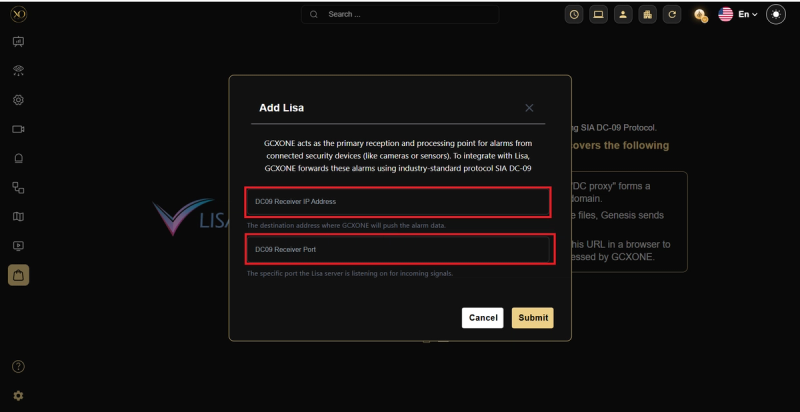
Figure 6: Connection Setup - Enter the IP address and port to route GCXONE alarms to your CMS.
If your system isn't listed, use Other CMS System to connect any SIA DC-09 compatible receiver.
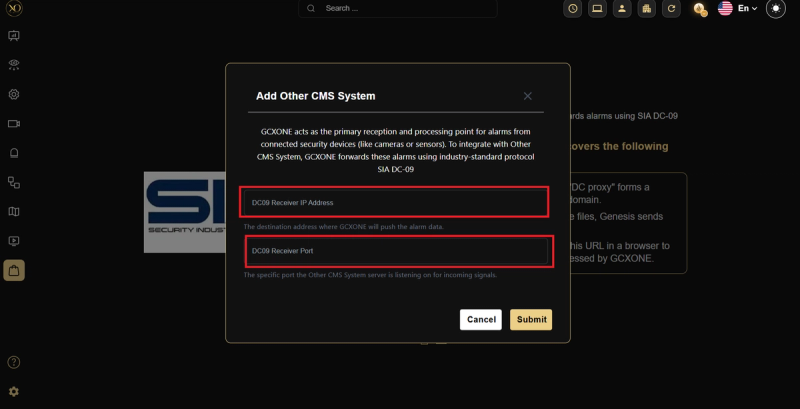
Figure 7: Custom CMS Setup - Connect any SIA DC-09 compatible receiver not listed in the Marketplace.
Step 4. Once submitted, GCXONE establishes the TCP connection automatically. The card updates to Configured and alarms start forwarding right away.
Step 5. A new Alarm Management System tab appears. Navigate to Configuration to access the site mapping table. It lists every site under your service provider, along with the Customer, Site, DC09 Account ID, assigned receiver, and connection status.
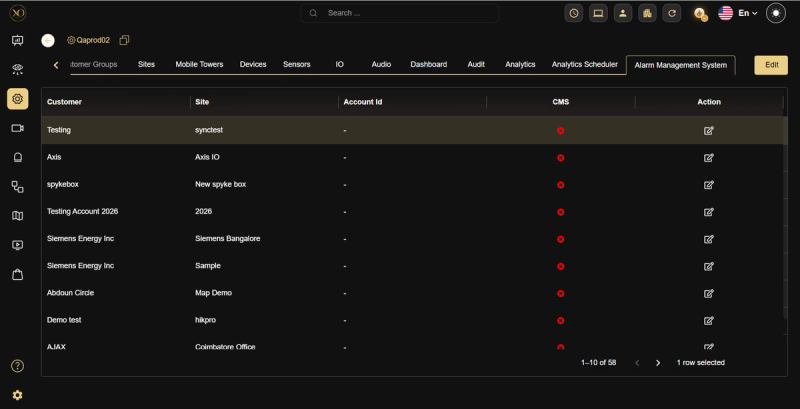
Figure 8: Site Mapping Table - Red indicators show sites not yet connected to a CMS receiver.
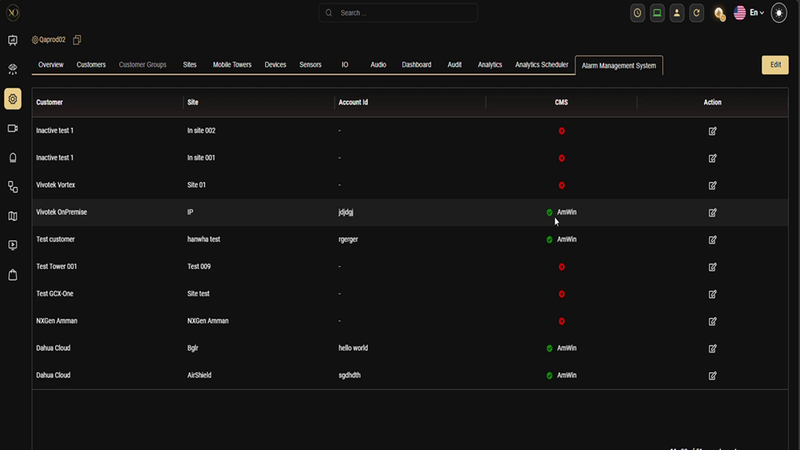
Figure 9: Mapping Progress - Green sites are active and forwarding alarms; red sites need configuration.
Step 6. Click the edit icon on any site row to open the Edit IP Configuration dialog. You'll need to fill in two fields:
- DC09 Account ID — must exactly match the site name as registered on the CMS (case-sensitive)
- Encryption Key — an optional shared secret for encrypted DC-09 communication. Leave this blank if encryption isn't required.
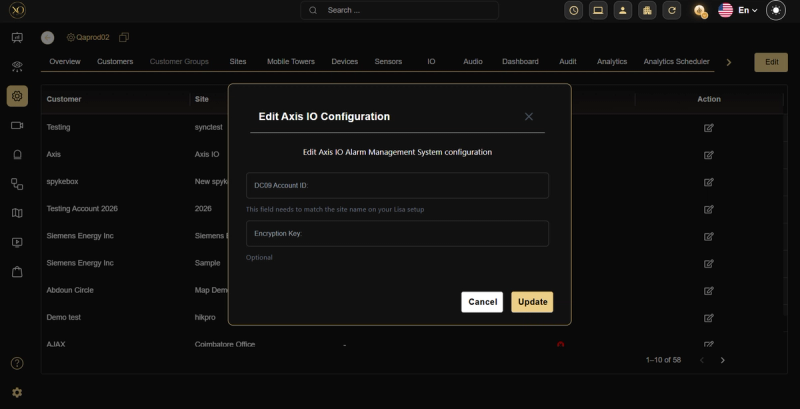
Figure 10: Site Mapping - Assign a DC09 Account ID to link each site to its CMS account.
Step 7. Click Update to save. From this point on, GCXONE forwards alarms via DC-09, each one carrying a secure event link that CMS operators can open to review the full alarm context.
Real-World Use Cases
- A DC-09 monitoring center routes alarms from Amwin, Lisa, Immix, or any SIA DC-09 receiver directly from GCXONE, without touching a secondary tool.
- An Evalink Talos user consolidates all GCXONE alarm data into a single source of truth across every monitored site.
- A multi-site service provider maps hundreds of sites to their CMS accounts in one table, with each site forwarding alarms independently.
Best Practices
- Test before going live. After the initial DC-09 setup, verify that alarms are actually reaching the CMS before you rely on it in production.
- Keep Account IDs consistent. The DC09 Account ID must match the site name exactly as it's registered on the CMS. Even a small mismatch will silently block alarm delivery.
- Use encryption where it counts. For deployments handling sensitive alarm data, always set an encryption key. Leave it blank only for internal or low-risk environments.
- Check your site mapping regularly. Red indicators in the mapping table mean those sites aren't forwarding alarms yet. Don't let them slip through.
Additional Details
Everything is configured directly inside GCXONE. No manual protocol setup, no external tools needed.
| DC09 CMS (Amwin / Lisa / etc.) | Evalink Talos | |
|---|---|---|
| Protocol | SIA DC-09 over TCP/IP | REST API |
| Setup location | Marketplace → Configure | Marketplace → Configure |
| Required inputs | Receiver IP + Port | API Key + Company ID |
| Site mapping | Required — via AMS table | Not required |
| Alarm payload | DC-09 signal + event link | API event post |
| Event evidence | Pre / Current / Post + GIF | Per Talos configuration |
For support or configuration help, reach out to NXGEN Technology AG through the GCXONE support channel.