Playback Overview
What Playback Does
Playback allows operators to access, review, and navigate recorded video from connected security devices. It provides the ability to move through past events, analyze incidents, and retrieve video evidence without manually searching through long recordings.
Why It Matters
Playback is essential for understanding what happened during a security event. It allows operators to:
- Investigate incidents in detail
- Verify alarms with accurate visual evidence
- Reconstruct events across time
Without playback, operators are limited to live monitoring and lose access to critical historical context.
How It Works
Playback retrieves recorded video from integrated devices or storage systems and presents it through a unified interface. Operators can select a device or camera, choose a specific time or event, and navigate through recordings using a timeline.
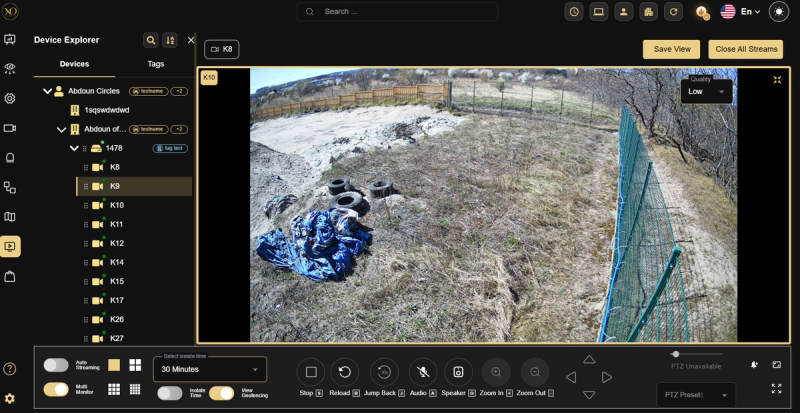
Playback can be accessed from two main locations in GCXONE: the Video Viewer and the Video Activity Search.
- From the Video Viewer
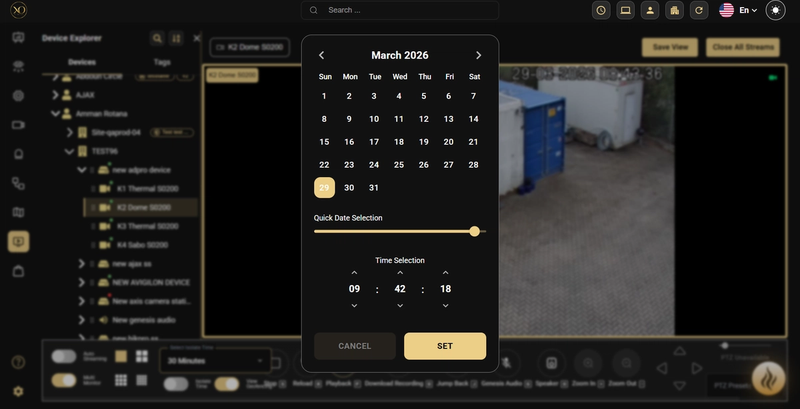
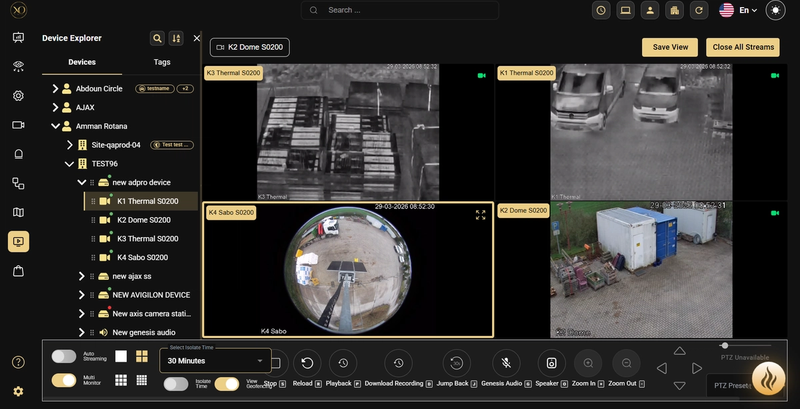
Users can access Playback directly from the Video Viewer by clicking the Playback button in the Stream Controls bar. This opens a date and time picker where users can:
- Select a specific date using the calendar
- Use the Quick Date Selection slider for faster navigation
- Set an exact time using the Time Selection control (hours, minutes, seconds)
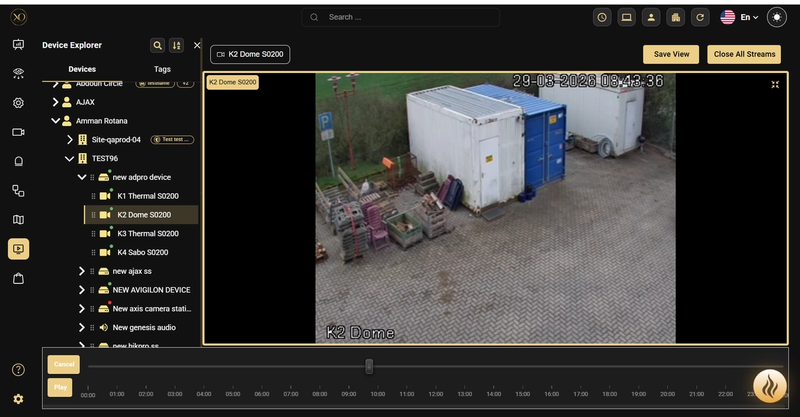
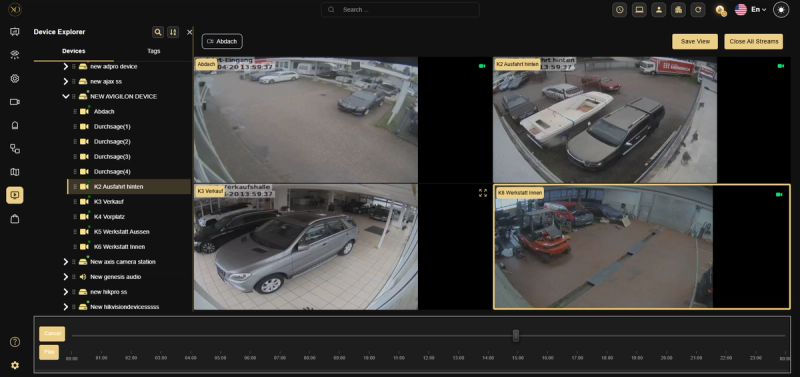
Once confirmed with Set, the stream switches to playback mode and displays a timeline bar at the bottom of the screen showing the full 24-hour recording history. Users can scrub through footage by dragging the playback indicator, click Play to start from the selected point, or Cancel to return to the live stream.
Playback timestamps are displayed in the site's local timezone, ensuring consistency with the alarm header and other feeds.
- From the Video Activity Search
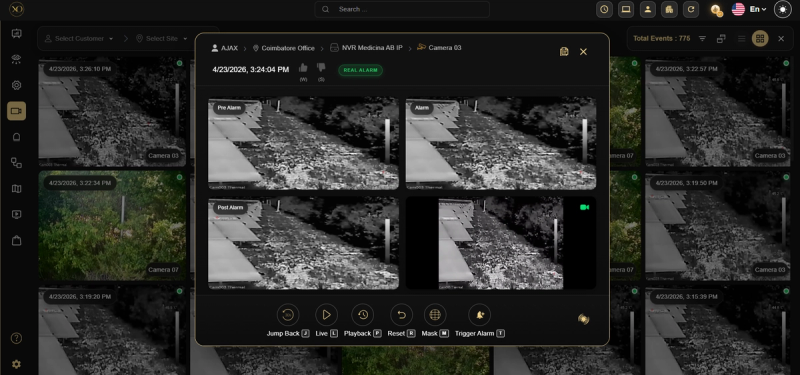
Playback is also accessible directly from the Video Activity Search module when reviewing alarm events. When an alarm event is opened, the system displays a four-panel view showing:
- Pre Alarm — Footage captured just before the alarm was triggered
- Alarm — Footage at the moment the alarm occurred
- Post Alarm — Footage captured immediately after the alarm
- Live — The current live stream of the camera
From the alarm event controls, users can Jump Back to recent footage, switch to Live, open full Playback mode, Reset the view, apply a Mask, or Trigger Alarm manually. This makes it easy to review the full context of any alarm without leaving the Video Activity Search.
Key Capabilities
Search and Navigation
Search and navigation tools help you find the exact moment you need.
- Time Search – Jump directly to a specific date and time
- Calendar Navigation – Select dates to access recordings
Timeline Navigation
The unified timeline combines recordings from multiple cameras into a single synchronized view. This allows operators to track events across devices without switching between streams. Event markers such as motion or alarms help highlight important points in time.
Multi-Camera Playback
Playback supports synchronized viewing across multiple cameras.
-
Synchronized Playback – View multiple cameras at the same point in time
-
Grid Views – Monitor several camera feeds simultaneously
-
Independent Controls – Control each camera stream separately if needed
-
Comparison Mode – Compare different camera views side-by-side
Real-World Use Cases
- Review footage before and after an alarm to understand the full sequence of events
- Investigate incidents across multiple cameras using synchronized playback
- Quickly locate specific moments using timeline or event search
Best Practices
- Limit the time range to reduce search time
- Use multi-camera playback for complex investigations
- Close unused streams to maintain performance
Related Resources
- For Live View features and controls, refer to Live View Overview
- For streaming issues, refer to Video Streaming Troubleshooting
- For contacting support, refer to Contact Support