Live View & Playback
What Live View & Playback Does
GCXONE Video Viewer is your workspace for live monitoring and video playback. This page covers how to view live feeds, set up multi-camera layouts, save custom views, and use playback and multi-monitor controls.
Why It Matters
A well-configured Video Viewer workspace means operators can monitor multiple sites simultaneously, respond to alarms instantly, and review footage without switching screens — reducing response time and improving situational awareness.
How It Works
Before You Begin
- You are logged in with the Operator role.
- You have at least one customer/site with devices and sensors configured.
- Your workstation supports multi-monitor setup if you intend to use that feature.
Opening the Video Viewer
- Click Video Viewer from the left navigation menu.
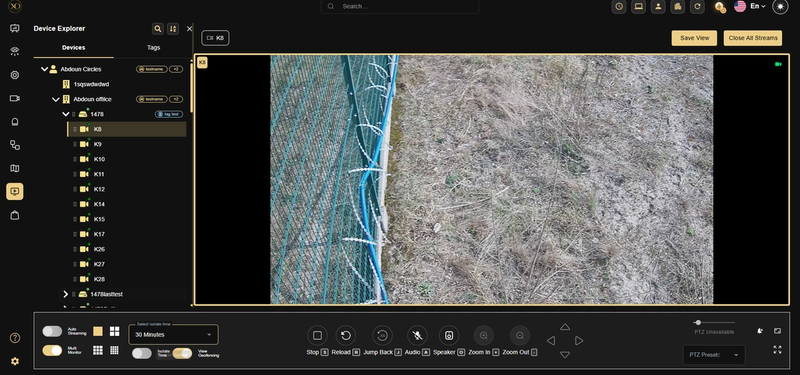
- Use the Device Explorer panel on the left to browse available cameras.
- Expand an NVR or device group to view its cameras.
- Drag and drop a camera (sensor) into the viewer screen to start streaming.
- Choose your preferred layout from the bottom toolbar (e.g., single view or grid view such as 2×2, 3×3, or 4×4).
Saving a Custom View
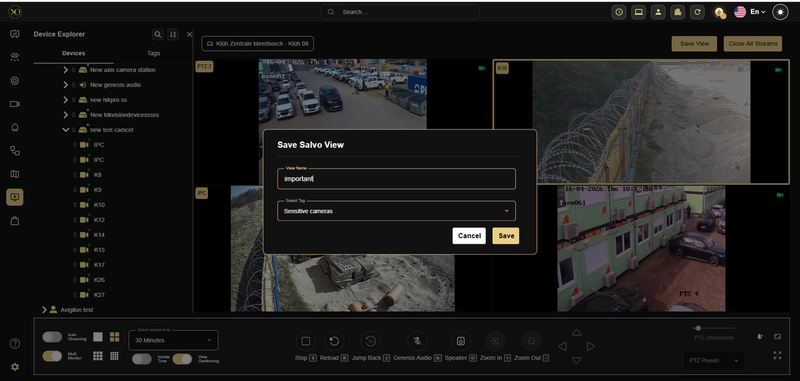
- Load the cameras you want in the viewer.
- Click Save View and give it a name.
- Select or create a Tag to organize it.
- Click Save. To reload later, go to Tags and select your tag.
Multi-Monitor Setup
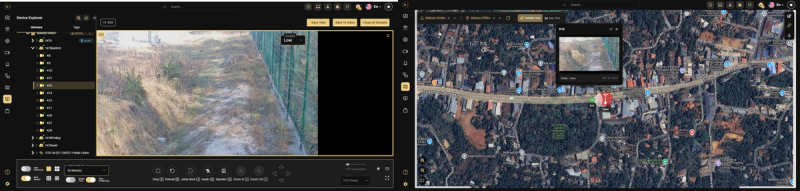
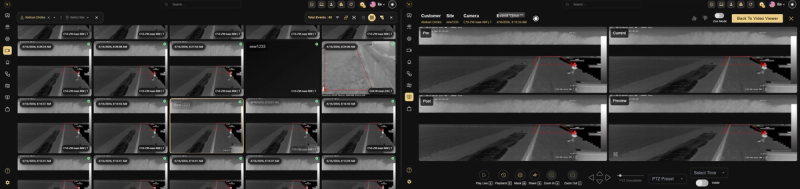
GCX-ONE supports spreading your monitoring workspace across multiple physical screens. Each application — Video Viewer, Video Search, and Maps — has its own Multi Monitor toggle, allowing you to send each one to a dedicated screen independently.
- Click the Multi Monitor toggle in the bottom-left toolbar of Video Viewer. The viewer splits to show a secondary monitor section — highlighted in yellow when active.
- Load the cameras or layout you want displayed on the secondary screen. The highlighted section is what will appear on Monitor 2.
- To extend Video Search to a separate screen, open Video Search and enable its own Multi Monitor toggle.
- To extend Maps to a separate screen, open Maps and enable its own Multi Monitor toggle.
- When an alarm is opened in Video Search, the Video Viewer on its dedicated monitor automatically switches to the alarm's camera feed — and the Maps panel pans to the alarm site if Maps Multi Monitor is also active.
Key Capabilities
Camera Controls Reference
The bottom toolbar in Video Viewer provides the following controls for each active camera stream:
- Stop [S] — Stop the current camera stream.
- Reload [R] — Refresh a lagging or frozen stream.
- Jump Back [J] — Rewind the stream to a point before the current timestamp.
- Audio [A] — Enable audio listening from the camera’s microphone.
- Speaker [O] — Activate two-way audio to speak through the camera’s speaker (not all cameras support this).
- Zoom In [+] — Apply digital zoom in on the camera feed.
- Zoom Out [-] — Apply digital zoom out on the camera feed.
- PTZ Control — Pan, Tilt, Zoom using the directional arrow controls on the right side of the toolbar. Shows “PTZ Unavailable” if the camera does not support PTZ. Use PTZ Preset to jump to a saved camera position.
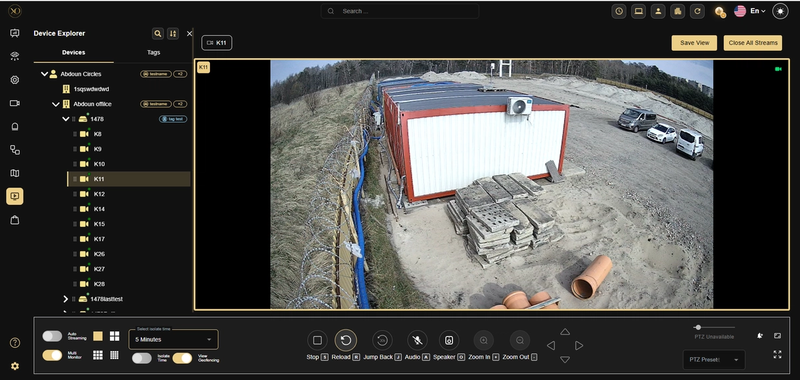
The following controls appear in the lower-left area of the toolbar and apply to the active camera session:
- Auto Streaming toggle — When enabled, GCXONE automatically opens live camera feeds when an intrusion alarm is triggered for the active site (requires zone configuration in Talos).
- Select Isolate Time — Choose the duration for alarm suppression using the dropdown (e.g., 5 minutes, 30 minutes, 1 hour).
- Isolate Time toggle — Enable to temporarily suppress alarms for this camera for the selected duration. Toggle OFF to cancel early.
- View Geofencing — Display the configured geo-fence zones overlaid on the camera feed.
- Playback — Review recorded footage using the playback timeline. Scrub through the recording to find the moment of interest.
Real-World Use Cases
- An operator saves a custom 4×4 grid layout at the start of the shift and reloads it instantly each day without rebuilding it.
- A camera feed freezes during an active alarm — the operator presses [R] to reload the stream immediately instead of escalating a connectivity issue.
- An operator enables Multi-Monitor to keep Video Search on one screen and live feeds on another, responding to alarms without switching windows.
Best Practices
- Save a layout at the start of each shift to reload it in seconds instead of rebuilding it.
- Use Tags to organize views by site, shift, or camera type for fast access.
- Press [R] to reload any lagging camera before escalating a connectivity issue.
- Set your preferred Isolate Time duration before toggling it on — the dropdown selection persists between sessions.
- Use Multi Monitor to keep Video Search on one screen and live feeds on another for maximum efficiency.