GCXONE & Talos Interaction
What GCXONE & Talos Interaction Does
GCXONE acts as the Intelligent Processing Layer for Talos. While Talos handles core alarm distribution and operator workflows, GCXONE provides the computer vision and AI needed to verify threats, manage video streams, and synchronize site data across the ecosystem.
Together, the two platforms form a unified security operations environment — any site created or updated in GCXONE is automatically reflected in Talos, ensuring consistency across both systems without manual intervention.
Why It Matters
Without proper GCXONE–Talos integration, sites fall out of sync, alarms may route incorrectly, and operators receive unverified events. The interaction layer ensures both platforms stay aligned automatically — reducing admin overhead and eliminating manual data entry errors.
How It Works
The Alarm Lifecycle
- Detection — A hardware device detects a breach and sends a signal to Talos.
- Forwarding — Talos uses a pre-configured workflow to forward images or video clips to the GCXONE AI engine.
- Verification — GCXONE's AI classifies the event based on configured priority, white, and black lists. Non-threatening movements such as shadows or animals are filtered out.
- Response — The operator receives a verified alarm in Talos, complete with bounding boxes showing exactly where the threat was detected.
Key Automation Workflows
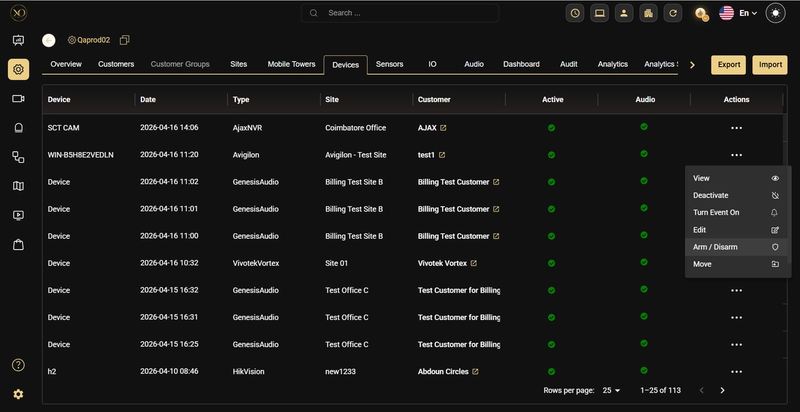
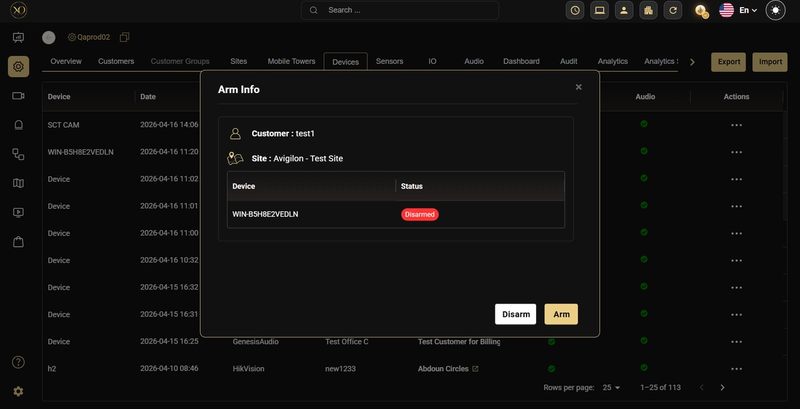
Arm/Disarm Schedules GCXONE automates the arming and disarming of sites based on client business hours. When the schedule reaches the arming time, GCXONE calls the device API and waits 30 seconds for a status confirmation. If the device fails to arm, an Arming Failure alert is sent to the operator.
Global Schedule Override — Special Days Talos allows administrators to override all existing site-level arm/disarm schedules at the company level using the Special Days feature. This is useful when a global event — such as a public holiday — requires all sites to follow a different arming schedule.
To configure a Special Day override:
Step 1: In Talos, navigate to Company → Settings → Schedules → Special Days.
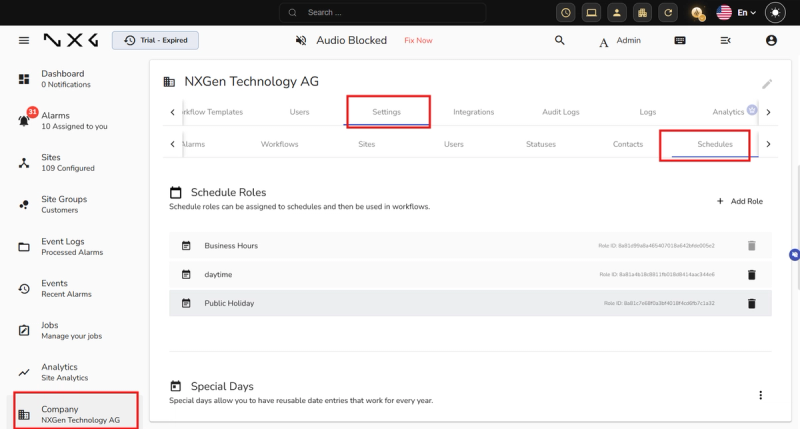
Step 2: Click + Add Special Day.
Step 3: Enter a Name for the special day.
Step 4: Select the Type — choose Recurring Date if this day repeats every year, or Specific Date for a one-time event.
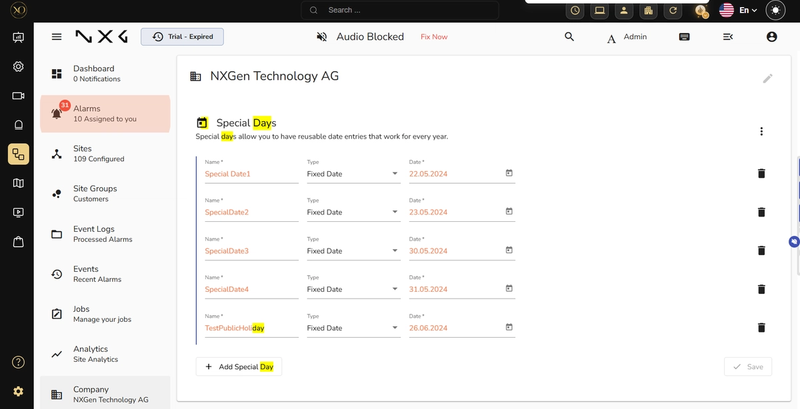
Step 5: Enter the Date and click Save.
Once configured, the Special Day setting will automatically override any individual site schedules for that date across all sites in the company.
Event Overflow Protection To prevent system overload from faulty sensors, GCXONE implements overflow protection. If 25 or more alarms are received from a single sensor within 5 minutes, alarms are temporarily discarded and a maintenance ticket is generated automatically.
Key Capabilities
Site Data Synchronization (GCXONE → Talos) When a site is created in GCXONE, all user-provided data — including first name, last name, city, street name, country, and state — is automatically synchronized with the corresponding site in Talos. When site details are updated in GCXONE, those changes are pushed to Talos in real time. Only fields that exist in both platforms are synchronized; fields available exclusively in Talos will not be affected.
Reverse Sync (Talos → GCXONE) When a site is created in Talos before GCXONE, it is not automatically reflected in GCXONE and must be synchronized manually:
Step 1: In GCXONE, navigate to the Configuration page and select the relevant Site Group.
Step 2: Go to the Sites tab and click Add.
Step 3: Enter the Site Name exactly as configured in Talos, then move to the next field (or press Tab).
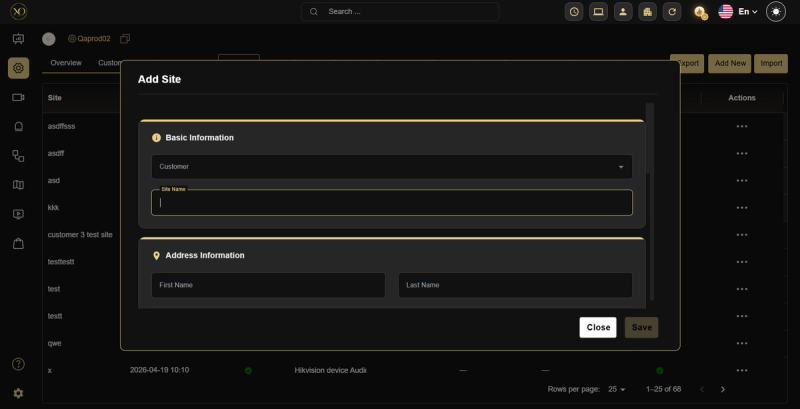
Step 4: GCXONE will automatically pull the site details from Talos — including company name, address, city, country, and timezone.
Step 5: Review the populated fields and click Save.
Only fields that are common between GCXONE and Talos will be populated automatically.
Site Templates GCXONE supports Talos site templates, which include predefined settings such as business hours and schedules. When a site is created in GCXONE using a Talos template, those settings are automatically applied. If templates are available for a tenant in Talos, a From Template tab will appear when adding a site in GCXONE.
Site Statuses in Talos
| Status | Meaning |
|---|---|
| Active | Fully operational. Alarms are processed and recorded. |
| Inactive | No alarms are accepted. Inactive sites do not count toward billing. |
| Test Mode | Used during maintenance. Motion alerts can be ignored while keeping fire alarms active. |
Virtual Devices & Connections The Virtual Devices tab in Talos lists all receivers and connection points in the Talos cloud.
- Green Icon — Healthy connection.
- Red Icon — Disconnected hardware.
- Dual Path (DP) — High-security devices using both Ethernet and mobile or cellular backups for redundancy.
Additional Configuration Parameters
- readonlyTalos — When set to true, the site data in Talos becomes read-only from GCXONE.
- APIUser — The API user account used to authenticate the connection with Talos.
- redundancyTimer — Defines the redundancy interval (in minutes) for the connection.
Test Mode
If a site in Talos is set to Test Mode during maintenance, GCXONE automatically disarms that site to prevent unnecessary AI processing and avoid false alarm generation during testing.
Form Validation Consistency Form validation and required fields in GCXONE mirror those in Talos, ensuring a consistent data entry experience across both platforms.
Custom Properties Some sites may include the following custom properties under Additional Settings → Custom Property when integrated with Talos:
Real-World Use Cases
- An admin creates a new site in GCXONE — it appears in Talos automatically with all synchronized fields, no manual re-entry needed.
- A public holiday is approaching — an admin configures a Special Day override in Talos and all 200 sites automatically follow the holiday arming schedule.
- A faulty sensor sends 30 alarms in 4 minutes — overflow protection discards the excess and generates a maintenance ticket automatically.
- A site was created in Talos first — the admin uses Reverse Sync in GCXONE to pull the site details without retyping them.
Best Practices
- Always create sites in GCXONE first to take advantage of automatic sync to Talos — avoid manual site creation in Talos when possible.
- Use Test Mode in Talos during maintenance to prevent false alarm generation without fully disabling the site.
- Use Special Days for company-wide schedule overrides instead of editing individual site schedules.
- Monitor Virtual Devices regularly — red icons indicate disconnected hardware that needs immediate attention.
Additional Details
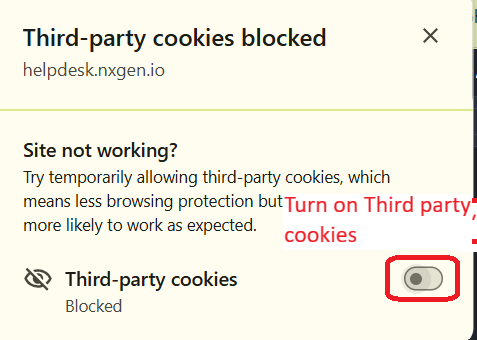
Troubleshooting- Unable to Access Evalink Talos — "Oops, Something Went Wrong"
If you can access GCXONE but receive an error when opening Talos (Alarm Management or Manage Workflows), the issue is likely caused by blocked third-party cookies in your browser.
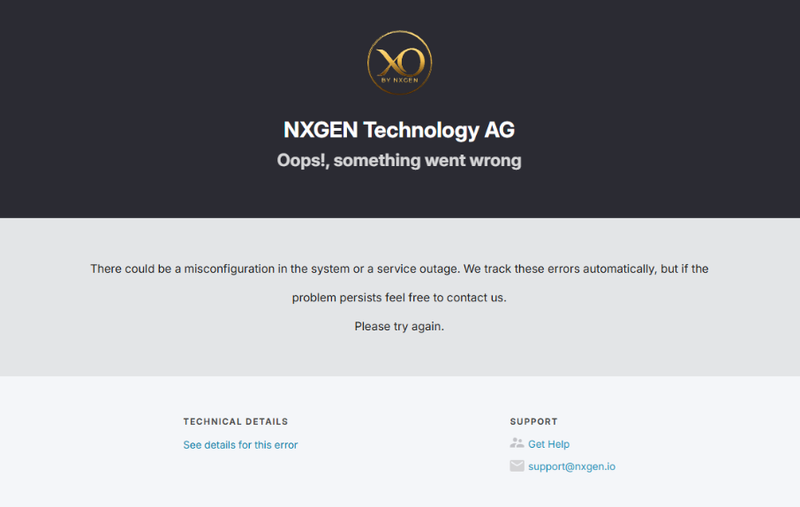
To resolve this:
Step 1: Click the Eye icon in your browser's address bar.

Step 2: Locate the Third-party Cookies setting.
Step 3: Toggle it on to allow third-party cookies.
Step 4: Refresh the page and try accessing Talos again.