Live View Overview
What Live View Does
Live View gives you real-time video monitoring across all integrated cameras in GCXONE. Watch live feeds from any connected site, manage multiple streams simultaneously, and respond to events as they happen.
Why It Matters
Delayed visibility costs operators critical response time. Live View eliminates that gap by delivering immediate, uninterrupted streams to the Video Viewer. You see what is happening and act before it escalates.
How It Works
Open the video viewer then Device Explorer from the left panel to browse your connected camera tree. Cameras are organized by customer, site, and device. Find and launch any camera feed directly from the device tree.
drag and drop sites, devices or sensors onto the grid or double-click it in the device tree. Streaming starts immediately.
Stream controls are available on each tile. Refresh, close, freeze, or resume any feed instantly.
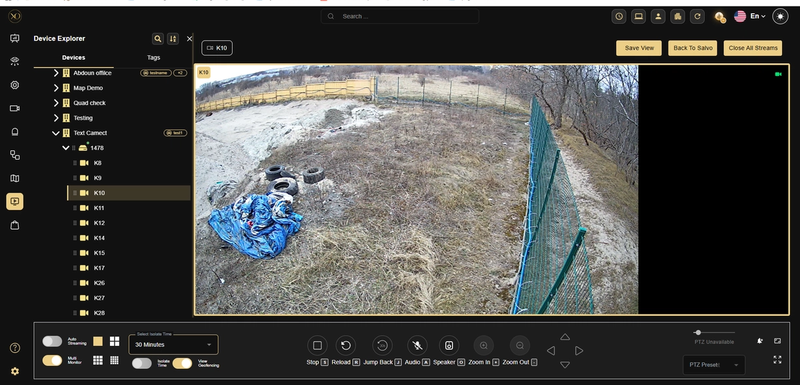
Figure 1: Device Explorer and Live Feed.
Key Capabilities
Live View gives you full control over how video is displayed, navigated, and interacted with in real time.
- Flexible Grid Layouts-Switch between 1x1, 2x2, 3x3, and 4x4 layouts instantly. Adjust layouts without interrupting active streams.
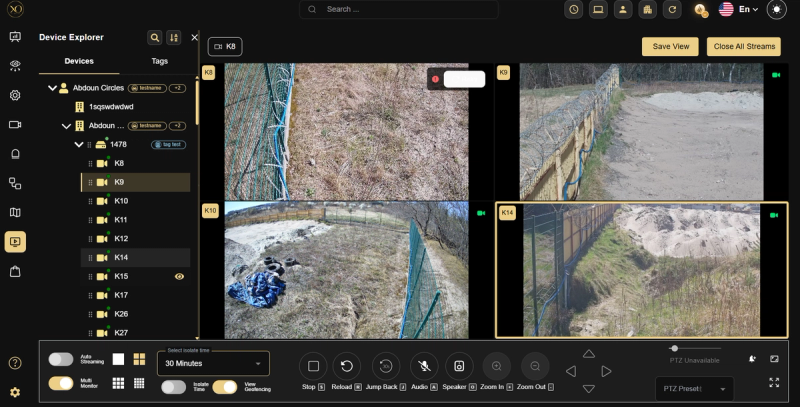
Figure 2: Multi-Camera Grid View.
- Stream Controls : The Stream Controls bar at the bottom of the Video Viewer provides quick access to all camera and stream management actions:
- Playback & Navigation
- Stop — Stop the current video stream
- Reload — Reload and refresh the stream
- Jump Back — Jump back to recent video segments
- Audio
- Audio — Toggle microphone audio on/off
- Speaker — Toggle speaker audio on/off
- View Options
- Zoom In / Zoom Out — Zoom into or out of the video feed
- Auto Streaming — Toggle automatic streaming mode
- Multi Monitor — Enable multi-monitor view layout
- Isolation & Geofencing
- Isolate Time — Set a time-based isolation period for the camera (e.g., 30 Minutes)
- View Geofencing — Toggle geofencing zone visibility on the stream
- PTZ Controls
- PTZ Directional Controls — Pan, tilt, and navigate camera direction using the arrow controls
- PTZ Presets — Select and apply saved PTZ preset positions
- Layout Controls
- Single / Grid View — Switch between single camera and grid layout views
- Save View — Save the current camera layout as a custom view
- Close All Streams — Close all active video streams at once
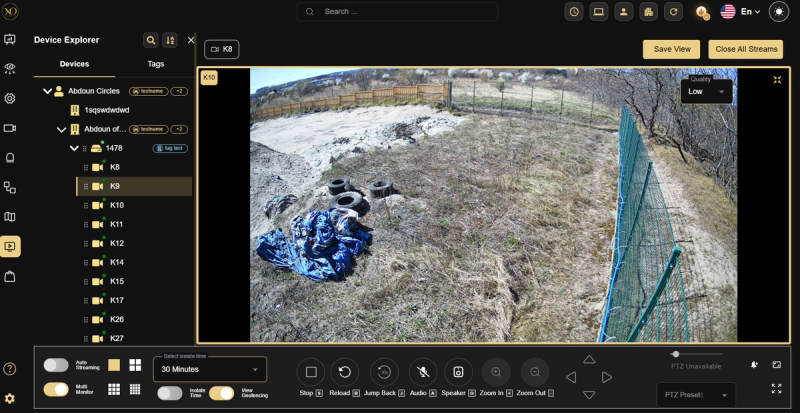
Figure 3: Video Viewer - Single Camera Focus.
- PTZ Controls - Pan, tilt, zoom, and reposition compatible cameras using on-screen controls. Call presets to return to predefined positions. Milestone devices support advanced PTZ modes such as Rectangle PTZ and Point to Center.
- Event Review (4-Panel View) - View Live, Pre, Post, and Preview feeds side by side. Review full event context in a single screen.
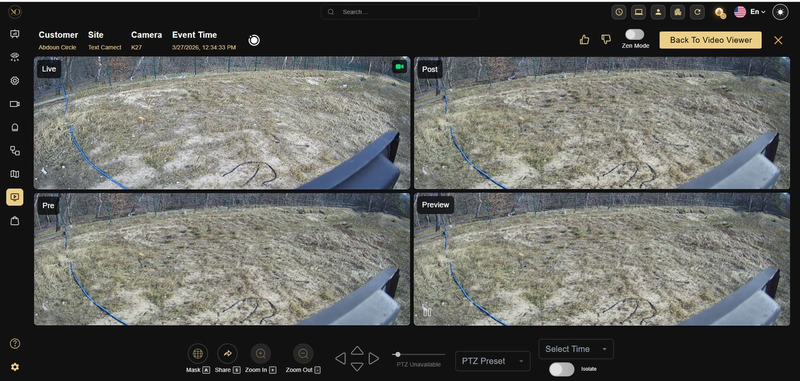
Figure 4: Event Review - 4-Panel View - Shows Live, Pre, Post, and Preview panes displayed together during an alarm session, enabling side-by-side comparison of real-time and recorded footage.
- Sensor Labels - Display sensor names directly on the video stream for quick identification.
- Sensor Isolation and Privacy Masks - Isolate a sensor for a defined duration during active incidents. Apply privacy masks to permanently hide sensitive areas.
Real-World Use Cases
- An alarm triggers at a remote site. The operator opens Live View and confirms whether a person is present within seconds. AI bounding boxes provide additional context directly in the stream.
- Movement is detected at a perimeter camera. The operator uses PTZ controls to track the subject and then restores the camera to its preset position.
- A supervisor monitors multiple sites simultaneously using a grid layout, keeping full visibility across locations.
Best Practices
- Organize camera groups in the Device Explorer by zone or priority. This reduces search time during active incidents.
- Use PTZ presets after repositioning. Cameras left off-position reduce coverage and create blind spots.
- Apply privacy masks during initial configuration. This ensures compliance before capturing sensitive areas.
- Train operators on the 4-panel event view. Reviewing multiple timelines together improves decision accuracy.
Additional Details
Live View compatibility depends on device type, deployment mode, and streaming protocol.
Full support — Cloud and Local Mode: Adpro, Axis, Axxon, Dahua, Hikvision, Milestone.
Cloud-only support: Hanwha, NetVue, Viasys.
No live support: Reconeyez PIR Cams and Ajax PIR cameras (event-based only).
Streaming Protocols by Device:
- RTSP — Axis, Axxon, Hanwha, Hikvision.
- MJPEG — Viasys.
- TCP JPEG / Raw — Milestone.
- HLS — Camect.
The operator account must have Live View or Operator permissions enabled on the source device. Required network ports must be open and whitelisted: RTSP (554) and HTTP (80/443).
For Local Mode features such as P2P streaming, encrypted streams, and local audio, the Genesis Local Mode component must be installed on the operator workstation.