Alarm Flow
What Alarm Flow Does
Once an event is classified as a Real Alarm, it enters the alarm flow — the structured process that ensures every genuine security threat is received, assigned, and resolved by the right operator at the right time.
GCXONE integrates with Talos to deliver alarms in real time, giving operators full context and the tools needed to take swift, informed action.
Why It Matters
Without a structured alarm flow, verified alarms could be missed, handled twice, or closed without documentation. The alarm flow ensures every real threat reaches the right operator, is reviewed with full context, and is closed with a traceable outcome.
How It Works
Step 1 — Alarm Delivery Confirmed alarms are delivered to the operator queue in Talos in real time. Each alarm arrives with full context including the customer and site name, device and sensor reference, event timestamp, alarm classification, and a GIF preview or video clip for fast review.
Step 2 — Operator Queue Inside Talos, operators see a live queue of incoming alarms. Each alarm can be assigned to a specific operator, preventing duplicate handling. The queue displays who is currently working on each alarm, making team coordination visible at a glance.
Step 3 — Alarm Review The operator opens the alarm and reviews the available information using the tools listed above — GIF Preview, Jump Back, Live View, Playback, and Area Masking.
Step 4 — Alarm Action The operator confirms, dismisses, or escalates the alarm based on their review.
Step 5 — Workflow Automation Depending on the alarm type and site configuration, Talos workflows can automatically notify the customer, dispatch a technician, send an SMS or email alert, escalate to a supervisor, or log the response for SLA reporting.
Step 6 — Resolution & Audit Every alarm is closed with a resolution note and stored in the Audit Log with full details including the operator who handled it, the time of action, the steps taken, and the final resolution.
Key Capabilities
Alarm Triggers An alarm is triggered when one of the following occurs:
- A camera or sensor detects a real security event that passes NOVA99x AI filtering.
- A HealthCheck failure is detected, such as a camera going offline, obstruction, black screen, or low light condition.
- A manual alarm is triggered by an operator or system administrator.
Alarm Review Tools When an operator opens an alarm, the following tools are available:
- GIF Preview — A short animated preview of the event for instant context.
- Jump Back — Replay the 30 seconds before the alarm was triggered.
- Live View — Switch to a live stream of the camera in real time.
- Playback — Review recorded footage around the event.
- Area Masking — Apply a temporary or permanent mask to a specific zone if needed.
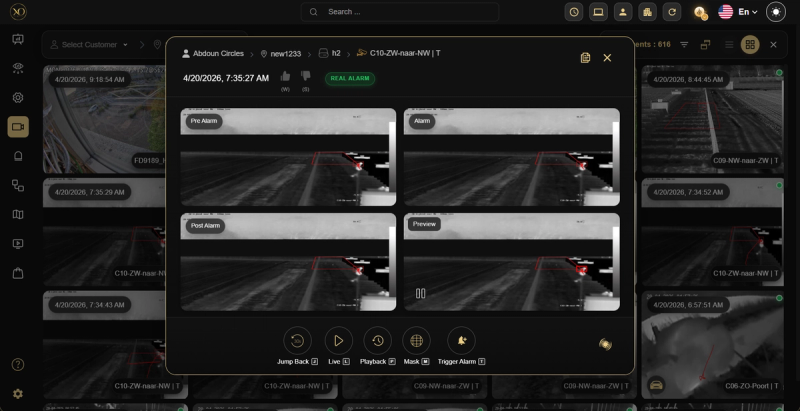
Alarm Actions After reviewing the alarm, the operator takes one of the following actions:
- Confirm as Real — Escalate the alarm and trigger the configured workflow such as calling a technician, sending an SMS or email, or contacting the customer.
- Mark as False — Close the alarm as a false positive. This data feeds back into NOVA99x analytics.
- Escalate — Assign the alarm to a supervisor or higher-level operator.
Real-World Use Cases
- An intrusion alarm arrives in Talos — the operator uses GIF Preview for instant context, confirms it as real, and the workflow automatically contacts the customer and dispatches a technician.
- Two operators see the same alarm — the assignment system prevents duplicate handling by showing who is already working on it.
- A HealthCheck failure triggers automatically at 02:00 — the alarm flow routes it as a Technical Event and sends an SMS to the on-call technician without operator involvement.
Best Practices
- Always use Jump Back before confirming or dismissing an alarm — context before the trigger often reveals the true cause.
- Never leave an alarm unassigned in the queue — assign it immediately to prevent duplicate handling.
- Always close every alarm with a resolution note — this ensures a clean Audit Log and accurate SLA reporting.
- Use Area Masking for zones with recurring false alarms rather than dismissing them manually each time.