Talos Workflows
What Talos Workflows Does
Workflows are the brain of Talos. They define exactly how an incoming alarm should be handled — whether it is automatically closing a test signal or guiding an operator through a high-priority burglary response.
In Talos, every alarm follows a defined path. Workflows give administrators full control over that path — from the moment an alarm is received to the moment it is closed and logged.
Why It Matters
Without workflows, every alarm requires manual operator judgment from start to finish — inconsistent, slow, and error-prone. Workflows standardize the response path, automate routine decisions, and ensure every alarm is closed with a documented outcome.
How It Works
Step 1 — Define Incoming Conditions Set the triggers that activate the workflow. This includes the alarm code (e.g., BA for Burglary), the schedule (e.g., After Hours only), and the logic — use All of (AND) for strict matching or One of (OR) for broad categories.
Step 2 — Add Decision Nodes Ask the system or the operator a question. Examples include automated checks such as whether the site is currently armed, or manual checks such as whether video shows a human presence.
Step 3 — Configure Actions Define what happens next. Options include:
- Sending an automated SMS or email notification
- Triggering a siren or locking a door
- Escalating the alarm to the priority operator queue
Including Alarm Images in Email Notifications When configuring an email action in a workflow, you can include Pre, Current, and Post alarm snapshots directly in the email body by adding the following image URLs:
Pre-alarm image:
https://events-snapshots.s3.eu-central-1.amazonaws.com/events/{{ alarm.headers['genesiseventid'] }}/pre.png
Current alarm image:
https://events-snapshots.s3.eu-central-1.amazonaws.com/events/{{ alarm.headers['genesiseventid'] }}/current.png
Post-alarm image:
https://events-snapshots.s3.eu-central-1.amazonaws.com/events/{{ alarm.headers['genesiseventid'] }}/post.png
Note: These URLs use a dynamic template variable that automatically pulls the correct event images based on the alarm ID.
Step 4 — Close and Log Every workflow must end with a Closing Status such as False Alarm or Police Dispatched. This ensures cleaner reporting and a complete audit trail.
Key Capabilities
Workflow Priority An alarm is always processed for a specific site. Talos searches for a matching workflow in the following priority order:
- Site Level — The most specific. Workflows configured directly for a single site take highest priority.
- Site Group — Workflows applied to a group of sites.
- Global / Company Level — The default fallback workflow applied when no site-level or group-level workflow matches.
Automated vs. Manual Workflows Use automated workflows for technical signals such as low battery alerts. If the issue does not resolve after a set time, configure the workflow to escalate to a manual workflow for human intervention. This keeps operators focused on situations that genuinely require their attention.
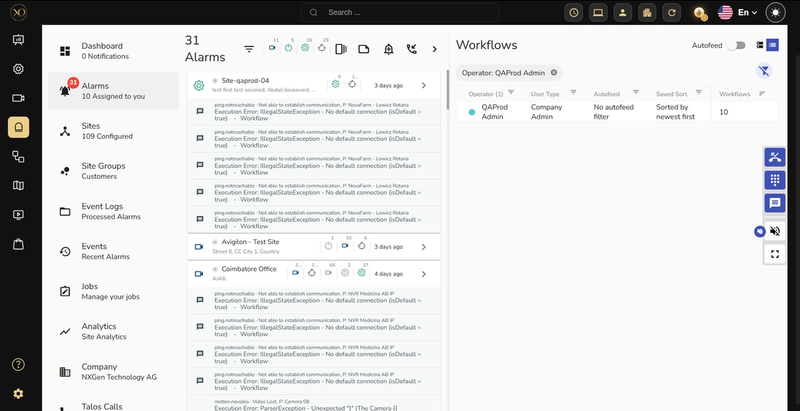
The Operator Alarms Page The Alarms page is the central cockpit for monitoring staff.
- The left side displays all unassigned alarms that have arrived but have not yet been picked up by an operator.
- The right side displays columns for each online operator, showing their current active workload and status — Online or Offline.
- Bell Icon — Triggers a manual test alarm to verify workflow logic.
- Phone Icon — Manually starts a Call Workflow when a customer contacts the monitoring center directly.
Real-World Use Cases
- A low battery alert triggers an automated workflow — the system waits 30 minutes, and if unresolved, escalates to a manual workflow for operator intervention.
- A burglary alarm arrives after hours — the Site Level workflow triggers immediately, routing it to the priority operator queue with a video verification step.
- An admin configures email notifications with Pre, Current, and Post alarm images — operators receive full visual context before calling the customer.
Best Practices
- Always assign workflows at the Site Level for critical sites — Site Level takes highest priority over Group and Global workflows.
- Use Automated workflows for routine technical signals to keep operators focused on genuine security events.
- Always end every workflow with a Closing Status — this ensures cleaner reporting and a complete audit trail.
- Test new workflows using the Bell Icon on the Alarms page before deploying to live sites.
Additional Details
Configuring Schedules to Trigger Arm/Disarm Workflows
To automatically arm or disarm a site based on a schedule in Talos:
Step 1: In Talos, navigate to Sites and select the site where the schedule needs to be configured.
Step 2: Go to the Schedules tab and configure the schedule time blocks for the site.
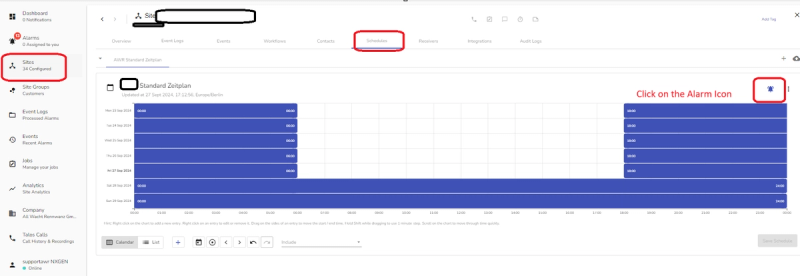
Step 3: Click the Alarm Icon (bell icon) on the schedule.
Step 4: In the Assign Alarm Codes dialog, configure:
- Alarm Code (Active) — Enter the alarm code to trigger when the schedule becomes active (e.g., Alarm-On).
- Alarm Code (Inactive) — Enter the alarm code to trigger when the schedule becomes inactive (e.g., Alarm-Off).
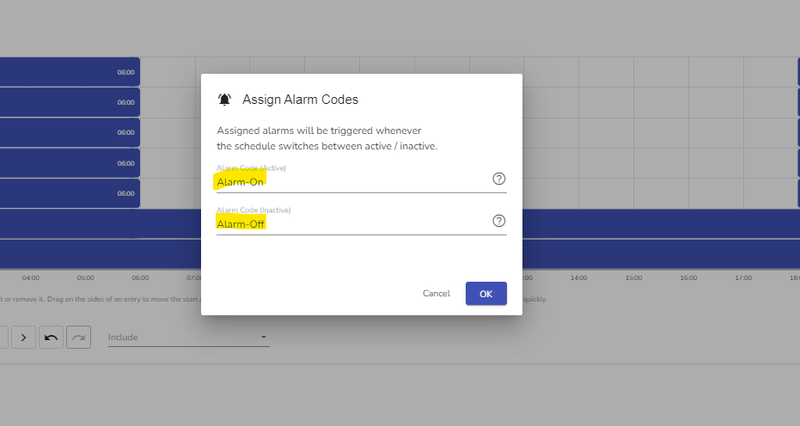
Step 5: Click OK to save.
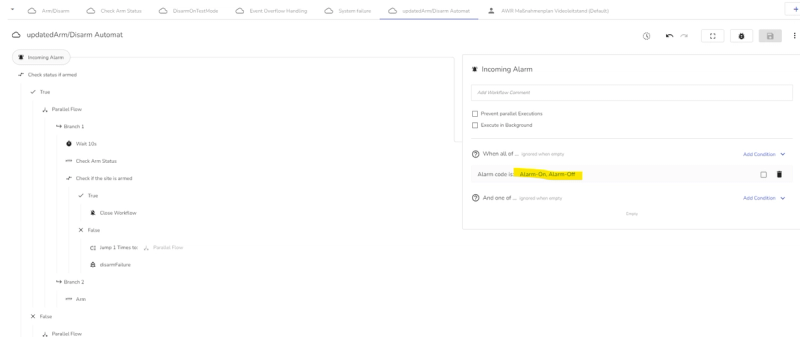
Step 6: Ensure the alarm codes configured in Step 4 are also set up as Incoming Alarms in the workflow configuration.