Audio & Communication
What Audio & Communication Does
GCXONE provides audio monitoring and two-way communication directly from the Video Viewer. This page explains how to enable, use, and best manage audio during live monitoring and alarm review.
Why It Matters
Audio monitoring adds a critical layer of situational awareness during live operations. Two-way communication allows operators to respond directly through a camera's speaker — but only when authorized and correctly configured.
How It Works
Before You Begin
- You are in the Video Viewer with at least one camera loaded.
- Your workstation speakers or headset are functioning.
- You have confirmed with your administrator which cameras support two-way audio.
Audio Controls Per Camera
Each camera tile in the Video Viewer includes two audio controls:
- Audio (Listen) — Enables the incoming audio feed from the camera's microphone.
- Speaker (Talk) — Enables outgoing audio so you can speak through the camera's speaker.
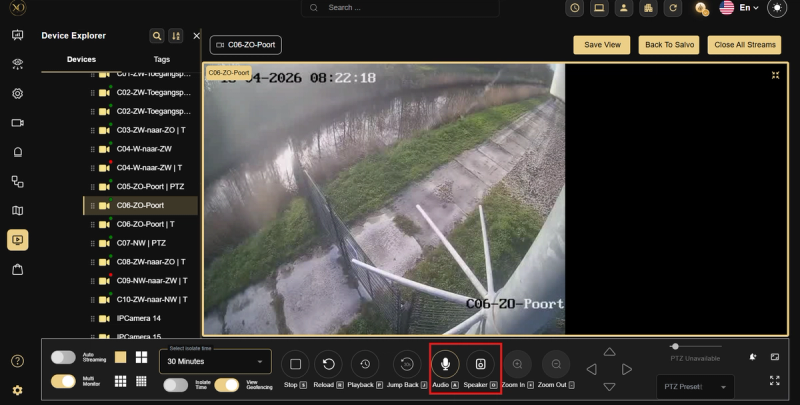
Enabling Audio on a Camera
- Open Video Viewer and load the camera you want to monitor.
- Click the Audio icon (microphone) on the camera tile to listen to the audio feed.
- To speak through the camera's speaker, click the Speaker icon.
Audio During Alarm Review
Audio is also available when reviewing alarms in Video Search. Open an alarm clip — if the camera recorded audio, it plays back with the video. Use the audio controls in the alarm viewer to adjust volume or mute.
Key Capabilities
| Control | Function |
|---|---|
| Audio (Listen) | Stream live audio from the camera's microphone |
| Speaker (Talk) | Speak through the camera's speaker (not all cameras support this) |
| Alarm Clip Audio | Playback recorded audio alongside alarm video in Video Search |
Real-World Use Cases
- An operator hears suspicious activity through a camera's audio feed and immediately activates the speaker to issue a verbal warning.
- During alarm review, an operator opens a clip in Video Search and uses the audio playback to confirm whether a voice or sound triggered the alarm.
- An operator notices audio quality is poor, clicks Reload on the camera tile, and restores a clean stream without escalating to IT.
Best Practices
- Always confirm you are on the correct camera before activating the speaker.
- Use two-way audio only when authorized by your supervisor or as part of an approved response procedure.
- If audio quality is poor or the stream is lagging, click Stop / Reload on the camera tile to refresh the connection.
- Not all cameras support two-way audio — check with your administrator before relying on this feature.