PTZ Control Overview
What PTZ Control Does
PTZ (Pan-Tilt-Zoom) Control allows operators to remotely adjust camera position, angle, and zoom level in real time directly from the GCXONE interface. This enables active monitoring, faster incident response, and precise control over camera coverage.
Why It Matters
Fixed cameras provide a limited field of view. When events occur outside that range, operators lose visibility. PTZ control allows operators to dynamically adjust camera coverage, track movement, and focus on critical details in real time — improving situational awareness and reducing the need for additional cameras.
How It Works
Operators send commands through the GCXONE interface. GCXONE translates these commands into the appropriate device protocol and transmits them to the camera. The camera executes the movement instantly and updates its position in real time.
- Prerequisites
Before starting, confirm the following:
- PTZ camera is successfully added to GCXONE.
- Camera hardware supports PTZ functionality.
- Device is online and accessible.
- Video streaming is working correctly.
- User has PTZ control permissions enabled.
- Device-Level Setup
Access the camera web interface and navigate to PTZ Settings or Camera Control:
- Enable PTZ and select the appropriate protocol (e.g., ONVIF or manufacturer-specific)
- Configure movement limits, idle time, and home position if supported
- Ensure the integration user has PTZ permissions on the device
- Test pan, tilt, zoom, and preset recall directly from the device interface
Navigation steps may vary depending on the manufacturer. Refer to the device documentation for exact instructions.
Key Capabilities
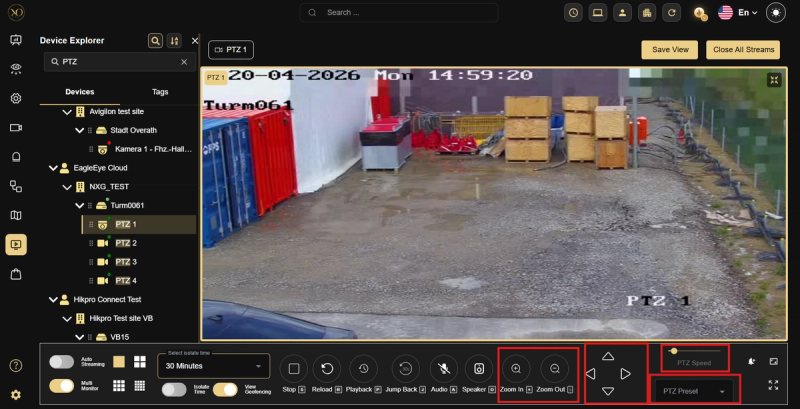
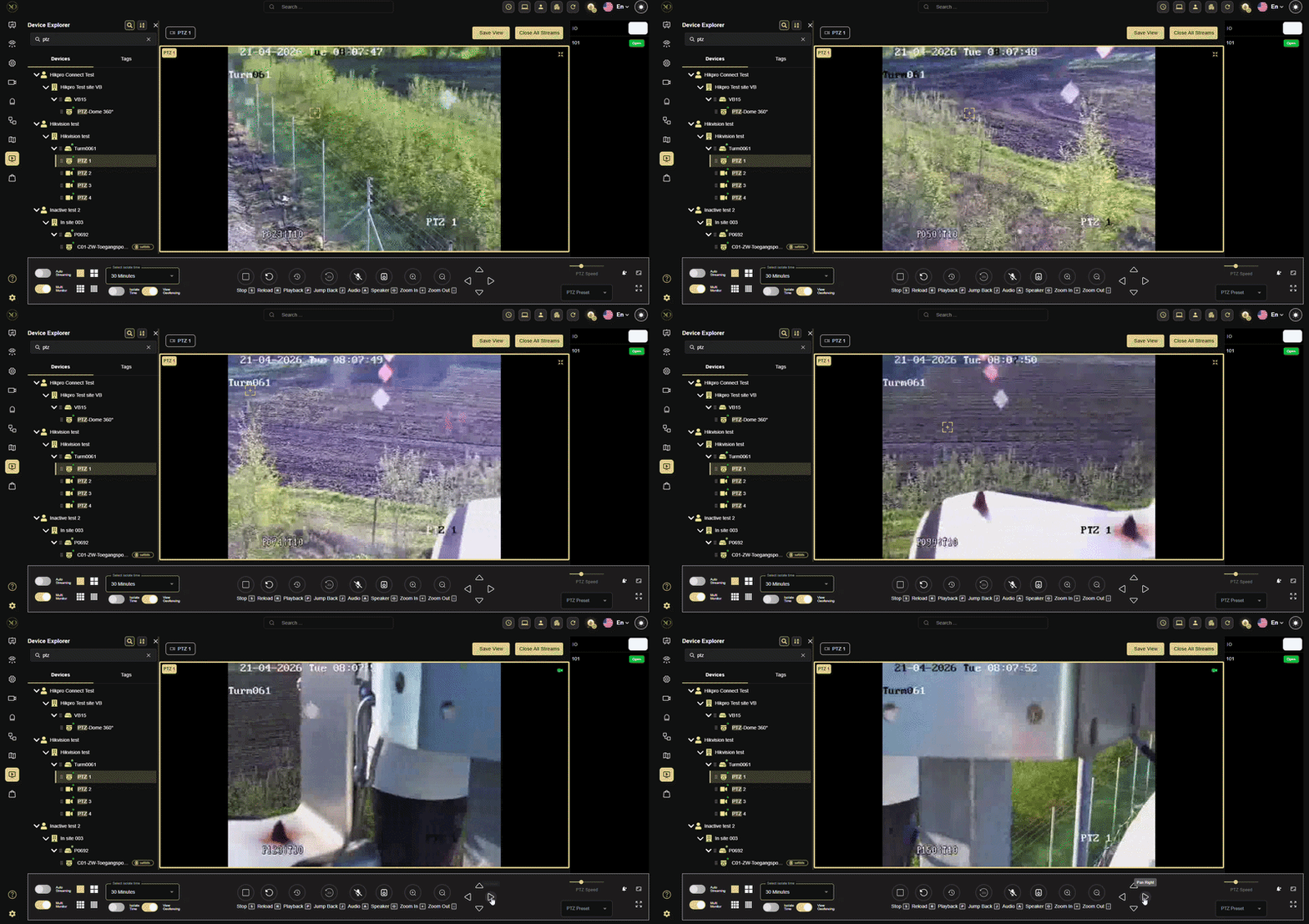
- Pan and Tilt — Move the camera horizontally and vertically to adjust the viewing angle and expand coverage.
- Zoom — Adjust optical or digital zoom to focus on specific areas and capture fine details.
- PTZ Preset — Automatically switch between predefined camera positions for faster monitoring
- PTZ Speed — Adjust movement speed for precise positioning or rapid area scanning.
Real-World Use Cases
- Track movement across large areas in real time using pan and tilt
- Move the camera instantly to the event location when an alarm is triggered
- Zoom in on critical details and capture multiple angles for evidence
- Monitor multiple zones efficiently using presets and automated tours
Best Practices
- Use presets instead of manual movement for faster and more consistent positioning
- Adjust movement speed based on the situation — fast for scanning, slow for precision
- Avoid excessive manual movement to reduce mechanical wear
- Regularly verify preset accuracy, as cameras may drift over time
- Use Local Mode to improve PTZ responsiveness, especially in high-latency environments
- Limit control to one operator per camera to avoid conflicting commands
Additional Details
- Supported Devices — Axis, Dahua, Hikvision, and Milestone. PTZ controls are available only when the PTZ toggle is enabled in the Sensor Edit page and the user has the required permissions.
- Permissions — Users must have PTZ control permissions enabled on their account to access and operate PTZ functionality.
- Network Impact — Network latency directly affects PTZ responsiveness, especially in remote environments. Using Local Mode significantly reduces latency and improves performance.
- Physical Limits — Cameras operate within defined pan and tilt ranges depending on the device model.
- Usage Constraints — Only one operator should control a PTZ camera at a time to avoid conflicting commands and ensure smooth operation.