📹 Avigilon VMS Integration
Linking Avigilon Control Center (ACC) to GCXONE allows you to leverage high-performance server-side analytics with cloud-based operator response. This integration requires the ACC Web Endpoint Service to be operational.
📋 Prerequisites
- ACC 7 Web Endpoint: Service installed and reachable over the network.
- Port Forwarding: External access to the WebAPI port must be configured by your IT team.
- Admin Access: You must have permissions to create User Groups within ACC.
🚦 Integration Workflow
🛠️ Configuration Steps
- 1
1. WebAPI Installation
- 2
Ensure the Avigilon WebAPI Endpoint is installed on your ACC Server. This service translates proprietary camera streams into the standard WebAPI format required by GCXONE.
- 3
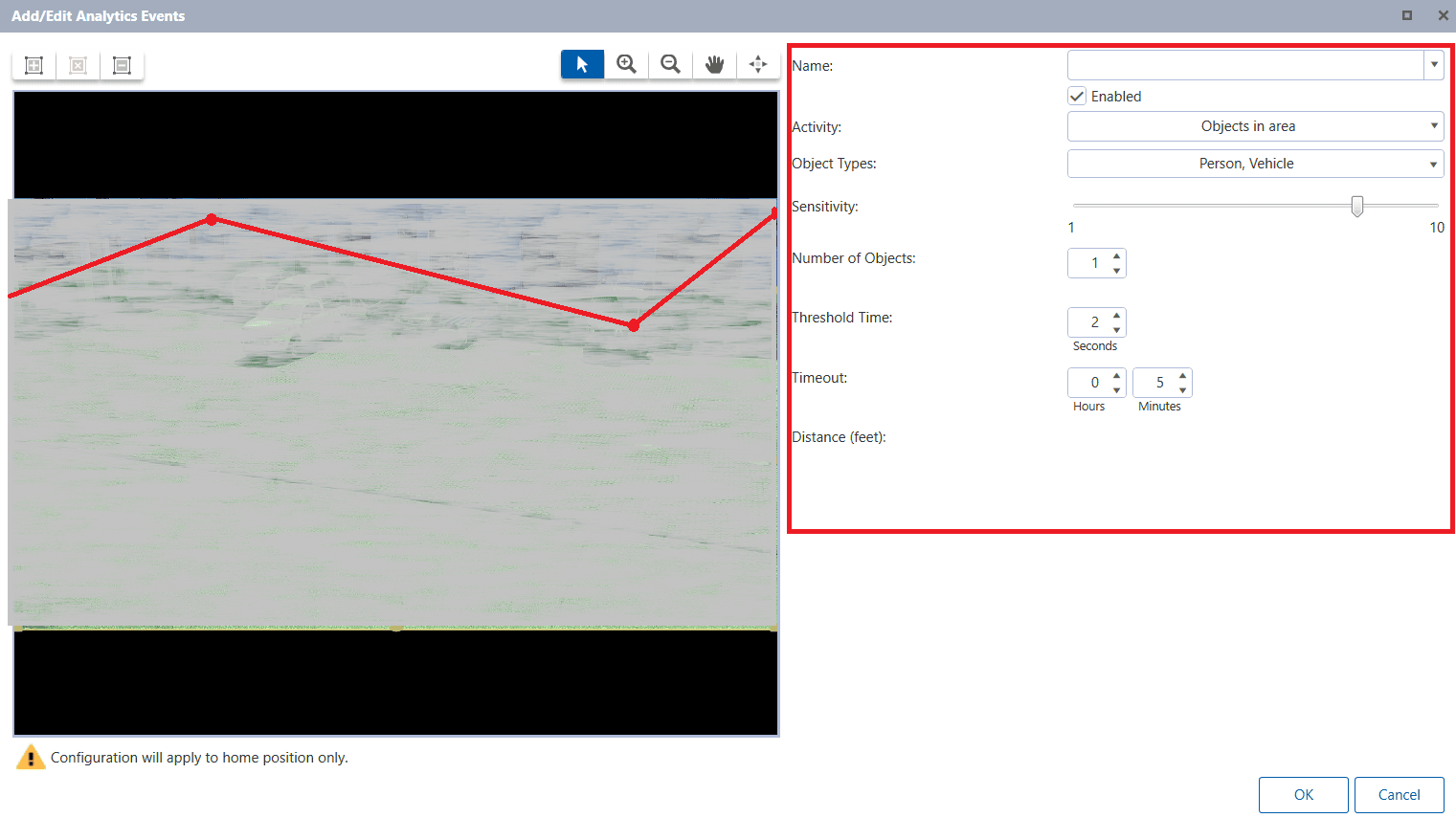
2. Analytics Tuning (Camera Level)
- 4
Navigate to Camera Setup → Analytics.
- 5
- Motion Detection: Enable with sensitivity 8-10.
- Threshold Time: Set to 2 seconds (prevents flickering/false alerts).
- Object Filtering: Select Person/Vehicle categories to reduce noise.
- 6
- 7
3. Create NXGEN User Group
- 8
Navigate to Site Setup → Users and Groups.
- 9
- Create a new group named "NXGEN-CLOUD".
- Privileges Needed:
- View Live & Recorded Images.
- Use PTZ Controls.
- Trigger Digital Outputs.
- Receive events with identifying features.
- Assign the specific cameras you wish to monitor to this group.
- 10

- 11
4. Alarm Distribution
- 12
Navigate to Setup → Alarms.
- 13
- Add a new alarm trigger.
- Select your analytic cameras as the Trigger Source.
- Under Recipients, add the NXGEN-CLOUD group created in Step 3.
- Set the Pre-alarm recording to 10 seconds.
- 14
5. Final Discovery in GCXONE
- 15
- Log in to GCXONE → Sites → Devices.
- Click Add Device and select Avigilon.
- Enter the Serial Number and the credentials for the NXGEN-CLOUD user.
- Click Discover. Review the imported virtual sensors.
💡 Troubleshooting
- No Discoverable Sensors: Ensure the WebAPI Endpoint is running. Test this by trying to reach
https://[ServerIP]:[Port]/api/v1/in a browser. - Permission Denied: Check that the user assigned to GCXONE is a member of the NXGEN-CLOUD group and has "View Live Images" toggled on for all relevant cameras.
- Missed Alarms: Ensure the analytic rules in ACC are linked to an Alarm object. GCXONE listens to ACC Alarms, not raw motion events by default.