Reconeyez Installer Configuration
This guide provides step-by-step instructions for configuring Reconeyez battery-powered event cameras to integrate with GCXONE. Follow these steps to ensure proper event-driven video capture, cloud integration, and device connectivity.
Configuration
Step-by-Step
Prerequisites
Before You Begin
- ✅ Valid SIM card with data plan (for LTE connectivity) or Wi-Fi access
- ✅ Reconeyez mobile app or cloud platform access
- ✅ Device ID from Reconeyez client (used as Serial number)
- ✅ Network connectivity allowing outgoing connections to cloud platform
Step 1: Network Configuration
Step 1: Network Configuration
UI path: Reconeyez Device → Network Settings
For LTE/4G Connection
- Insert SIM card with valid data plan
- Ensure adequate signal strength for mobile data
For Wi-Fi Connection
- Configure network settings through mobile app or cloud platform
- Set SSID and password
- Ensure Wi-Fi coverage and signal strength
General Network Setup
- Devices automatically connect to Reconeyez Cloud (minimal manual IP configuration needed)
- Ensure firewall and proxy settings allow outgoing connections to cloud platform
- Verify network connectivity for cloud communication
Expected result: Network connectivity established for cloud communication
Step 2: Event Configuration
Step 2: Event Configuration
UI path: Reconeyez Cloud Portal/Mobile App → Event Settings
Configure Event-Driven Capture
- Access Reconeyez cloud portal or mobile app
- Configure event triggers for video capture
- Set up snapshots or video clips (typically 10-15 seconds) upon event trigger
- Configure number of photos and time interval for snapshots
- Set event detection parameters and sensitivity

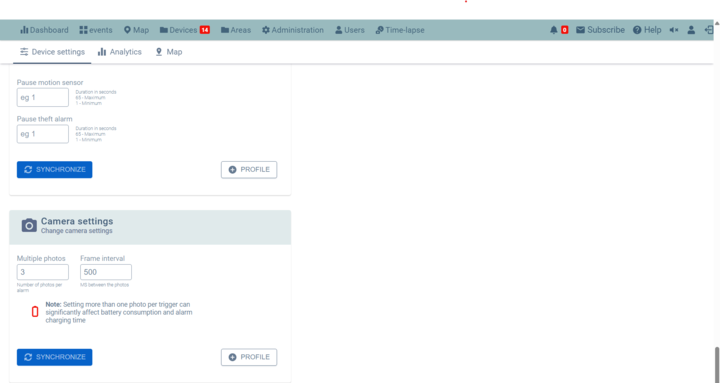
Note: Reconeyez devices are optimized for event-driven video capture, not continuous streaming. Event clips are typically 10-15 seconds long for optimal storage and transmission.
Expected result: Event capture settings configured for optimal surveillance
Step 3: Platform Integration Setup
Step 3: Platform Integration Setup
UI path: Reconeyez Platform → Integration Settings
Configure Third-Party Integration
- Set up API access for event forwarding and video access
- Configure email/FTP notifications to external systems
- Set up central monitoring station integration using protocols like SIA or Contact ID
- Configure optional cloud-to-cloud integration with platforms
- In GCXONE, configure workflow to add webhook for event notifications
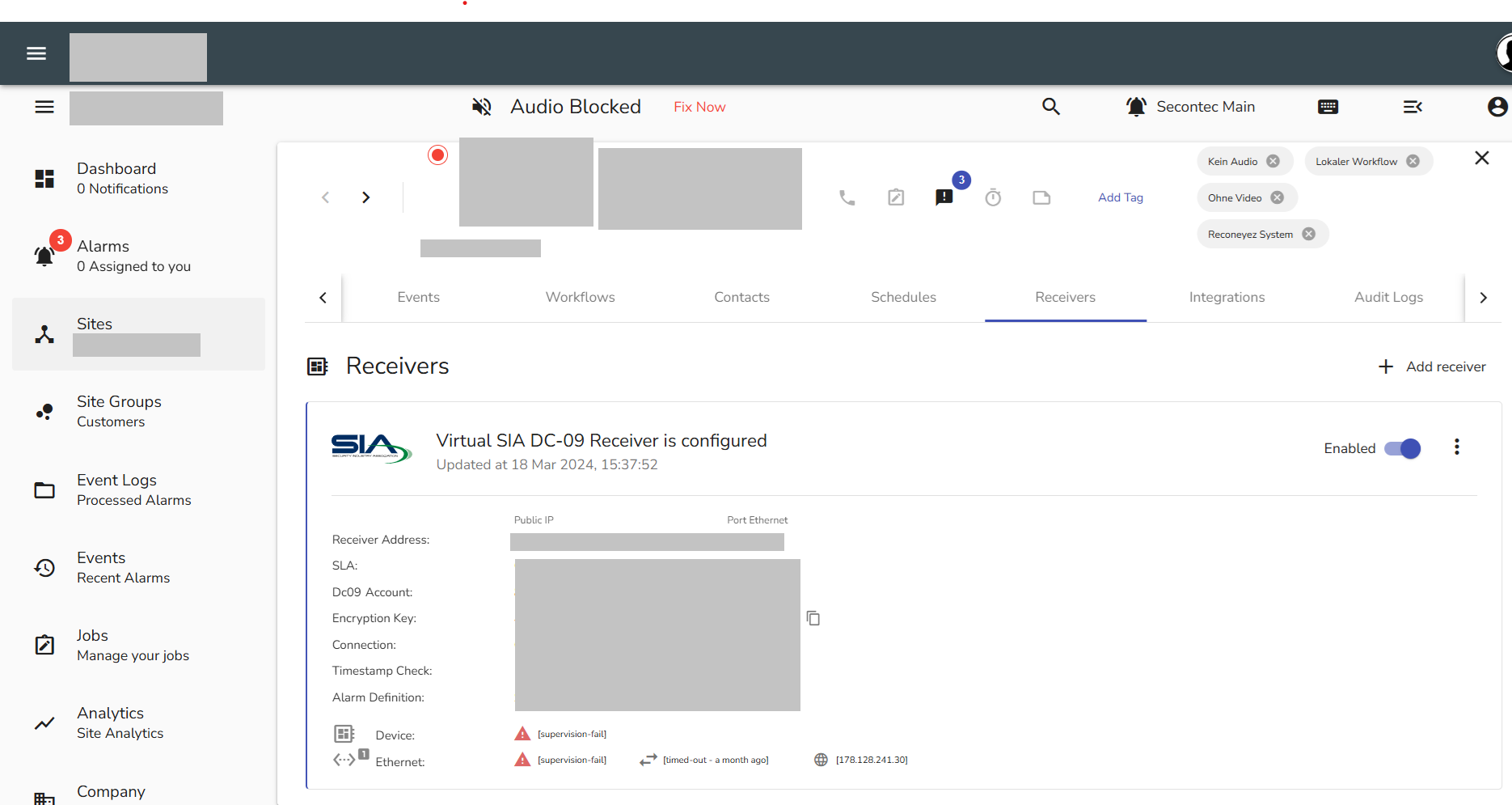
Important: Webhook configuration in GCXONE is essential for receiving event notifications from Reconeyez devices.
Expected result: Platform integration configured for event forwarding
Step 4: Add Device in GCXONE
Step 4: Add Device in GCXONE
UI path: GCXONE → Configuration App → Site → Devices → Add → Reconeyez
Configuration Steps
- Login to GCXONE platform
- Navigate to configuration app
- Go to Site → Devices → Add → Reconeyez
Provide the mandatory details:
- Device Name: Descriptive name for the device
- Serial Number: Use Device ID from Reconeyez client (mandatory)
- Connection details: Network and authentication parameters
- Integration settings: Webhook and API configuration
- Click on "Discover" to detect the device
- Verify device discovery is successful
- Click "Save" to complete registration
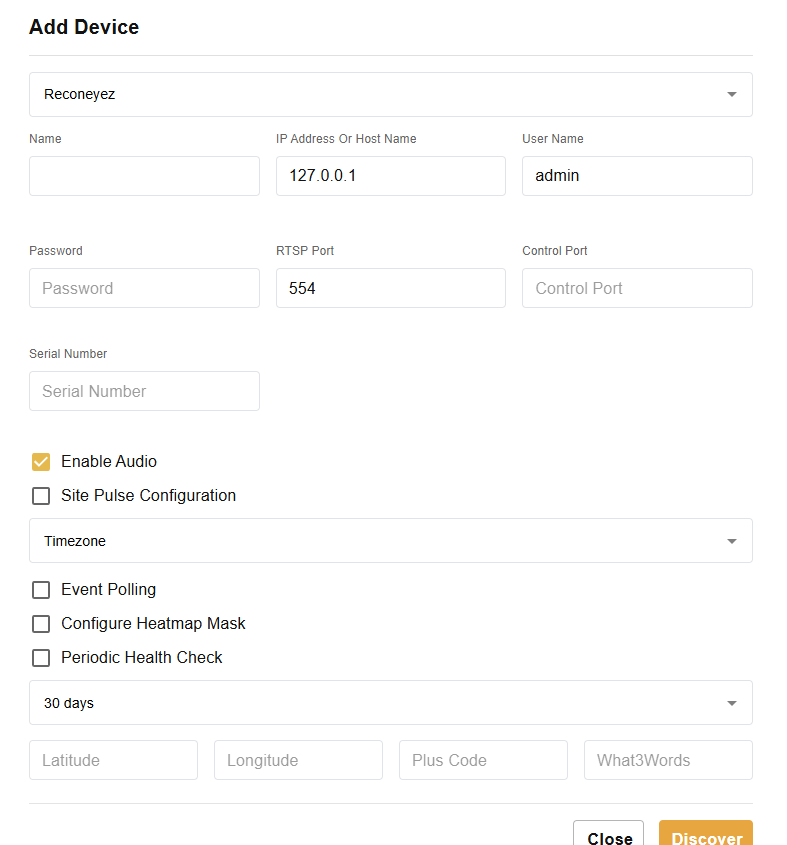
Important Note: Device ID from client is used as Serial number in Reconeyez and is mandatory for registration.
Expected result: Reconeyez device successfully added and configured in GCXONE
Step 5: Verify Integration
Step 5: Verify Integration
Verification Checks
- ✅ Verify network connectivity (LTE/4G or Wi-Fi) is operational
- ✅ Test event-driven video capture functionality
- ✅ Confirm snapshots are being captured at configured intervals
- ✅ Verify cloud platform integration is working
- ✅ Test webhook notifications to GCXONE
- ✅ Check API access for event forwarding
- ✅ Confirm historical event review capability
Expected result: Complete Reconeyez integration with GCXONE platform
Troubleshooting
Common Issues and Solutions
- Network Connectivity Issues
- Event Capture Problems
- Platform Integration Issues
- Device Registration Problems
- Power and Performance Issues
- Verify SIM card is properly inserted and activated with data plan
- Check mobile signal strength for LTE/4G connectivity
- Ensure Wi-Fi credentials are correct and signal is adequate
- Confirm firewall settings allow outgoing cloud connections
- Test internet connectivity and DNS resolution
- Verify event triggers are properly configured
- Check device battery level for optimal performance
- Ensure adequate lighting and positioning for motion detection
- Test snapshot interval and count settings
- Verify storage capacity for captured events
- Check API credentials and access permissions
- Verify webhook configuration in GCXONE
- Test email/FTP notification settings
- Confirm SIA or Contact ID protocol configuration
- Ensure cloud-to-cloud integration is properly set up
- Verify Device ID from client is used correctly as Serial number
- Check device discovery process in GCXONE
- Ensure all mandatory fields are properly filled
- Confirm device compatibility with GCXONE platform
- Monitor battery levels for battery-powered devices
- Optimize event trigger sensitivity to conserve power
- Balance capture frequency with power consumption
- Verify live video limitations due to power conservation
Related Articles
Need Help?
If you're experiencing issues during configuration, check our or contact support.