🦅 EagleEye Bridge Integration
Integrating the EagleEye Bridge (or CMVR) with GCXONE enables high-bandwidth video management with gigabit throughput across both WAN and CamLan interfaces. This guide focus on identifying your ESN and configuring user permissions for cloud discovery.
📋 Prerequisites
- EagleEye Bridge: Installed and connected to the local network.
- ESN (Equipment Serial Number): Located on the physical device label or the bridge settings page.
- GCXONE Admin Access: To register the device GUID in the cloud.
🚦 Device Profile
| Interface | Specification | Notes |
|---|---|---|
| WAN Port | 1000 Mb/s (Gigabit) | High-speed uplink to GCXONE. |
| CamLan | 1000 Mb/s (Gigabit) | Dedicated high-throughput camera network. |
| Discovery | ESN-Based | Unique serial number required for cloud binding. |
| Storage | Hybrid-Cloud | Local buffering with cloud-based event long-term storage. |
🛠️ Configuration Steps
- 1
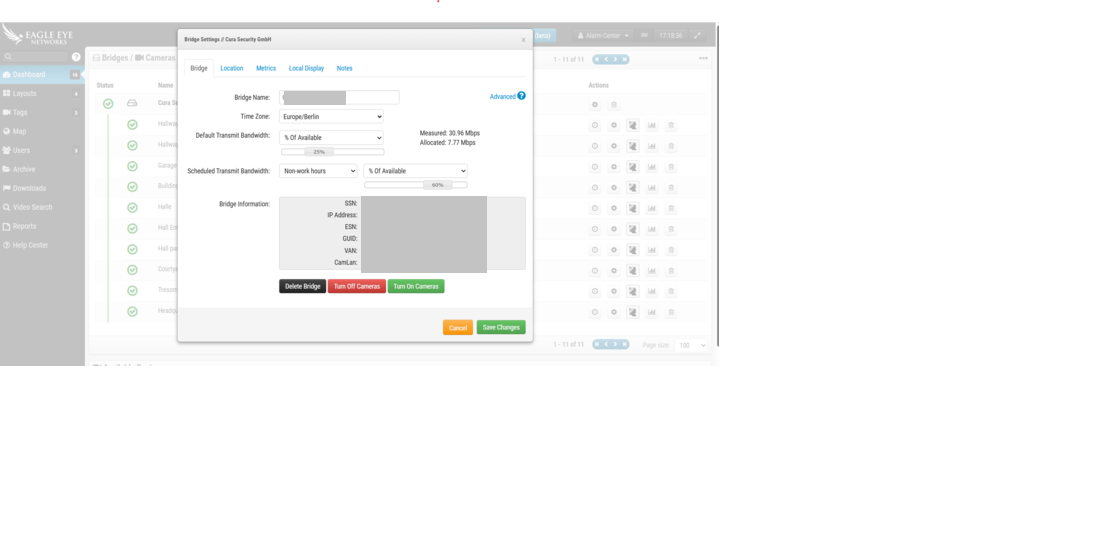
1. Identify Bridge Metadata
- 2
Access the EagleEye Bridge Web Interface. Navigate to Bridge Settings. Capture the following:
- 3
- ESN: Equipment Serial Number (Mandatory for discovery).
- GUID: Unique Global Identifier.
- WAN Status: Ensure it is reporting Gigabit speeds for 4K streams.
- 4
- 5
2. Configure Service User
- 6
Navigate to User Settings.
- 7
- Create a dedicated user for the GCXONE cloud service.
- Permissions: Ensure the user has "Bridge Management" and "Camera Access" roles.
-
Using a dedicated service user avoids account lockout issues when staff change their personal passwords.
- 8
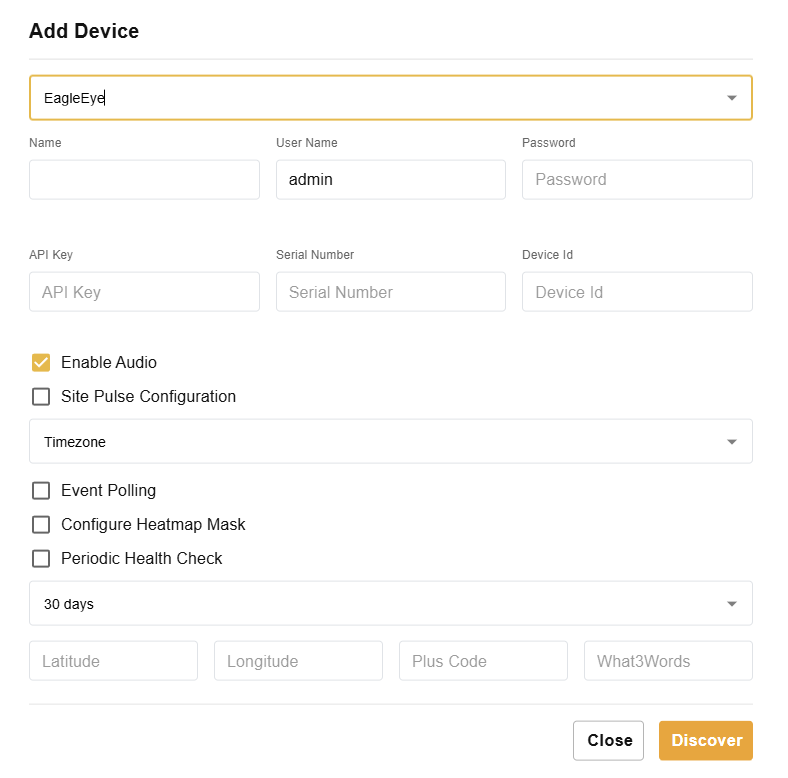
3. Add Device in GCXONE
- 9
- Log in to GCXONE → Sites → Devices.
- Click Add Device and select EagleEye.
- ESN Field: Enter the serial number exactly as copied from Step 1.
- Enter the IP Address and the credentials created in Step 2.
- Click Discover.
- 10
- 11
4. Verify CamLan Throughput
- 12
Once discovered, verify the CamLan+ status in GCXONE. This confirms the bridge is communicating at Gigabit speeds, allowing for concurrent 25+ camera streams without frame drops.
💡 Troubleshooting
- ESN Not Found: Verify there are no leading/trailing spaces in the serial number. The ESN is case-sensitive in some firmware versions.
- Discovery Timeout: Check the WAN status in the Bridge settings. If it shows 10/100 instead of 1000, your network switch may be bottlenecking the cloud handshake.
- Permission Denied: Ensure the service user has "View Maps" and "Manage User Sessions" if you intend to use advanced floorplan integrations.