☁️ Dahua Dolynk Integration
Dahua Dolynk provides a cloud-to-cloud security bridge, allowing for easy integration without complex port forwarding. This guide walks you through setting up a Dolynk Care account and sharing your devices with the GCXONE Alarm Receiving Center (ARC).
📋 Prerequisites
- Dolynk Care Account: Registered at care.dolynkcloud.com.
- Live Device: Your Dahua hardware must be online and connected to the internet.
- NXGEN Sharing Email:
dev@nxgen.info(Our ARC identifier).
🚦 Integration Workflow
🛠️ Configuration Steps
- 1
1. Site Creation in Dolynk
- 2
Log in to the Dolynk Care portal.
- 3
- Navigate to Site and click Add.
- Enter the Site Name and the correct Timezone (CRITICAL for log accuracy).
- 4
2. Device Registration
- 5
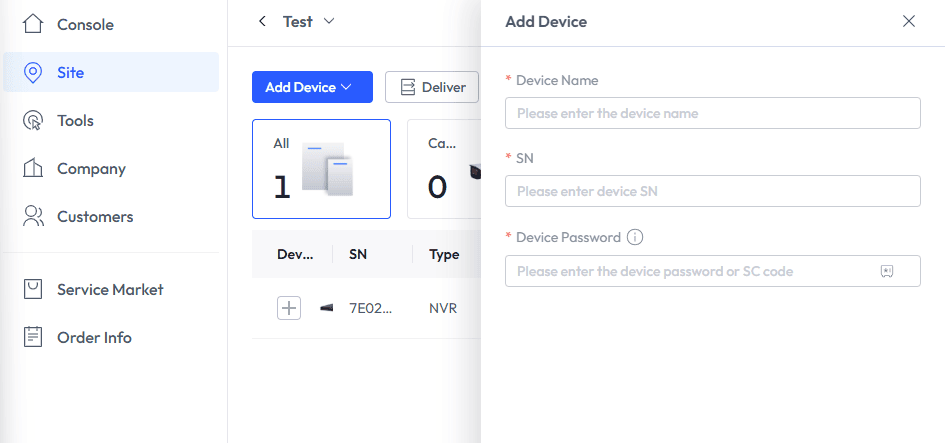
Within your new site, click Add Device.
- 6
- Choose Serial Number (SN) as the addition method.
- Enter the SN and verify that the device status turns 🟢 Online.
- 7
- 8
3. ARC Sharing (Security Service)
- 9
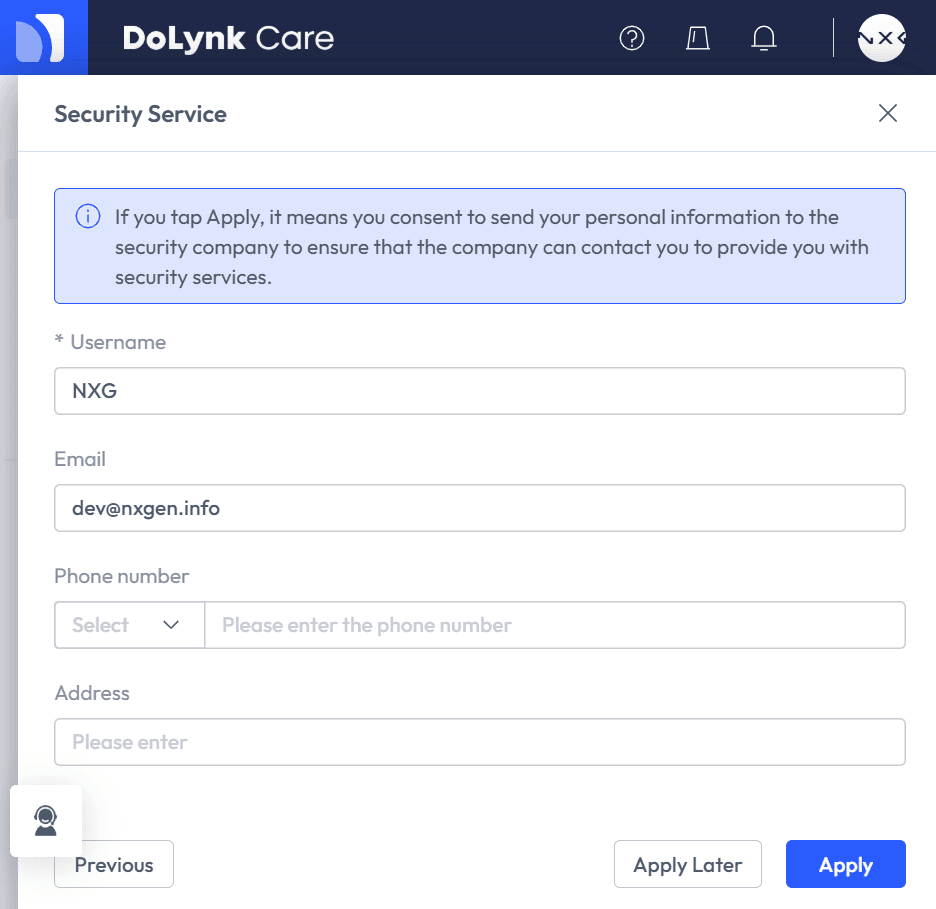
To allow GCXONE to receive your alarms, you must designate us as your Security Service provider.
- 10
- Click Security Service from the main menu.
- Select your device and click Next.
- In the "Company Name/Email" field, search for:
dev@nxgen.info. - Select NXGEN Technology AG and click the Shield Icon.
- Click Apply.
- 11
- 12
4. Final Discovery in GCXONE
- 13
- Log in to GCXONE → Sites → Devices.
- Click Add Device and select Dahua Cloud.
- Enter the Serial Number (passed during ARC sharing) and credentials.
- Click Discover. Virtual sensors will appear for all shared I/O and cameras.
💡 Troubleshooting
- Company Not Found: Ensure you are searching for
dev@nxgen.infoand NOTajax@nxgen.io. They are separate service gateways. - Discovery Empty: Verify the device is not "bound" to another Dolynk account. A Dahua device can only be owned by one primary Dolynk Care account.
- Offline Status: If the device shows offline in Dolynk, check your local ISP's P2P/Cloud connectivity settings.