📹 Hikvision Integration
Hikvision devices utilize the ISAPI protocol to deliver high-performance video and metadata to GCXONE. This guide covers the essential security settings, including Digest Authentication, and the configuration of Smart Events like Line Crossing and Intrusion Detection.
📋 Prerequisites
- Hikvision Device: Connected and accessible via its web management interface.
- ISAPI Enabled: The integration protocol must be toggled on.
- Whitelist: Ensure the Hikvision Receiver IP (
35.156.60.98) is whitelisted in your local firewall.
🚦 Device Profile
| Feature | Support Level | Notes |
|---|---|---|
| Protocol | ISAPI | Proprietary high-speed metadata interface. |
| Authentication | Digest | Mandatory for modern security standards. |
| Smart Events | ✅ Supported | Line Crossing, Intrusion, Tampering. |
| Two-way Audio | ✅ Supported | Full SIP-based duplex audio. |
🛠️ Configuration Steps
- 1
1. Security & Authentication
- 2
Navigate to Configuration → System → Security.
- 3
- Set both RTSP Authentication and WEB Authentication to Digest.
-
Using "Basic" authentication is insecure and may cause connection rejections in newer GCXONE clusters.
- 4
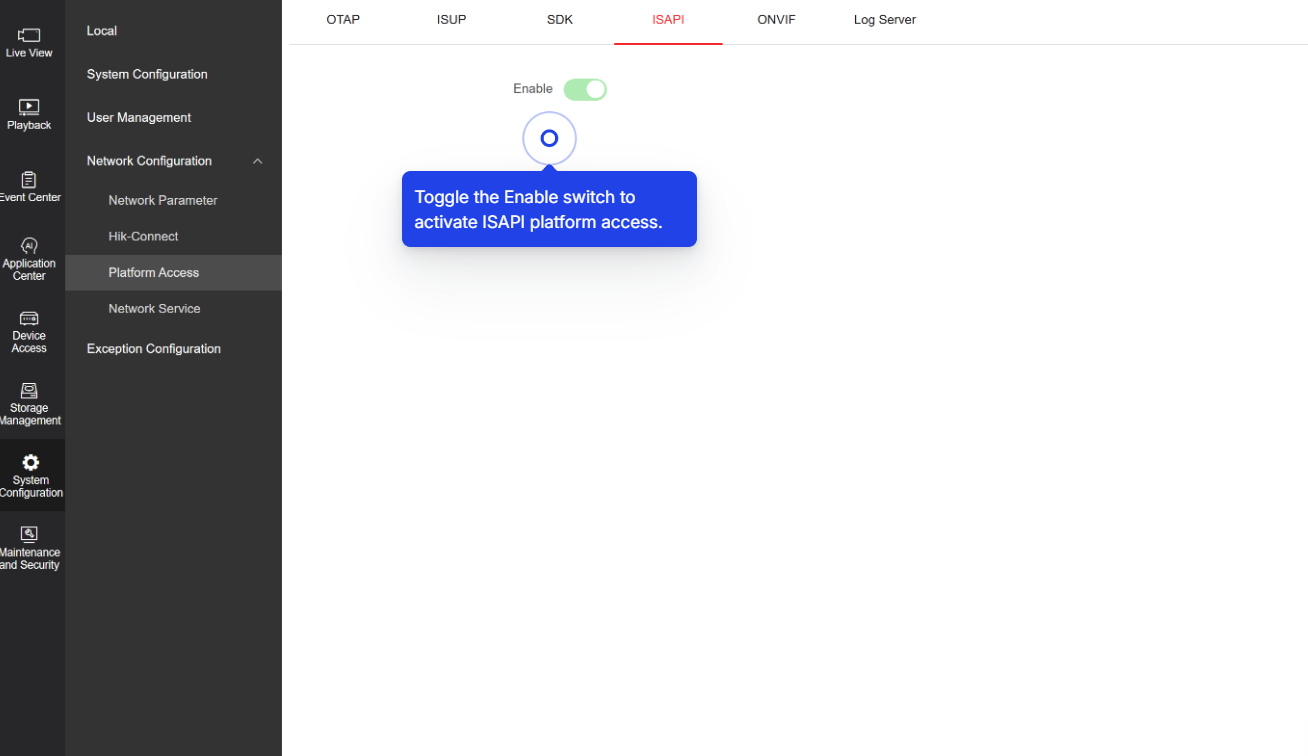
2. Enable Integration Protocol
- 5
Navigate to Configuration → Network → Advanced Settings → Integration Protocol.
- 6
- Toggle Enable ISAPI to ON.
- This allows GCXONE to pull the model information, firmware version, and sensor list automatically.
- 7
- 8
3. Dedicated Service User
- 9
Navigate to Configuration → System → User Management.
- 10
- Add a user named "NXG".
- Remote Permissions: Ensure "Live View", "Playback", "PTZ Control", and "Notify Surveillance Center" are checked.
- Local Permissions: Check "Playback" and "Log Search".
- 11
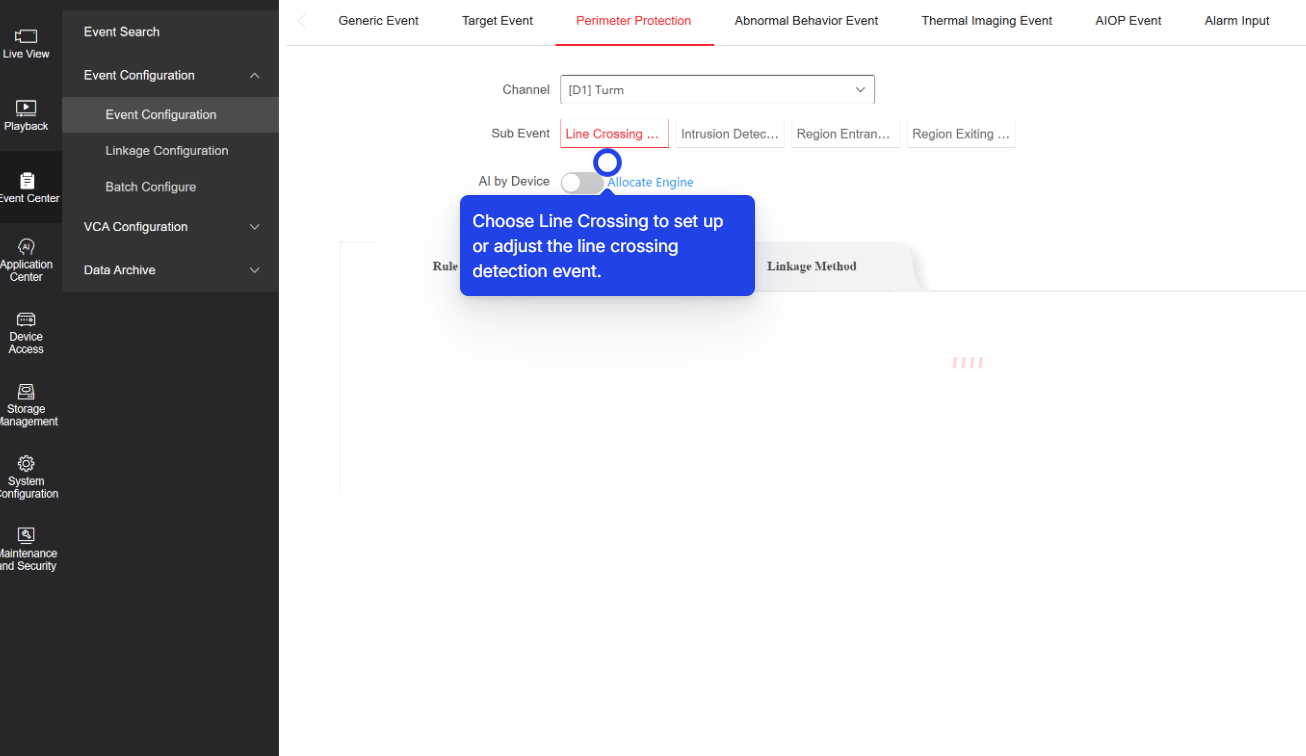
4. Smart Event Tuning
- 12
Navigate to Configuration → Event → Smart Event.
- 13
- Choose Line Crossing or Intrusion Detection.
- Draw your detection zones.
- Under the Linkage Method tab, ensure Notify Surveillance Center is checked.
-
Without "Notify Surveillance Center" checked, the device will record the event locally but fail to push a signal to GCXONE.
- 14
- 15
5. Final Discovery in GCXONE
- 16
- Log in to GCXONE → Sites → Devices.
- Click Add Device and select Hikvision.
- Enter the IP/Host and the NXG user credentials.
- Click Discover.
💡 Troubleshooting
- "Invalid Username/Password": Double-check the Digest authentication setting. If correctly set to Digest, try resetting the NXG user password for a fresh handshake.
- No Alarms in Video Activity: Verify the Linkage Method in the Hikvision UI. "Notify Surveillance Center" must be active for every rule you want monitored.
- Stream Not Loading: Ensure the RTSP Port (554) is open and that the whitelisted IP (
35.156.60.98) has access to it.