IP Cameras Integration Guide
IP Cameras are independent surveillance devices designed for high-performance security by transmitting high-definition (HD) video over the internet. Within the GCXONE ecosystem, these cameras serve as a cornerstone for real-time monitoring and intelligent alarm management.
Unlike traditional closed-circuit systems, GCXONE integrates with a vast array of IP camera manufacturers (including Axis, Hanwha, and NetVue) to provide a unified, cloud-based security management service (USMS). This integration allows for centralized oversight, reducing the need for on-premise hardware while leveraging AI-powered analytics to filter false alarms.
IP Cameras
HD Surveillance Cameras
Overview
IP cameras are the primary visual sensors in modern security systems. When integrated with GCXONE, they provide:
- Real-time HD video streaming directly through web browsers or mobile apps
- AI-powered false alarm reduction (80-95% reduction in false positives)
- Centralized cloud management eliminating the need for on-premise NVRs
- Intelligent event detection with motion, intrusion, and line crossing capabilities
- Remote PTZ control and preset management
- Two-way audio communication via GCXONE Audio (SIP)
System Architecture
The following diagram illustrates the communication flow between the user and IP camera hardware:
The Proxy Architecture handles device-specific protocols (RTSP, HTTP, SDK) to ensure the core system interacts uniformly with all hardware.
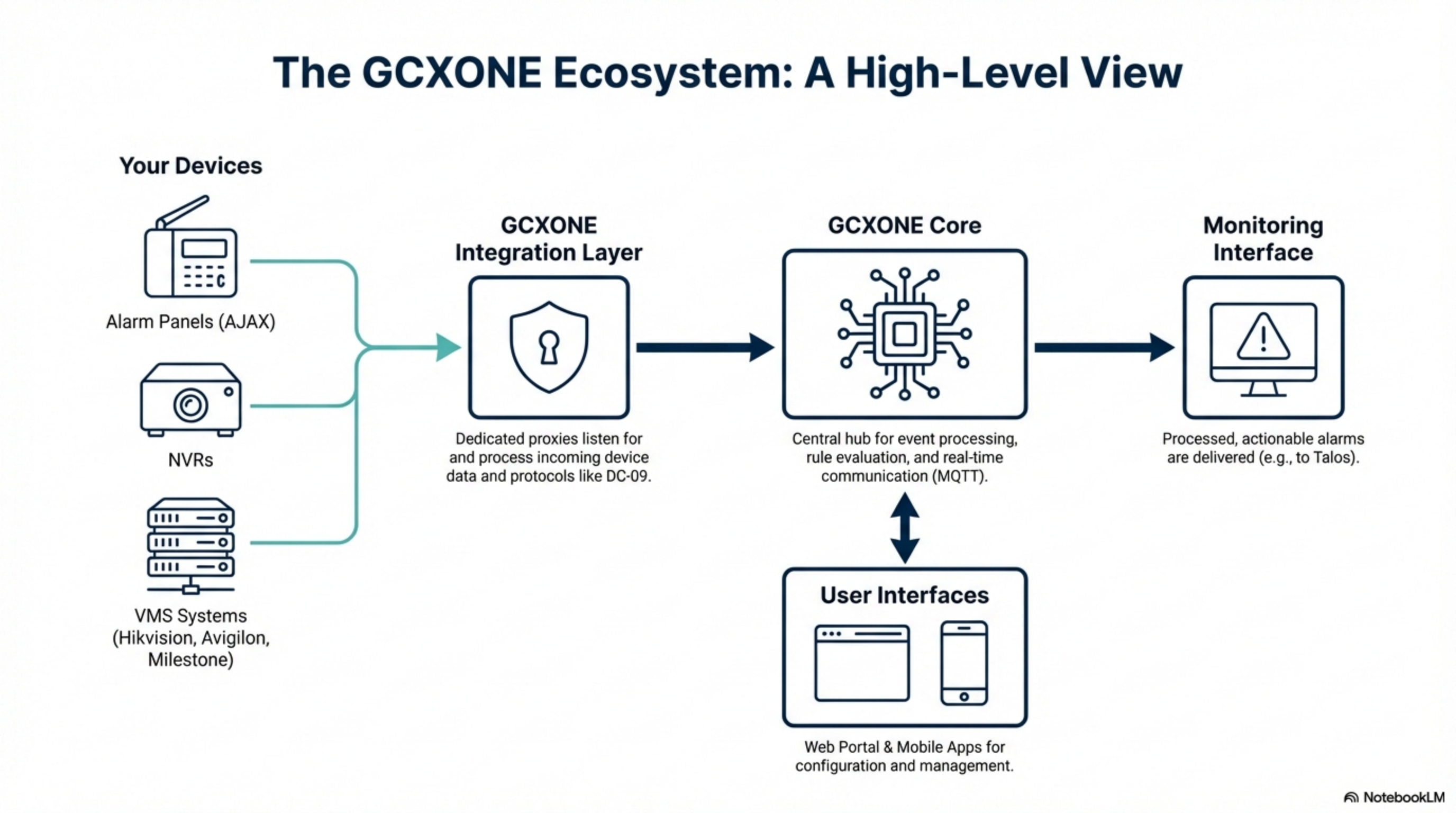
Figure 1: GCXONE Platform Architecture showing the integration layer between devices and the cloud platform.
Key Functionalities
When integrated with GCXONE, IP cameras support a comprehensive suite of features across different modes:
Cloud Mode Features
- Discovery: Automatic detection and addition of cameras and associated sensors once connected
- Live Video: Real-time monitoring of high-definition camera feeds directly through your web browser or mobile app
- Playback & Timeline: Access to archived footage and a chronological view of all recorded data for evidence collection
- Advanced Alarm Management: Notification and handling of security events (e.g., motion or intrusion) with AI-driven classification to distinguish between real threats and false triggers
- PTZ & Presets: Remote control of Pan-Tilt-Zoom functions and the ability to recall predefined camera positions
- GCXONE Audio (SIP): Two-way communication through integrated IP speakers for remote announcements
Health Monitoring
- Cloud Polling: GCXONE performs automatic health checks to monitor connectivity, storage, and battery levels
- Automated Alerts: Receive immediate notifications for critical issues like "Black Screen Cameras," "Connection Failures," or "Obstructed Cameras"
Prerequisites for Integration
Before beginning the onboarding process, ensure the following requirements are met:
- Network Connectivity: The camera must be reachable from the GCXONE cloud. For non-VPN setups, an external IP and open ports are required
- Required Ports:
- HTTP/HTTPS (80/443): For web access and secure communication
- RTSP (554): Mandatory for real-time video streaming
- User Credentials: An administrative user account must be configured on the camera for GCXONE to perform discovery and configuration tasks
- Time Synchronization: The camera must be synchronized with an NTP server (e.g.,
time1.nxgen.cloud) to ensure accurate event timestamps - IP Whitelisting: Whitelist GCXONE Primary Gateway (
18.185.17.113) and Secondary Gateway (3.124.50.242) on your firewall
Step-by-Step Onboarding Process
1. Register the Device in GCXONE
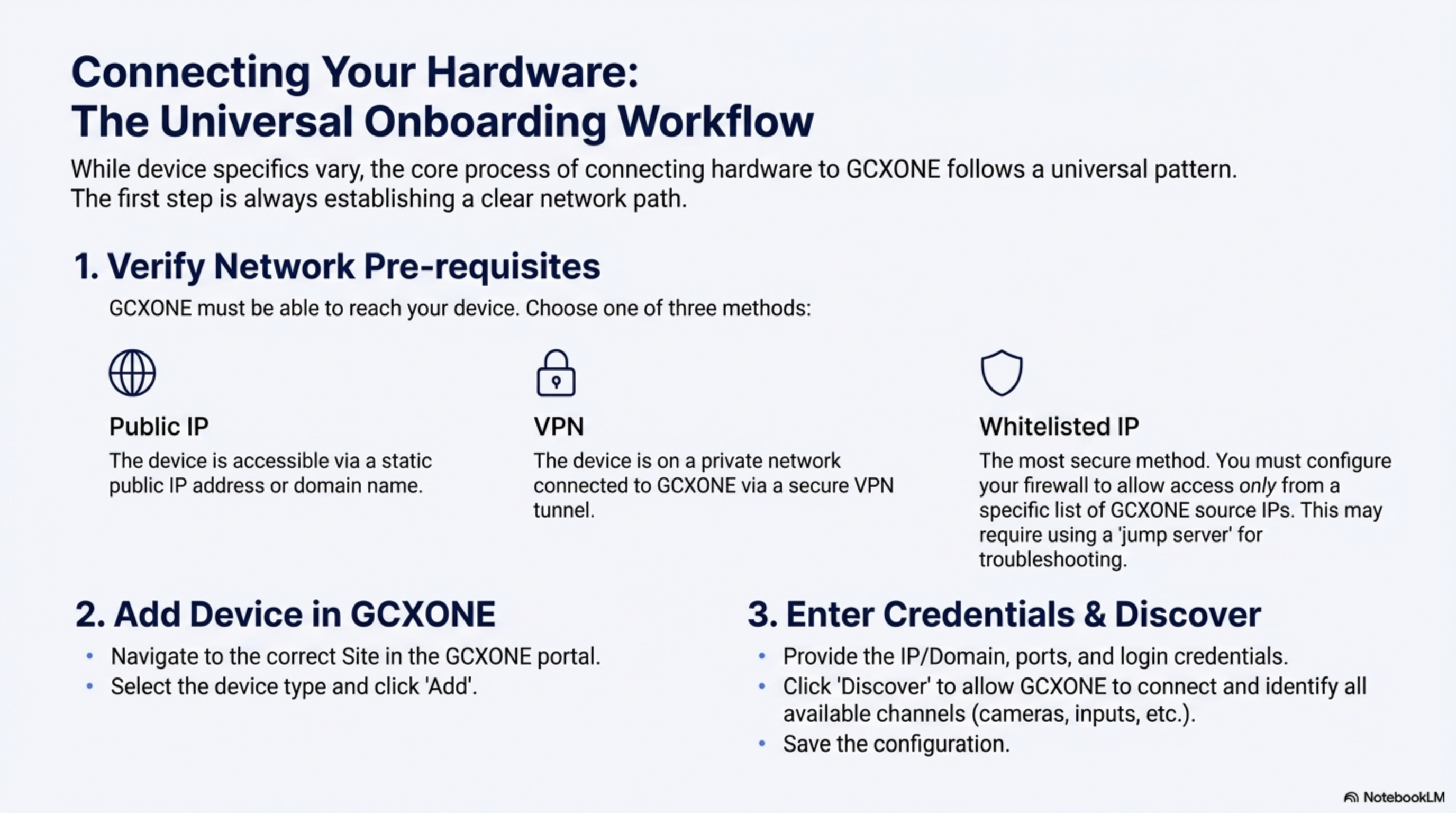
Figure 2: Device registration interface in GCXONE Configuration App.
- Log in to the GCXONE platform and navigate to the Configuration App
- Select the appropriate Site and click the Devices tab
- Click the Add button and select the correct camera type (e.g., Axis, Hanwha, or generic IP Camera)
- Enter the Mandatory Details:
- Name: A custom name (e.g., "Main Entrance")
- IP Address / Host: The reachable network address
- Username & Password: Administrative credentials
- Ports: Verify Control and RTSP ports match your hardware settings
- Click Discover. GCXONE will automatically identify and add associated sensors
- Click Save
2. Configure Event Forwarding
To receive alarms, you must configure the camera to "Notify Surveillance Center". Many modern IP cameras use a Webhook Callback mechanism:
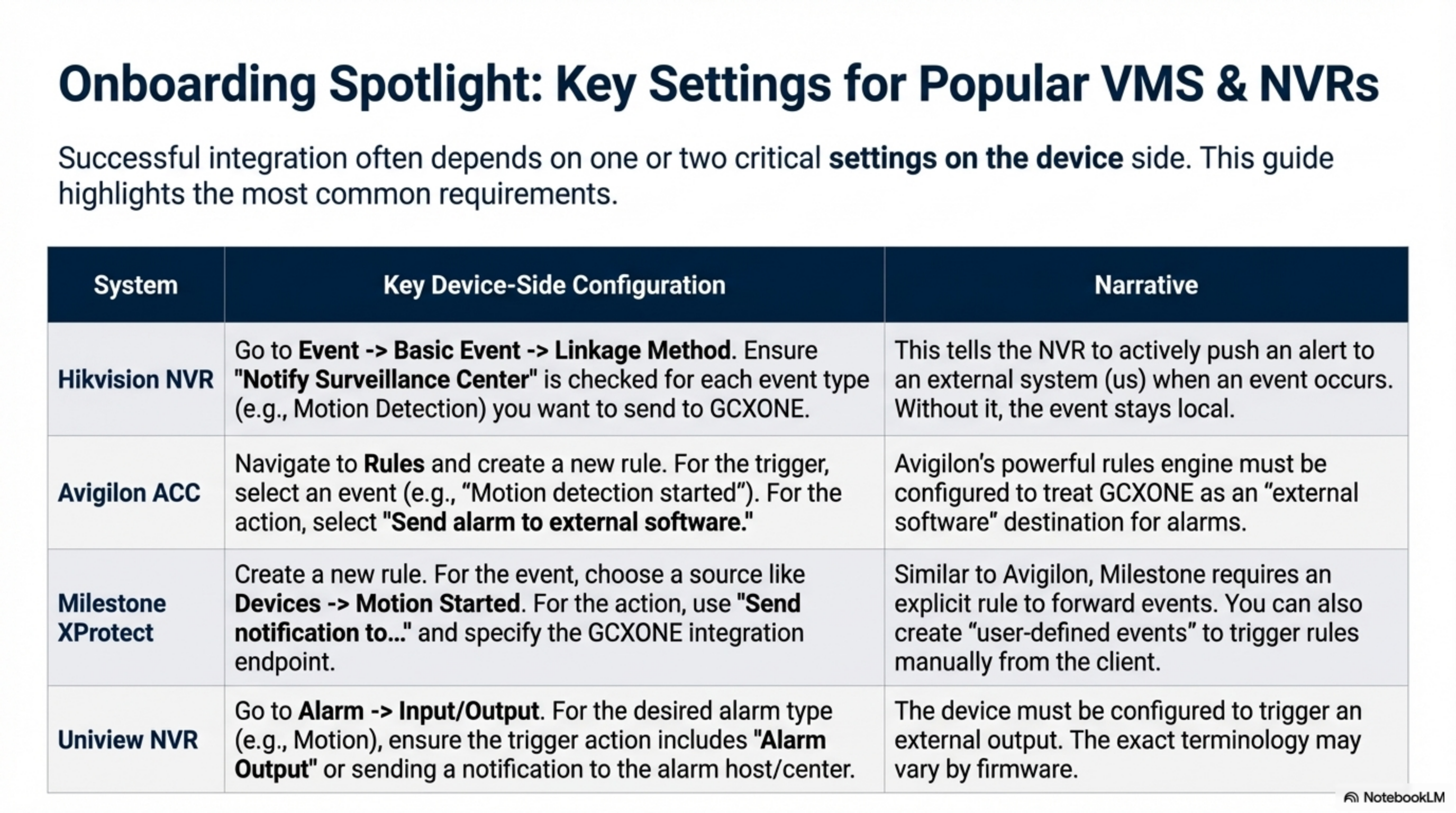
Figure 3: Event forwarding configuration for alarm transmission.
- Obtain the unique Device ID from the GCXONE device settings
- In the camera's web interface, add a new Recipient or Webhook
- Enter the URL provided in the device documentation (e.g.,
https://[proxy].nxgen.cloud/eventIngest/) - Set the authentication to Basic using the Device ID as both username and password
Device Optimization Techniques
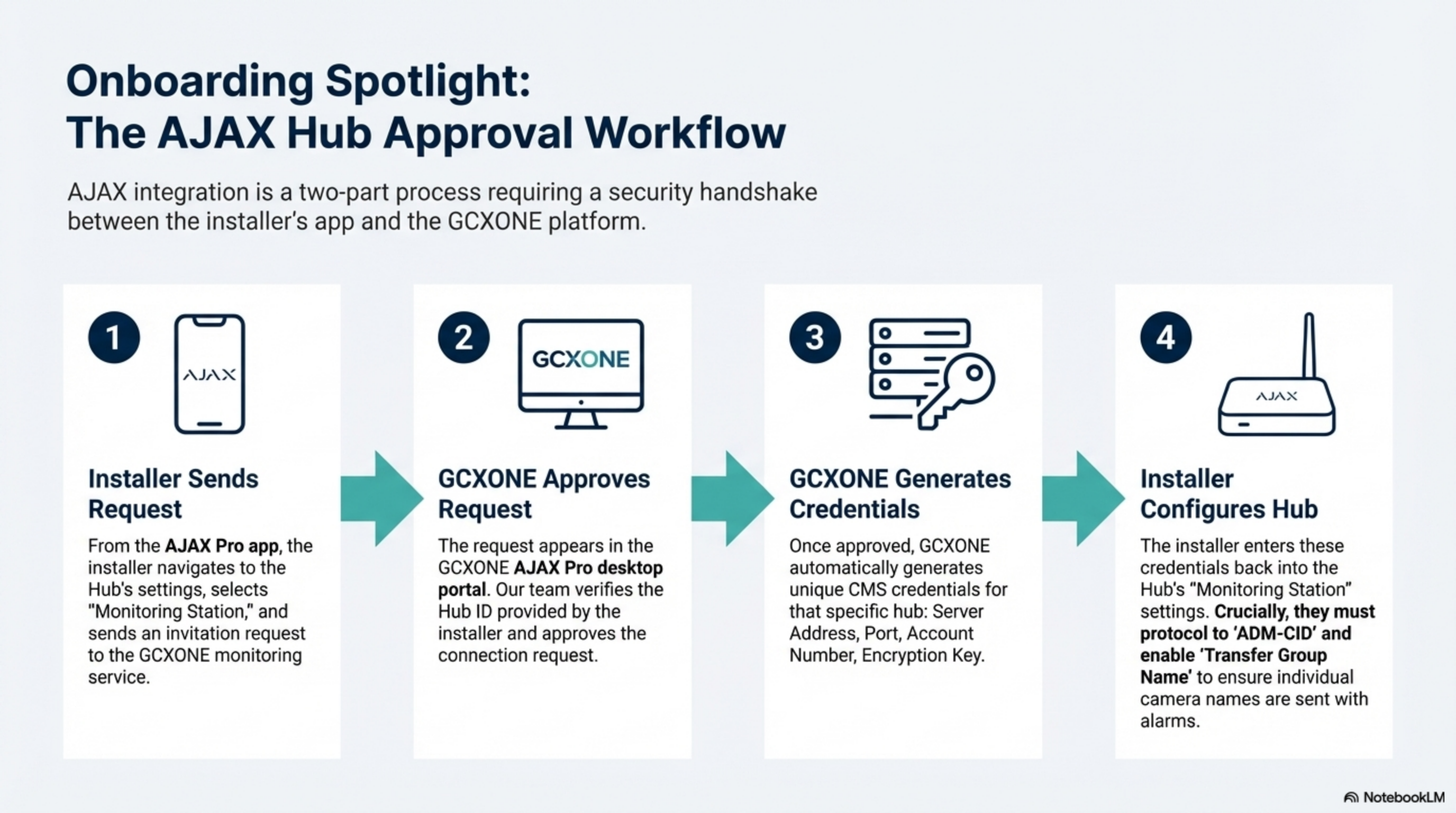
Figure 4: Device optimization and configuration settings.
- Continuous Recording: It is highly recommended to set cameras to continuous recording to ensure a complete dataset is available for analysis
- Smart Events: Prioritize "Smart Events" (e.g., Intrusion Detection or Line Crossing) over basic motion detection to reduce system overload and false alerts
- Quad Alarm View: For video events, select the "Quad Alarm" view style. This enables the camera to send three critical images (pre-alarm, current, and post-alarm) for more accurate AI processing
Advanced Configuration Options
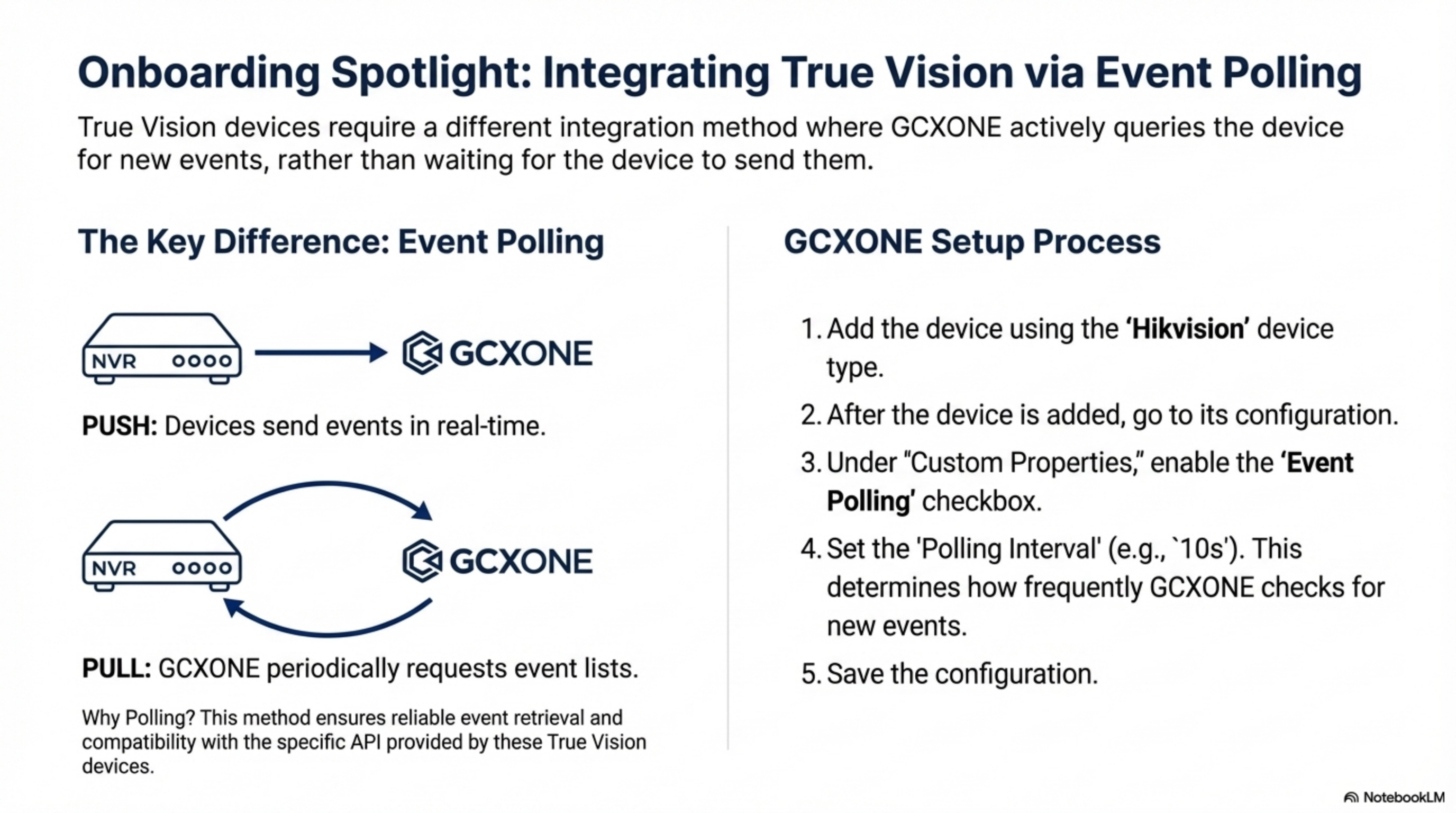
Figure 5: Advanced device configuration options for optimal performance.
- Stream Profiles: Configure main and sub-stream profiles to optimize bandwidth usage
- Recording Schedule: Set up time-based recording schedules to match site operating hours
- Motion Zones: Define specific areas for motion detection to reduce false alarms
- PTZ Presets: Configure preset positions for quick camera positioning during incidents
Troubleshooting Common Issues
Figure 6: Troubleshooting workflow for common IP camera issues.
| Issue | Possible Cause | Resolution |
|---|---|---|
| No Alarm Transmission | Missing "Notify Surveillance Center" check | Ensure the camera is configured to push events to the registered center |
| No Video Stream | Blocked RTSP port | Verify Port 554 is open and forwarded correctly in the router |
| Incorrect Timestamps | Time Zone Mismatch | Sync the camera to an NTP server and ensure the zone matches the GCXONE site settings |
| Device Offline | Network Disruption | Check physical connections and power supply (UPS recommended) |
| Poor Video Quality | Insufficient bandwidth or incorrect stream settings | Adjust stream resolution and bitrate, or use sub-stream for live viewing |
| AI Verification Failing | Insufficient image quality or lighting | Ensure adequate lighting, clean lens, and proper camera positioning |
Diagnostic Tools
GCXONE provides comprehensive diagnostic tools to help troubleshoot issues:
- Connection Test: Verify network connectivity and port accessibility
- Stream Test: Test video stream quality and latency
- Event Log: Review all events received from the device
- Health Check: Automated system health monitoring and reporting
Supported Manufacturers
GCXONE supports IP cameras from a wide range of manufacturers including:
- Axis - Enterprise-grade IP cameras with ONVIF support
- Hikvision - Professional surveillance cameras with ISAPI protocol
- Hanwha - High-resolution cameras with advanced analytics
- NetVue - Cloud-connected cameras with P2P technology
- Mobotix - German-engineered cameras with edge analytics
- ONVIF Compatible - Any camera supporting ONVIF standard
Best Practices
-
Network Configuration:
- Use static IP addresses for cameras when possible
- Implement VLAN segmentation for security
- Configure Quality of Service (QoS) for video traffic
-
Security:
- Change default passwords immediately
- Enable HTTPS for web interface access
- Regularly update camera firmware
-
Performance:
- Configure appropriate resolution and frame rates based on bandwidth
- Use sub-streams for live viewing to reduce bandwidth
- Enable motion-based recording to save storage
-
Monitoring:
- Set up health check schedules in GCXONE
- Configure alert thresholds for storage capacity
- Monitor bandwidth usage per camera
Related Articles
- Standard Device Onboarding Process
- Alarm Panels Integration Guide
- IoT Sensors Integration Guide
- Device Health Monitoring
- Troubleshooting Device Offline
Need Help?
If you're experiencing issues with IP camera integration, check our Troubleshooting Guide or contact support.