Ajax
Device Information:
- Device: Ajax Hub/NVR Model
- Vendor: Ajax
- Model: Various
- Firmware: Compatible versions
- Platform: GC-X-ONE
- Doc Version: 1.0.0
Summary
- Purpose: Security hub/NVR integration with SIA-DC09 protocol for real-time alarm monitoring and event management.
- Outcome: Live Ajax device events in GCXONE with encrypted communication, account mapping, and false alarm filtering.
- Audience: Field Engineer / Support
At a Glance
| Aspect | Details |
|---|---|
| Setup Time | 25-35 minutes |
| Difficulty | Beginner |
| Setup Method | Invitation-based via Ajax PRO Desktop + GCXONE device configuration |
| Protocol | SIA-DC09 (Security Industry Association) |
| Integration Type | Event-based monitoring with account mapping |
| Communication | Encrypted SIA-DC09 with custom receiver IP/port |
| Key Features | Hub/NVR discovery, device monitoring, encrypted events, account mapping |
| Device Types | Ajax Hub (security sensors), Ajax NVR (cameras) |
| Prerequisites | Ajax PRO Desktop, valid Hub/NVR, invitation to ajax@nxgen.io |
| Notable Requirement | Account number mapping required for each monitored device |
Prerequisites
- Ajax PRO Desktop application installed
- Valid Ajax Hub or NVR with devices/cameras
- Access to GC-X-ONE platform
- Email invitation capability for Ajax system
Device Profile
- Type: Security Hub/NVR
- Discovery: SIA-DC09 Protocol
- Events: Security events, device alarms, monitoring alerts
- Ports: Custom receiver IP/Port (provided by GC-X-ONE)
- Known quirks: Requires invitation process through Ajax PRO Desktop. Account number mapping required for each monitored device.
Core Functions
- Hub Discovery: Supported
- NVR Discovery: Supported
- Events: Supported (SIA-DC09 protocol)
- Device Monitoring: Supported
- Encrypted Communication: Supported
- Account Mapping: Required
Steps
Step 1 — Invite NXGEN Technologies to Your Hub
-
UI path: AJAX PRO Desktop → Space Setting → Security Companies → Invite via Email
-
Do
- Open AJAX PRO Desktop
- Navigate to: Space Setting → Security Companies → Invite via Email
- Enter the following email address for the invitation: ajax@nxgen.io
- Send the invitation and ensure it's accepted by NXGEN Technologies
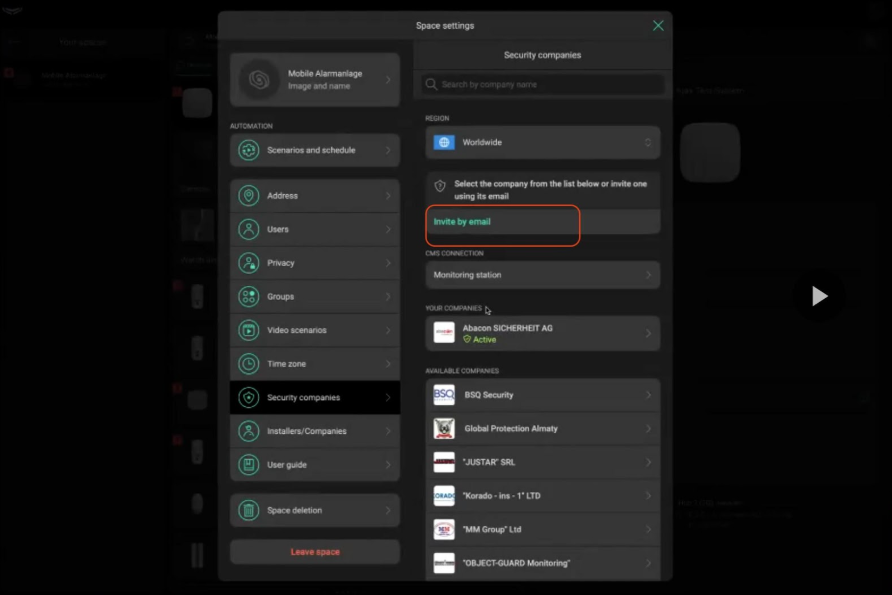
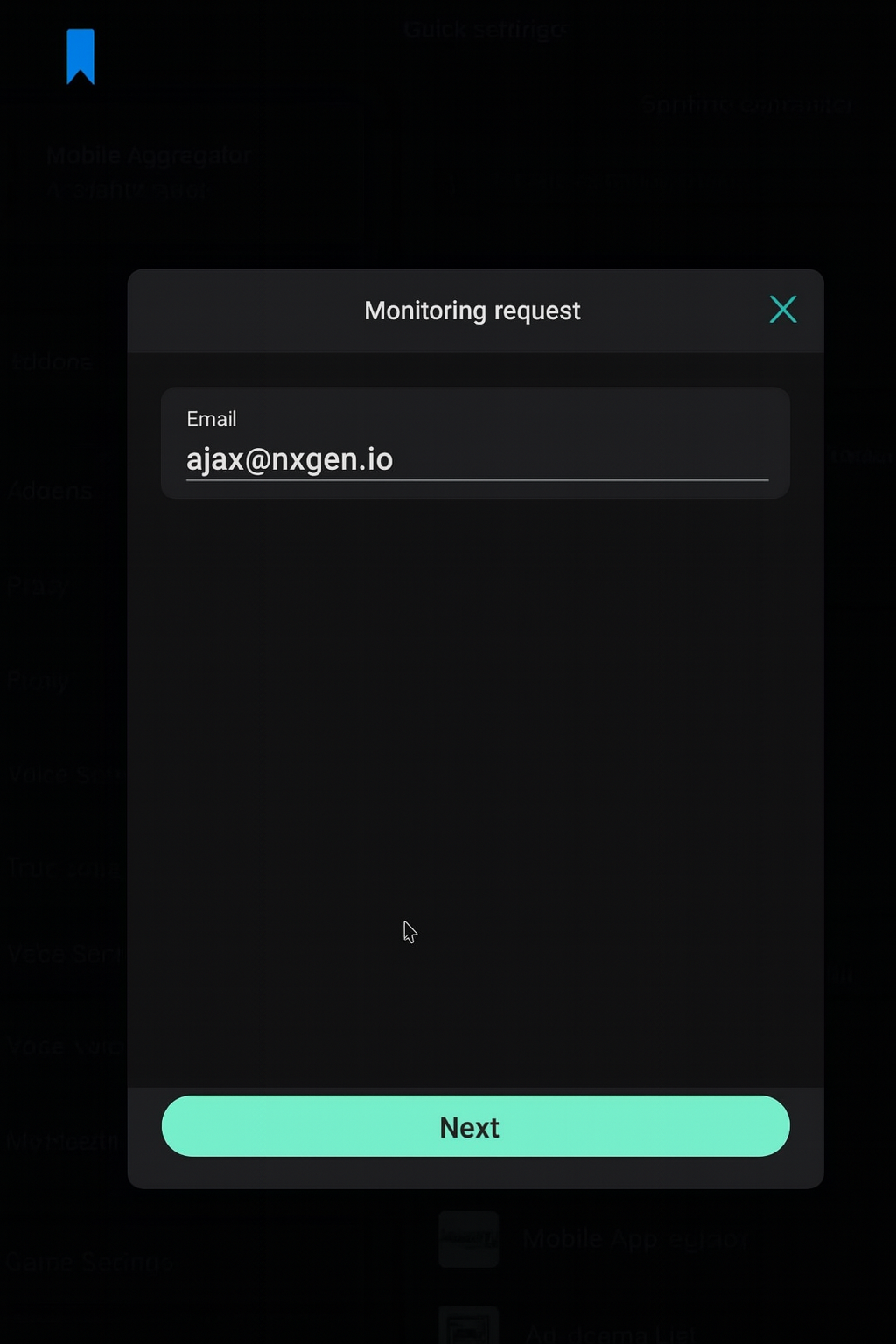
- Expected result: NXGEN Technologies successfully invited and accepted to Ajax Hub
Step 2 — Add Ajax Device in GC-X-ONE Platform
-
UI path: GC-X-ONE → Devices → Add Device
-
Do
- Login to the GC-X-ONE platform with your credentials
- Navigate to Devices and choose Add Device
- In the configuration form:
- Type: Select either Ajax Hub or Ajax NVR from the dropdown
- Hub ID / Device ID:
- If you selected Ajax Hub, enter your Hub ID
- If you selected Ajax NVR, enter your Device ID
- Timezone: Select the location's time zone
-
Discovery Process
- Click Discover
- The platform will connect and verify the Hub/NVR
- On success:
- For Hub: All devices associated with the Hub will be automatically fetched and displayed in a list
- For NVR: All cameras associated with the NVR will be automatically fetched and displayed in a list
-
Validation & Save
- Review the discovered devices or cameras
- Confirm the details
- Click Save to add them to your account
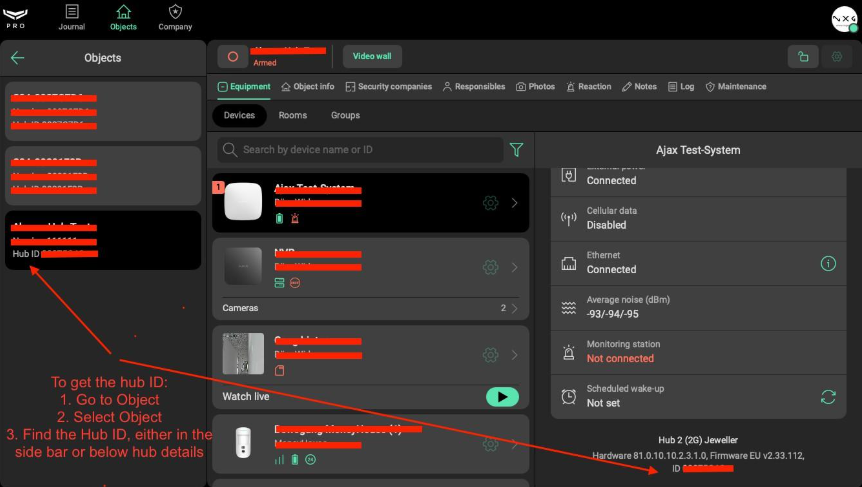
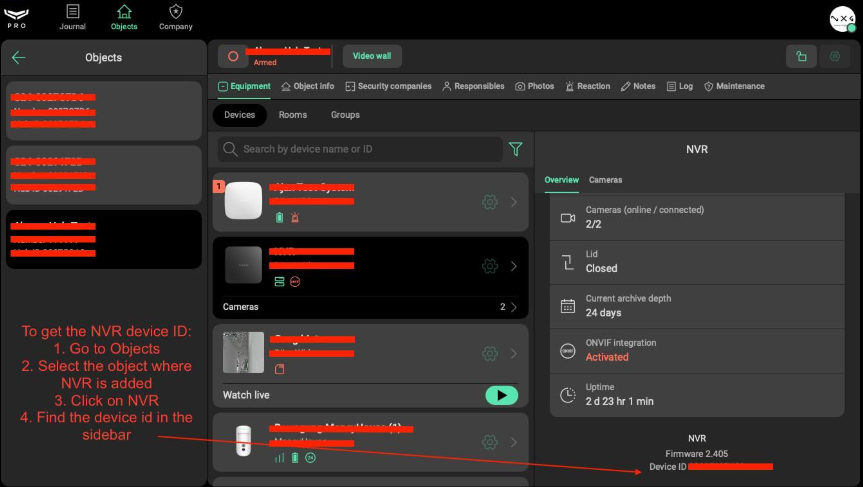
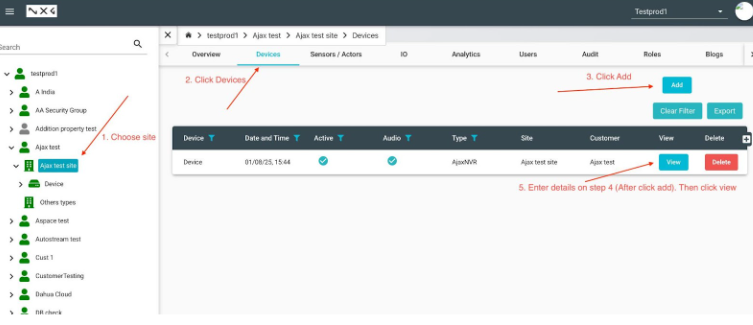
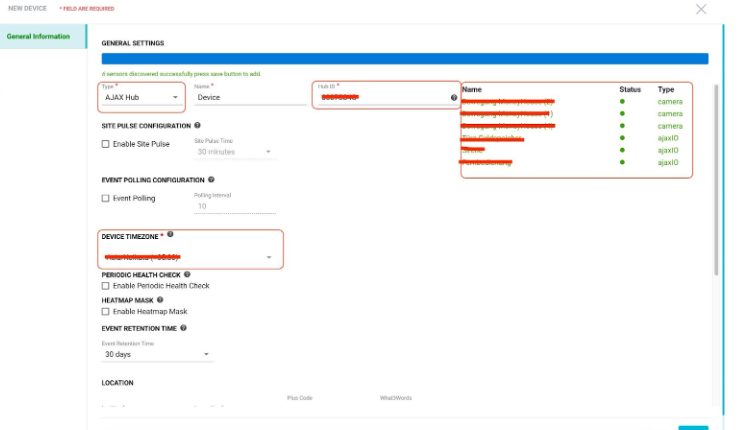
- Expected result: Ajax device successfully added to GC-X-ONE with all associated devices/cameras discovered
Step 3 — Find SIA-DC09 Receiver Details on GC-X-ONE
-
UI path: GC-X-ONE → Devices → View Device
-
Do
- After adding the device:
- Locate your newly registered AJAX device in the device list
- Click the View button beside the device
- On the device overview page, you will find the SIA-DC09 receiver information including:
- Account number
- Encryption key
- Receiver IP/Port
- After adding the device:
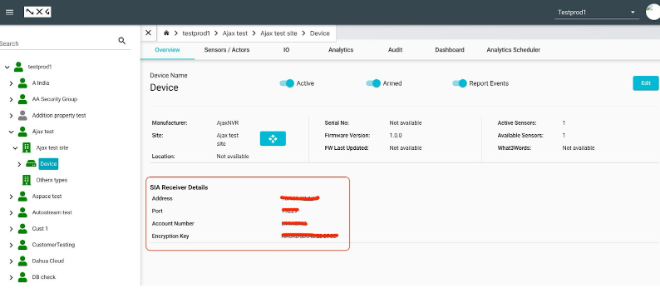
- Expected result: SIA-DC09 receiver details obtained from GC-X-ONE device overview
Step 4 — Configure the Receiver in AJAX PRO Desktop
-
UI path: AJAX PRO Desktop → Company → CMS connection → Add Receiver
-
Do
- Open AJAX PRO Desktop
- Navigate to: Company → CMS connection → Add Receiver
- Input the receiver details from the GC-X-ONE platform's device details page:
- Use the receiver IP/hostname, port, and the encryption key
- If you plan to use encrypted communication, enable encryption and copy the exact encryption key from GC-X-ONE
- Enable "Transfer device or group name to CMS events" checkbox
- Save the receiver configuration
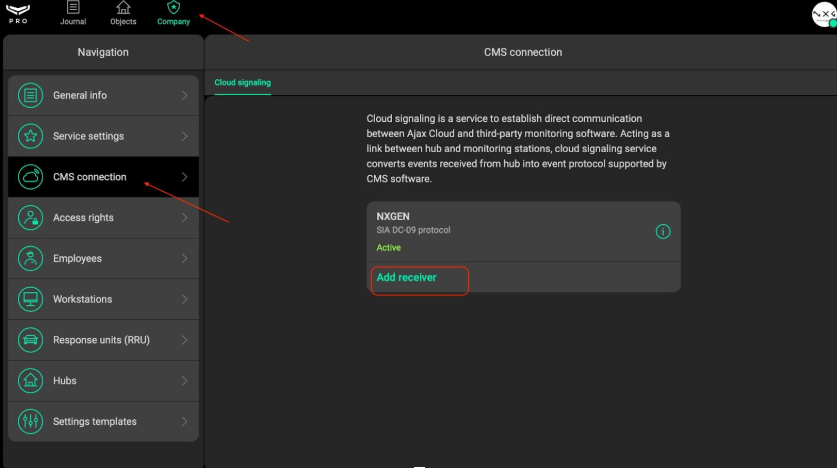
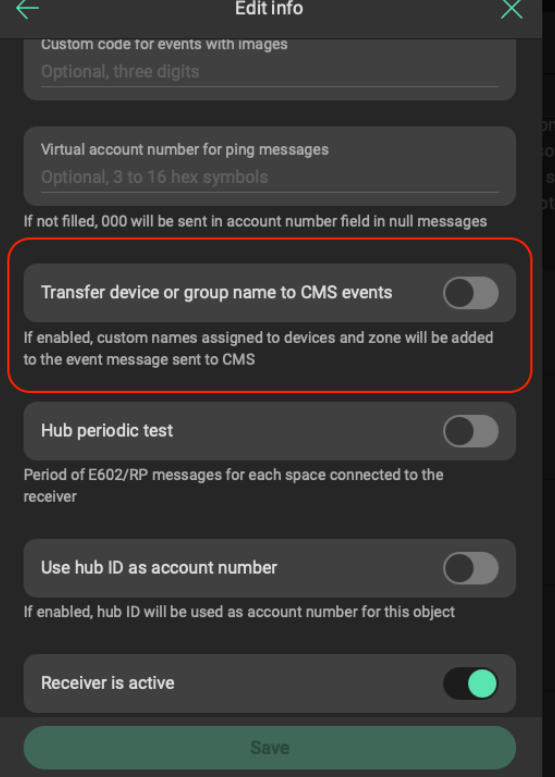
- Expected result: Receiver configured in Ajax PRO Desktop with GC-X-ONE connection details
Step 5 — Enable the Receiver & Map Account Numbers
-
UI path: AJAX PRO Desktop → Objects → Object → Maintenance → Monitoring via [Receiver Name]
-
Do
- Go to the Objects section in AJAX PRO Desktop
- Click the Object from which you'd like to monitor events
- Open the Maintenance tab
- Find the Monitoring via [Receiver Name] option (where [Receiver Name] is the name you assigned to the receiver in step 4)
- On the right panel, you'll see a list of all the Hub and NVR associated with the object
- Select the device that you want to monitor and enter the account number as shown in the GC-X-ONE device overview page and click save
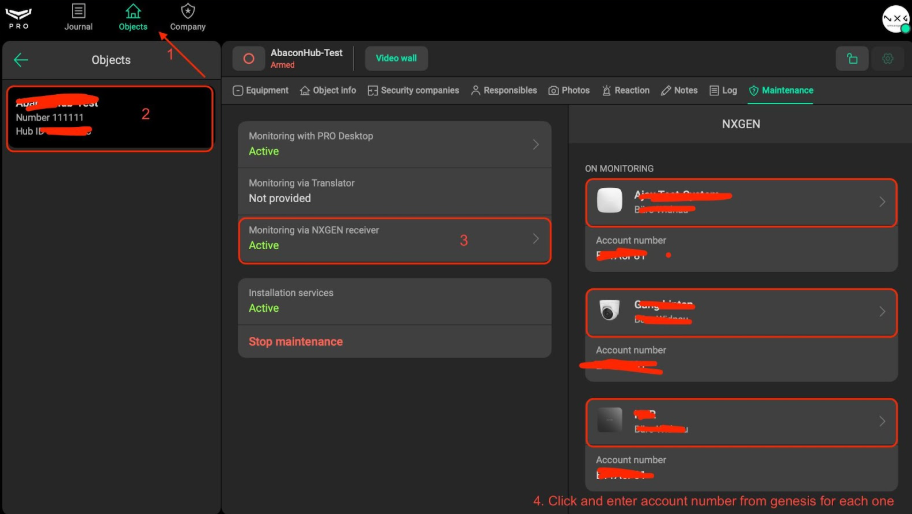
- Expected result: Account numbers mapped for monitored devices with receiver enabled
Step 6 — Verify Integration
- Checks
- Ensure the receiver status in AJAX PRO Desktop is active
- Trigger a test event on your AJAX device to verify that alerts populate in GC-X-ONE
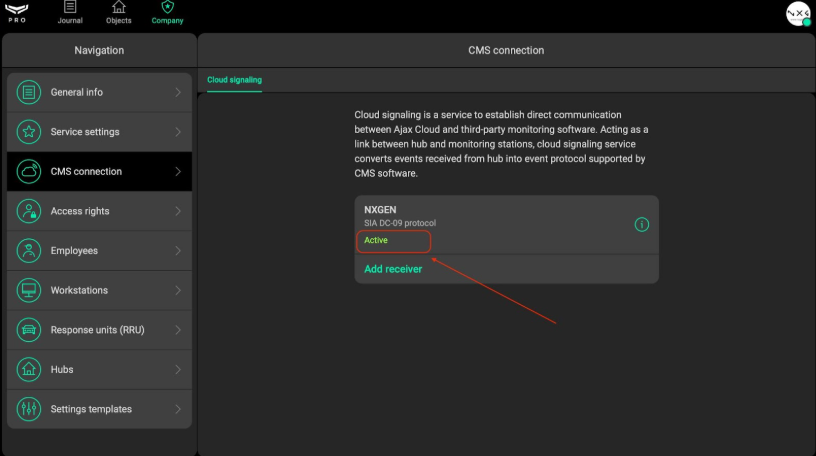
- Expected result: Live AJAX device events received within GC-X-ONE platform with integrated reporting and false alarm filtering
Troubleshooting
-
Invitation not accepted
- Verify ajax@nxgen.io email address is correct
- Check that invitation was sent successfully
- Contact NXGEN support if invitation remains pending
-
Device discovery fails
- Verify Hub ID or Device ID is entered correctly
- Check network connectivity between Ajax system and GC-X-ONE
- Ensure timezone selection is accurate
-
No events received in GC-X-ONE
- Verify receiver status is active in Ajax PRO Desktop
- Check account number mapping matches GC-X-ONE device overview
- Confirm encryption key is copied exactly if using encrypted communication
- Verify "Transfer device or group name to CMS events" is enabled
-
Receiver connection issues
- Double-check receiver IP/hostname and port from GC-X-ONE
- Verify encryption settings match between Ajax PRO Desktop and GC-X-ONE
- Test network connectivity to receiver endpoint
Notes
- Email invitation to ajax@nxgen.io is required for initial setup
- Account number mapping is essential for proper event routing
- Encryption key must be copied exactly if using encrypted communication
- "Transfer device or group name to CMS events" checkbox must be enabled
- Test events should be triggered to verify complete integration
Change log
- 2025-09-04 v1.0.0 Initial GC-X-ONE aligned doc (migrated from Genesis)