Dahua Installer Configuration
This guide provides step-by-step instructions for configuring Dahua IP cameras and NVRs to integrate with GCXONE. Follow these steps to ensure proper video streaming, event detection, and device connectivity.
Configuration
Step-by-Step
Step 1: Prepare Dahua (Users, Time, Streams)
Step 1: Prepare Dahua (Users, Time, Streams)
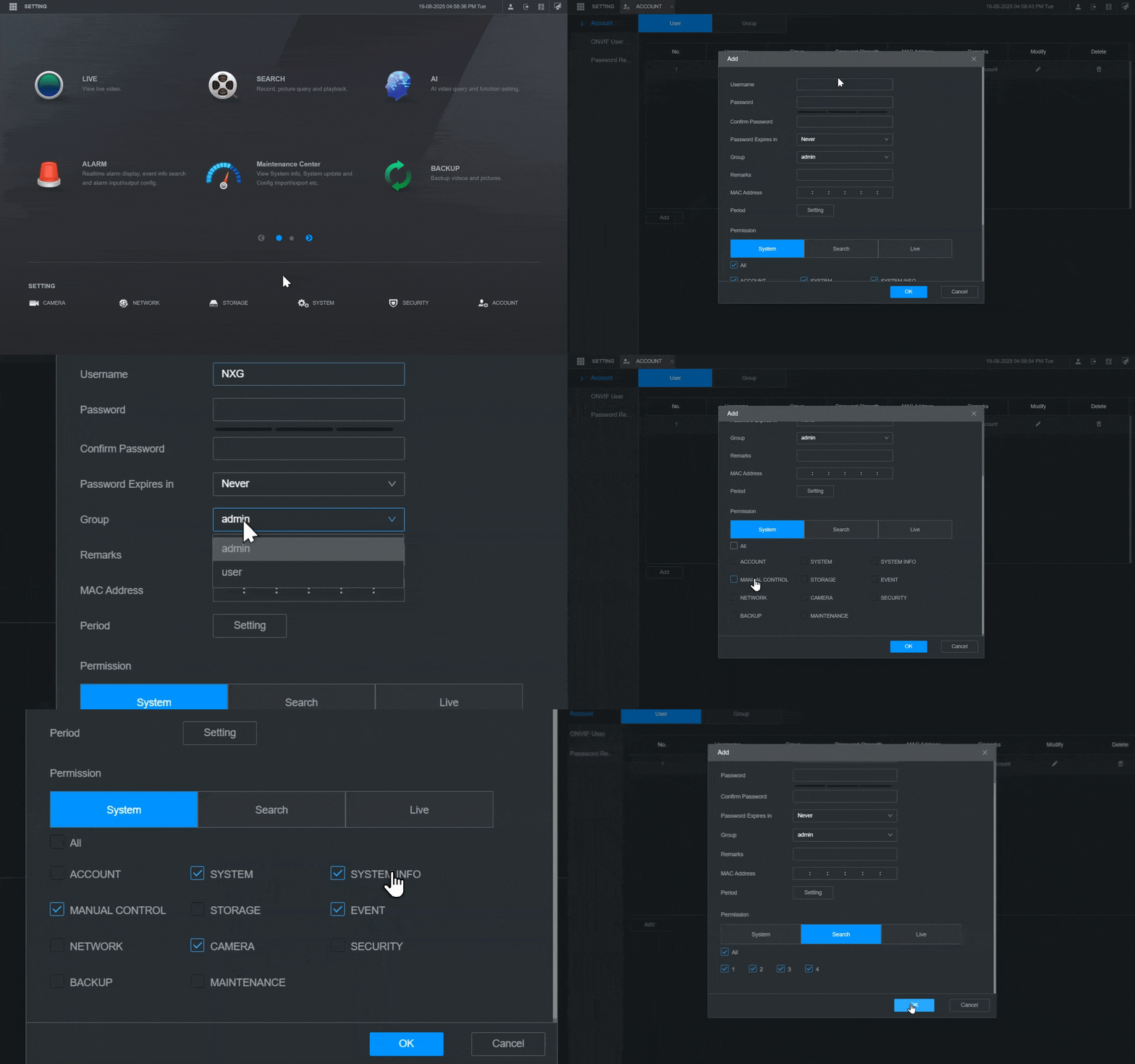
UI path: Home → Accounts
User Configuration
- Click Add. Create a user (e.g.,
NXG) with password - Grant permissions: Manual control, System, Camera, System info, Event
- For Search and Live, select the cameras you will use in GCXONE
Time/NTP Configuration
- Set time zone
- Enable NTP
- Save configuration
Best Practice: Use a dedicated least-privilege user for GCXONE. Do not reuse admin account.
Expected result: Dedicated least-privilege user exists; time is correct
Step 2: Configure Alerts (AI/IVS) and Enable Reporting
Step 2: Configure Alerts (AI/IVS) and Enable Reporting
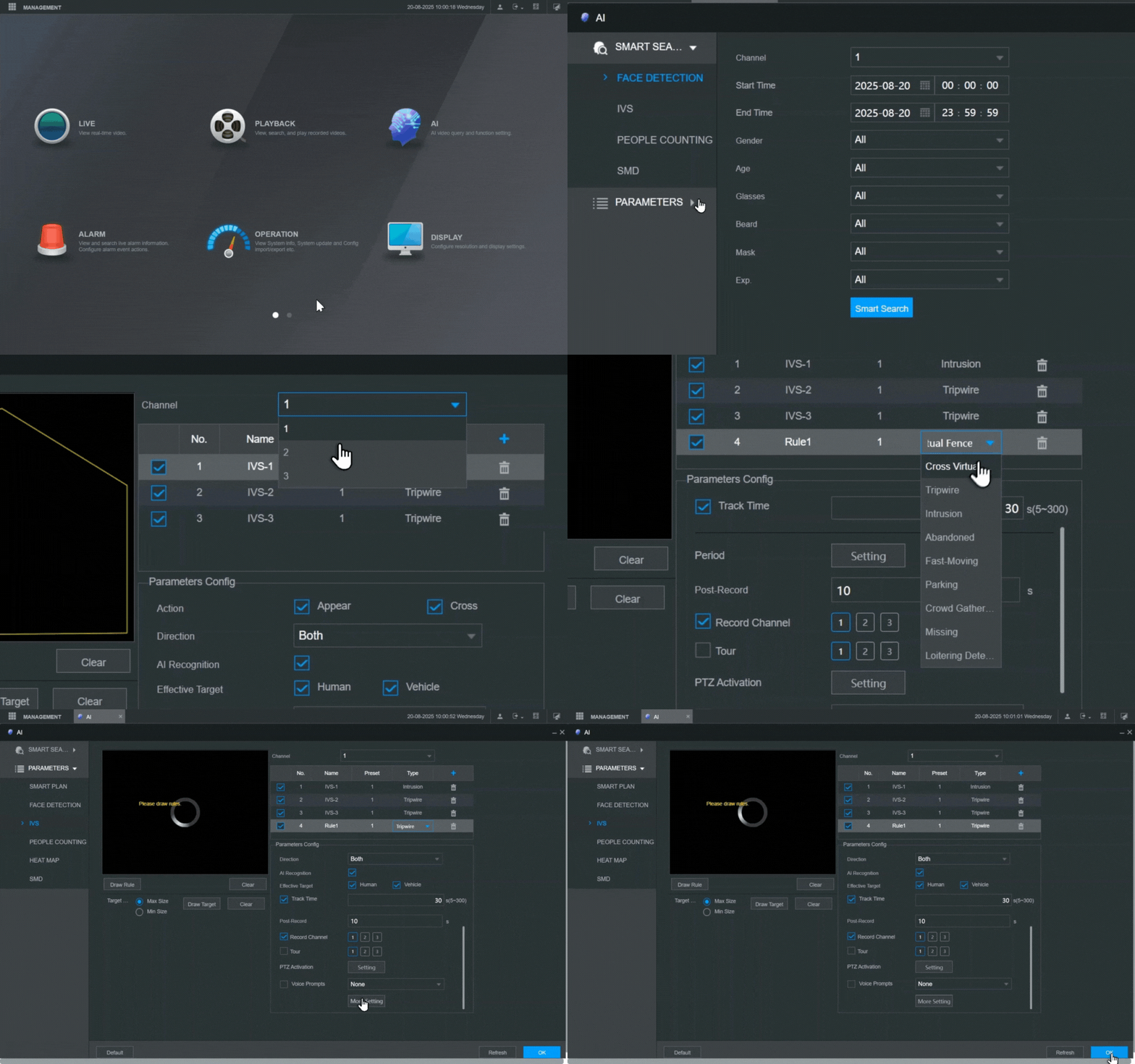
UI path: AI → Parameters → IVS (or Alarm → Video Detection for basic motion)
IVS Configuration (Recommended)
- Select camera. Click + to add a rule
- Choose Tripwire or Intrusion
- Draw rule/region
- Set Action: Appear or Cross
- Set Tracking duration: 30s
- Effective target: Human, Motor Vehicle
- Set Schedule
Make Events Available to GCXONE
- Open More → Log → Report Alarm
- Enable and save
Important: If you must use Motion, tune Sensitivity ~70 and Threshold 5; avoid noisy areas. However, IVS (Tripwire/Intrusion) is strongly recommended over Motion Detection.
Expected result: Dahua generates IVS alarms and reports them to GCXONE
Step 2b: Alarm Configuration (Optional)
Step 2b: Alarm Configuration (Optional)
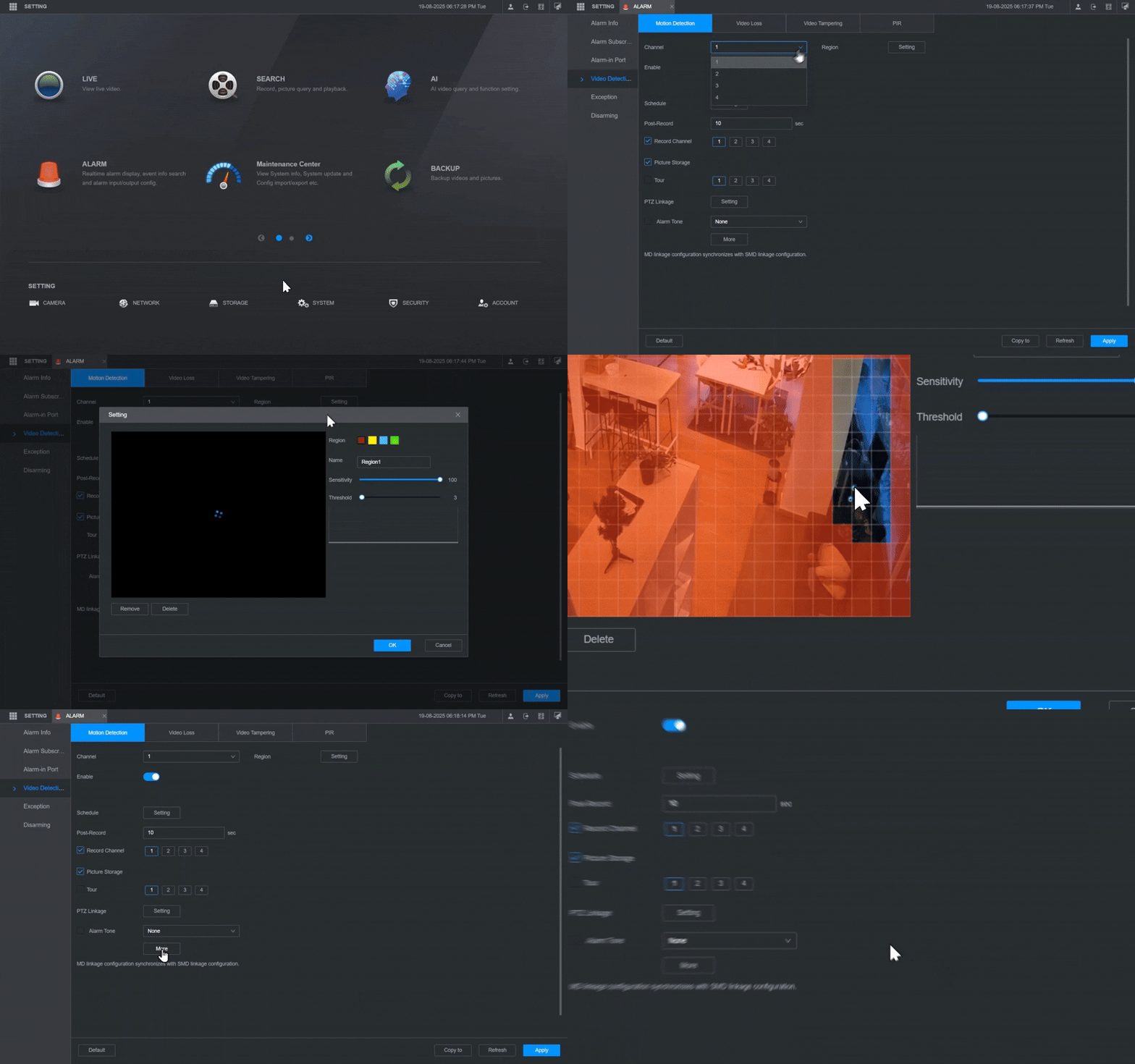
UI path: Alarm → Video Detection
Note: Avoid Motion Detection when possible; it can flood alerts on legacy Genesis. Prefer IVS.
Applies To
- Motion Detection
- Video Tampering
- Video Loss
- Similar alarm types
Configuration Steps
- Choose the camera
- Click Setting to the right of Channel
- Select the region(s) to monitor
- Click OK to save
Make Alarms Available to GCXONE
- Go to More → Log → Report Alarm
- Enable. Click OK
Step 3: Add Device in GCXONE
Step 3: Add Device in GCXONE
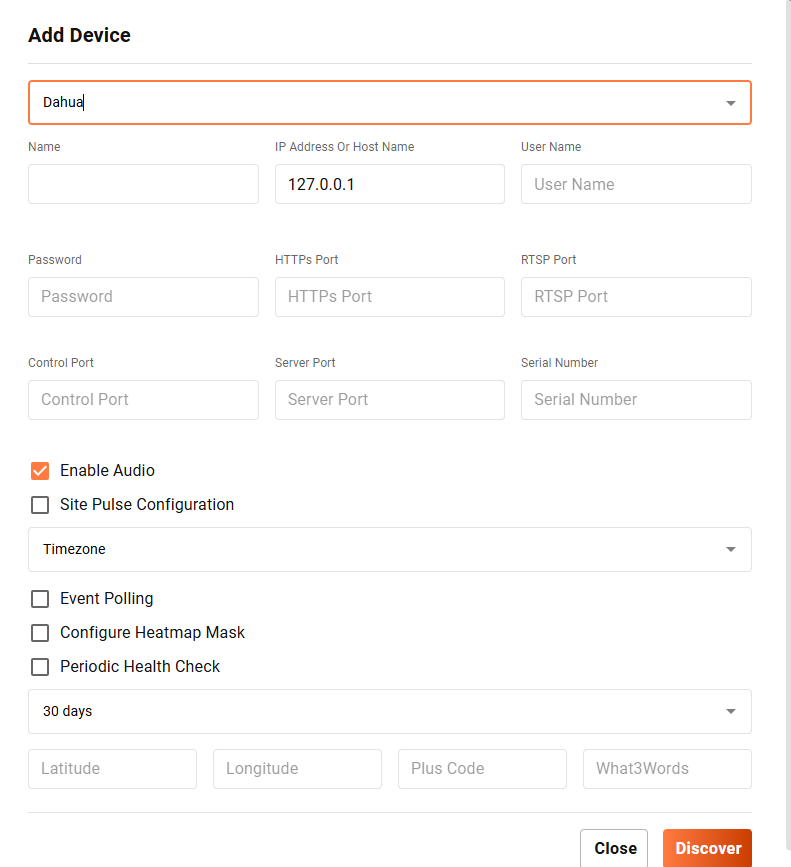
UI path: GCXONE → Customer → Site → Devices → Add Device
Configuration Steps
- Select Dahua
- Fill: Serial Number, Username, Password, Ports, Time Zone
- For NVR: pick Channel for each sensor you add
- Click Discover. Review discovered sensors and I/O
- Click Save


Note: For multi-channel NVRs, repeat Step 3 per channel you need in GCXONE.
Expected result: GCXONE lists sensors under the Dahua device
Step 4: Verify Integration
Step 4: Verify Integration
Verification Checks
- ✅ Live opens without stutter
- ✅ Recent IVS events appear in Video Activity with clips
- ✅ PTZ moves to presets if supported
- ✅ Time synchronization is working
Expected result: Complete Dahua integration with GCXONE platform
Related Articles
Need Help?
If you're experiencing issues during configuration, check our Troubleshooting Guide or contact support.