Dahua Dolynk Cloud Setup
Dahua Dolynk devices integrate with GCXONE through the Dolynk Care cloud service, enabling cloud-based device integration and Alarm Receiving Center (ARC) functionality.
Dolynk
Cloud Integration
Overview
What is Dahua Dolynk?
Dahua Dolynk is a cloud-based service that enables remote device management and Alarm Receiving Center (ARC) functionality. Devices configured through Dolynk Care can be integrated with GCXONE for centralized monitoring and alarm management.
Key Difference: Dolynk integration uses cloud service, while standard Dahua integration uses direct device connection. Choose Dolynk if you need cloud-based management and ARC functionality.
Prerequisites
Information Required from Installer
Forward this data to the NXGEN team before configuration
- ✅ Serial Number of the device
- ✅ Device Password
- ✅ User Name
- ✅ Ports
Important: Device must be online for discovery to work. Device must not be bound to another account.
Step 1: Log in to Dolynk Care Account
Step 1: Log in to Dolynk Care Account
Configuration Steps
- Log in to your Dolynk Care account through this URL: https://care.dolynkcloud.com/
Expected result: Successfully logged into Dolynk Care portal
Step 2: Add Site
Step 2: Add Site
UI path: Site → Add
Configuration Steps
- Go to Site and click on Add
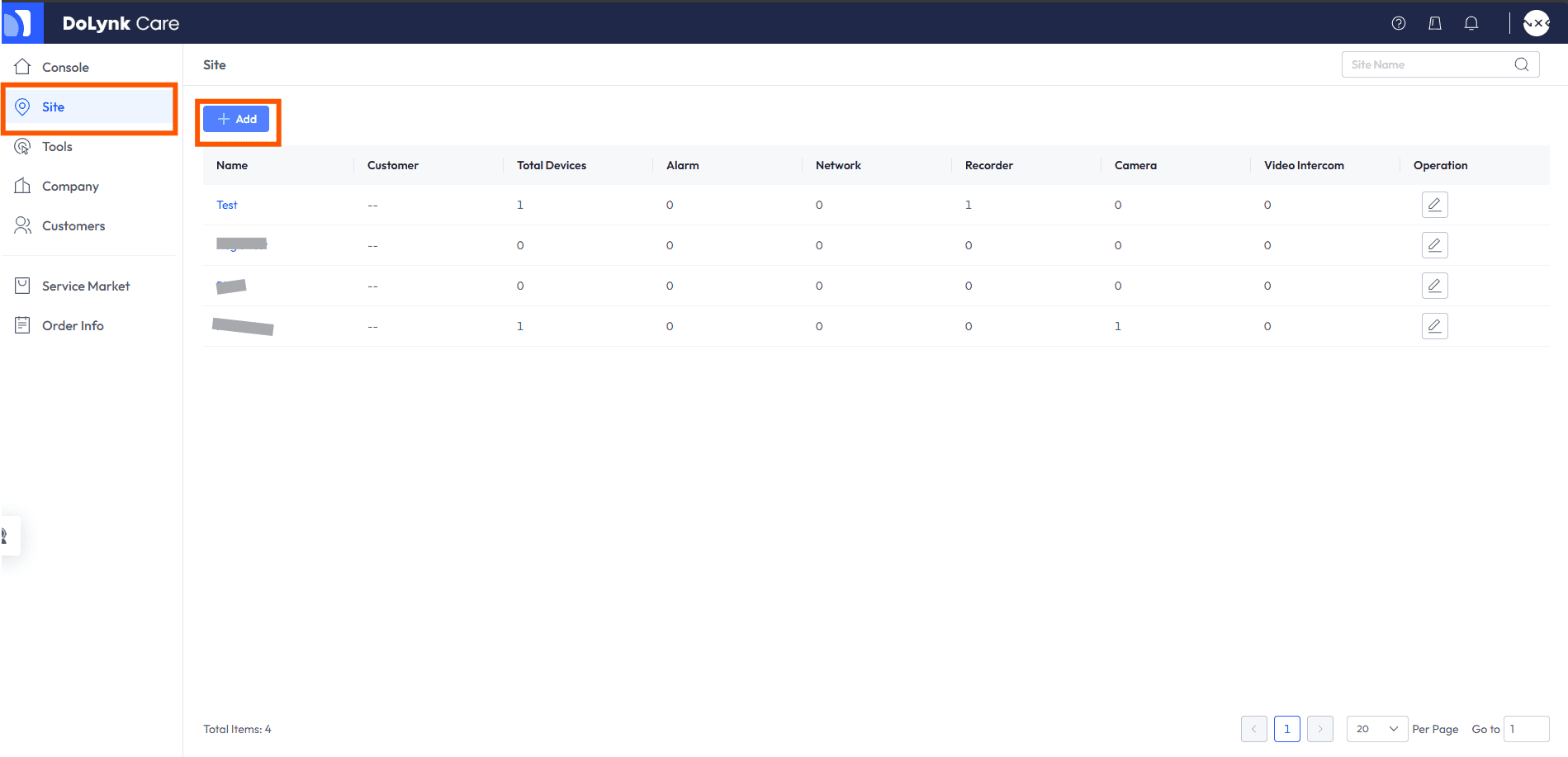
Expected result: Site creation page opened
Step 3: Fill Site Details
Step 3: Fill Site Details
Configuration Steps
- Fill in the details of the site such as Timezone and Name
Expected result: Site created in Dolynk Care
Step 4: Add Device to Site
Step 4: Add Device to Site
UI path: Site → Add Device → Serial Number (SN)
Configuration Steps
- Click on the Site that was created, then click on Add Device through Serial Number (SN)
- Fill in the details of the device
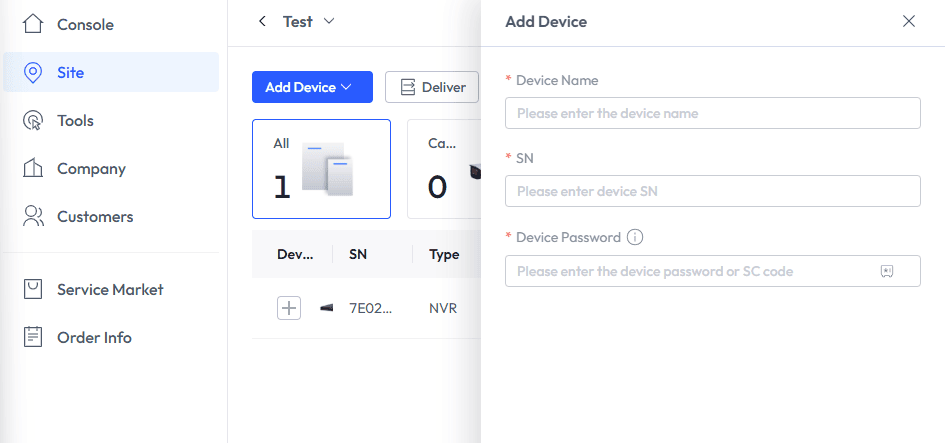
Important Note: Please ensure that the device is online before adding it to the site.
Expected result: Device added to the site
Step 5: Set up ARC and Share Device with NXGEN
Step 5: Set up ARC and Share Device with NXGEN
UI path: Security Service
Configuration Steps
- Now that the device is added to your Dolynk Care account, we need to set up GCXONE as your ARC (Alarm Receiving Center) for that device by selecting the Security Service option
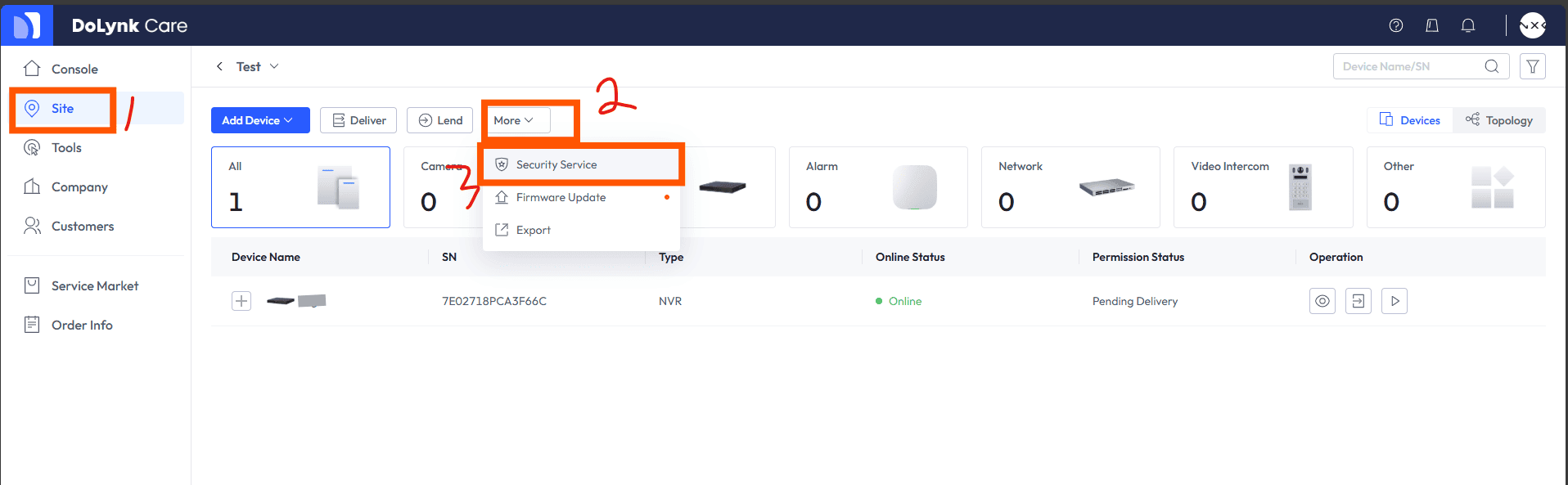
Select Devices and Company
- In the menu that shows, select the device/sensors you want to share with GCXONE then click on Next
- In the Company Name/email field please use our email to search:
dev@nxgen.info - Once that is done, you should see NXGEN Technology AG, click on the shield icon next to it
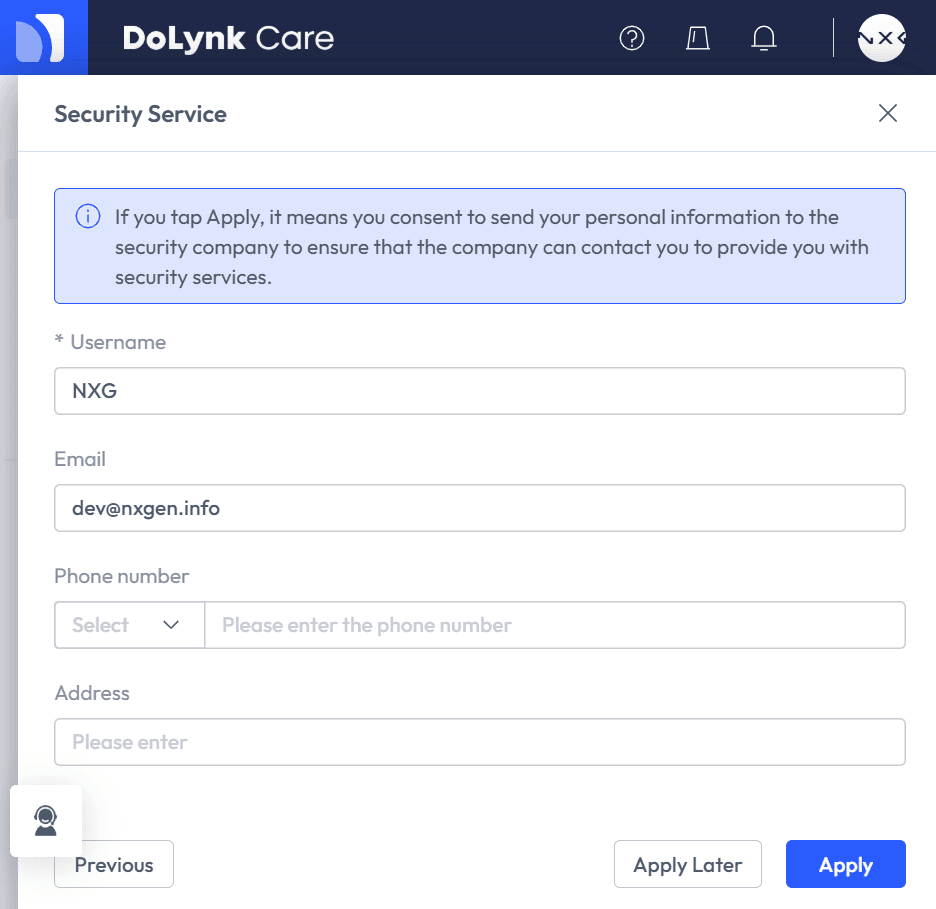
Note: Use dev@nxgen.info for company search in Dolynk Care to find NXGEN Technology AG.
Expected result: NXGEN Technology AG selected as ARC
Step 6: Apply and Save Configuration
Step 6: Apply and Save Configuration
Configuration Steps
- Click on Apply to save and notify your ARC
Expected result: ARC configuration saved and NXGEN notified
Step 7: Configure Device in GCXONE
Step 7: Configure Device in GCXONE
UI path: GCXONE → Site → Configuration App → Devices
Configuration Steps
- Go into the Site that you want to add the device to in GCXONE Configuration App
- Choose Dahua Cloud as your device
- Fill in the Serial Number, UserName, and Password of the device
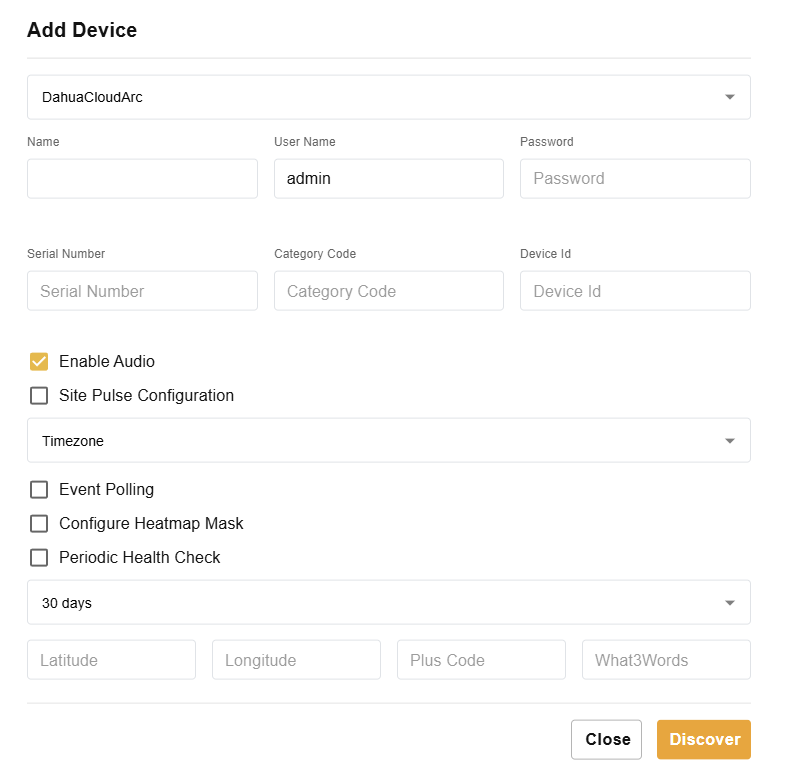
Discover Sensors
- Once the details are filled, click on Discover
- You should see the sensors discovered
Expected result: Sensors discovered successfully in GCXONE
Important Notes
⚠️ Critical Requirements
- Device must be online for successful configuration
- Device must not be bound to another account
- Use
dev@nxgen.infofor company search in Dolynk Care - Ensure device is properly shared with NXGEN before attempting discovery in GCXONE
Related Articles
Need Help?
If you're experiencing issues with Dolynk configuration, check our Troubleshooting Guide or contact support.