NXG Cloud Vision Edge Configuration
Overview
This simplified guide covers NXG Cloud Vision Edge setup with GCXONE using cloud-native zero-touch provisioning. As a pure cloud VMS, there is no on-premise server to install—simply create a cloud account, add cameras, and activate the integration.
What you'll accomplish:
- Create NXG Cloud Vision Edge cloud account
- Add IP cameras to cloud VMS
- Install optional edge devices for local processing
- Verify automatic cloud registration and discovery
- Activate integration profile with one click
- Test all pre-configured features
Estimated time: 10-15 minutes (cloud VMS, no hardware installation)
Prerequisites
Ensure you have completed the prerequisites listed in the Overview:
- NXG Cloud Vision Edge account (or ready to create subscription)
- IP cameras (ONVIF or manufacturer-specific protocol)
- Network connectivity with internet access for cameras
- GCXONE account with device configuration permissions
- Edge devices (optional, for local AI processing and storage)
Configuration Workflow
The configuration process consists of 2 simplified parts (cloud-native zero-touch):
- Cloud VMS Setup - Create account, add cameras, install edge devices (Steps 1-3)
- Automatic Cloud Integration - VMS auto-registers, activate profile, verify (Steps 4-6)
Part 1: Cloud VMS Setup
Step 1: Create NXG Cloud Vision Edge Account
UI Path: Web Browser → https://cloudvision.nxgen.com (example)
Objective: Create cloud VMS account and access management dashboard.
Configuration Steps:
- Open web browser and navigate to NXG Cloud Vision Edge portal
- Create Account (or log in with existing credentials):
- Enter email address
- Create password (strong password required)
- Select subscription plan (Basic, Professional, Enterprise)
- Accept terms and conditions
- Verify Email: Check email for verification link
- Complete Setup: Log in to cloud dashboard
- Configure Account Settings:
- Organization name
- Time zone
- Language preference
- Notification settings

Expected Result: Cloud VMS account created, dashboard accessible.
Step 2: Add IP Cameras to Cloud VMS
UI Path: Cloud Dashboard → Cameras → Add Camera
Objective: Add IP cameras to cloud VMS for monitoring and recording.
Configuration Steps:
- In cloud dashboard, navigate to Cameras → Add Camera
- Auto-Discovery Method (Recommended):
- Click Auto-Discover Cameras
- Cloud VMS scans network for ONVIF-compatible cameras
- Select cameras from discovered list
- Enter camera credentials (username/password)
- Click Add Selected Cameras
- Manual Method (Alternative):
- Click Add Manually
- Enter camera details:
- Camera Name: Descriptive name (e.g., "Front Entrance")
- IP Address: Camera IP address
- Port: RTSP port (default 554)
- Protocol: ONVIF, RTSP, or manufacturer-specific
- Username: Camera admin username
- Password: Camera admin password
- Click Test Connection
- Click Add Camera
- Repeat for all cameras at the site
- Verify Camera Status: All cameras show "Online" in dashboard
Expected Result: All cameras added to cloud VMS and showing "Online" status.
Step 3: Install Edge Devices (Optional)
UI Path: Physical Installation + Cloud Dashboard → Edge Devices
Objective: Install edge devices at site for local AI processing and storage (optional but recommended).
Installation Steps:
- Physical Installation:
- Unbox NXG Edge Device
- Connect edge device to network via Ethernet
- Connect power adapter
- Wait 2-3 minutes for device to boot
- Register Edge Device in Cloud:
- In cloud dashboard, navigate to Edge Devices → Add Edge Device
- Enter Device Serial Number (found on device label)
- Enter Activation Code (included with device)
- Click Activate
- Assign Cameras to Edge Device:
- Select edge device from list
- Click Assign Cameras
- Select cameras to process locally
- Configure Edge Features:
- ✓ Local AI analytics
- ✓ Local recording (backup)
- ✓ Bandwidth optimization
- Click Save
- Verify Edge Device Status: Shows "Online" and processing cameras
Expected Result: Edge device online, cameras assigned, local processing active.
Note: Edge devices are optional. Cameras can operate purely cloud-based without edge devices.
Part 2: Automatic Cloud Integration
Step 4: Verify Automatic Discovery in GCXONE
UI Path: GCXONE Web Portal → Devices → Discovered Devices
Objective: Verify NXG Cloud Vision Edge appears automatically in GCXONE.
Verification Steps:
- Log into GCXONE web portal with admin credentials
- Navigate to Devices → Discovered Devices or Dashboard
- Wait 30-60 seconds for cloud VMS to appear in discovered devices list
- Locate your NXG Cloud Vision Edge in the list:
- Device Name: NXG Cloud Vision Edge + account name (auto-detected)
- Status: "Pending Activation" or "Ready"
- Cameras: Number of cameras detected
- Click on the VMS entry to view details
Expected Result: NXG Cloud Vision Edge appears automatically in GCXONE with all cameras detected.
Troubleshooting: If VMS doesn't appear after 2 minutes:
- Verify GCXONE integration enabled in cloud VMS settings
- Verify cloud VMS account linked to GCXONE organization
- Refresh GCXONE page
- Check cloud VMS dashboard for connection status
Step 5: Activate Integration Profile (One-Click Setup)
UI Path: GCXONE → Devices → NXG Cloud Vision Edge → Activate
Objective: Activate integration profile to enable all features automatically.
Activation Steps:
- Click on your NXG Cloud Vision Edge in GCXONE device list
- Click Activate or Configure Integration
- Select Integration Profile:
- Basic Profile: Essential features (live streaming, playback, events) - Good for basic deployments
- Basic+ Profile: Enhanced features (event management, notifications, arm/disarm) - Recommended for most deployments
- Advanced Profile: Full features (edge AI analytics, advanced automation, timelapse) - Best for comprehensive security
- Click Activate Profile
- Wait 10-30 seconds for activation to complete
- All features are automatically configured based on selected profile:
- ✓ Cloud streaming enabled
- ✓ Local streaming enabled (via edge devices)
- ✓ Event forwarding enabled
- ✓ Notifications configured
- ✓ Genesis Audio (SIP) enabled
- ✓ PTZ control enabled (if PTZ cameras present)
- ✓ Cloud polling enabled
- ✓ Timeline enabled
- ✓ Edge AI analytics enabled (Advanced profile)
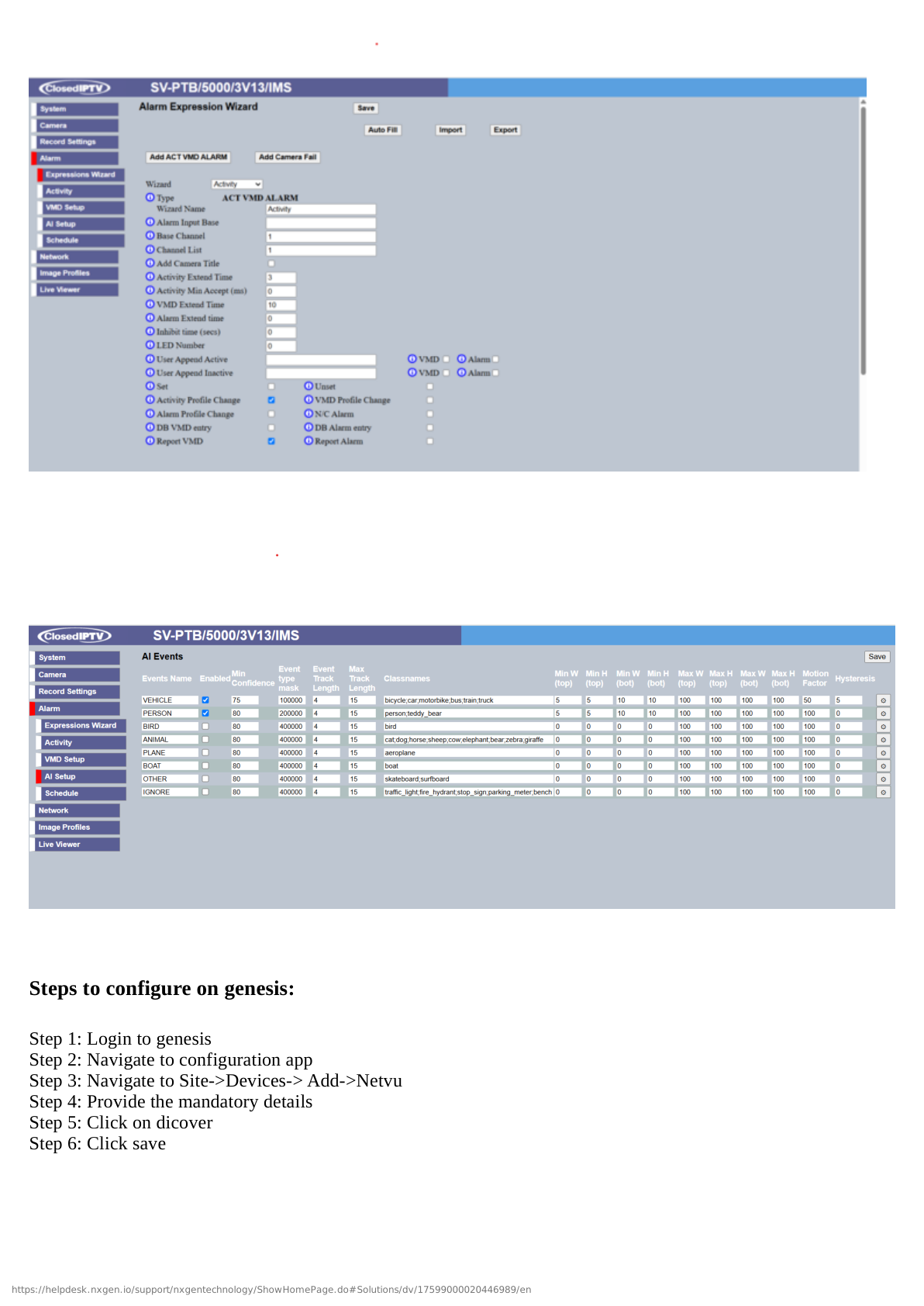
Expected Result: Integration profile activated, all features auto-configured, VMS status shows "Online".
Step 6: Verify Camera and Feature Configuration
UI Path: GCXONE → Devices → NXG Cloud Vision Edge → Cameras / Settings
Objective: Verify all cameras and features are auto-configured correctly.
Verification Steps:
- Navigate to Cameras tab in NXG Cloud Vision Edge device page
- Verify all cameras are listed:
- Camera name (auto-generated from cloud VMS)
- Status: "Online"
- Cloud streaming: ✓ Enabled
- Local streaming: ✓ Enabled (if edge device present)
- Timeline: ✓ Enabled
- Optional: Customize camera settings:
- Rename cameras to descriptive names
- Assign cameras to site/location hierarchy
- Adjust stream quality (Auto recommended)
- Configure privacy masks if needed
- Verify Event Configuration (auto-configured):
- Motion detection: ✓ Enabled
- Event notifications: ✓ Enabled (push, email)
- Event recording: ✓ Enabled
- Edge AI analytics: ✓ Enabled (Advanced profile)
- Verify Advanced Features (based on profile):
- Genesis Audio (SIP): ✓ Enabled
- PTZ control: ✓ Enabled (if PTZ cameras)
- Edge AI analytics: ✓ Enabled (Advanced profile)
- Timelapse: ○ Enable if required
- Click Save if any customizations made
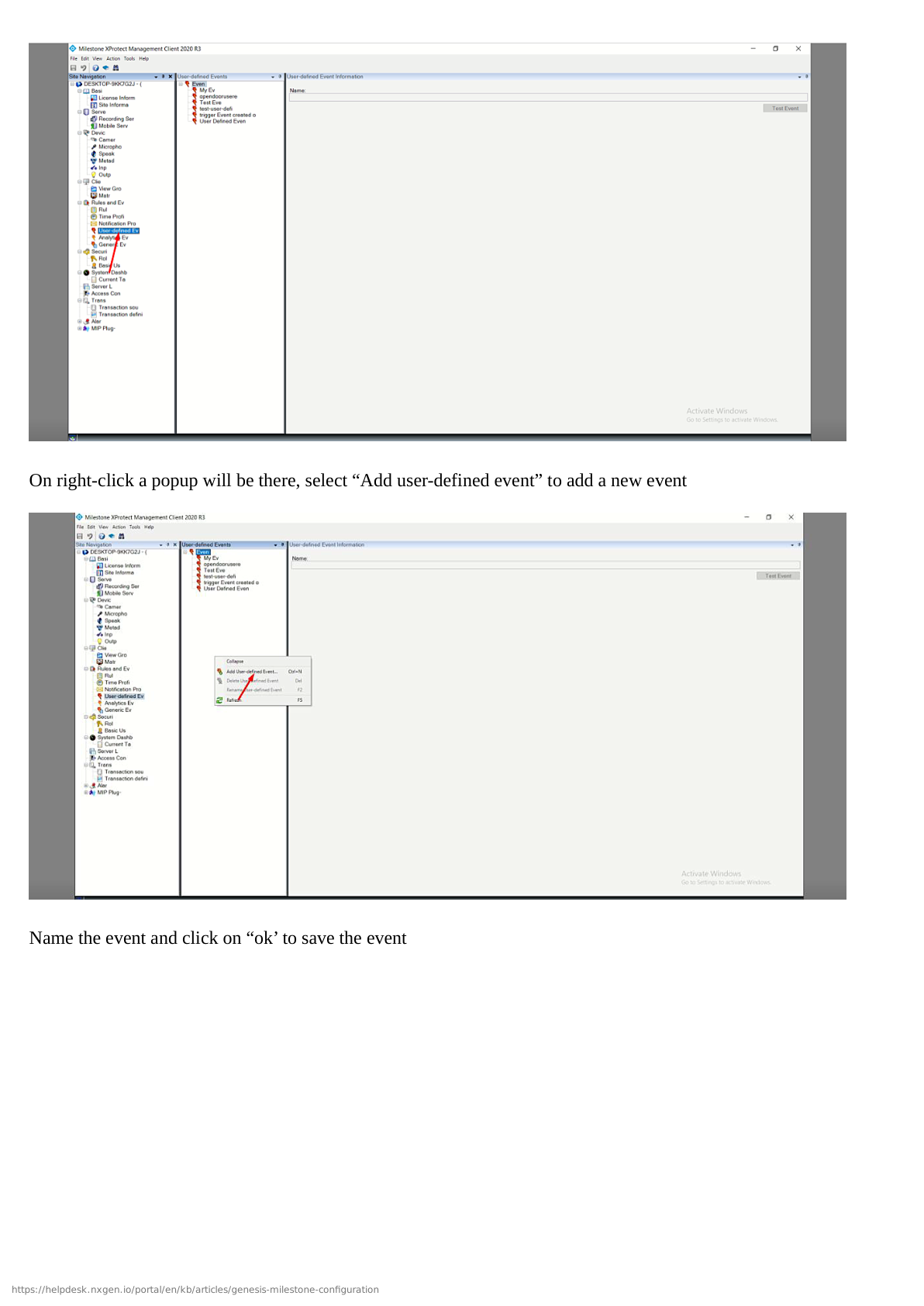
Expected Result: All cameras online, features auto-configured per selected profile.
Verification and Testing
Quick Verification Checklist
Immediate Tests (Less than 2 minutes):
- All cameras show "Online" status in GCXONE
- Live streaming works (click any camera to view)
- Cloud VMS status shows "Online" in GCXONE
- Timeline appears with event markers
Comprehensive Tests (5-10 minutes):
- Live Streaming: Cloud live streaming works for all cameras
- Playback: Cloud playback works with timeline navigation
- Events: Motion detection events appear in timeline
- Notifications: Push notifications received on mobile app (trigger motion)
- Audio: Genesis Audio (SIP) two-way communication works (if configured)
- PTZ: PTZ controls work for PTZ cameras (if present)
- Local Streaming: Edge-local streaming works when on same network (if edge device present)
- Edge AI: AI analytics events appear in timeline (Advanced profile)
- Mobile App: Access cloud VMS and cameras via GCXONE mobile app
Advanced Configuration (Optional)
Customizing Auto-Configured Settings
While NXG Cloud Vision Edge auto-configures all settings, you can optionally customize:
Camera Organization:
- Navigate to Cameras tab
- Click camera to rename
- Assign to site/location hierarchy
- Group cameras by zone/area
Event Notification Rules:
- Navigate to Event Configuration
- Customize notification schedule (24/7 or custom hours)
- Add additional notification recipients
- Configure event-specific actions
Edge AI Analytics (Advanced Profile):
- Navigate to cloud VMS dashboard (not GCXONE)
- Select Analytics settings
- Enable specific analytics per camera:
- Person detection
- Vehicle detection
- Line crossing
- Loitering detection
- Crowd detection
- Configure analytics zones for each camera
- Set analytics sensitivity
- Verify analytics events forward to GCXONE
Multi-Site Management:
- Create additional cloud VMS accounts for other sites
- Each site auto-registers with GCXONE
- Organize by site hierarchy in GCXONE
- Configure site-specific integration profiles
Troubleshooting
See the Troubleshooting Guide for common problems and solutions.
Quick troubleshooting:
- VMS not discovered: Verify GCXONE integration enabled in cloud VMS settings
- Cameras not detected: Verify cameras added and online in cloud VMS dashboard
- No video: Verify cameras are powered on and connected to network
- Activation fails: Refresh GCXONE page, verify GCXONE account permissions
- Events not appearing: Wait 5 minutes for initial event sync, trigger motion to test
- Edge device offline: Check network connectivity, verify device powered on
Why NXG Cloud Vision Edge is Different
Traditional VMS setup vs. NXG Cloud Vision Edge:
| Task | Traditional VMS | NXG Cloud Vision Edge |
|---|---|---|
| Server Installation | Install Windows/Linux server, VMS software | No server required (cloud-native) |
| Network Configuration | Manual IP, port forwarding, DDNS | Automatic (cloud-based) |
| Camera Setup | Manual IP entry, firewall rules | Auto-discovery or simple manual entry |
| GCXONE Integration | Manual device addition, credentials | Automatic discovery |
| Feature Configuration | Step-by-step manual configuration | One-click profile activation |
| Edge Processing | Not available (centralized only) | Optional edge devices for distributed AI |
| Scalability | Limited by server hardware | Unlimited (cloud infrastructure) |
| Firmware Updates | Manual download and installation | Automatic cloud updates |
| Total Setup Time | 60-120 minutes | 10-15 minutes |
Related Articles
- NXG Cloud Vision Edge Overview
- NXG Cloud Vision Edge Troubleshooting
- Firewall Configuration
- Required Ports
Need Help?
If you need assistance with NXG Cloud Vision Edge, contact support. Most issues resolve automatically within 5 minutes of setup.