Ganz Installer Configuration
This guide provides step-by-step instructions for configuring Ganz IP cameras to integrate with GCXONE. Follow these steps to ensure proper video streaming, event detection, and device connectivity.
Configuration
Step-by-Step
Prerequisites
Before You Begin
- ✅ Network connectivity to Ganz device
- ✅ Administrative access to device configuration
- ✅ Proper firewall configuration for HTTP/HTTPS and RTSP ports
- ✅ NTP server access for time synchronization
Step 1: Network Configuration
Step 1: Network Configuration
UI path: Ganz Device → Network Settings
Configuration Steps
- Assign a Static IP or use DHCP
Configure:
- IP Address
- Subnet Mask
- Default Gateway
- DNS Server
- Ensure port forwarding is set up if accessing the device over the internet
- Make sure firewall settings allow access on HTTP/HTTPS and RTSP ports (typically 80/443 and 554)
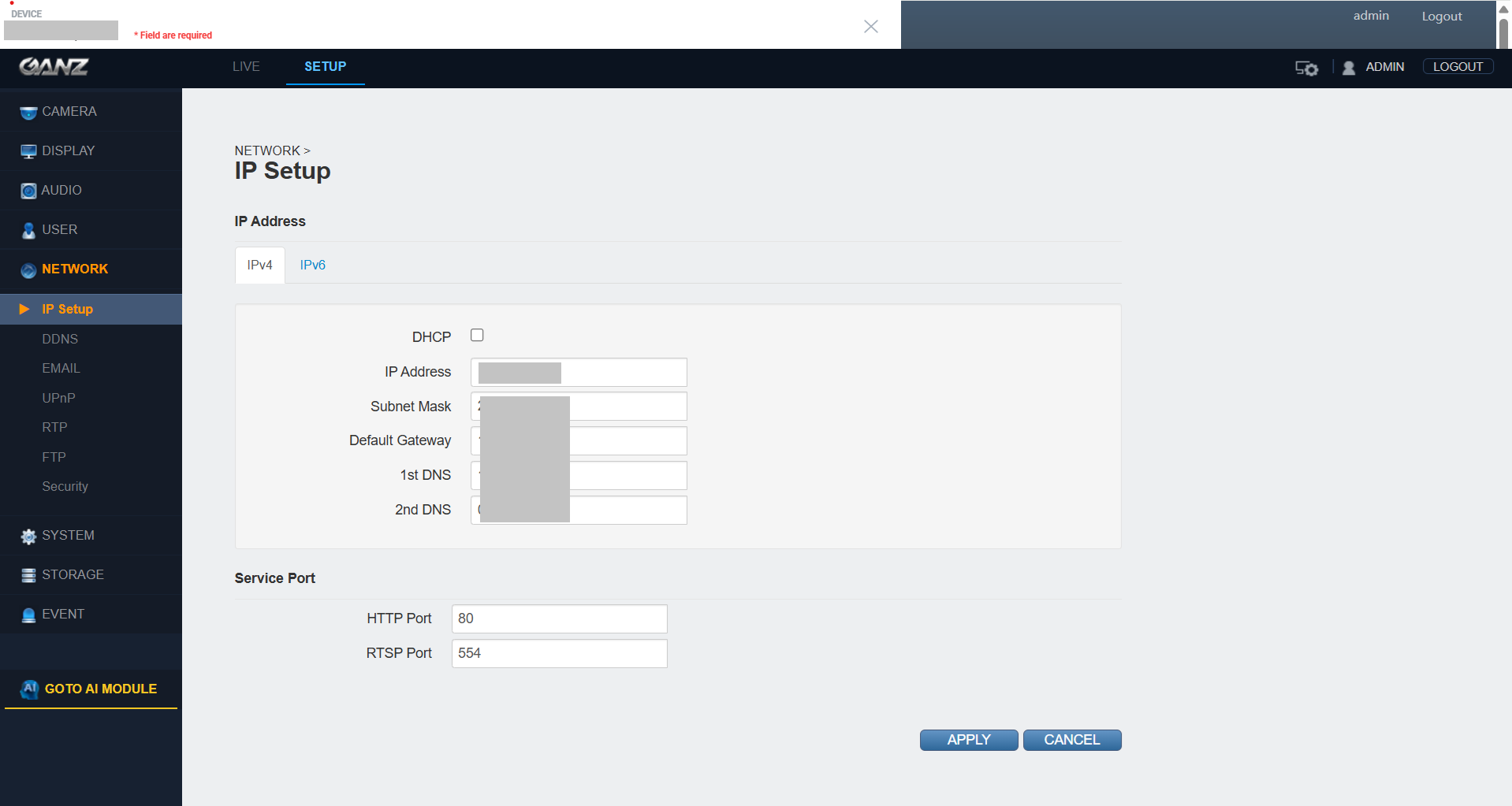
Expected result: Network connectivity established to Ganz device
Step 2: Time Settings Configuration
Step 2: Time Settings Configuration
UI path: Ganz Device → Time Settings
Configuration Steps
- Set the time zone correctly
- Enable NTP (Network Time Protocol) to sync time with a reliable time server (e.g., pool.ntp.org)
- Ensure both the camera and VMS server are time-synced
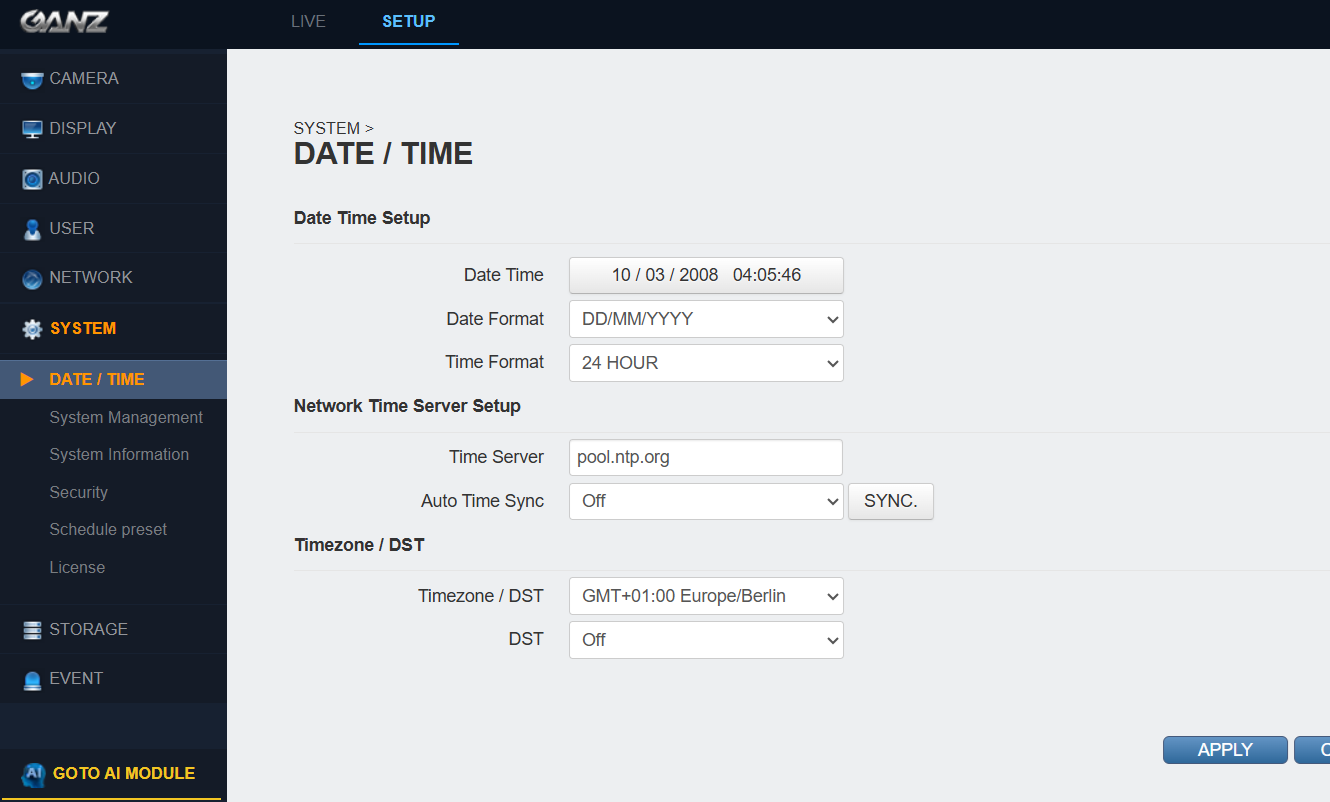
Important: Time synchronization is crucial for accurate event timestamps. Ensure NTP is properly configured.
Expected result: Time settings configured with NTP synchronization for accurate event timestamps
Step 3: Alarm/Event Configuration
Step 3: Alarm/Event Configuration
UI path: Ganz Device → Alarm/Event Settings
Configure Event Detection
- Configure motion detection zones in the camera settings
- Set up alarm input/output (if the device has I/O ports)
Enable event triggers such as:
- Motion detection
- Tampering
- Line crossing
- Intrusion detection
- Set notification methods (email, snapshot upload, or VMS alert)
- Test event triggers to verify correct operation
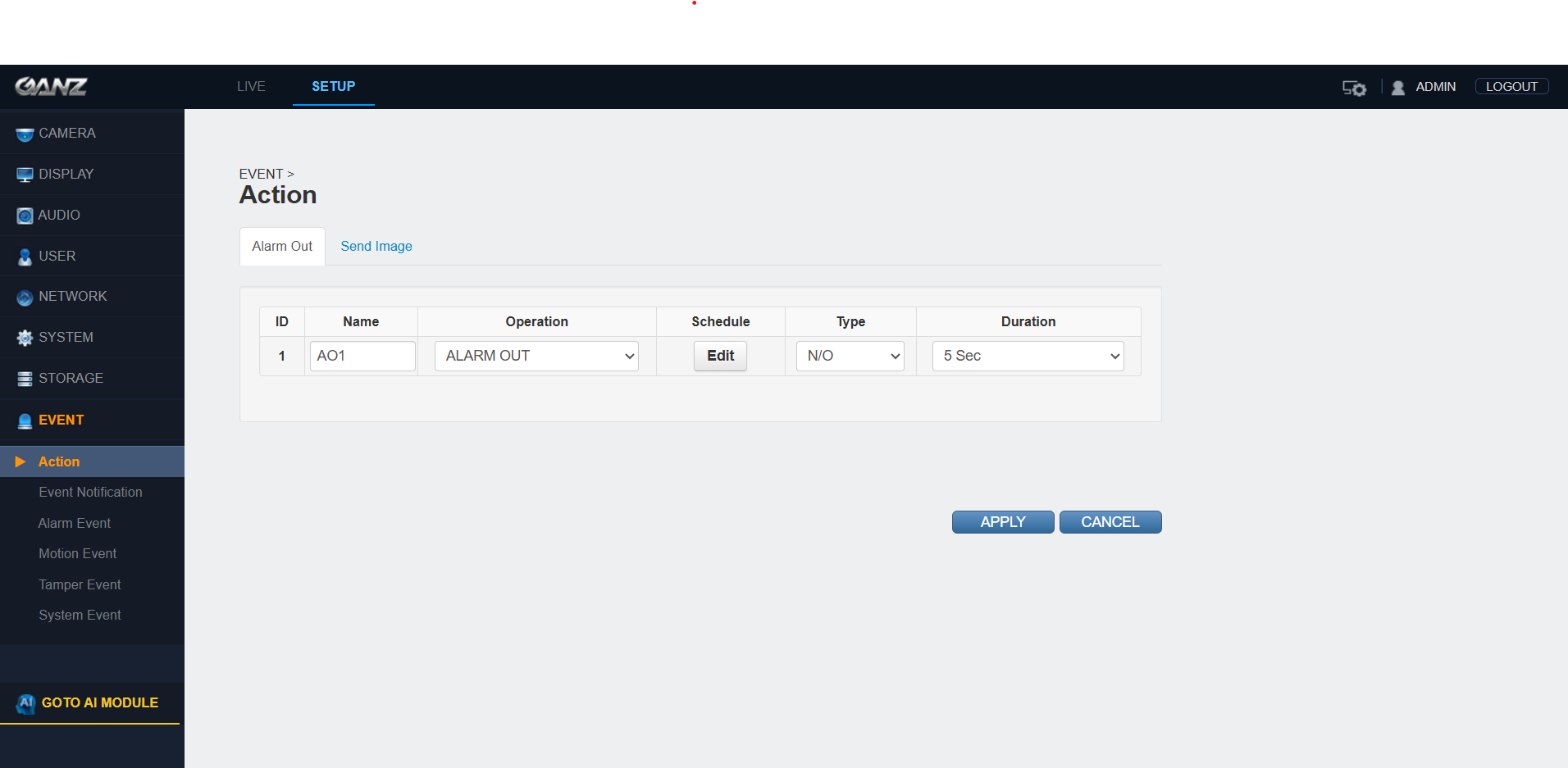
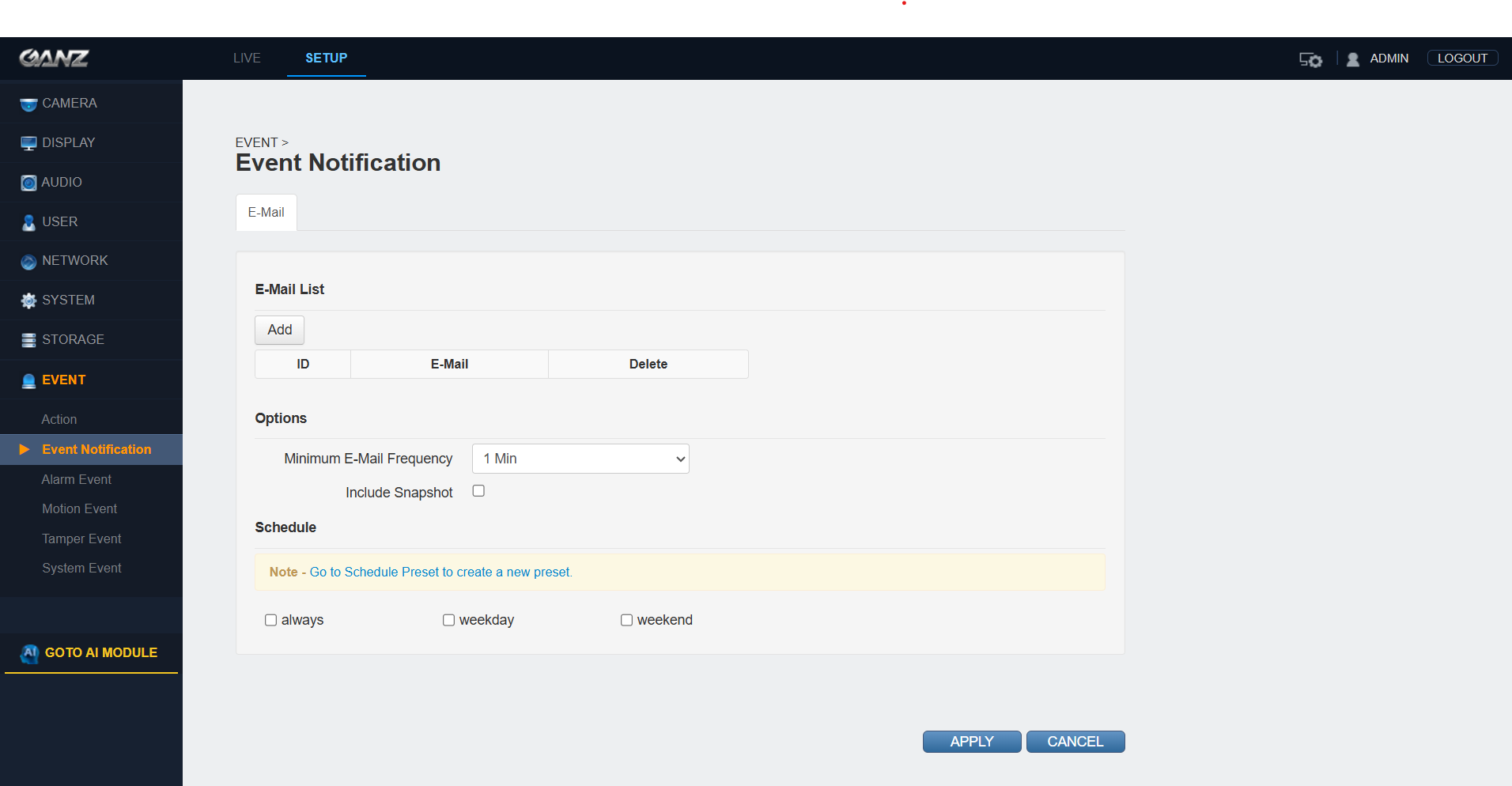
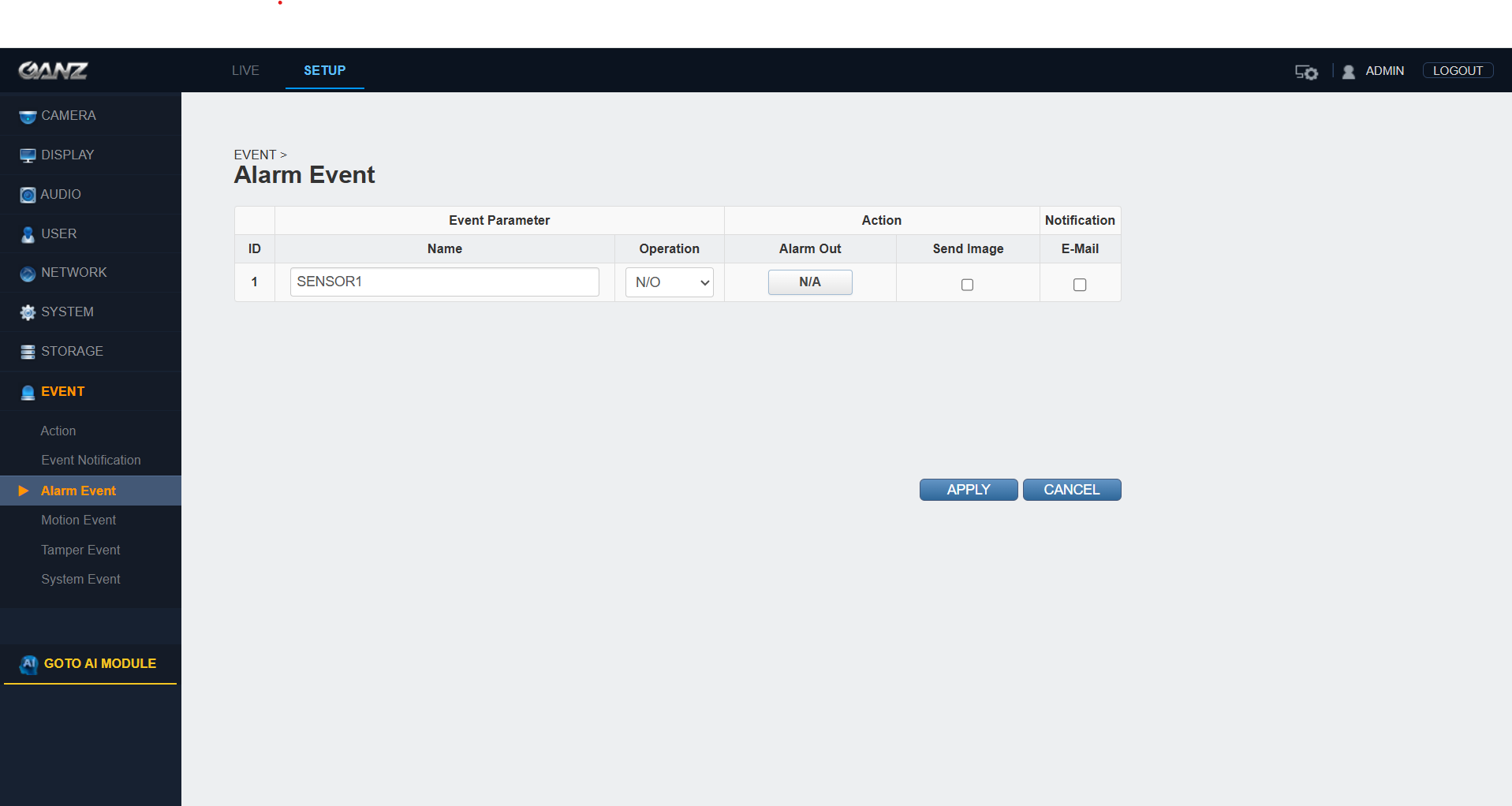

Expected result: Event triggers configured and tested for proper operation
Step 4: Live View Settings
Step 4: Live View Settings
UI path: Ganz Device → Live View/Stream Settings
Configure Stream Settings
- Select stream type (main stream/sub-stream)
- Set resolution, frame rate, and compression (H.264/H.265) for performance optimization
- Enable ONVIF if using with third-party platforms
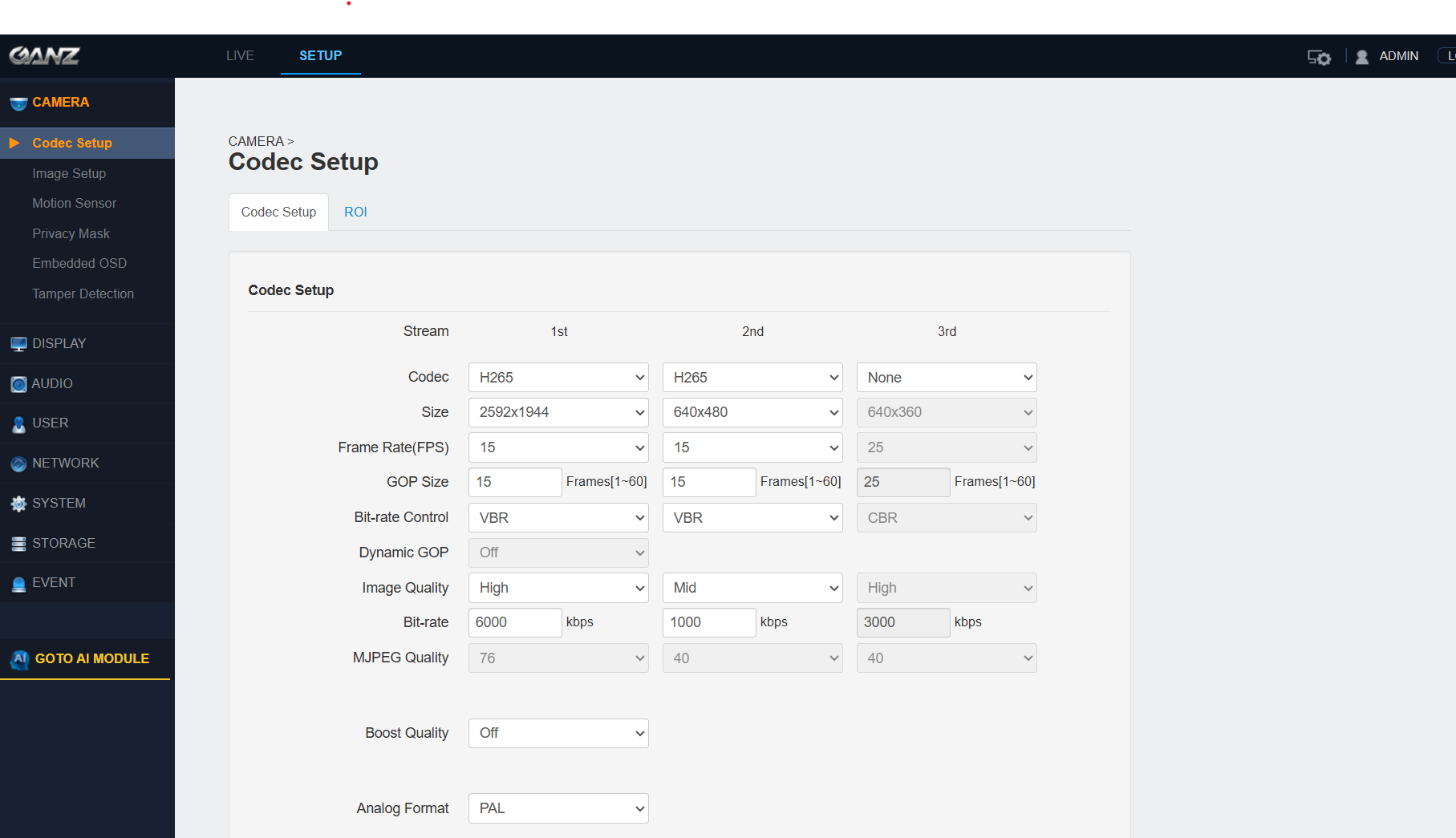
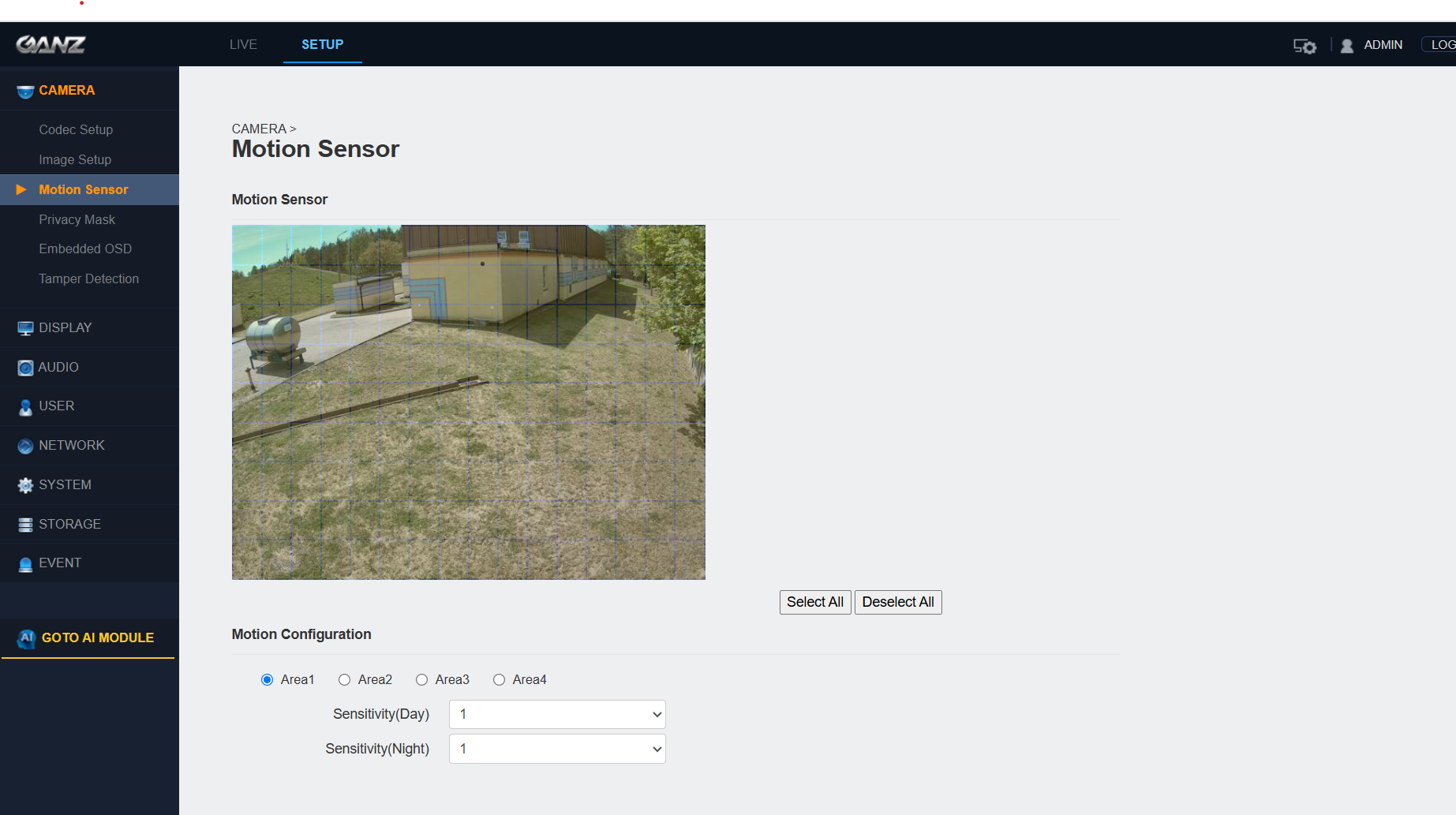
Expected result: Live stream configured and optimized for GCXONE integration
Step 5: Add Device in GCXONE
Step 5: Add Device in GCXONE
UI path: GCXONE → Configuration App → Site → Devices → Add → GanzAI
Configuration Steps
- Login to GCXONE
- Navigate to configuration app
- Navigate to Site → Devices → Add → GanzAI
Provide the mandatory details:
- Device Name
- IP Address
- Username and Password
- Port configuration
- Click on Discover
- Click Save
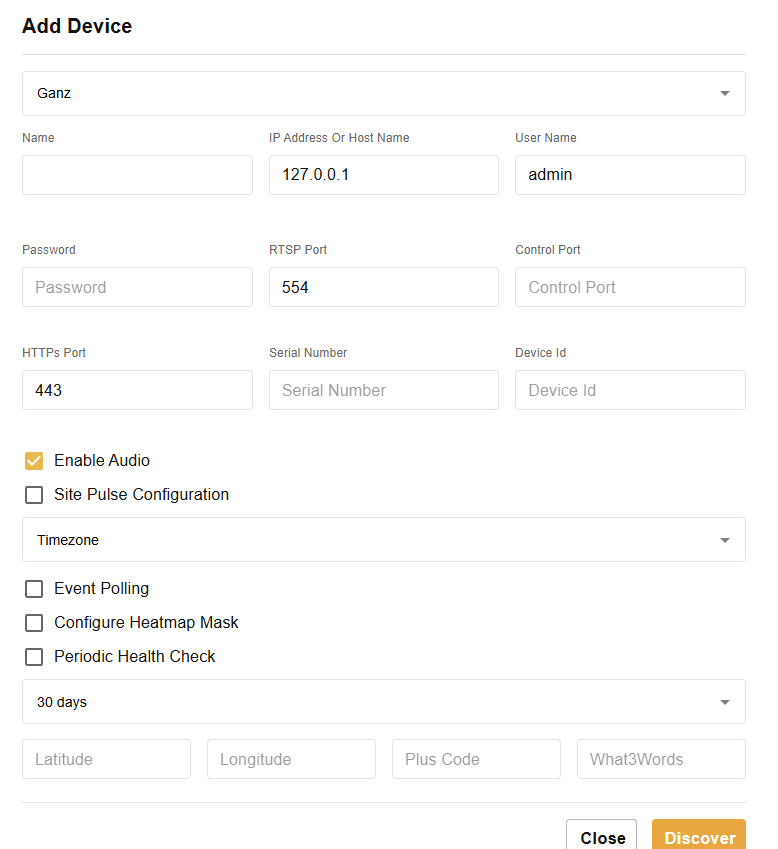
Expected result: Ganz device successfully added and discovered in GCXONE
Step 6: Verify Integration
Step 6: Verify Integration
Verification Checks
- ✅ Verify live stream appears in GCXONE
- ✅ Test event detection and alarm notifications
- ✅ Confirm time synchronization is working
- ✅ Check ONVIF compatibility
- ✅ Verify all configured event triggers are functioning
Expected result: Complete Ganz integration with GCXONE platform
Troubleshooting
Common Issues and Solutions
- Network Connectivity Issues
- Time Synchronization Problems
- Event Detection Issues
- Stream Quality Problems
- ONVIF Compatibility Issues
- Verify IP address, subnet mask, and gateway configuration
- Check firewall settings for required ports (80/443, 554)
- Ensure port forwarding is configured correctly for remote access
- Verify NTP server is reachable
- Check time zone settings match GCXONE
- Ensure both camera and VMS server are time-synced
- Test motion detection zones and sensitivity settings
- Verify alarm input/output configuration
- Check notification methods are properly configured
- Ensure event triggers are enabled and tested
- Adjust resolution, frame rate, and compression settings
- Check network bandwidth availability
- Verify stream type configuration (main/sub-stream)
- Ensure ONVIF is enabled on the device
- Verify ONVIF profile compatibility with GCXONE
- Check device discovery settings
Related Articles
Need Help?
If you're experiencing issues during configuration, check our Troubleshooting Guide or contact support.